[Solved!] How to Fix Windows 10 Activation Key Not Working
The activation key, also known as the product key, is a 25-character code used to activate Windows on a specific computer, verifying the authenticity of the Windows copy and enabling full use of the operating system.
If you're experiencing issues with your Windows 10 activation key not working, don't worry - there are solutions available. Despite Windows 11's arrival, many users are still comfortable with their current Windows 10, and this article aims to help those facing activation key problems. Six ways to fix the issue will be shared, but first, it's essential to understand why and what is causing the problem.
Why Is My Windows 10 Activation Key Not Working
There could be various reasons why your Windows 10 activation key is not working, including issues with the key itself, problems with your Microsoft account, or conflicts with other software or hardware on your computer.
- Wrong product key insertion
- Use of product key on any other system
- Internet connection issue
- Hardware changes
Upgrading to Windows 11 from Windows 10 does not remove activation, and you won't face issues with your product key. However, there are some common reasons why your Windows 10 product key may not be working, despite this.
What Will Happen If Windows 10 Does Not Activate
Using Windows without activation still allows you to receive regular updates, but it comes with some limitations. While you'll continue to get updates to improve your user experience and security, you'll face feature restrictions, such as being unable to change your wallpaper, colors, and themes, or make any personalizations.
The annoying watermark "Activate Windows - Go to Setting to Activate Windows" appears on the screen, and a notification will keep popping up, making it frustrating for users to work on their computers.
6 Ways to Fix Windows 10 Activation Key Not Working
- Way 1. Use Windows Activation Troubleshooter
- Way 2. Run an SFC Scan
- Way 3. Run SLUI 4 Command
- Way 4. Reset the License Status
- Way 5. Make Sure to Use the Right Product Key
- Way 6. Check the Internet Connection
While there are numerous ways to address this issue, many are ineffective. The six most practical solutions are often the most reliable options.
Once for all Windows 10 activation with the best price here👇👇
Way 1. Use Windows Activation Troubleshooter
To fix the Windows 10 activation key not working issue, you can try troubleshooting through the Settings app. To do this, go to Settings, then Update & Security, and click on Activation. If Windows is unable to activate online, you can try activating by phone or by entering a new product key.
Step 1. To open the Settings app and access the "Update & Security" option, press the Windows key + I on your keyboard to open the Settings app, and then click on the "Update & Security" option.
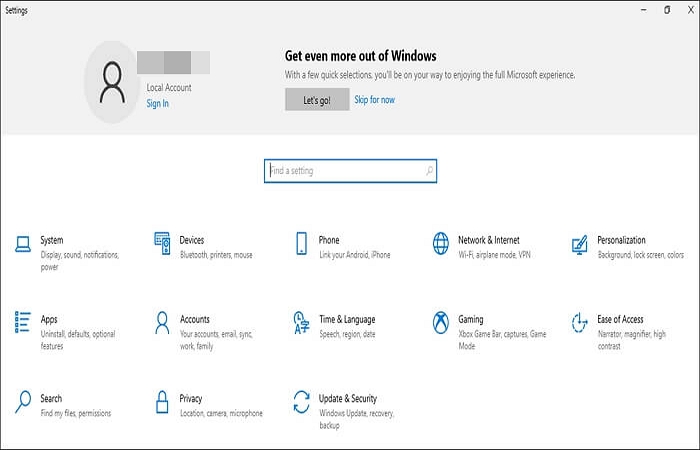
Step 2. Now, find and click on the Troubleshoot option here.

Step 3. Wait until it performs the troubleshooting, and select the appropriate response when you're asked to proceed further.
Way 2. Run an SFC Scan
Windows 10 activation issues could happen due to corrupted system files, and running a System File Checker (SFC) can resolve this problem. To perform an SFC scan, open Command Prompt as an administrator, type "sfc /scannow" and press Enter, then follow the on-screen instructions to complete the scan. This process will check and replace any corrupted system files, potentially resolving the activation issue.
Step 1. To launch Command Prompt, press Windows + R to open the Run command, type cmd in the text field, and then press Ctrl + Shift + Enter.

Step 2. Allow this app to make changes by clicking on Yes.
Step 3. To run the SFC scan, open the Command Prompt as an administrator, type "sfc /scannow" and press Enter. This will scan all protected system files and replace any corrupted ones with a cached copy.
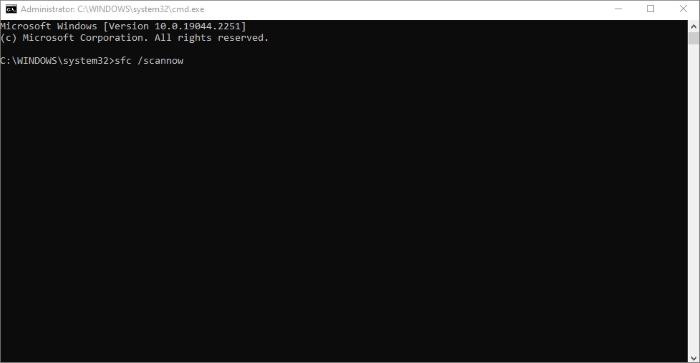
Step 4. The Windows 10 activation key issues will be resolved if happening due to corrupted system files.
Once for all Windows 10 activation with the best price here👇👇
Way 3. Run SLUI 4 Command
The SLUI 4 is a Windows activation client that connects you to the Microsoft Activation Center, where you can get help to resolve any issues with activating your Windows. This client provides a convenient way to access the Microsoft Activation Center and receive assistance with the activation process.
Step 1. To access the Windows Update troubleshooter, press the Windows key + R to open the Run dialog box, type SLUI 4, and press Enter. This will launch the troubleshooter, allowing you to troubleshoot and potentially resolve any issues with Windows Update.
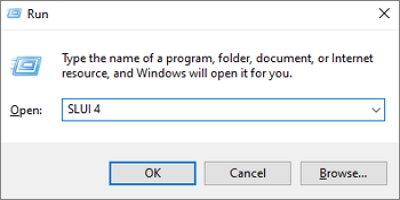
Step 2. To access the Google account creation page, first navigate to the Google website. Then, click on the "Create account" button. A new window will appear with the option "Select your country or region.

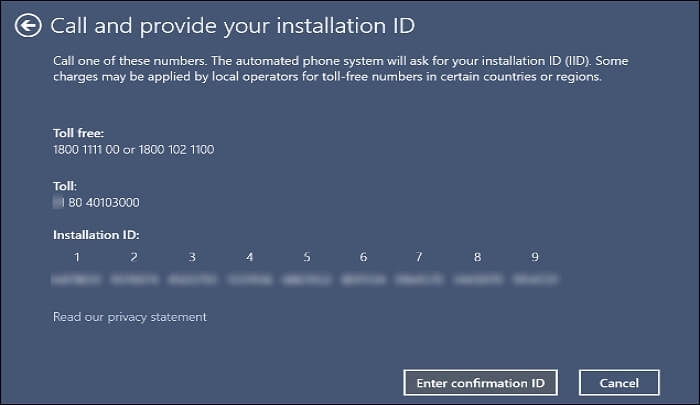
Step 3. Dial any of the provided numbers from the Microsoft Activation Center and follow the instructions to activate your Windows 10.
Way 4. Reset the License Status
If your activation doesn't work due to a system glitch, try resetting the license status, which may resolve the issue. To do this, follow these steps below.
Step 1. To launch the Terminal app as an administrator, press the Windows key + S to open the Search menu, type in "Terminal", and then right-click on the Terminal app to select the option to run it as an administrator.
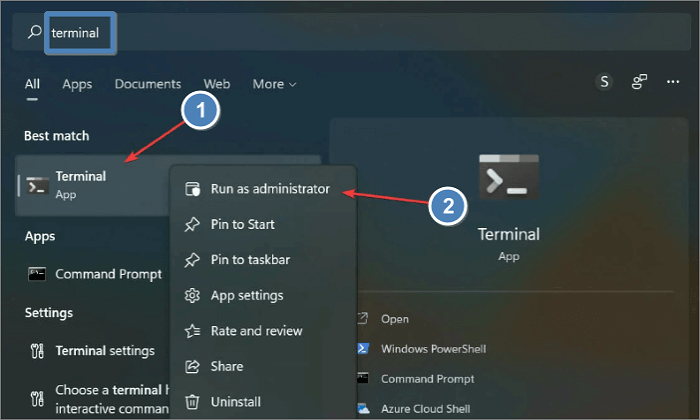
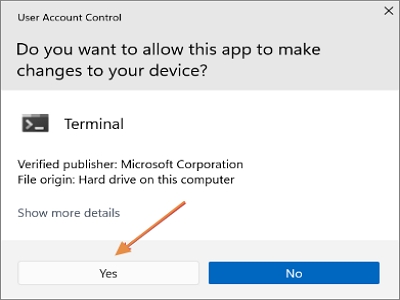
Step 2. Click Yes to allow the app to make changes.
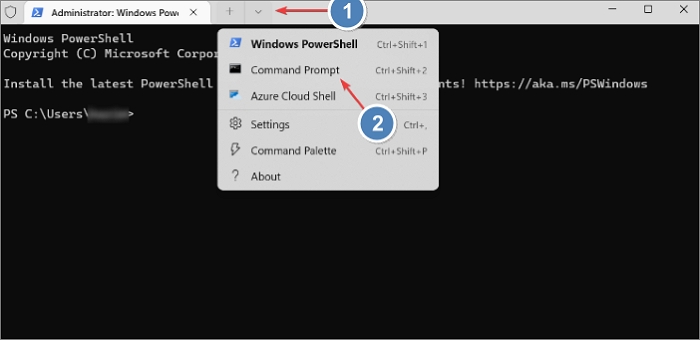
Step 3. To open a new window, click on the downward-facing arrow and select Command Prompt to open it in a new tab.
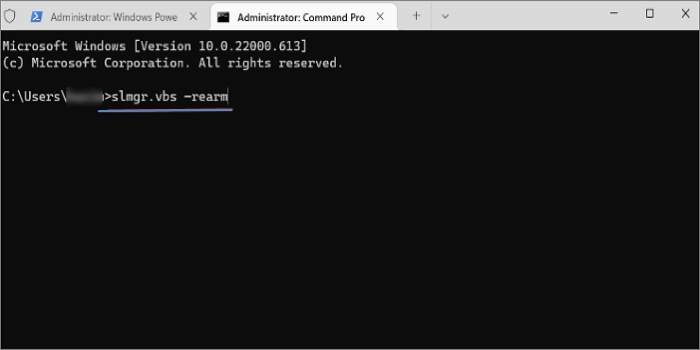
Step 4. Now, write "slmgr.vbs -rearm" in the terminal to reset the Windows activation license.
Way 5. Make Sure to Use the Right Product Key
Entering an incorrect Windows 10 product key or not needing to enter one when upgrading to Windows 11 are common reasons for Windows 10 activation key not working. Ensure the correct key is entered during installation or reinstallation, and note that no key is required for Windows 11 upgrades.
Way 6. Check the Internet Connection
The Windows 10 activation process is now online, requiring an internet connection to activate your copy of Windows. If you're experiencing issues, it's likely due to a poor internet connection or a DNS-related problem, so ensure you're properly connected to the internet.
Bonus Tip: Using Professional Backup Software for Windows 10 PC
To ensure data and system safety, professional backup software can be used to back up Windows OS and data to another device, allowing for easy restoration in case of system failure. Qiling Disk Master can aid in this process.
Qiling Disk Master Pro is a reliable and secure data backup software for Windows that allows you to clone, upgrade or transfer your system, create an ISO image from your hard drive, and make different types of backups, such as full, incremental, and differential backups, saving them in various locations.
The following are the detailed steps to back up your Windows 10 computer.
Step 1. Launch Qiling Disk Master on your computer, and click the Backup and recovery tab page.

Step 2. To back up your Windows operating system, click "System backup" to start the backup process.

Step 3. In Windows, you'll automatically select your operating system info and system files/partitions without needing manual selection. Next, choose a location to save the system image backup by clicking the designated area.

Step 4. The recommended backup location is an external physical drive or cloud, preserving system backup files, and can also be another local drive, network, or NAS.

Step 5. The Windows system backup process allows for customization settings, including enabling an automatic backup schedule in daily, weekly, monthly, or upon an event, and making a differential and incremental backup. This can be accessed through the Options button. Once selected, clicking Proceed initiates the backup process, and the completed task is displayed on the left side in a card style.

The Bottom Line
Windows activation comes with several benefits, including the ability to perform customization and personalization to a maximum extent, and the absence of a watermark. However, sometimes the Windows 10 activation key may not work, resulting in an error. To fix this issue, you can try using the Windows 10 installation media to reactivate your operating system, or use the Windows Activation Troubleshooter to resolve the problem. Additionally, you can also try resetting Windows Update components or using the System File Checker (SFC) to scan and replace corrupted system files. If none of these methods work, you can contact Microsoft support for further assistance.
Activated Windows 10 copies receive instant updates and security features earlier, and using Qiling Disk Master can help protect your data.
FAQs
1. How do I force Windows to activate?
If Windows activation is not working, you can try any of the six available methods to force it to activate. It's possible that one solution might not work, but you can try the other ones to get the job done.
2. Is the Windows 10 activation key stored in the BIOS?
The product key for Windows activation is stored in the UEFI firmware or BIOS.
3. Can I use Windows 10 forever without activation?
You can use Windows 10 without activation, but you'll have a limited experience in terms of customization and personalization.
4. Can I transfer my activated Windows 10 to another computer?
To transfer an activated Windows 10 to another computer, you'll need to remove it from your current computer first, then reactivate it on the new computer using the same Microsoft account and product key. This process allows you to reuse your Windows license on a different device, as long as it's a legitimate transfer and not a pirated copy.
Related Articles
- Fix System Restore Failed and Did Not Complete Successfully Error in Windows 10
- How to Solve Hard Disk Error 303 and 305
- 5 methods-Windows Did Not Detect a Properly Installed Network Adapter
Windows may struggle to detect properly installed network adapters due to two primary reasons: missing driver updates and improperly installed adapters. - [Solved] How to Fix Windows Update Error Code 0x8024402c
Are you receiving error 0x8024402c when updating in Windows 11? Then follow this easy guide to fix Windows update error 0x8024402c on Windows 11. It can be because of pending updates, corrupt system files, or even incorrect times on your PC. - Windows 10 Black Screen After Update [9 Methods]🔥
Windows 10 black screen after update error is one of the most common errors users face after updating their system. If you are also one of those, you should read this blog as we have discussed 9 methods to fix this error here. - (Top 8 Ways) How to Fix Windows 10 Black Screen with Cursor
Fix Windows 10 black screen with cursor. Learn safe repair methods for display, startup, driver, and system file issues.
Products
Articles & Tutorials
- Data Recovery
- Data Backup
- File Recovery
- File Backup
- System Backup and Restore
- Disk and Partition Clone
- Technical articles
- Mobile articles
- Disk Master Help
- Windows Data Recovery Tutorials
- Windows Secure Delete Tutorials
- Windows Partition Management Tutorials
- Windows File Backup and Restore Tutorials
- Windows System Backup and Restore Tutorials
- Windows Disk Backup and Restore Tutorials
- Windows Clone Tutorials