Windows 10 Black Screen After Update [9 Methods]🔥
Upgrading a system can sometimes be tricky, especially when you encounter specific problems you don't know how to solve. One of the most common issues is experiencing a "Windows 10 black screen after update", which can be frustrating and time-consuming to resolve.
Updates are launched to remove bugs from previous Windows versions, but many users face problems when installing Windows updates. If you're one of them, this post will share effective ways to remove Windows 10 black screen errors.
Why Is Windows Black Screen After Update
Computer errors, including a Windows 10 black screen, are typically caused by specific problems in the system backend. This issue can arise due to a variety of reasons, including but not limited to.
- Corrupted display drivers
- Damaged hardware
- System image files malfunctioning
- Windows 10 update incomplete installation
The major reason behind all these causes is the insufficient maintenance of your computer. Failing to update your device and neglecting its maintenance can lead to problems like corrupted drivers, files, and other related issues.
Graphics drivers can become corrupted due to system changes, such as Windows updates, which can cause files and drivers to become damaged. Additionally, hardware changes to your device may also be a contributing factor.
After updating to Windows 10, you may experience a black screen issue due to incompatible display adapters or using an insufficient Windows copy for installation, resulting in a Windows 10 black screen with no error messages.
If you're unable to update Windows properly, it may cause issues with your computer's display, image, and other drivers, leading to errors when starting your computer.
How to Fix Black Screen After Windows 10 Update
If you are facing the same issue, let us show you how to fix the black screen error. In this section, we are going to explain 9 different but effective ways to get rid of this problem.
| Method | Description | Time | Difficulty |
| Disconnect All External Hardware | An inappropriate connection can cause a Windows 10 black-screen error | 5~10 min | ⭐ |
| Login With a Different User Account | User account credentials can cause the system to start smoothly | 5 min | ⭐⭐ |
| Uninstall Third-party Windows Theming Software | Third-Party apps can be slow to adapt to new Windows updates, leading to potential errors. | 10~15 min | ⭐⭐⭐ |
| Use Windows Key Sequence to Wake the Screen | Pressing the Windows key + D on your keyboard can help to wake the screen and resolve the black screen error on your Windows device. This shortcut combination will minimize all windows and show your desktop, and if the screen was black due to a sleep or lock, it should wake it up and display the desktop. | 3 min | ⭐ |
| Perform System Restore | Restoring the system to its previous version before the update can resolve Windows errors, allowing users to revert to a known good state and resolve issues caused by the update. | 30 min~1 hour | ⭐⭐⭐ |
| Repair System Files | Repairing system files can resolve the black screen error by removing corrupted system files, which can cause the issue. | 10 min | ⭐⭐ |
| Update Graphics Card Driver | If drivers haven't been updated, you can update them to get the desktop screen. | 5~10 min | ⭐⭐ |
| Reset Your PC | Cleaning your system can help remove malware-affected files and resolve Windows errors, making your computer run smoothly and securely. | 15 min~1 hour | ⭐⭐ |
Fix 1. Disconnect All External Hardware
If Windows 10 is displaying a black screen, one possible cause is incompatible or damaged hardware. To troubleshoot this issue, try disconnecting all external devices such as USB drives and printers, and then turn on your system.
To resolve the issue of the computer not turning on, try removing all external devices one by one and see if it turns on. If it does, then the problem lies with one of the external devices.
Read Also:
Fix 2. Login with a Different User Account
If you're experiencing a Windows black screen error, try logging in with another user account to see if the issue is resolved. To do this, restart your computer and try logging in with a different user account. If the issue persists, it's likely not related to the user account. However, if the black screen error disappears when using a different account, it may be a problem with your user account itself.
Step 1. Get into "Safe Mode" first to proceed.
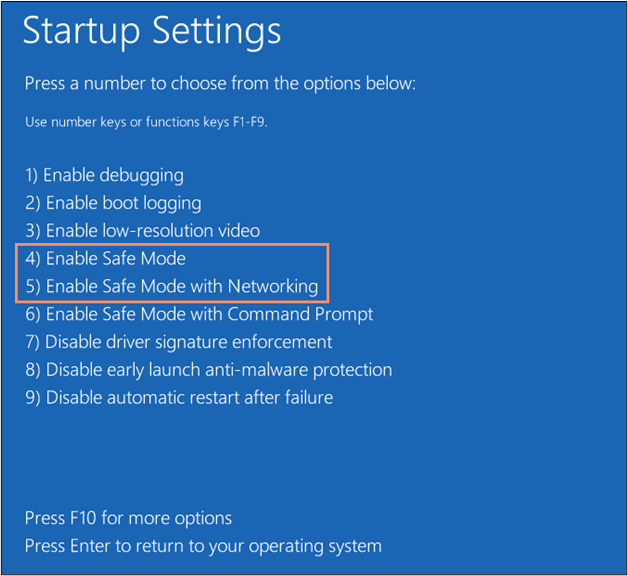
Step 2. Access your PC's desktop.
Step 3. Insert your login details.
Step 4. Go to "This PC".
Step 5. Use this address and paste it into the address bar:
C:Users\Second Account Name\AppData\Local\Microsoft\Windows\Caches
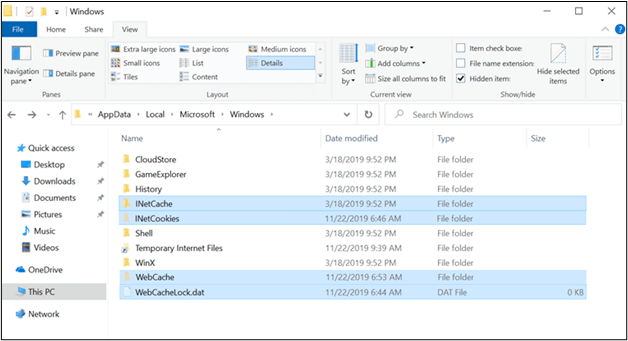
Step 6. Copy the folder shown on the screen.
Step 7. Again, log in using the same old account credentials.
Step 8. Go to the same folder using the above address.
Step 9. Paste the "Cache Folder" you have copied previously.
Step 10. Replace the new folder with the older one.
Step 11. Restart your computer by pressing and holding the power button.
It might be possible you have solved the issue by following the above steps if it was due to user account interference. But if you are still facing the issues, go ahead and check the following fixtures.
Fix 3. Use Professional Tools to Fix Black Screen
When encountering a black screen error without knowing the reason, trying the Windows boot repair tool - Qiling Disk Master - is a good idea. This powerful disk and partition tool can solve all errors related to disk, including bootable drives, and is algorithmically validated to fix blue, red, or black screen errors on Windows.
You can easily and quickly fix Windows 10 black screen after update by downloading a free Windows 10 boot repair tool.
Step 1. After connecting the external drive/USB to your computer, start Qiling Disk Master, go to "Bootable Media", and click "Create bootable media" in the program.

Step 2. Insert a USB drive or CD/DVD and click "Proceed" to continue the installation process. Alternatively, you can burn the Windows ISO file to the storage media.

Step 3. Connect a bootable drive to a new computer, reboot by pressing F2/Del to enter the BIOS, set the bootable drive as the boot disk, and exit the BIOS by pressing F10.
Step 4. Boot the computer again and enter the WinPE interface. From there, open Qiling Disk Master and click on "Boot Repair" under the "Toolkit" option.

Step 5: Select the system you want to repair and click "Repair."

Step 6. Wait a moment, and you will receive an alert that the system has been successfully repaired. Click "Finish" to complete the boot repair process.
Fix 4. Uninstall Third-party Windows Theming Software
Windows 10 updates may cause third-party apps to malfunction due to the system changes they cannot quickly adapt to.
So, you should uninstall those apps using the following steps.
Step 1. Enable "Safe Mode".
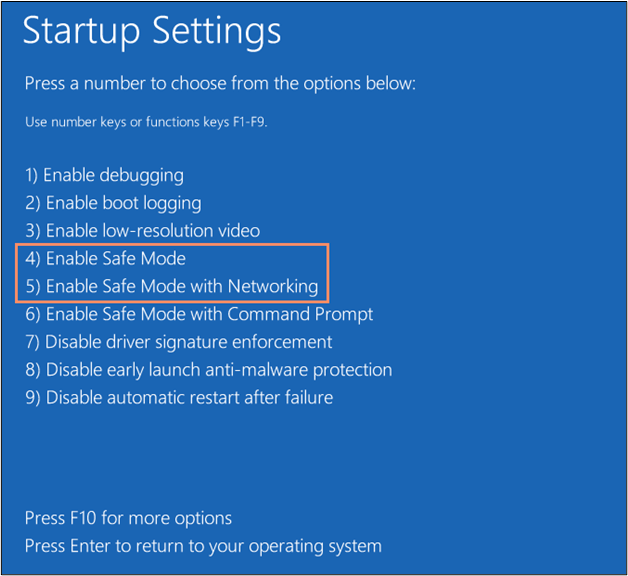
Step 2. Go to "Task Manager".
Step 3. Click on the "File" option available in the menu bar.
Step 4. Now, choose the "Run New Task" option.
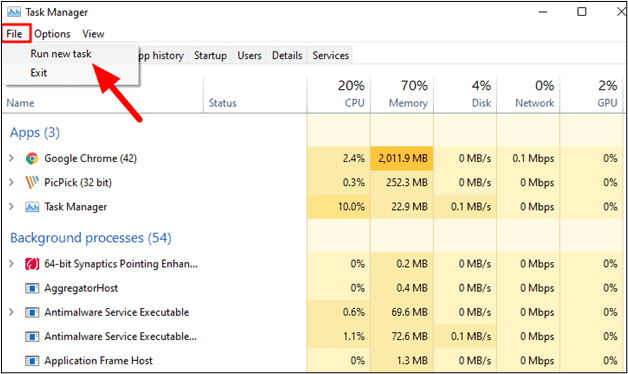
Step 5. Enter "services.msc" in the dialogue box opened on the screen.
Step 6. Look for "App Readiness" and double-tap on that option.
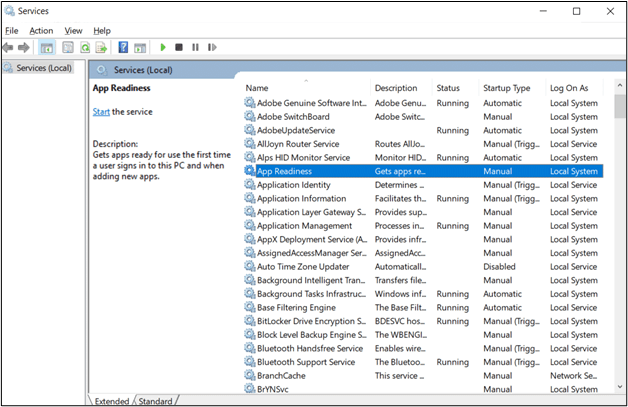
Step 7. In the new box, select the "Startup Type" option and choose "Disabled" from the dropdown menu.
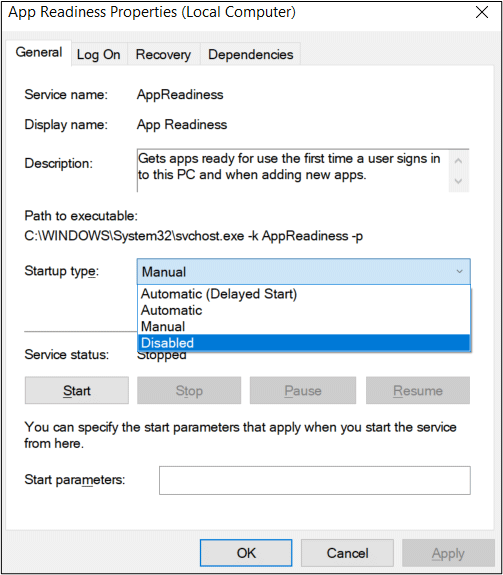
Step 8. The settings are saved once you tap on the "OK" button.
To resolve the Windows 10 black screen issue after an update, restart your device and if the problem persists, uninstall and reinstall third-party apps to ensure compatibility.
Fix 5. Use Windows Key Sequence to Wake the Screen
When your computer displays a black screen after an update, don't immediately restart it. Instead, try using the Windows keys to wake up your device's screen, which can resolve display adapter-related issues quickly.
To awaken your PC's screen quickly using Windows keys, simply press the Windows key + D to lock and unlock the screen, or press the Windows key + L to lock the screen, and then press Ctrl + Alt + Delete to unlock it. Alternatively, you can press the Windows key + E to open the File Explorer and bring the screen to life.
Step 1. Start your computer and wait until the black screen is shown.
Step 2. Press the Windows key + Ctrl + Shift + B multiple times to restart your Windows 10 PC in a controlled way. This is a built-in feature that can help you restart your system without losing any unsaved work.
Step 3. The screen will dim due to a low battery, and you will hear a beep to alert you of the low battery level.
Step 4. You will be able to see the desktop screen within seconds.
If the issue persists, you may want to consider checking the display adapter or the graphics card, as they could be the root cause of the problem. You can try updating the drivers or replacing the hardware if necessary. Additionally, if you're using a laptop, you may want to check the power settings or the battery level, as these can also cause a black screen. If none of these solutions work, it may be worth seeking further assistance from a professional.
Fix 6. Perform System Restore
To keep users safe and resolve different errors, Windows has a built-in option that is called "System Restore". You should keep it enabled to get rid of different issues like Windows 10 black screen. But the thing is, you have to access the system's settings to check this option and get started.
So, we have discussed some steps here using which you can access this option and perform this activity.
Step 1. When your system has a black screen, force shut down your system by pressing and holding the power button.
Step 2. Turn on your system and again press and hold the power button for forced shutdown once a black screen is shown.
Step 3. Run the Windows 10 installation media and select your language preferences. Click on "Repair your computer" instead of "Install now".
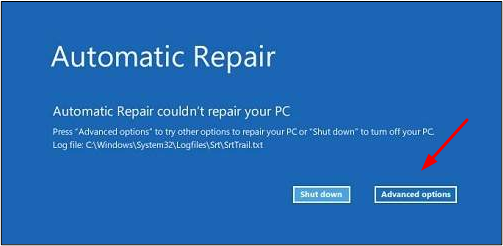
Step 4. Now, look for "Advanced Options" and click on it.
Step 5. Choose the "System Restore" option from the available ones.
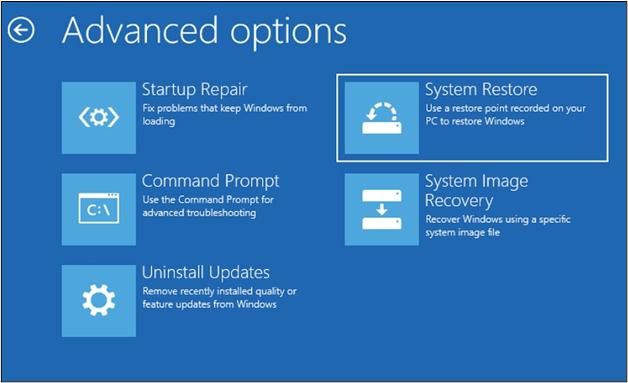
Step 6. Click on the "Restore" option shown on the screen to confirm the action.
If the issue persists, try reverting your system to its previous version by following the same process, but this time choose "Uninstall Updates" instead of "System Restore". This might resolve the issue. If not, you can try the same process again.
Fix 7. Repair System Files
To fix the black screen error in Windows 10, you can try opening the "Automatic Repair Screen" by booting in safe mode, pressing the Windows key + X, selecting Command Prompt (Admin), and typing "rstrui.exe". After that, follow the steps to repair system files, which may resolve the issue.
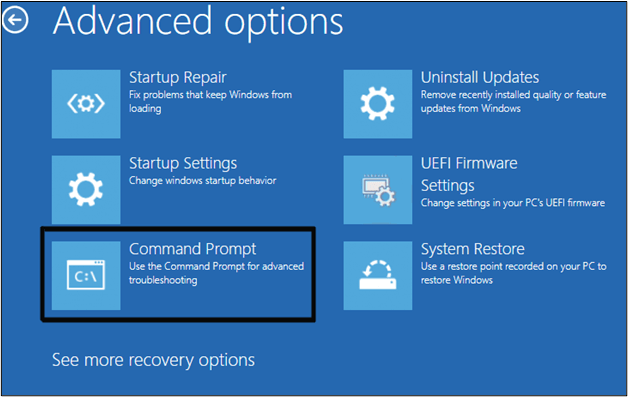
Step 1. Click on "Advanced Options" from the screen shown on your computer.
Step 2. Now, choose "Troubleshoot" and then "Advanced Options" again.
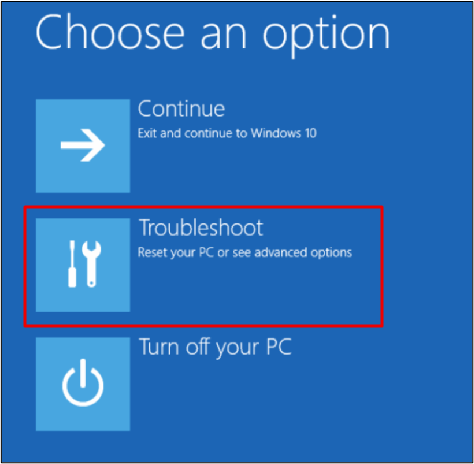
Step 3. After that, click on "Command Prompt".
Step 4. Select the drive in which Windows is installed and press enter.
Step 5. Run "SFC" and "DISM" scans using the particular steps.
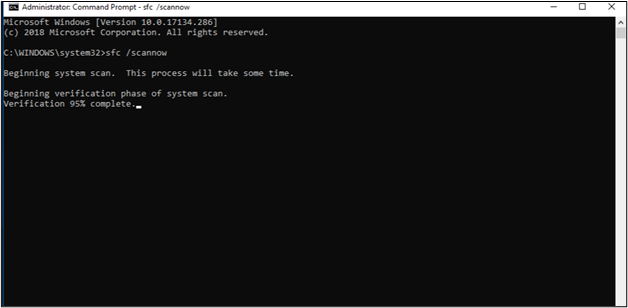
Step 6. Now, type "exit" in the "Command Prompt" and enter it.
Step 7. Once you have a "Continue" option, click on it to restart your computer.
If your system files were corrupted and causing the issue, you can get it solved by following these steps.
Fix 8. Update Graphics Card Driver
Windows updates may not automatically install new drivers, so it's possible that your graphics drivers haven't been updated despite the Windows 10 update, which could be causing the issue of a black screen after updating.
If the error is due to the graphics card driver, you can resolve it by checking the following steps. 1.
Step 1. To fix the issue, go to the "Automatic Repair Screen" of your system, which can be accessed using the steps mentioned in Fix 5.
Step 2. Choose "Startup Settings" and then click on the "Restart" button.
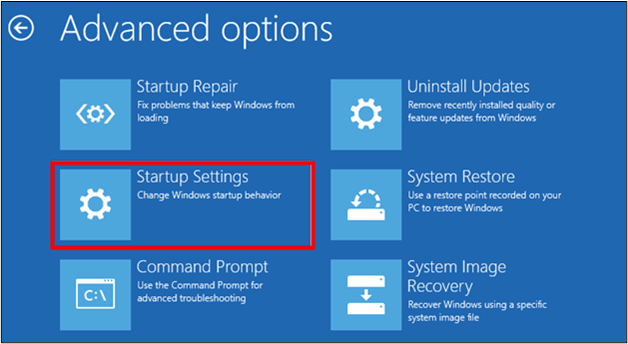
Step 3. Now, keep pressing "F5" repeatedly.
Step 4. It will enable "Safe Mode with Network".
Step 5. Look for "This PC" and choose "Properties".
Step 6. A long list of options will be shown in the left menu bar.
Step 7. Choose "Device Manager" from the list.
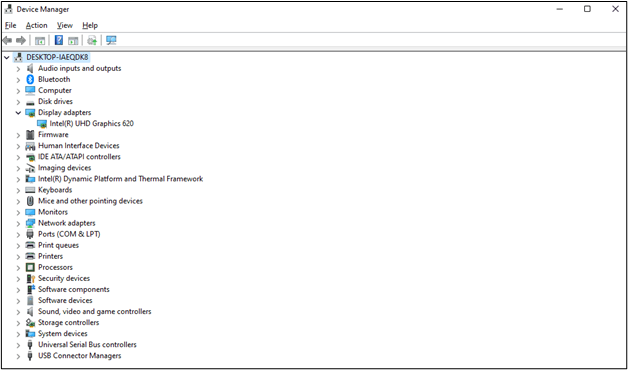
Step 8. To update the Windows Graphic Card Driver, tap on the "Display Adapters" option and then select "Windows Graphic Card Driver" from the list.
Step 9. Right-click on that option.
Step 10. Now, choose the "Update Driver" option.
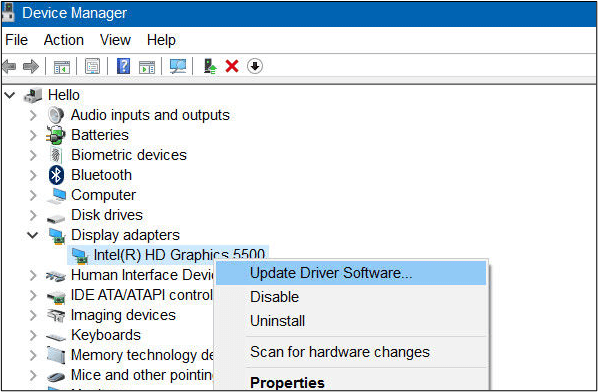
Step 11. Once shown on the screen, tap on "Search automatically for updated drivers".
Step 12. Wait for a few minutes until the update is complete.
Step 13. To resolve the issue with the Windows Update not working, you can try restarting your computer. This simple step can sometimes resolve the problem and allow the update to proceed as expected.
Fix 9. Reset Your PC
If you've tried everything else, you can try resetting your PC to remove any unwanted apps or files. Before doing this, make sure to back up your important files to an external drive or the cloud to avoid losing them. This provides a fresh start.
For this, you have to enter into "Safe Mode" first and then follow these steps.
Step 1. Choose the "Reset" option from the "Safe Mode" screen.
Step 2. To reset your PC, tap on "Get Started" which is available under the "Reset This PC" option.
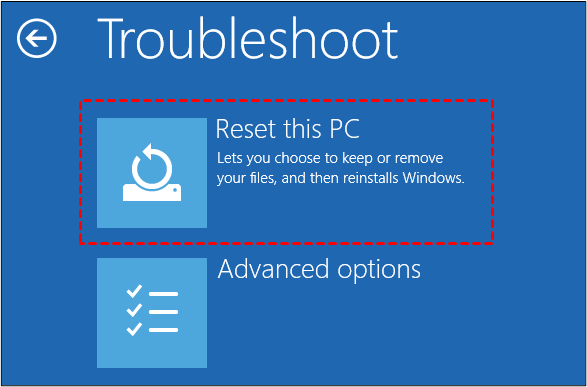
Step 3. To factory reset your PC without losing data, select "Keep my Files" from the list of options.
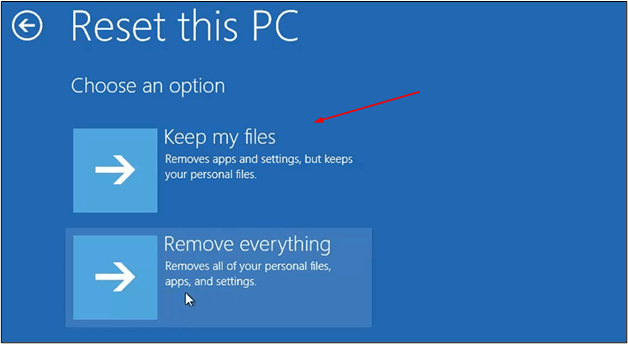
Step 4. Now, follow the on-screen instructions to accomplish this task.
To resolve the Windows 10 black screen after the update issue, simply restart your device in safe mode, then enable the "Show me the updates" option and install any pending updates. This will ensure a seamless boot and resolve the error.
After solving this problem, you may also be interested in:
Pro Tip: Always Backup Your PC to Avoid Data Loss
As a computer user, you're likely no stranger to the frustration of technical errors that can strike at any moment, causing data loss despite your best efforts to avoid mistakes. It's a stressful situation that can happen to anyone, and losing valuable data can be a major setback.
QILING Disk Master software is the best program to help you back up your files in a timely manner without taking different actions. You can simply set the automatic backup option in this software, which will keep backing up your data and restore it whenever you want, even on another device.
Below are the main features of Qiling Disk Master:
- 250GB of free cloud storage is offered to back up your computer to the cloud.
- A data backup software can back up data available in any file format with several a few clicks.
- You can easily back up and restore data quickly without following complex steps.
- Cloning a hard drive and imaging a hard disk are essential steps for backup and recovery on PCs. Cloning involves creating an exact copy of the entire hard drive, including the operating system, programs, and data, while imaging captures a snapshot of the hard disk's contents, excluding the operating system and programs.
- Qiling Disk Master allows you to create a scheduled backup of your data, making it easy to perform backups without any hassle.
It has many other functions that you can utilize according to your requirements. We recommend you get this program and keep storing your data in cloud storage. It will keep all your files safe even if you have to install a new Windows 10 due to a black screen after the update error.
To Wrap Up Things
By reading this guide, you can now resolve the issue of a Windows 10 black screen after an update and get your system back on track. To ensure your safety, it's a good idea to have Qiling Disk Master installed on your system with scheduled backup enabled.
To keep your data safe and avoid losing important files in case of system restoration or reset, use a cloud backup service or an external hard drive to store your data regularly. This will ensure that your files are safe and can be easily restored if needed.
FAQs on Windows 10 Black Screen After Update
1. Why is my computer screen black, but the computer is running?
It's possible that your system's display driver is corrupted, causing the black screen issue, while other drivers are functioning normally.
2. Can RAM cause no display?
If your system's RAM memory is faulty or corrupted, it can cause a no display problem.
3. Why has my screen suddenly gone black?
The issue is likely due to an incompatible or corrupted graphics driver, which is a common problem.
4. Why is my Windows 10 screen black when I boot?
The most common issue causing a black screen on Windows 10 during boot-up is corrupted display drivers.
Related Articles
- Can't Install macOS Ventura? Here Are the 9 Best Solutions
- How to Fix PS4 Error Code CE-37857-0 [100% Working Solutions]
- How to Backup Thunderbird Emails to External Hard Drive [Three Ways]
- How to Factory Reset MacBook Big Sur [Latest Update]
- Windows 10 Cumulative Update Failed to Install & Download - How to Fix?
If you're experiencing issues with Windows 10 cumulative updates failing to install, this guide is for you. It will walk you through various methods to troubleshoot and resolve this problem, ensuring your computer runs smoothly and efficiently. - Windows 10 System Interrupts 100 CPU - How to Fix?
Do you know how to fix Windows 10 system interrupts 100 CPU? This guide can help. It explains what System Interrupts is, what causes high CPU usage, and how to fix it. After reading. you can choose a suitable method to solve System Interrupts 100% CPU usage.
Products
Articles & Tutorials
- Data Recovery
- Data Backup
- File Recovery
- File Backup
- System Backup and Restore
- Disk and Partition Clone
- Technical articles
- Mobile articles
- Disk Master Help
- Windows Data Recovery Tutorials
- Windows Secure Delete Tutorials
- Windows Partition Management Tutorials
- Windows File Backup and Restore Tutorials
- Windows System Backup and Restore Tutorials
- Windows Disk Backup and Restore Tutorials
- Windows Clone Tutorials