5 methods-Windows Did Not Detect a Properly Installed Network Adapter
| Workable Solutions | Step-by-step Troubleshooting |
|---|---|
| Solution 1: Restart the PC | Please turn off the device, wait for a minute or two and turn it on...Full steps |
| Solution 2: Run Hardware and Devices Troubleshooter | Press Windows + R on your PC to open the Run app...Full steps |
| Solution 3: Reset Windows Socket (Winsock) Catalog | Search for Command Prompt and open it in administrator mode...Full steps |
| Solution 4: Update Network Drivers | Search for the Device Manager and Open it...Full steps |
| Solution 5: Reinstall the Network Drivers | Open Device Manager and locate "Network Adapters...Full steps |
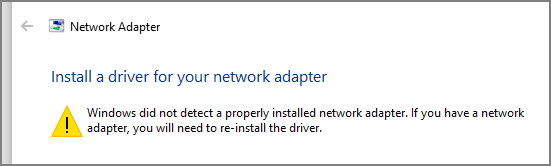
Drivers play a crucial role in our devices, acting as a communication medium between software and hardware. They must be updated and properly installed to ensure proper functioning, and faulty or improperly installed drivers can cause abnormal device behavior.
Reasons of Windows Did Not Detect a Properly Installed Network Adapter
Multiple reasons could cause the issue, but understanding the root cause is crucial to identify why Windows is unable to detect the properly installed adapter.
1. Missing Driver Updaters
To update drivers, the drivers themselves cannot be updated directly. Instead, they rely on updaters to identify and install new updates. However, if the Network Drivers Updaters are missing or faulty, it can cause detection issues, which can be resolved by resetting the Winsock catalog.
2. Improperly Installed Drivers
If Windows can't detect network drivers, it may not work properly. You can try uninstalling and reinstalling the drivers and adapters to fix the issue.
We can try out multiple solutions to address the detection issues. Let's examine the most effective ones, and test them one after the other to see if they resolve the problem.
Solution 1: Restart the PC
Running a PC continuously without restarting can lead to various problems, including abnormal issues, due to the accumulation of temporary data and processes that can cause system instability.
A simple restart can refresh all programs on your PC, resolve minor software glitches, and potentially fix issues caused by minor hardware or software problems. To restart, turn off your device, wait for a minute or two, and then turn it back on. This can often resolve the problem.
If the issue persists, check the applications using network adapters to see if the issue is resolved. This can help determine if the problem is specific to a particular program or a broader network issue.
Solution 2: Run Hardware and Devices Troubleshooter
Windows has troubleshooters that identify the cause of software issues and suggest or fix problems, including hardware and device troubleshooters that resolve issues related to hardware and devices needed to run the system, helping to identify the reason for detection issues.
Steps to run hardware and device troubleshooter:
Step 1. Press Windows + R on your PC to open the Run app.
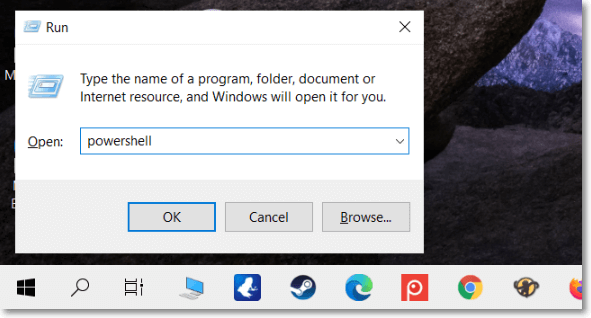
Step 2. To open PowerShell in administrator mode, type 'Powershell' in the dialog box and press Ctrl + Shift + Enter.
Step 3. To open the Hardware and Device Troubleshooter, type the command "msdt -id DeviceHunt" and press Enter.
msdt.exe -id DeviceDiagnostic
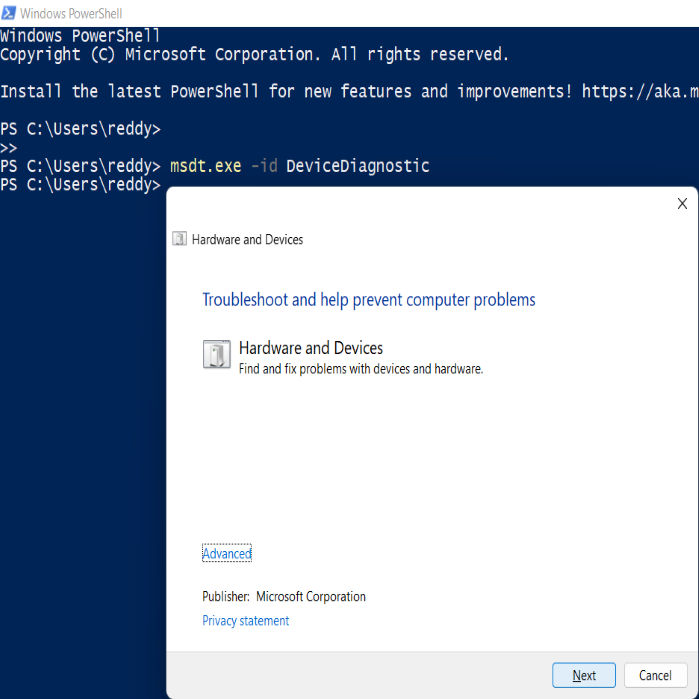
Step 4. To resolve the issue, follow the on-screen instructions to complete the process. After that, check if the problem is resolved by trying to work again. If the issue persists, further troubleshooting may be necessary.
Solution 3: Reset Windows Socket (Winsock) Catalog
Winsock, which enables network communication between applications and devices, can be reset if there are issues with its components.
Steps to reset Winsock Catalog:
Step 1. Search for Command Prompt and open it in administrator mode.
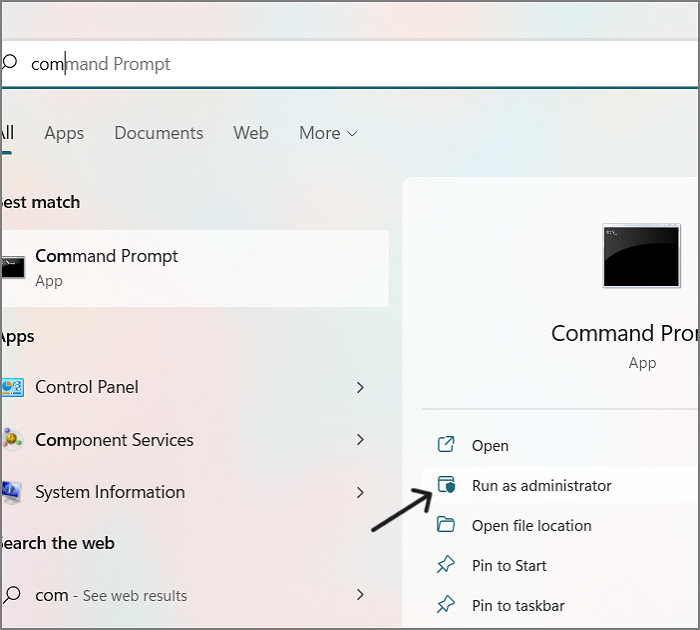
Step 2. Enter the below command and execute it.
netsh Winsock reset
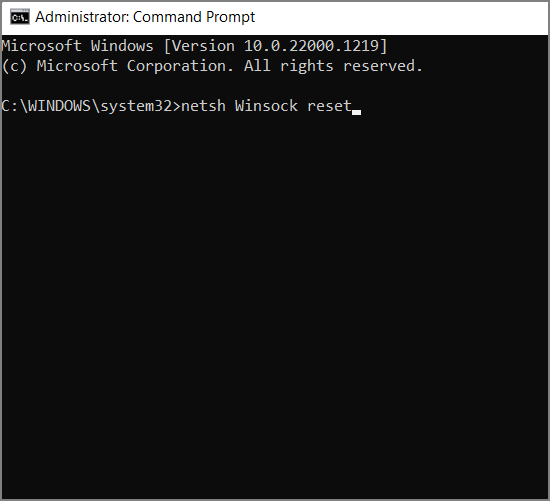
Step 3. After resetting, check for the working of the drivers.
Solution 4: Update Network Drivers
Network detection issues can arise from outdated or corrupt drivers, not just faulty ones. Keeping drivers up to date can resolve related problems.
Steps to update network drivers manually:
Step 1. Search for the Device Manager and Open it.
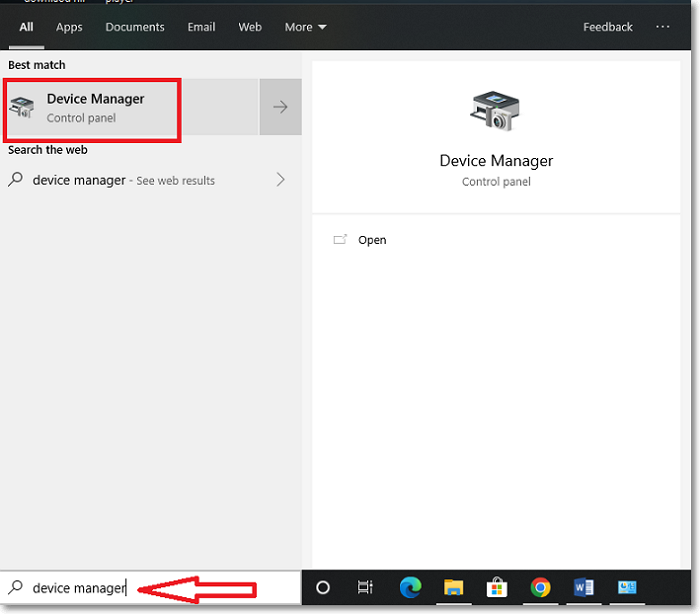
Step 2. You can see all the available drivers on your computer here, find and expand the Network Adapters section.
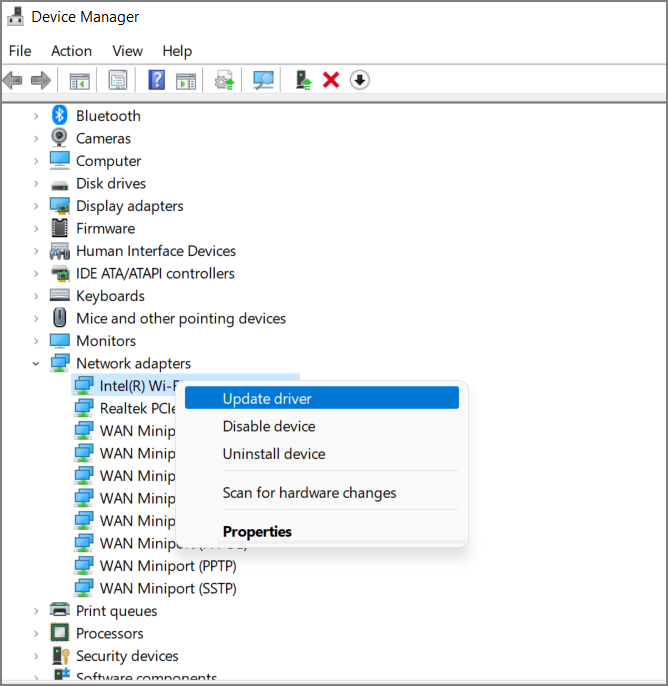
Step 3. Right-Click on the driver or required drivers and Select Update.
Solution 5: Reinstall the Network Drivers
If the issue persists even after updating, you can reinstall the network drivers. This is because faulty software in any of the drivers can cause detection issues, making it necessary to eliminate them.
Steps to reinstall Network Drivers:
Step 1. Open Device Manager and locate "Network Adapters."
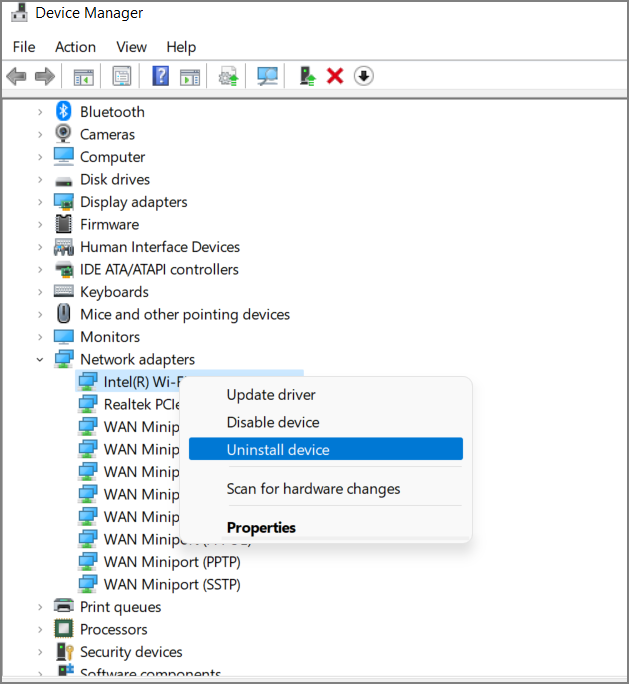
Step 2. Expand the Network Adapters, navigate to the required drivers, and right-click on them.
Step 3. Uninstall the driver and restart the device. The OS will reinstall the missing drivers automatically.
If none of the troubleshooting steps work, you can try performing a system restore, which will take the system back to its previous state, or resetting the router, which is responsible for the internet connection.
Final Verdict
The Windows did not detect a properly installed Network Adapter error is often caused by faulty or corrupt drivers. This issue may arise after updating the Windows OS. To resolve this, try updating the network adapter drivers, resetting the network stack, or disabling and re-enabling the network adapter. If the issue persists, consider reinstalling the network adapter drivers or seeking professional assistance.
I hope you like the article and it answers all your questions. Feel free to leave a comment about my work or any queries regarding the article's content. Share it with your friends.
Related Articles
- External Hard Drive Takes Forever to Load
- 3 Proven Ways to Download & Install macOS 12 Monterey for Free [2023 Tips]
- How to Fix Zsh: Command Not Found: Python [with Video]
- [10 Fixes] Error 0x800701b1 Troubleshooting on Windows 11/10
If you're experiencing Error 0x800701b1 on your Windows PC and struggling to copy files. This guide provides a simple solution to fix the issue. - 8 Best Google Drive Alternatives for Cloud File Backup [2022 Full Recommendation]
this guide provides an overview of Google Drive, highlighting its pros and cons, and also explores 8 alternative cloud file backup options. Additionally, it touches on open source and offers tips on how to automatically backup files to Google Drive. - How to Boot Computer from USB and Make A Portable OS
Learn how to boot a computer from USB on Windows PCs. Create a bootable USB drive, change BIOS or UEFI boot order, and start your PC from USB.
Products
Articles & Tutorials
- Data Recovery
- Data Backup
- File Recovery
- File Backup
- System Backup and Restore
- Disk and Partition Clone
- Technical articles
- Mobile articles
- Disk Master Help
- Windows Data Recovery Tutorials
- Windows Secure Delete Tutorials
- Windows Partition Management Tutorials
- Windows File Backup and Restore Tutorials
- Windows System Backup and Restore Tutorials
- Windows Disk Backup and Restore Tutorials
- Windows Clone Tutorials