How to Factory Reset Nintendo Switch | Detailed Steps with Video
Factory Reset Nintendo Switch Overview
If you're experiencing issues with your Nintendo Switch, a factory reset might be the solution. A factory reset is a process that restores the console to its original settings, effectively erasing all data, save data, and settings. To factory reset your Nintendo Switch, you can either use the System Settings menu or the Nintendo Switch Console Settings. In the System Settings menu, go to System, then scroll down to Formatting Options and select Factory Reset. Alternatively, press and hold the Volume Up and Power buttons simultaneously for 12 seconds to initiate a hardware reset.
Factory reset, also known as hard reset, is the process that makes the device return to its original state, essentially restoring it to its condition when the user first received it. There are various reasons why one might need to opt for factory resetting a Nintendo Switch.
If the Nintendo Switch is experiencing performance issues, glitches, or you're stuck, a factory reset can be helpful. Additionally, if you're planning to sell or give the console to someone else, a factory reset is a good idea to restore it to its original settings.
You may also want to reset the Nintendo Switch to get enough space for a new game. Check this new Switch game's file size if you are interested.
The Legend of Zelda: Tears of the Kingdom requires a 5.7 GB download on the Nintendo Switch, and a 5.
The size of the game Tears of the Kingdom is not specified, but it can be downloaded by freeing up space on your device. To do this, you can uninstall unused apps, delete unnecessary files, and consider upgrading your storage capacity if needed. This will allow you to make room for the game and download it successfully.
Before factory resetting your Nintendo Switch, it's essential to be aware that the process will result in the loss of data stored in the system memory. To avoid losing your games and other data, it's recommended to back them up first.
How to Factory Reset Nintendo Switch [with Video]
Before factory resetting your Nintendo Switch, it's crucial to back up your game data, which will be lost in the process. You'll want to understand what data will be erased so you can take necessary precautions.
It's not hard to back up Nintendo Switch data, as it can be done through the console's built-in settings or using a third-party service like the Nintendo Switch Online cloud storage.
Backing up a Nintendo Switch before a factory reset is relatively easy, but the process is not entirely straightforward. You can back up your save data to the Nintendo Switch Online cloud service, but this requires a stable internet connection and a Nintendo account.
— Ash Collins ??????? (@androidcodex) September 20, 2021
To back up data on a Nintendo Switch, follow these steps: Connect your Switch to a computer or mobile device via a USB cable or wirelessly. Ensure that both devices are updated to the latest software.
Step 1. Go to the HOME menu.
Step 2. Choose System Settings.
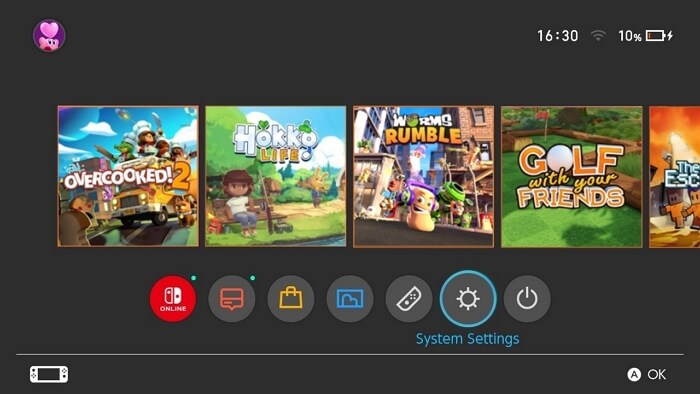
Step 3. Select Data Management.
Step 4. Choose "Save Data Cloud" on your Switch.
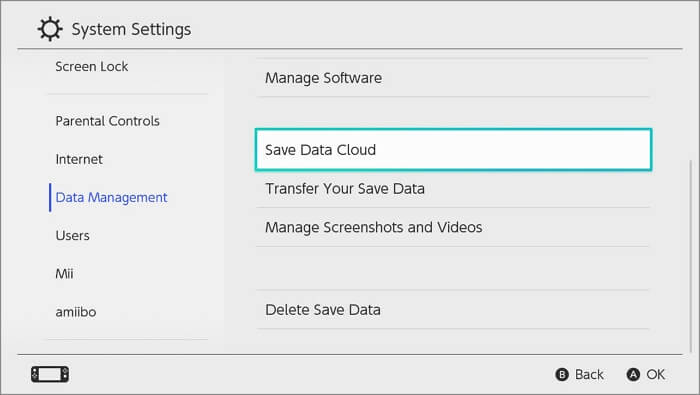
Step 5. Pick the user.
Step 6. Choose the software that is to be backed up.
Step 7. Go ahead with the Back Up Save Data option.
To factory reset your Nintendo Switch, go to System Settings, then scroll down to System, and choose the option to "Format All Game Data on the Console." This will erase all data on the console, including save data, but not the console itself. Alternatively, you can also use the "Format the Nintendo Switch" option in the same menu, which will also erase all data, but this time it will also erase the console's system data, effectively performing a full factory reset.
Step 1. Go to the "HOME" menu.
Step 2. Select Settings.
Step 3. Choose System from the left menu bar.
Step 4. Choose "Formatting Options".
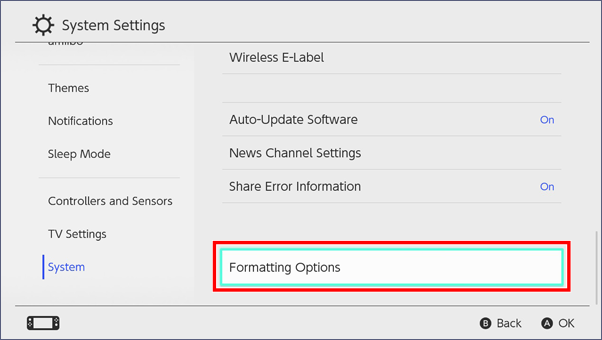
Step 5. Select "Initialize Console" and press "Reset".
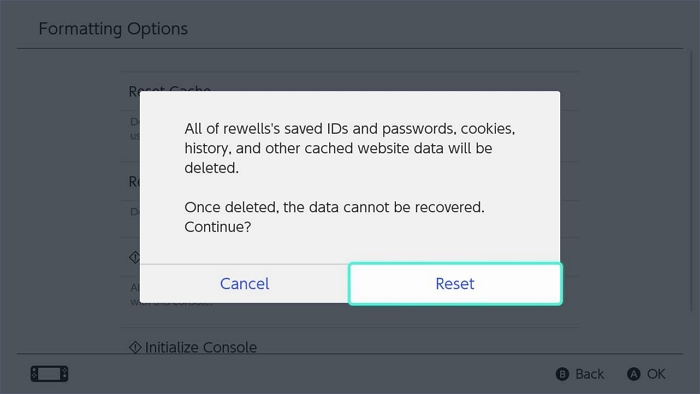
Step 7. To reset your PS5 without losing data, wait for a few seconds for the process to complete. Alternatively, you can read about how to reset your PS5 without losing any of your important data.
How to Reset PS5 Without Losing Data [2 Tested Methods]
Is your PS5 not working smoothly? It's time for a reset! There are multiple ways you can reset PS5, including a soft reset, a hard reset, and a factory reset. A soft reset can be done by pressing the PS button on the controller and the power button on the console at the same time, while a hard reset involves pressing the power button on the console for 30 seconds. A factory reset, on the other hand, will erase all data on the console, so it's essential to back up any important data before proceeding.
How to Hard Reset Nintendo Switch
You can keep your data even after rebooting your Nintendo Switch. That's right, it's possible!
Check out the steps to know how this can be done:
Step 1. Power off the system.
Step 2. Press the power button and hold it for a few seconds.
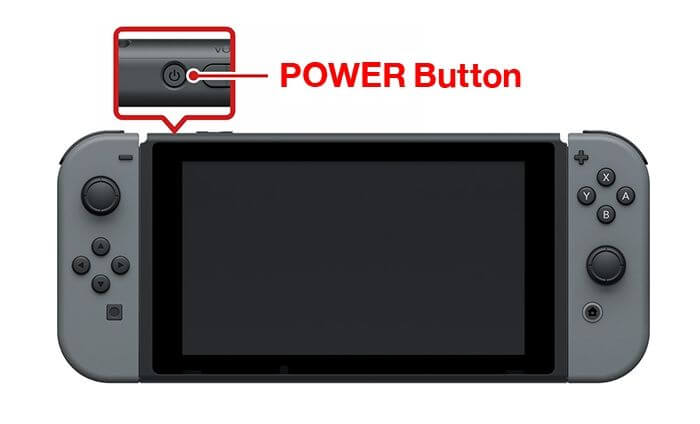
Step 3. Release the button.
Step 4. Press it again to power the system.
Step 5. If the console is booting, the hard reset is complete. If not, you may need to try the hard reset again.
Setting Up the Nintendo Switch After the Factory Reset
Here are some key points to consider after a factory reset on a Nintendo Switch:
Re-entering Wi-Fi passwords
To re-enter the Wi-Fi passwords, follow these steps: check your router's documentation or manufacturer's website for instructions on how to access the Wi-Fi settings, log in to your router's web interface, navigate to the wireless settings section, and update the password to the new one you've chosen. If you're still having trouble, you can try restarting your router or contacting your internet service provider for further assistance.
Step 1. Go to the Settings.
Step 2. Choose Internet from the left-side menu.
Step 3. Go to Internet Settings.
Step 4. Allow the Switch to search for the network.
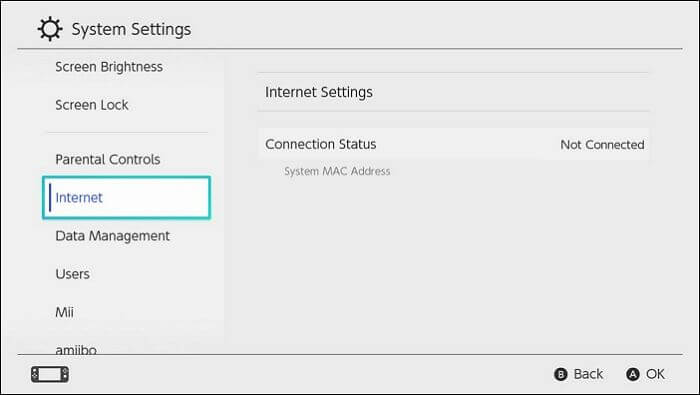
Step 5. Choose the network you want.
Step 6. Proceed with the registration process.
Step 7. Enter the password.

Step 8. Press Next and follow the on-screen instructions.
If your internet connection isn't working, check your Wi-Fi router. Turn it on and off to ensure it's working properly, and make sure your connectivity is strong and stable.
Setting up a new Nintendo account
To create a new Nintendo account, start by going to the official Nintendo website and clicking on the "Create a Nintendo Account" button. Fill out the required information, including your name, email address, and password, and verify your email address by clicking on the link sent to you. Set up your account by adding a profile picture, cover photo, and other details, and once completed, you'll have a new Nintendo account ready to use.
Step 1. Visit the Nintendo Account website.
Step 2. Select Sign in/Create an account.
Step 3. Choose to Create a Nintendo Account.
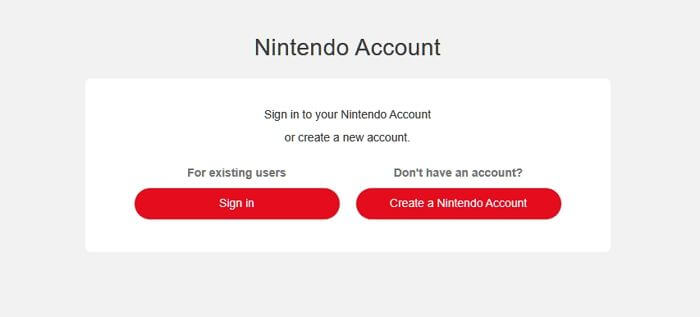
Step 4. Enter the date of birth.
Step 5. Press the Submit button.
Step 6. Opt for the sign-in method you want.
Step 7. If needed, enter the login information.
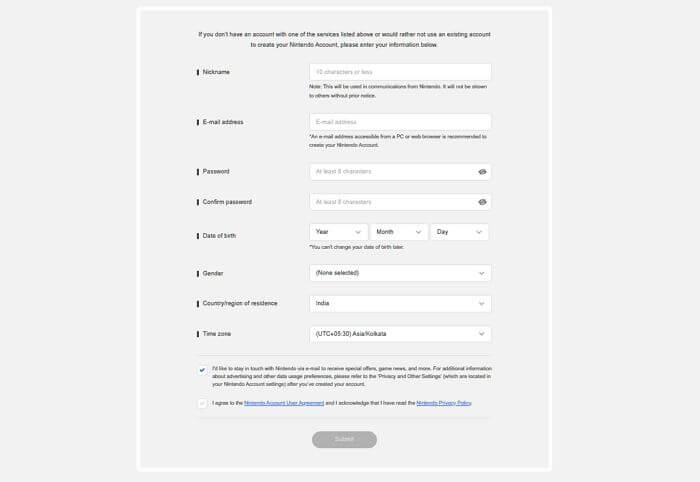
Step 8. Check the Nintendo Account User Agreement.
Step 9. Select Submit.
Step 10. To confirm your account, please enter the verification code sent to your registered email id. This is a standard security measure to ensure that the account is being accessed by the actual user.
Re-downloading games and apps
To re-download games and apps, simply go to the App Store or Google Play Store, depending on your device, and search for the app you want to re-download. If you've previously purchased the app, it should appear in your purchase history, and you can re-download it for free. If you can't find it in your purchase history, you can also search for it in the store, and if it's still available, you can re-download it. If you're unable to re-download it, it's possible that the app has been removed from the store or is no longer supported. However, most apps are still available for re-download, so don't worry!
Step 1. Go to the HOME menu.
Step 2. Choose the game icon.
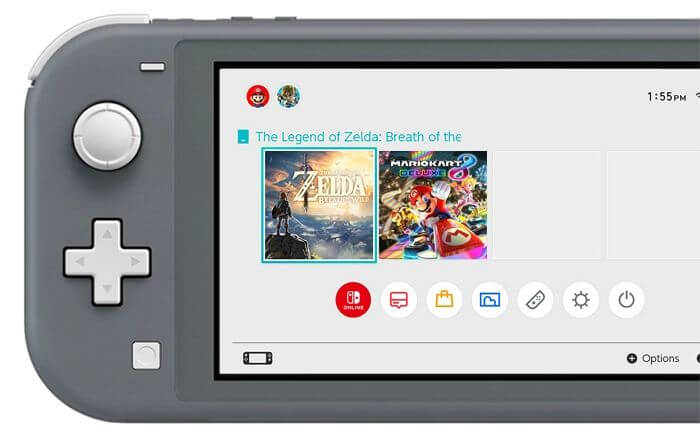
Step 3. Select Download.
- Notice:
- If you can't find the game icon after purchasing a game, you need to go to the Nintendo eShop and access the Redownload tab, where you'll see the titles you've bought using the same Nintendo Account.
Troubleshooting Issues with Factory Resetting Nintendo Switch
Several users encounter various issues while factory resetting their Nintendo Switch, prompting a list of potential problems and their solutions. These issues may include problems with the reset process itself, such as the console freezing or not responding, as well as issues with the Switch's software, like the inability to access the home menu or update the console. Additionally, some users may experience issues with their Switch's storage, such as a corrupted save file or an inability to delete data. Other problems may include difficulties with the reset process due to a faulty SD card or a corrupted system software.
Nintendo Switch won't turn on.
If your Nintendo Switch won't turn on, check the battery level and charge it for 3 hours if it's low.
If you're experiencing issues with your device not charging, try replacing the adapter or dock. A faulty cable or debris and dust accumulation can prevent charging.
- Warning
- Remove the microSD card before resetting the device to avoid damaging it. If the card is left in during the reset, it may become unreadable. Take it out, reset the device, and then put the card back in.
Issues with game save or downloaded content
Issues with game save or downloaded content can occur, try re-downloading the game, or reset the Nintendo Switch and ensure it's updated with the latest system update, noting if the issue is with a single game or all.
Failed factory reset attempt
If you fail to factory reset the Nintendo Switch, try it again using the recovery mode. This may resolve the issue.
Check out these steps :
Step 1. Power off the console.
Step 2. To turn on the Nintendo Switch, press and hold the Volume Up and Volume Down buttons at the same time, and press the Power button. This will turn on the console.
Step 3. In the recovery mode, select the option "Restore Factory Settings Without Deleting Save Data".
Step 4. Go through the information available and choose Next.
Step 5. Select the Restore Factory Settings Without Deleting Save Data option.
You can read an additional passage about Nintendo Switch errors:
How to fix Nintendo Switch Error Code 2123-1502
Nintendo Switch Error Code 2123-1502 can be fixed by resolving a loss of connection or bad network between the console and servers. This error occurs when there is an issue with the connection between the console and the servers, causing it to malfunction. To resolve this issue, try restarting the console, checking the internet connection, and ensuring that the console is connected to the correct network. If the issue persists, try contacting Nintendo support for further assistance.
Recover Lost Files from Nintendo Switch with Software
If you've lost files from your Nintendo Switch, don't worry, as there's a solution available. The Deep Data Recovery software is a professional tool that can help you recover your lost files, and its user-friendly interface makes it accessible to both novice and expert users.
The recovery tool can restore lost game data, including Hogwarts Legacy missing saves, deleted game screenshots, and screen recordings, from local PC or SD cards, regardless of the cause of loss, such as deleting, partition loss, formatting, or a crashed system. It supports recovery from over 2000 storage devices and 1000+ file types, making it a functional tool for retrieving lost data.
If you want to use Deep Data Recovery, just follow the steps below to perform Nintendo Switch SD card recovery. To do this, go to the Nintendo Switch Home screen, select System Settings, and then scroll down to Data Management. From there, select the System Data or User Data you want to recover, and then select the "Delete" option.
Step 1. Select the SD card to scan
- Download and install Deep Data Recovery on your Windows PC.
- To connect your SanDisk/Lexar/Transcend SD card to your computer, you should use an SD card reader. This is the proper way to connect your SD card, as it allows for a direct connection between the card and your computer's USB port, ensuring a stable and fast transfer of data. Simply insert the SD card into the reader, and then plug the reader into your computer's USB port.
- Open Qiling SD card recovery software, select SD Card Recovery, choose your SD card from the displayed drives, and click "Scan" to initiate the recovery process.

Step 2. Check for scan results
- Wait for the scanning process to complete.
- To show specific file types in a folder, you can use the "File Type" option in the folder settings. For example, to show only pictures in a folder, you would select the "Pictures" file type.
- Click "Preview" to check if they are the wanted files.

Step 3. Recover SD card data
- Preview the recovered files and click "Recover".
- If you're recovering files from a damaged SD card, it's a good idea to save the recovered files to a different location, such as an external hard drive or a different folder on your computer, rather than saving them back to the original SD card. This will help prevent overwriting any remaining data on the SD card and ensure that you have a complete and intact backup of the recovered files.

Summary
If you want to sell or give away your Nintendo Switch, a factory reset is necessary. Fortunately, the process is straightforward and hassle-free. However, before you reset, make sure to back up any important data you don't want to lose, and then you can proceed with the reset. This will ensure that your personal information and settings are erased and the console is restored to its original factory settings.
The Deep Data Recovery software is a reliable tool that can restore data from a wide range of storage devices and file types, including 2000+ storage devices and 1000+ file types, making it an excellent option in case of data loss.
If you haven't used Deep Data Recovery yet, download and install it today to start recovering your lost files and data.
How to Factory Reset Nintendo Switch FAQs
To factory reset the Nintendo Switch, what steps should I take?
1. How to factory reset Xbox One?
- 1. To factory reset your Xbox One, you can simply tap on the Xbox button.
- 2. Go to Profile & System and select the Settings option.
- 3. To reset a console, first go to the System menu, then select Console Info, and finally press the Reset Console option.
2. How to hard reset a Nintendo Switch?
To hard reset a Nintendo Switch, press and hold the Power button on the top right side of the console until the power light turns off, then release the Power button and press it again to turn the console back on. This will restart the console and clear any temporary issues. Note that this method does not delete any data or settings, and it's a good troubleshooting step to try before considering more drastic measures.
- 1. Power off the system.
- 2. Press the power button on your system and hold it for a few seconds. Release the button, then press it again to turn the system on.
- 3. After this, you need to notice if the booting takes place. If it does, the system is reset. The system will then start booting again, and you can proceed with your usual booting process.
3. Does factory resetting a Switch delete everything?
Factory resetting a Nintendo Switch deletes all data, including saved games, software, screenshots, and user information, but you can restore saved data from the cloud.
4. How to restore Switch game data after resetting?
To restore Switch game data after resetting, back it up first, and if saved in the cloud, it can be quickly restored to its previous state. If not backed up, consider using professional data recovery software like Deep Data Recovery.
Related Articles
- How to Fix PS4 Cannot Access System Storage Error Code CE-34335-8
- Top 8 Ways to Fix Kernel Mode Heap Corruption BSOD Error
- How to Solve Convert to MBR Greyed Out in Disk Management [Best Ways]
- How to Fix Windows 10 Update with Error Code 0x800F0922 Issue
- What Is optical Disc Drive (Definition & Function & Types)
Learn what an optical disc drive is, how it reads CDs, DVDs, and Blu-ray discs, and what types and uses ODD devices have. - PS5 VS PC, Which Is Better for Gaming 2023
The decision between buying a PS5 console and a gaming PC can be a tough one. This page compares the two options in terms of price, specifications, functions, and usage, providing a concise overview to help you make an informed choice.
Products
Articles & Tutorials
- Data Recovery
- Data Backup
- File Recovery
- File Backup
- System Backup and Restore
- Disk and Partition Clone
- Technical articles
- Mobile articles
- Disk Master Help
- Windows Data Recovery Tutorials
- Windows Secure Delete Tutorials
- Windows Partition Management Tutorials
- Windows File Backup and Restore Tutorials
- Windows System Backup and Restore Tutorials
- Windows Disk Backup and Restore Tutorials
- Windows Clone Tutorials