What Is Hard Reset & How to Hard Reset PC/iPhone/Android
What Is Hard Reset
A hardware reset, also known as a hard reset, is a process that reinitializes a computer system's core hardware components, stopping all software operations and then restarting the system from its firmware (Wikipedia). This typically involves booting the system into its operating system.
A hard reset is a process of formatting and rebooting a device, which can resolve abnormal functioning or unresponsiveness by returning the device to its original state, effectively resetting all hardware settings.
A soft reset is a non-destructive process that closes all applications and restarts the device, allowing it to continue operating normally. In contrast, a hard reset completely shuts down the device and then restarts it, potentially resolving issues caused by a frozen or unresponsive system.
Hard Reset vs. Soft Reset
A soft reset, also known as a reboot, is the process of restarting a device by turning it off and then back on again. This is typically done by going through the Start menu and selecting the "Shut down" or "Restart" option. It is a common practice to perform a soft reset to free up resources and improve system performance.
A hard reset is more abrupt than a soft reset. For example, when a laptop is set to hibernate mode, the memory is saved to the disk, and when it is turned back on, it loads from memory. This is a soft reset. In contrast, a hard reset shuts down all background applications and activities and restarts the device from scratch.
Hard Reset vs. Factory Reset
A hard reset and factory reset are related but distinct. A factory reset erases all data and applications, restoring the device to its original factory state. A hard reset, on the other hand, can be done without losing data and is often a step within a factory reset process.
The factory reset returns the device to its original state as it came out of the factory, whereas a hard reset only resets the hardware, not the operating system.
How to Hard Reset a PC
To perform a hard reset on a computer, it is essential to understand the difference between a soft reset and a hard reset. A soft reset, also known as a warm boot, reloads the operating system without shutting down the computer completely.
How to Hard Reset Windows 10
Before doing a hard reset on your Windows computer, it is a good idea to back up your data on another device. A reset will remove installed applications and reset settings to factory defaults, but will keep your files and reinstall Windows 10.
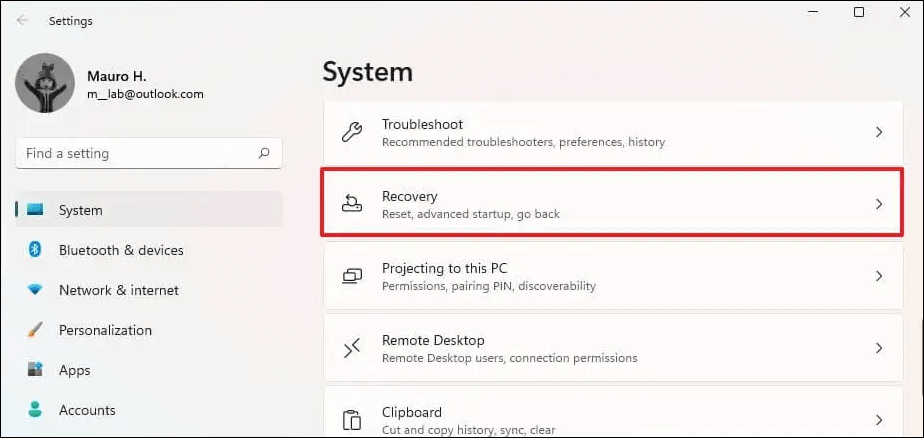
Step 1. Open Settings on Windows 10 and click "System".
Step 2. Click "Recovery".
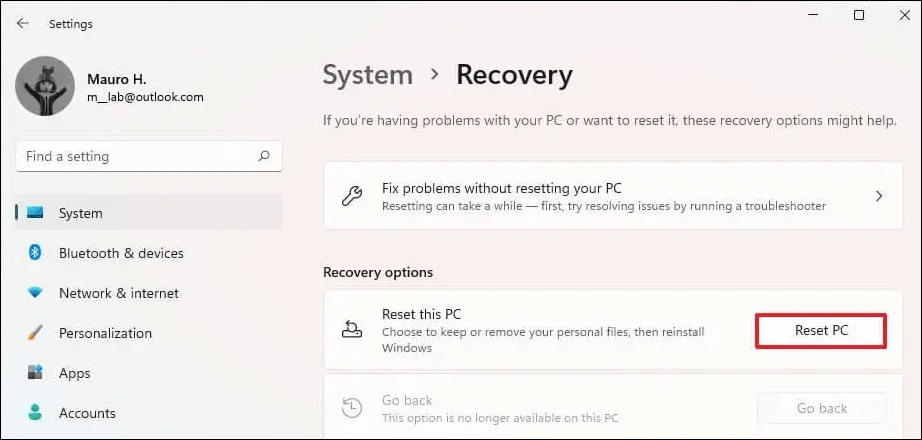
Step 3. Click "Reset PC" within the Recovery menu.
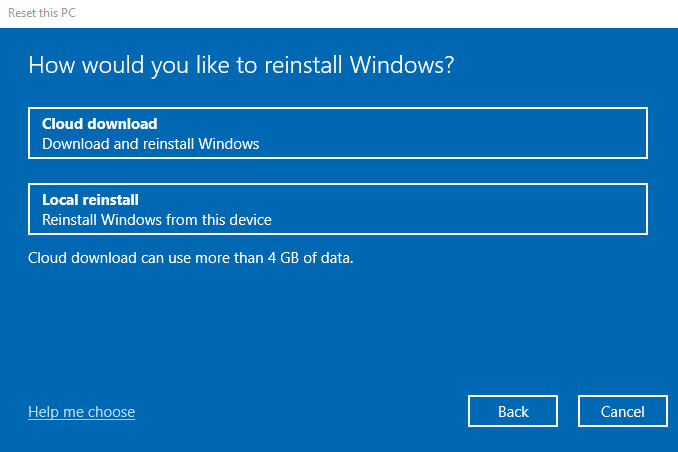
Step 4. Choose the option to keep your files, then select between a local reinstall and a cloud download, and finally click "Next" followed by "Reset".
Once you have completed the process, which may take around 20 minutes, your Windows will be reset while keeping all your files. However, if you encounter issues and a hard reset does not help, you can perform a factory reset from BIOS to erase all your data on the device.
How to Hard Reset Mac Computers
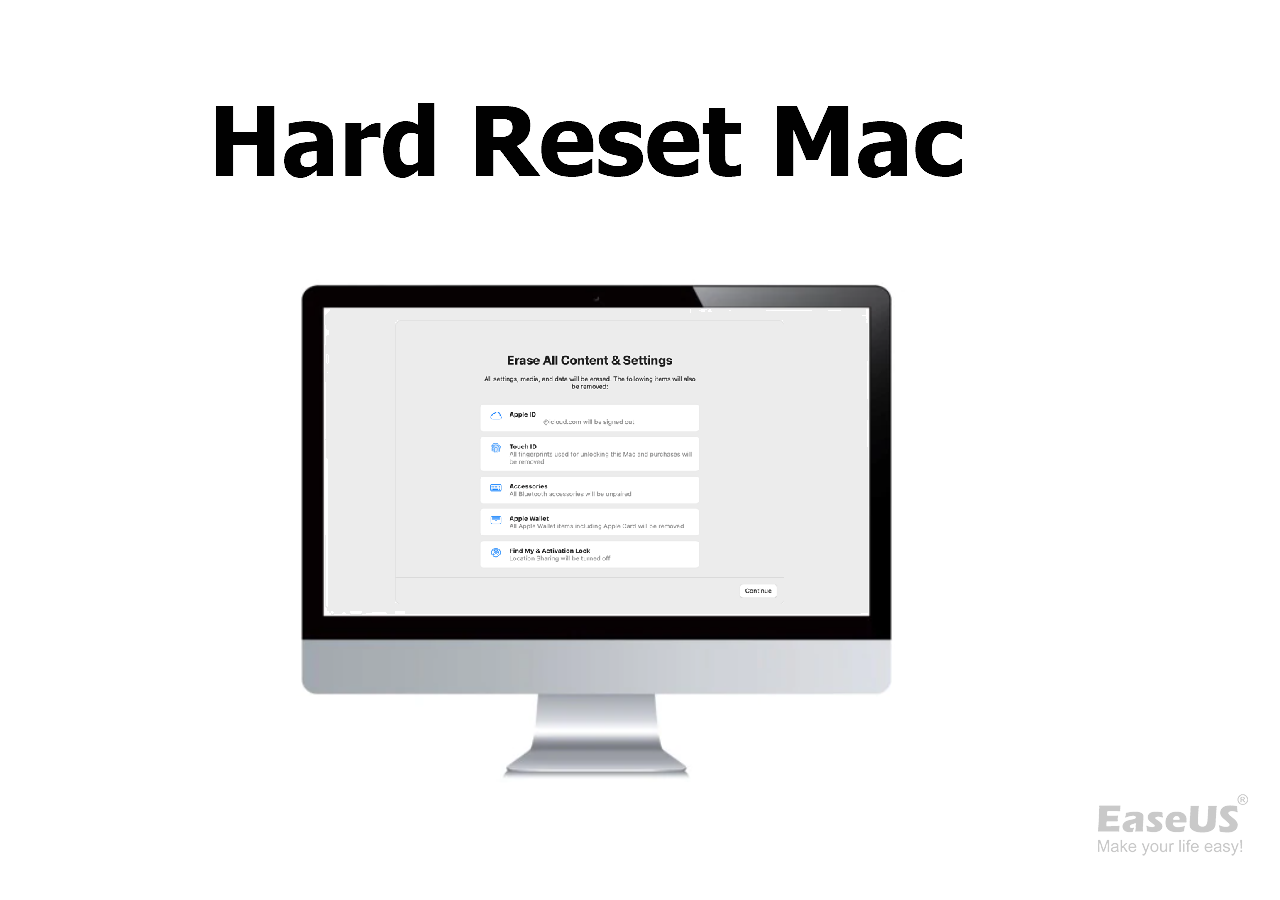
If your Mac is experiencing problems like freezing or not responding, you can try a hard reset to resolve the issue. This involves pressing a combination of keys on your keyboard and/or pressing the power button to restart your Mac.
To hard reset your Mac, first, unplug the power cord. Next, press the power button and hold it for about 10 seconds.
How to Hard Reset Mac [New Possible Plans in 2023]
If your Mac is experiencing issues like freezing or slow performance, a hard reset may be necessary. This involves resetting the computer's hardware and software, which can potentially resolve the issue.
How to Hard Reset Chromebooks
To hard reset a Chromebook, follow these steps:
Step 1. Turn off your Chromebook completely.
Step 2. Hold the Refresh key and tap the Power button.
Step 3. When the Chromebook starts, release the Refresh key.
Alternative methods for hard resetting a Chromebook:
- Hold Back, Refresh, and Power for 10 seconds.
- Hold the Volume Up and Power for 10 seconds and release. (On tablets)
- Press a special reset button if your device has one.
- Unplug the power cable.
- Remove and reinsert the battery.
If none of these methods work, you may need to perform a full factory reset (Powerwash) on your Chromebook to restore it to its original settings.
How to Hard Reset Phones
If a soft reset does not resolve the issue on your phone, you can try a hard reset to see if it resolves the problem.
How to Hard Reset iPhone
For iPhone 8 and newer versions:
Step 1. To turn off the phone, press and release the Volume up button, then press and release the Volume down button.
Step 2. Press and hold the power button on your iPhone until you see the Apple logo. This will restart your iPhone.
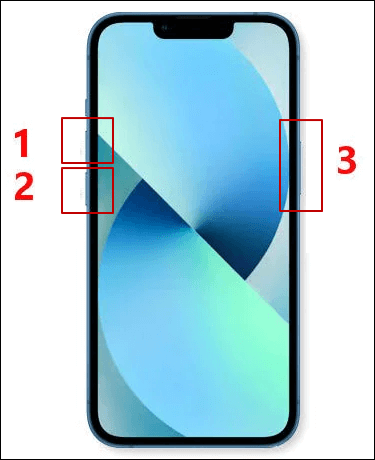
For iPhone 7 and 7 Plus:
Step 1. Press and hold the Volume down and power buttons at the same time.
Step 2. Release the buttons when the Apple logo appears on the screen.
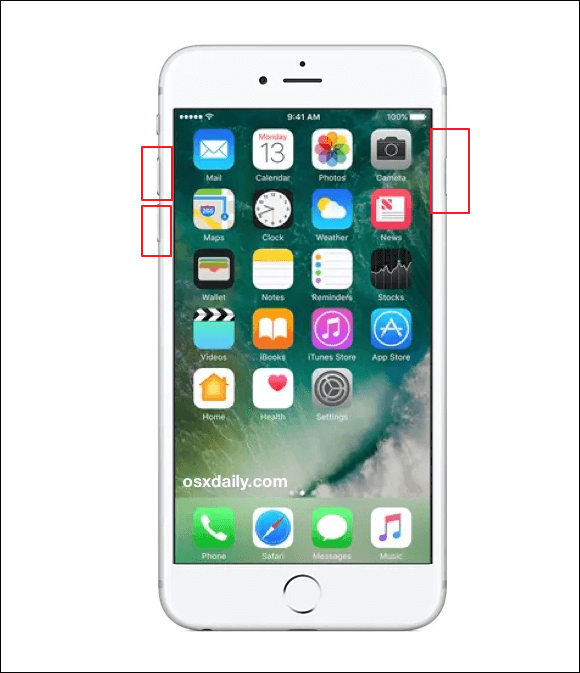
For iPhone 6 and earlier versions:
Step 1. Press the power button and the Home button at the same time.
Step 2. Let go of these buttons when the Apple logo appears.
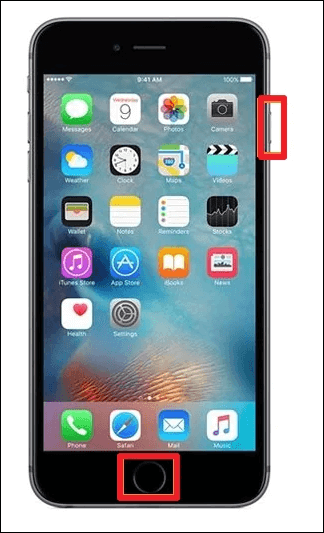
A hard reset can help fix iPhone issues like slowness or app freezing. If a hard reset does not work, a factory reset may be necessary to resolve more serious problems.
How to Hard Reset Android
If your Android phone becomes sluggish, it is often due to running apps in the background consuming memory and wasting system resources. In most cases, simply restarting, hard resetting, or performing a factory reset can resolve the issue.
If your Android device will not restart, try a hard reset by holding the power button for up to 20 seconds. If that does not work, hold the power and volume up buttons for 30 seconds to force shut down and restart your device normally.
If the above fixes fail to get your phone back to its normal state, remove your battery if it is removable. This will discharge any residual power and may help reset your phone's system.
Conclusion
After reading this guide, you can learn about the differences between hard reset and soft reset, as well as hard reset and factory reset, with step-by-step instructions provided. If you need to hard reset your devices, follow the steps accordingly.
Be sure to back up all your data first to prevent loss, or consider using Deep Data Recovery to recover files after a Windows 10 reset.
Hard Reset FAQs
A hard reset is a process of restoring a device to its original settings by reinitializing its core hardware. It can resolve issues like freezing, slowness, or unresponsiveness without necessarily erasing all data.
1. How do I make a hard reset?
To perform a hard reset on various devices: for Windows 10, press the Windows key + X and select the Power icon, then choose Restart. On Mac computers, press the power button, the Command + Option + Esc keys, and select Restart. On iPhones, press and hold the Sleep/Wake button and the Volume Down button simultaneously. On Android devices, press and hold the Power button for 10-15 seconds until the device restarts.
2. What are soft reset and hard reset?
A soft reset and a hard reset are two distinct operations. A soft reset is simply restarting your device, whereas a hard reset involves reinitializing your hardware and rebooting the system from firmware.
3. How do I do a hard reset on my iPhone?
Press and hold the Volume Up button and the Volume Down button at the same time, then press and hold the Power button until you see the Apple logo.
4. Is hard reset good?
If your devices are slow or not responding, you can try a hard reset to fix the issue. However, be aware that this may cause data loss and potential damage to your device, so proceed with caution.
Related Articles
- MacBook Pro Full Information | MacBook Pro Models, Features, and Comparison
- Full Guide on Windows 11 Requirements [Everything You Should Know]
- Target Disk Mode | How to Use Target Disk Mode on Mac
- Ultimate Guide on Network and Sharing Center [Updated 2023]
- SanDisk Extreme Pro Portable SSDs Become Unreadable: Causes and Solutions
Fix SanDisk Extreme Portable SSD failing, not detected, or showing errors. Learn troubleshooting steps and data recovery options. - SanDisk Extreme Pro Portable SSD Not Detected: Troubleshooting and Data Recovery
The SanDisk Extreme Pro Portable SSD not being detected or recognized by a PC or Mac is a common issue. This problem can be caused by a faulty USB port, a corrupted driver, or a failing SSD. To resolve the issue, try using a different USB port, updating the driver, or restarting the device.
Products
Articles & Tutorials
- Data Recovery
- Data Backup
- File Recovery
- File Backup
- System Backup and Restore
- Disk and Partition Clone
- Technical articles
- Mobile articles
- Disk Master Help
- Windows Data Recovery Tutorials
- Windows Secure Delete Tutorials
- Windows Partition Management Tutorials
- Windows File Backup and Restore Tutorials
- Windows System Backup and Restore Tutorials
- Windows Disk Backup and Restore Tutorials
- Windows Clone Tutorials