Learn How to Install on ReFS Partition Today | Windows 11 Installation Made Simple
ReFS, or Resilient File System, is a Microsoft file system introduced with Windows Server 2012, designed as the "next generation" after NTFS. It focuses on data integrity, offering greater resilience than NTFS, and is optimized for data availability, scalability, and efficient management of enormous data.
Many users consider installing Windows 11 on the ReFS partition due to its improved features over NTFS. Qiling will disclose the answers and provide a detailed tutorial on how to install Windows 11 on the ReFS partition, including a step-by-step guide.
Can I Install Windows 11 on ReFS Partition
You can install Windows 11 on a ReFS partition, as Microsoft has added a hidden option to support this. In fact, Windows 11 can format and boot from a ReFS partition, and this feature was introduced in Windows 11 Build 25276 in the Dev Channel of the Windows Insider Program. Installing Windows 11 on a ReFS partition has several advantages, making it a viable option for those who need it.
The advantages of installing Windows 11 on the ReFS partition
- ReFS has a new feature designed to speed up VM operations.
- ReFS supports a maximum of 16EB files and volumes.
- The system can handle large file sizes and is resilient to file corruption.
The ReFS file system was upgraded from NTFS and offers various improvements. For more information on ReFS and NTFS, you can click on the provided links to learn more.
After viewing, you likely have a question about installing Windows 11 on a ReFS partition. To answer this, the following section will provide a guide on how to successfully install Windows 11 on a ReFS partition.
How to Install Windows 11 on ReFS Partition
Windows 11 is getting ReFS support, allowing users to try out the installation of Windows 11 using the new file system. ReFS is a technology that supports large volumes, has corruption resiliency, and overcomes the problems of the NTF. This guide will help users who plan to test the new file system with how to install Windows 11 on a ReFS partition.
Before installing Windows 11 on a ReFS partition, be aware that there is a risk involved. We will inform you of this risk before providing the details of the installation process.
ReFS is still not fully implemented, and its process may not work, so it's best to test it on a spare/test computer or virtual machine before using it on your main computer.
To install Windows 11 on a ReFS partition, follow these specific steps:
Step 1. Go to the GitHub website and download ViveTool.
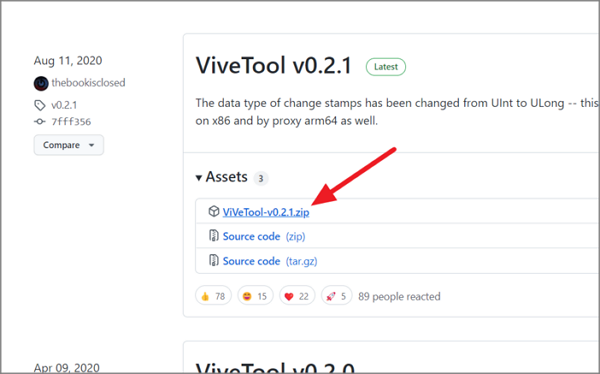
Step 2. Click the "Extract All" button to extract the ViveTool to the ViveTool-vx.x.x.zip folder.
Step 3. To open Terminal and run it as an administrator, press the "Win + X" keys on your keyboard to open the Quick Links menu, then select "Terminal" from the list. Once Terminal is open, right-click on the Terminal icon and choose "Run as administrator" from the context menu. This will open a new Terminal window with administrator privileges, allowing you to run commands and perform tasks that require elevated permissions.
Step 4. You can enable ReFS partitions on Windows 11 by running the following command in the Command Prompt as an administrator: `fsutil.exe behavior set DisableReFS 0`
c:\vivetool\vivetool /enable /id 42189933
Step 5. To install Windows 11, restart your computer and double-click the ISO file of Windows 11(build 25281 or above).
Note: If you don't have an ISO file, download Windows 11 ISO for any build, including Insider Previews.
Step 6. Open File Explorer, double-click the setup.exe file, and select the ReFS partition as the target drive for Windows 11 installation.
You can easily share this helpful article on your social media by using the common social media platforms. Try sharing it now!
Conclusion
This post provides a guide on how to install Windows 11 on a computer using the ReFS partition. To do so, follow the steps outlined, taking care to twice before proceeding, as most Windows servers do not support this file system. By following these instructions, you should be able to successfully install Windows 11 on your computer using the ReFS partition.
FAQ About Install Windows 11 on ReFS Partition
After reviewing the tutorial, you know how to install Windows 11 on a ReFS partition. The next part will provide further clarification on any remaining questions about today's topic.
1. Can Windows 11 be installed on the MBR partition?
Yes, Windows 11 can run on the MBR. Windows 11 requires a GPT drive to boot in UEFI mode, and the MBR can't be used as a primary disk, making it suitable for use as a second disk.
2. What is the difference between ReFS and NTFS in Windows 11?
ReFS can support up to 1.2 trillion terabytes, with a maximum file size of 16 million terabytes, compared to NTFS's 256 terabyte limit. ReFS also outperforms NTFS, especially with virtual machines, thanks to its mirror-accelerated parity feature, which provides better performance than NTFS's features like file compression and disk quotas.
3. Can I convert NTFS to ReFS without losing data?
No, you cannot convert an NTFS disk to a ReFS disk without data loss. To ensure compatibility, we should format the drive first and then copy the files, as some software may not recognize the ReFS file system. If a file system change is planned, all data should be backed up, the volume reformatted, and the data restored.
Related Articles
- How to Recover Browser/Internet History?
- How to Format External SSD for Mac [Newest & Effective Ways]
- How to Create macOS Ventura Bootable USB Installer [macOS Ventura Tips]
- 8 Best Google Drive Alternatives for Cloud File Backup [2023 Full Guide]
- Top 10 Most Basic SQL Commands To Know
Are you starting with SQL? Do you want to master the database queries? Then follow this easy guide to get started with the top 10 most basic SQL commands. - MOV Repair: Top 6 Ways to Repair Corrupted MOV Files
Learn how to repair corrupted MOV files with 6 proven methods. Fix MOV videos that won't play on Windows, Mac, or online using VLC, QuickTime, and top repair tools.
Products
Articles & Tutorials
- Data Recovery
- Data Backup
- File Recovery
- File Backup
- System Backup and Restore
- Disk and Partition Clone
- Technical articles
- Mobile articles
- Disk Master Help
- Windows Data Recovery Tutorials
- Windows Secure Delete Tutorials
- Windows Partition Management Tutorials
- Windows File Backup and Restore Tutorials
- Windows System Backup and Restore Tutorials
- Windows Disk Backup and Restore Tutorials
- Windows Clone Tutorials