How to Force Quit on Mac When Frozen [with 5 Proven Methods to Fix It]
Dealing with a frozen app can be pretty irritating, but force quitting is the solution. Closing troublesome apps on your Mac is pretty simple, and we've got five proven methods to master the art of force quitting when faced with unresponsive programs.
How to force quit on Mac when frozenHere are 5 proven ways to force quit on a Mac when frozen: You can use the Command + Option + Esc keys, the Force Quit window, Activity Monitor, the Terminal, and lastly, the Power button to restart your Mac. Each method is explained in detail to ensure you have the tools and knowledge to keep your Mac running smoothly even when faced with stubborn frozen apps.
| Workable Solutions | Step-by-step Troubleshooting |
|---|---|
| Method 1. Force Quit on Mac via Activity Monitor | Go to Applications > Utilities > Activity Monitor, and select the CPU tab...Full steps |
| Method 2. Force Quit on Mac via Apple Menu | Select Force Quit in the Apple menu to see a new window listing all the open applications...Full steps |
| Method 3. Force Quit When Frozen from Mac Dock | Right-click on the app icon you wish to close or click and hold on it to open the Dock...Full steps |
| Method 4. Use Keyboard Shortcut to Force Quit | Press Option + Command + Esc simultaneously to bring up a force quit window...Full steps |
| Method 5. Force Quit on Mac Using the Terminal | Open Terminal via Applications followed by Utilities, type the command and hit Return...Full steps |
On a Mac, Force Quit is a feature that lets you close apps or processes that are frozen or unresponsive, giving you back control of your system.
You may need to use the "Force Quit" function on your Mac in various scenarios, such as when an application freezes or becomes unresponsive, causing your Mac to slow down or even freeze, or when you want to close an application that is no longer needed or is causing issues. This can also be useful if you've opened multiple instances of the same application and want to close all of them at once, or if you're experiencing problems with a particular app and need to restart it.
- 🧊Frozen Mac: Your Mac may suddenly freeze, rendering it unresponsive and unable to interact with any on-screen elements.
- ⚠️Unresponsive Apps: When an application freezes, it stops responding to user input and cannot be closed normally, often requiring a more forceful method to terminate it.
- ❎Overwhelmed Resources: If your Mac is running too many resource-intensive applications at the same time, it can become slow or unresponsive due to the high demand on its resources.
- ⛔Application Crashes: When an app crashes and doesn't close properly, it can persist in the background, leading to problems.
Forcing a frozen program to quit may cause data loss if you have unsaved work, as it can interrupt the program's normal shutdown process and potentially delete unsaved changes.
To avoid the issue of unresponsive applications on your Mac Pro, consider using Deep Data Recovery to back up your important data before force quitting any unresponsive applications.
Back Up Your Mac and Never Lose Data
Back up and restore your MacBook/iMac without Time Machine, iCloud, or external hard drives.
In case of unexpected data loss, this efficient data recovery tool helps you retrieve lost files, including documents, photos, videos, and more, allowing you to safeguard your important data and use the Force Quit function confidently.
Install the all-To safeguard your essential data on your Mac, consider using a reliable backup and recovery software. This will ensure that your important files and documents are safely stored in case of any data loss or system failure.
Step 1. To create a drive backup image file in Deep Data Recovery for Mac, navigate to the main interface, click on "Disk Backup", then select "Create Backup" and proceed with "Next". This allows you to create a backup image file of the drive in case the data is overwritten.
Step 2. To create a backup on a Mac, select an internal volume to back up and click "Create Backup". It's also a good idea to connect any external storage devices, such as an external hard drive, USB flash drive, or SD card, before initiating the backup process.
Step 3. Save your backup files in a designated area, rename the backup file, and click "Save" to create a secure backup. It's recommended to keep backups separate from the original data storage device to prevent data loss.
After backing up your Mac data, let's look at 5 proven methods to help you force quit on your Mac when frozen.
Method 1. Force Quit on Mac via Activity Monitor
Here's how to force quit a Mac using Activity Monitor: If you're experiencing a force quit issue, you can use Activity Monitor, a built-in tool on Macs, to identify and stop the problematic process. To do this, open Activity Monitor, select the process causing the issue, click on the "X" button at the top left corner, and confirm the action to force quit the process. This should resolve the force quit problem.
Step 1. Go to "Applications > Utilities".

Step 2. Open "Activity Monitor".

Step 3. To fix a frozen app on your computer, go to the CPU tab, find the process linked to the app that's frozen, and click on the stop icon. This will terminate the process and allow the app to close normally. This should resolve the issue.

Step 4. Choose "Force Quit".
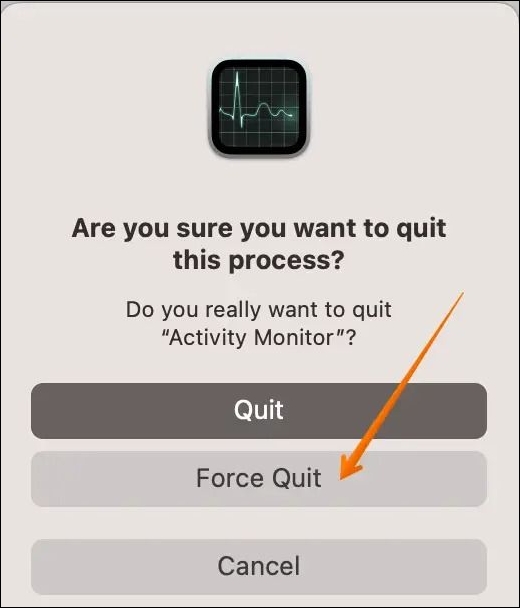
If the "Force Quit" option is unresponsive, try restarting your Mac, closing all other apps, and checking for any system updates. If the issue persists, try resetting the System Management Controller (SMC) or the Power Management Unit (PMU) to resolve the problem.
How to Fix Force Quit Not Working on Mac [Step-by-Step]
The Force Quit function on a Mac can be fixed by restarting the computer, checking for software updates, and verifying that the Command + Option + Esc keys are functioning properly. Additionally, users can try resetting the System Management Controller (SMC) and the Power Management Unit (PMU), which can resolve issues with the Force Quit function. If none of these steps resolve the issue, users may need to reinstall macOS or seek further assistance from Apple support.
Method 2. Force Quit on Mac When Frozen via Apple Menu
If your Mac is not responding, you need to force quit the problematic application to regain control. To do this, press Command + Option + Esc to open the Force Quit Applications window. From there, you can select the unresponsive app and click "Force Quit" to close it.
If you have multiple apps open, it can be tricky to pinpoint the troublesome one, but you can often tell by looking at your cursor: a spinning rainbow wheel indicates a frozen app, while a normal cursor means the app is running correctly.
Here are the steps to force quit an application on your Mac via Apple Menu: Go to the taskbar at the top of your screen, click on the Apple logo on the far left to open the menu, and select "Force Quit" from the dropdown menu. From there, you can select the problematic app from the list and click "Force Quit" to close it.
Step 1. In the menu, select "Force Quit".
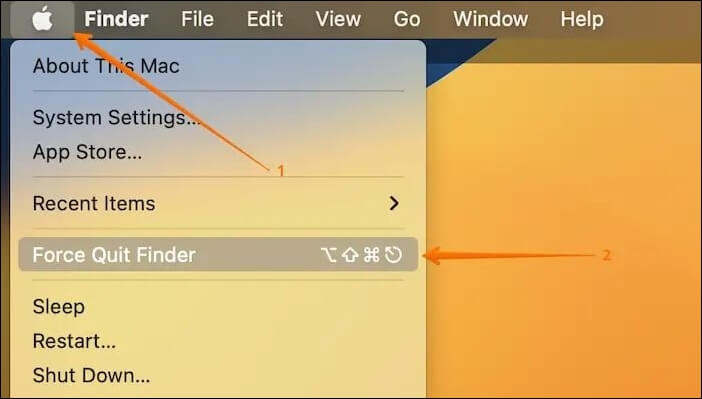
Step 2. To close an application on a Mac, click on the Apple logo in the top left corner and select "Force Quit". This will open a new window listing all open applications. From there, select the one you want to close and click "Force Quit" again. Alternatively, you can also use the Command + Q shortcut to quit the application.
Step 3. After selecting the app, click "Force Quit" again. A window will appear, warning that the app won't save any changes. Confirm your choice by clicking "Force Quit" once more.
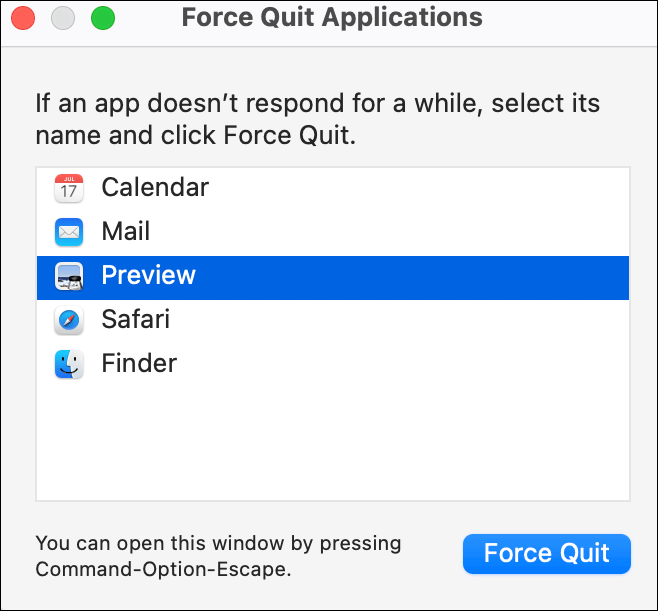
If your Mac freezes and you need to force quit an application, you can do so by pressing Command + Option + Esc keys at the same time. This will open the Force Quit Applications window, where you can select the frozen application and click "Force Quit" to close it.
Method 3. How to Force Quit When Frozen from Mac Dock
To force quit Mac from the Dock, click and hold on the application icon until it starts to jiggle, then click the "x" in the top left corner of the icon to close the application. Alternatively, you can also press Command (⌘) + Option (⌥) + Esc to bring up the Force Quit Applications window, select the application you want to quit, and click "Force Quit".
Step 1. Right-click on the app icon you wish to close, or click and hold on it to open the Dock menu.
Step 2. While holding down the "Option (Alt)" button, the "Quit" option changes to "Force Quit".

Step 3. Click on "Force Quit" to close the app.
If the Dock can't be found on your Mac, you can try restarting your computer, checking if it's been accidentally hidden, or using the Spotlight search to find it. You can also try resetting the Dock by deleting the com.apple.
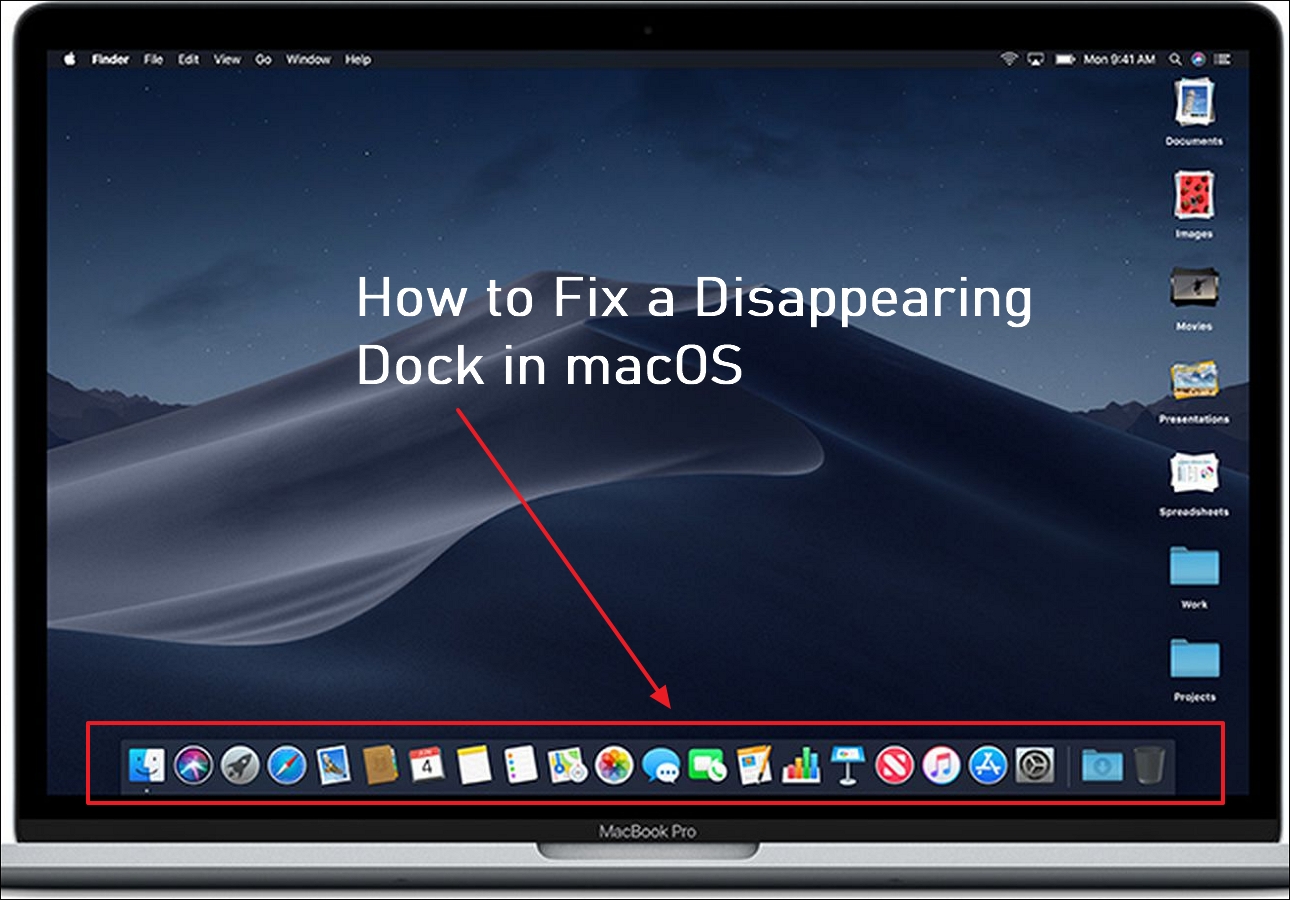
How to Fix a Disappearing Dock in macOS Ventura/Monterey/Big Sur
To fix the Dock disappearing issue on Mac, try restarting your computer, checking for any conflicting apps, and ensuring that the Dock is set to appear on the correct side of the screen. If the issue persists, try resetting the Dock by deleting the com.apple.
Method 4. Use Keyboard Shortcut to Force Quit on Mac When Frozen
On a Mac, the alternative to Ctrl+Alt+Delete is Command+Option+Escape. This keyboard shortcut allows you to access the Apple logo and the taskbar dropdown menu, providing a quick way to manage your system and applications.
Step 1. To force quit an application on your Mac, press "Option + Command + Esc" simultaneously, which will bring up a force quit window on your screen.

Step 2. To quit an app on a Mac, choose the app(s) you wish to quit and select "Force Quit" from the Apple menu.
Step 3. In the pop-up window, tap "Force Quit" again to confirm that you want to quit and understand that any recent changes will be lost.
The ESC key is a crucial key that can cancel or interrupt the current running process or program, but some Mac users have reported that it's not working properly. This article aims to provide a solution to this issue.
If your ESC key is not working on your Mac, there are several practical ways to fix the issue. Firstly, check if the function keys are enabled in System Preferences under Keyboard.
If the ESC key is not working on your Mac, there are several solutions to try. One possible fix is to check the keyboard settings and ensure that the ESC key is enabled in the Keyboard preferences. Another solution is to try using the Command + Period (.
Method 5. Force Quit on Mac Using the Terminal
To force quit an application on your Mac, you can try using the Force Quit feature in the Apple Menu or the Activity Monitor. However, if these methods don't work, you can try using Terminal, but be cautious as making errors in Terminal can disrupt your Mac's functionality. It's recommended to try the other methods first.
If you're experiencing issues with Force Quit not working on your Mac, you can try using Terminal to troubleshoot the problem. To do this, restart your Mac in Recovery Mode by booting it while holding the Command (⌘) and R keys.
Step 1. Open Terminal via "Applications" followed by "Utilities".
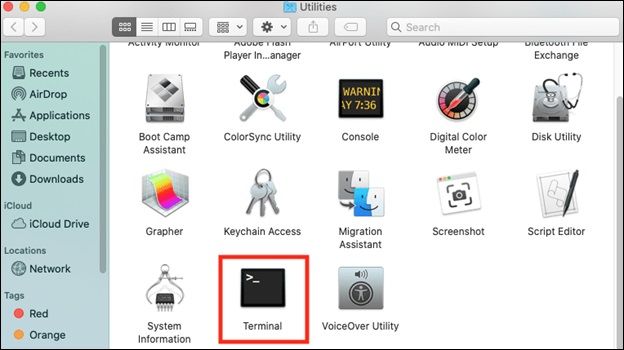
Step 2. To display all currently running processes on your Mac, type `ps -ax` and press "Return" in the Terminal.
Step 3. To identify the unresponsive app, scan the list of processes for rows starting with "/Applications/", which indicates the path to the application. This will help you pinpoint the specific app that is not responding.
Step 4. Note down the PID number in the left column.
Step 5. Type kill PID, and replace PID with the actual process ID number you recorded earlier, then press "Return".
If an app's name has more than two words, enclose it in quotation marks, such as "Google Chrome".
🔥Bonus Tip: Recover Lost Data After Force Quitting
When force quitting an app or process, be aware that it may result in data loss if there are open files. This can happen if you accidentally force quit a Word document while editing, for example. Additionally, force quitting a process used by other apps or processes may cause problems for those apps or processes.
If your Mac Pro app crashes, you don't need to worry about losing your unsaved work, as Deep Data Recovery for Mac Pro can help. This reliable and user-friendly data recovery software can recover your data, even if it wasn't saved automatically.
The tool can help recover unsaved Word documents on Mac, possibly due to a sudden force quit by pressing "Command + Option + Esc". It also supports recovering unsaved Excel files on Mac.
Note: To create a backup and recover data, click the "Disk Backup" option on the left, which allows you to restore data from a backup image in case of disk damage or lost documents.
Step 1. Select the disk
Launch Deep Data Recovery for Mac, hover the mouse over the device where you lost an unsaved file, and click "Search for lost files".

Step 2. Choose unsaved documents
After scanning, click on "Type" and expand "Unsaved Documents". Then, select the exact file type you lost, such as Word, Excel, PowerPoint, Keynote, Pages, or Numbers, without saving.
Step 3. Preview and recover unsaved files
Double-To recover a saved file on a Mac, click on the "File" menu, select "Recent Files", and choose the correct version of the file. Then, click on "Recover" to save the file to a secure location.
Conclusion
Here's a one-paragraph summary: To force quit a frozen Mac, press and hold the power button until the screen goes black. Then, press the power button again to turn it back on. Alternatively, if you're using macOS High Sierra or later, you can press Command (⌘) + Option (⌥) + Esc to open the Force Quit Applications window, where you can select the frozen app and click "Force Quit.
If you frequently encounter a frozen Mac, try force quitting via Activity Monitor, Apple Menu, or Mac Dock. If you lose data due to a frozen Mac, use Deep Data Recovery for Mac Pro to recover your data quickly.
How to Force Quit on Mac When Frozen FAQs
Here are some questions people also ask when they search for how to force quit on Mac when frozen:
1. How do I force quit an unresponsive app on my Mac?
To close an unresponsive app, press the Option (or Alt) and Command (or Windows) keys together, and then press the Esc key. This will open the Force Quit window, where you can select the unresponsive app and click "Force Quit" to close it.
Here's another alternative way to resolve an unresponsive app on Mac:
Step 1. Select the "Apple Menu" in the corner of your screen
Step 2. Choose "Force Quit".
2. How do you force a Mac to shut down when frozen?
If your Mac is frozen and unresponsive, you can force a shutdown by holding the power button until it turns off.
3. How do you force quit something that won't force quit on Mac?
If an application on your Mac isn't force quitting, try quitting it normally by going to the Apple menu and selecting "Quit" or closing it from the dock. If that doesn't work, try restarting your Mac.
Step 1. To troubleshoot a malfunctioning app on a Mac, press the "Command + Option + Escape" keys simultaneously, which will open the Force Quit Applications window. In this window, locate the app that is causing the issue and select it.
Step 2. Select "Force Quit".
Step 3. If you can access the "Apple menu", click on it, and select "Force Quit".
Step 4. To quit an application on your iPhone, select the app you want to close and tap "Force Quit" from the list of running apps. This will terminate the application and free up memory and resources.
Step 5. To close an unresponsive app on a Mac, right-click on its icon in the Dock and select the "Force Quit" option.
4. What is the command when Mac is frozen?
When your Mac freezes, press Option (or Alt), Command, Esc (Escape) at the same time, or use the Apple menu to Force Quit, and if the Finder is malfunctioning, quit and relaunch it.
Related Articles
- How to Cancel Windows 10 Updates Once Started
- [All Methods to Fix] Selected Boot Image Did Not Authenticate
- How to Solve 'Can't Delete Partition on SD Card' [100% Working Solutions]
- What Does Format Disk Mean? [Most Detailed Answer 2024]
- What Is Bootrec.exe? Everything You Need to Know About This Tool
What is Bootrec.exe? Learn how to run Bootrec.exe on Windows 10 and use its commands like fixmbr, fixboot, scanos, and rebuildbcd to repair startup issues. - Fix 'Can't Find the Specified File' Error When Rename/Move Folder in Windows 10/8/7
If you're getting a “can't find the specified” error message while trying to rename or move a folder on your PC, this page can help you find all missing files and folders on your Windows PC and storage devices with just a few easy clicks.
Products
Articles & Tutorials
- Data Recovery
- Data Backup
- File Recovery
- File Backup
- System Backup and Restore
- Disk and Partition Clone
- Technical articles
- Mobile articles
- Disk Master Help
- Windows Data Recovery Tutorials
- Windows Secure Delete Tutorials
- Windows Partition Management Tutorials
- Windows File Backup and Restore Tutorials
- Windows System Backup and Restore Tutorials
- Windows Disk Backup and Restore Tutorials
- Windows Clone Tutorials