How to Find SD Card on Mac | Step-by-Step Tutorial
SD cards are widely used as portable storage media for various devices, including MacBook Pro/Air. They are used to store files, documents, images, and movies. Knowing how to find the SD card on your Mac allows you to view and access the files stored on it.
How to find an SD card on a MacThe SD card slot on a MacBook Pro/Air or equivalent Mac model is located on the side, making it easily accessible for data transfer and management.
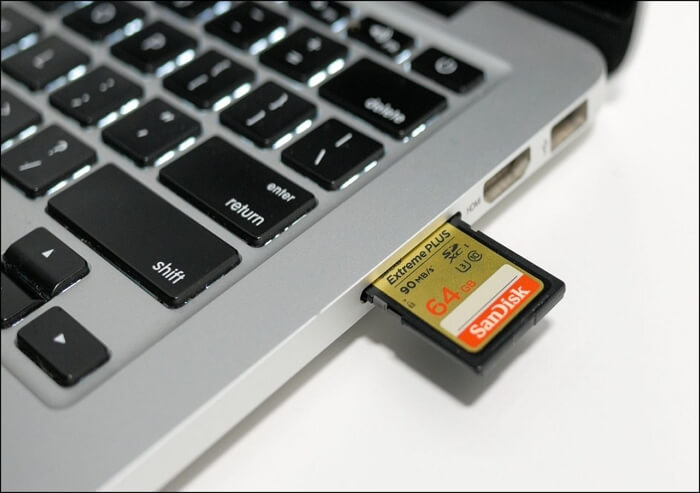
To manage files and transfer data on your Mac, you need to locate the SD card port. This is crucial for tasks like transferring photos from your digital camera, accessing data from another device, or expanding your Mac's storage capacity.
To find an SD card on a Mac, follow these steps below. This will guide you through accessing and managing the information stored on the SD card.
How to Find an SD Card on Mac [with Video Tutorial]
Follow the detailed instructions below to locate an SD card on your Mac and access all its information, including hidden files.
To locate your SD card on your Mac and view its contents, including hidden files, follow these steps: Connect your SD card to your Mac using a card reader or the SD card slot on your Mac. Once connected, open Finder and navigate to the "Locations" section on the left sidebar.
Step 1. Insert the SD card.
To get started, locate your Mac's SD card slot, usually found on one of the sides of a MacBook Pro or Air. Carefully insert the SD card into the slot until you hear a click, ensuring it is securely in place.
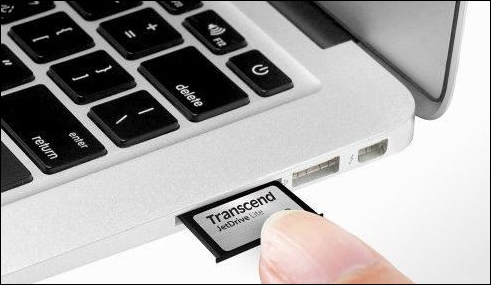
Step 2. Open "Finder".
To launch Finder, click the "Finder" icon on your dock or go to the "File" menu and select "New Finder Window".
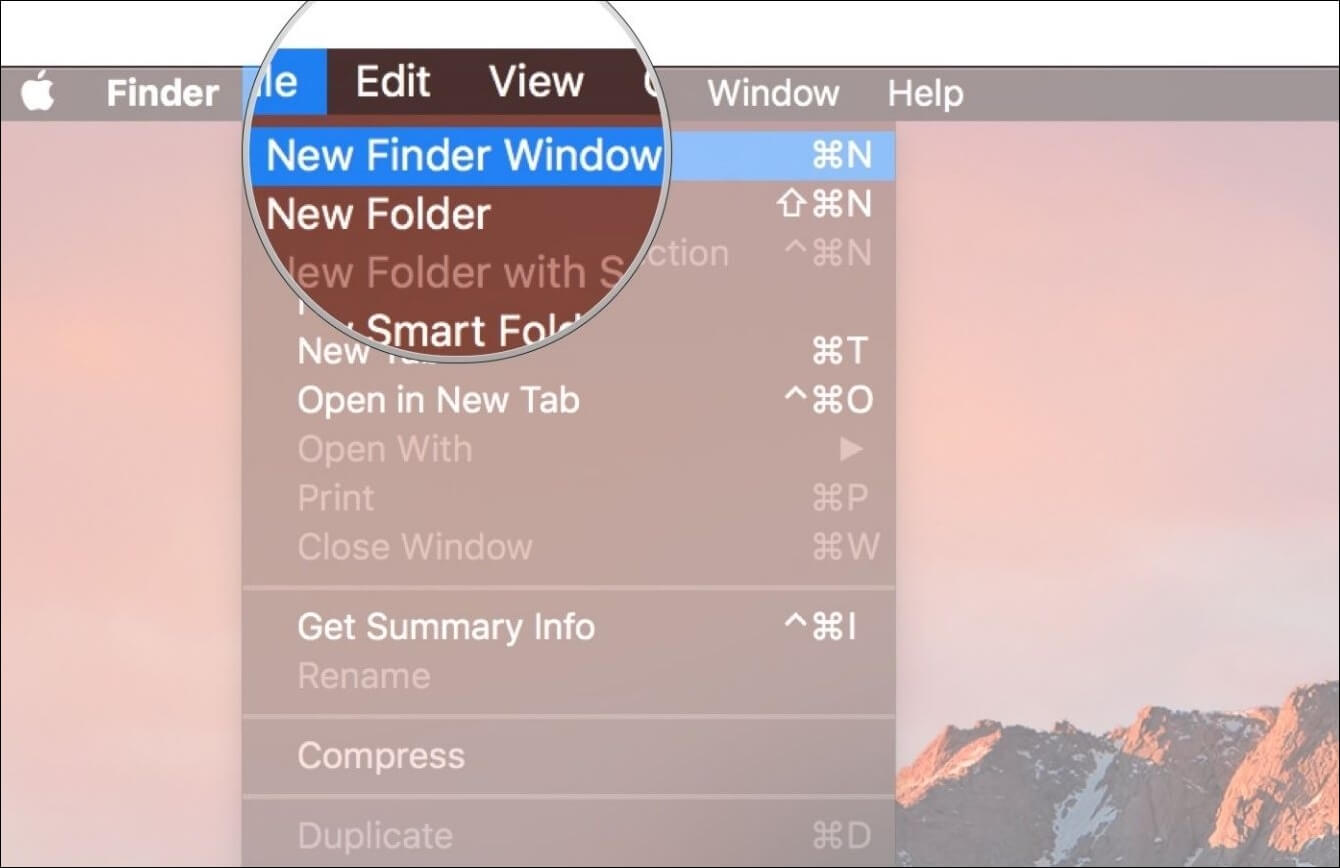
Step 3. Locate the SD Card.
To find the SD card, click on the "Locations" menu on the left side of the Finder window, where you will see the details of your SD card, usually including the manufacturer's name and model number.
If the SD card is not showing up in Finder, refer to the article "Can't Find SD Card on Mac: 6 Practical Solutions" for troubleshooting steps.
Step 4. Access SD Card Content.
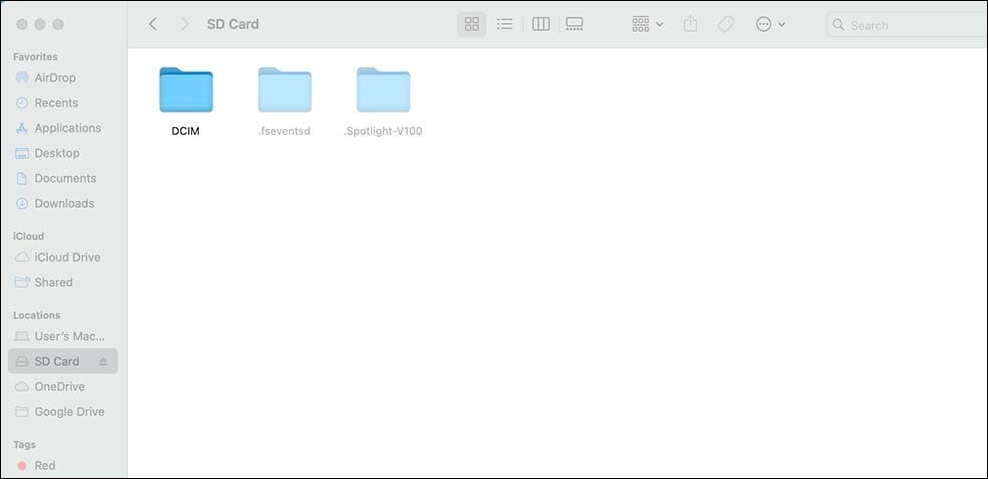
To view the contents of your SD card, click on the name of your SD card on the device, which will then display the folders and files present within the SD card.
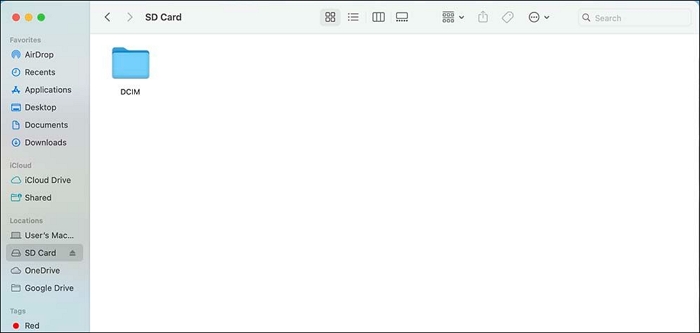
SD card says full but nothing on it on Mac? Don't worry! Files on the SD card may be hidden, so you can't find them; follow the next step to unhide them.
Step 5. View Hidden Files.
To access secret files on an SD card, press the "Command + Shift + Dot" keys simultaneously, which will also show hidden files on an external hard drive on a Mac. This will make any secret folders or files on the SD card visible.
If your SD card video files are not showing up on Mac, you can try using a third-party file recovery software like Disk Drill to scan your SD card and recover your hidden videos. This method can also help you access your hidden videos on an SD card.
To find an SD card on a Mac, follow these steps: First, ensure your SD card is properly inserted into the slot on the side of your Mac, and that the card is recognized by your computer. Next, click on the "Finder" icon on your dock, and then click on "Applications" in the sidebar.
Can't Find SD Card on Mac: 6 Practical Solutions
If your Mac has trouble locating your SD card, you can try various options. These include checking the SD card reader, restarting your Mac, using a different SD card reader, checking the SD card for damage, formatting the SD card, and using a third-party SD card recovery software.
Fix 1. Check the SD Card Reader
If your device doesn't recognize your SD card reader, try using a different memory card. If you can use it with other cards, the problem may be specific to just your SD card. To troubleshoot, test your device to see if the SD card reader works properly. If it doesn't, try using a different SD card to isolate the issue.
Fix 2. Check the Connection Issues
To fix the issue with your SD card, you'll need to verify the connection of the SD card insertion port. After removing your SD card and cleaning all of the contacts, replace it in the slot, ensuring it's fully seated and connected for proper function.
Fix 3. Unlock the SD Card
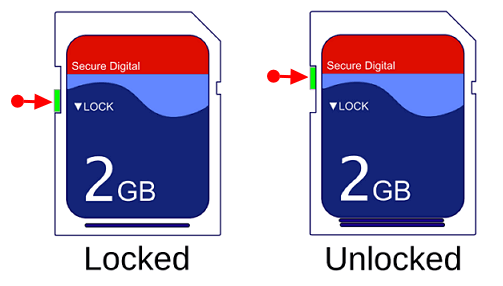
If your SD card has a physical lock switch on its side, make sure it's not activated, as this can prevent the card from being read.
Fix 4. Check the Finder Sidebar
To see the SD card in Finder, go to Window > Finder > Preferences, select "External disks" and "Removable media" in the Sidebar tab, and the SD card should appear in the sidebar.
Fix 5. Restart Your Mac
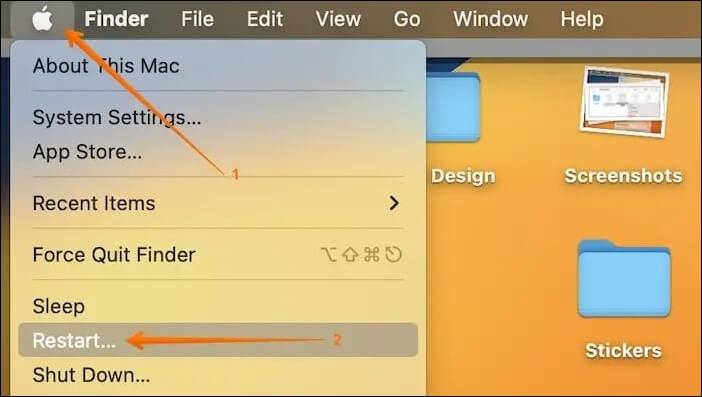
To resolve connection issues on your Mac, you may need to restart it. Save your work, click the Apple button, and select "Restart" from the menu. Once your Mac has restarted, check if the SD card is recognized. This simple step can often resolve connectivity problems and get your device functioning properly again.
Fix 6. Format Your SD Card
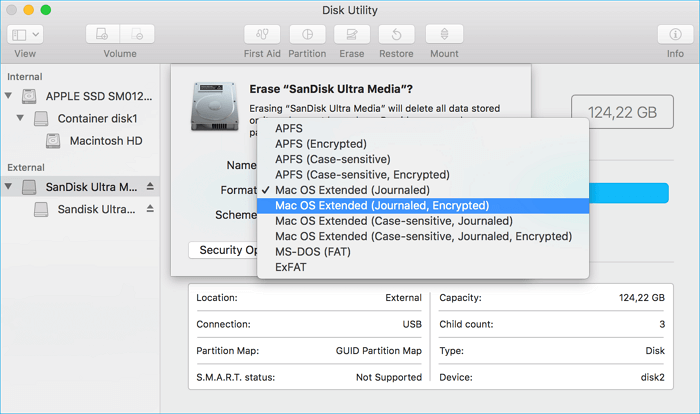
If everything else fails, you can try formatting your SD card on a Mac. This will erase all data on the card, so make sure to back up any important files first. To do this, open the "Disk Utility" app, select the SD card from the sidebar, click on the "Erase" tab, choose a format, and then click "Erase".
Conclusion
If you have an SD card and a Mac, finding and using it is straightforward. This article should help you locate your SD card, explore its contents, and access hidden files. However, if you encounter any issues or data loss, we recommend using our reliable data recovery software, Deep Data Recovery, to recover your lost data.
To maximize your SD card's performance on your Mac and ensure a seamless workflow, follow the methods outlined in this article and utilize reliable SD card recovery tools on Mac, such as SD card recovery on Mac, when needed.
How to Find SD Card on Mac FAQs
Here are questions people also ask when searching for how to find an SD card on Mac:
1. How do I access the SD card on a Mac?
To use an SD card on a Mac, simply insert it into the SD card slot on your Mac, and it will be recognized. Alternatively, you can use an SD card reader connected to your Mac, and the card will appear in the Finder's Sidebar. This allows you to easily transfer files between your SD card and your Mac.
2. Why is the SD card not showing up on Mac?
SD card not showing up on Mac can occur due to several reasons, including incompatible files, issues with the SD card port, or damage to the SD card itself.
3. How to show hidden files on an SD card on a Mac?
Mac has a built-On an SD card, you can hide certain files and directories, making them private or in different formats. To access these hidden files, launch the Finder tab and press Command + Shift + Period (.) to unveil them.
4. The MacBook Pro SD card reader is not working; what can I do?
If your MacBook Pro's SD card reader is malfunctioning, try the following: restart your MacBook Pro, check for software updates, reset the System Management Controller (SMC), and reset the Power Management Unit (PMU). If none of these steps resolve the issue, try using an SD card reader that is specifically designed for Macs, or contact Apple support for further assistance.
- The SD card slot should be cleaned carefully for dirt or debris.
- You might try inserting the SD card again after restarting your MacBook Pro.
- If the issue persists, it's best to reach out to technical support or visit a certified service center for assistance.
5. How do you recover missing files from an SD card on a Mac?
If you've lost or erased files from your SD card on a Mac, you can use data recovery software like Deep Data Recovery for Mac to retrieve them. This software can restore files from SD cards and other storage media, and can be used by following a simple process of launching the software, connecting your SD card to your Mac, and following the on-screen instructions.
Related Articles
- How to Activate Windows 10 for Free Permanently in 2024
- Tutorial on Windows 10: Move Partition to End of Disk [Step-by-Step Guide]
- How to Factory Reset Terminal on Mac [Bash and Zsh]
- How to Install macOS Monterey | macOS 12 Clean Install
- How to Find Windows Server 2019 Product Key Using PowerShell Like an Expert
Locating the Windows Server 2019 product key can be challenging, but it's essential to have it active to ensure that some programs run smoothly and without limits. Fortunately, there are ways to find the product key using PowerShell, as discussed in the guide. - How Do I Find Windows Server 2019 Product Key [3 Methods]
If you're having trouble finding the Windows Server 2019 Product key, you can try using one of three methods: PowerShell, Command Prompt, or registry. However, the easiest approach is to use the Qiling Key Finder, which has a Product Key feature that allows for an instant find.
Products
Articles & Tutorials
- Data Recovery
- Data Backup
- File Recovery
- File Backup
- System Backup and Restore
- Disk and Partition Clone
- Technical articles
- Mobile articles
- Disk Master Help
- Windows Data Recovery Tutorials
- Windows Secure Delete Tutorials
- Windows Partition Management Tutorials
- Windows File Backup and Restore Tutorials
- Windows System Backup and Restore Tutorials
- Windows Disk Backup and Restore Tutorials
- Windows Clone Tutorials