2 Ways to Reinstall Windows 10 [Full Guide]
Windows are notorious for crashing, slowing down, and getting malware, but a simple reinstall of the operating system can help remove these issues.
To reinstall Windows 10, start by creating a backup of your files and data, and then boot from a USB drive or CD/DVD with the installation media. Next, follow the on-screen instructions to select your language, time and currency format, and keyboard layout. Choose the 'Customize' option to erase all data on the drive, and then select the drive you want to install Windows 10 on.
Reasons Why You Might Need to Reinstall Windows
Windows often requires a reinstall due to its tendency to corrupt, and this can be the only solution to resolve the issue.
There are instances where reinstalling Windows can be helpful, such as when a system becomes unstable, or when a user wants to start fresh with a clean installation, or when a system is infected with malware that can't be removed otherwise.
- Junk
- Malware
- OS Crash
- System Failure
- Virus Infection
- Performance Issues
- Accidentally Deleting Important Files
Let us look at each one of them briefly.
Performance Issues
If your PC is experiencing performance issues like slowing down or freezing, try deleting junk files, freeing up space, and other solutions first. If these don't work, reinstalling Windows 10 may resolve the problem.
Malware
Reinstalling Windows on a computer infected with malware, viruses, or adware effectively removes these unwanted programs by essentially starting from a clean slate.
You should consider reinstalling Windows 10 on your PC due to various reasons.
Junk Files
When you download an app, its files are stored in the "Program Files" or "Windows" folder. If you uninstall or delete the app, junk files remain, accumulating over time and slowing down your computer.
You can delete junk files by searching for the %temp% folder on your start menu, but this only addresses a small portion of the issue, as many junk files are scattered across your boot drive.
Reinstalling Windows 10 removes all junk files from your PC.
Accidentally Deleting Important Windows Files
If you've accidentally deleted important Windows files or registry entries, your system may not function properly. However, reinstalling Windows can help recover these files and get your PC working correctly again.
How to Reinstall Windows 10
Before reinstalling Windows 10 on your PC, it's essential to create a backup of your computer to prevent losing important files and data. You should back up your files, settings, and applications to ensure a smooth and hassle-free process.
You can create a backup using Windows' own backup solution, or use dedicated backup software to back up your computer and store the backups on the cloud or a USB drive.
Our go-to backup tool is Qiling Backup, which simplifies the process by backing up your computer and directly uploading it to the cloud, eliminating the need for a USB drive and local storage.
To proceed, you should back up your files and data, disconnect any external devices, and remove any recently installed software. You should also write down your product key and any other important information before wiping your PC's hard drive.
Method 1. Reinstall Windows Using the Windows Media Creation Tool
So here is the step-by-step guide to reinstalling Windows 10 on your PC.
Step 1. To create an installation ISO file using the Windows Media Creation Tool, follow these steps after downloading the tool: Launch the Windows Media Creation Tool and select the "Create a bootable media" option. Choose the language, architecture (32-bit or 64-bit), and edition of Windows you want to install.
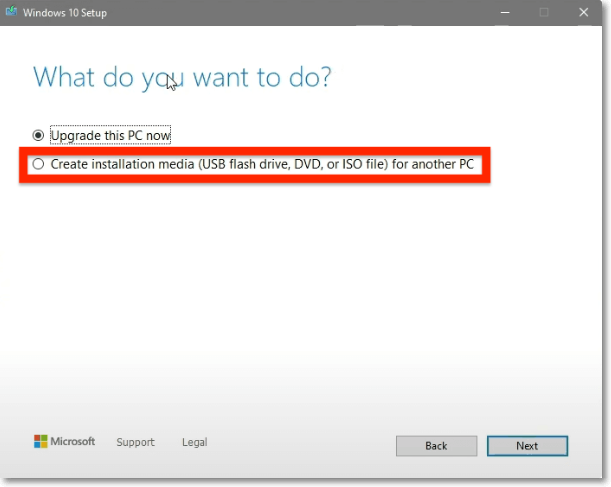
Step 2. Double-click on the "Setup" file to open it.
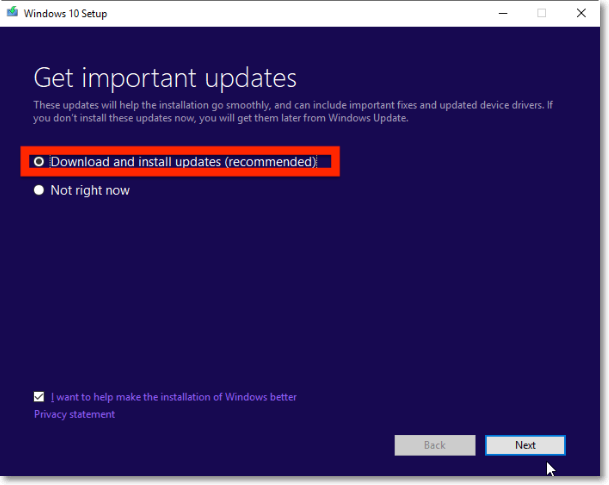
Step 3. Select "Download and install updates (recommended)."
Step 4. Select the "Change what to keep" option under "What needs your attention."
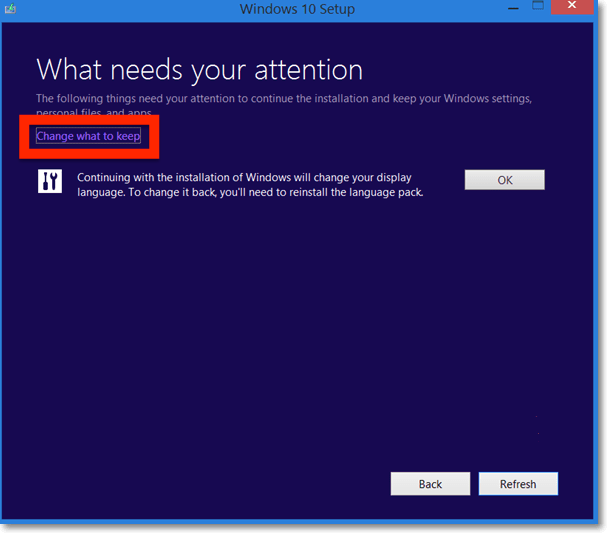
Step 5. You will be asked if you want to keep your apps and files or if you want to remove everything. If you have created a backup, select "Nothing", otherwise, choose between "Keep personal files only" or "Keep personal files, apps, and Windows settings".
Step 6. In a few minutes, the installation will be complete. Click on "Next," follow the prompts, and allow a few minutes for the installation to complete.
Method 2. Reset PC Using Settings
Microsoft has made it easier to reset your PC in Windows 10, unlike in previous versions where it was quite difficult.
Step 1. Click on the "Start" button and search for "Settings."
Step 2. Open "Settings" and then go to "Update & Security."
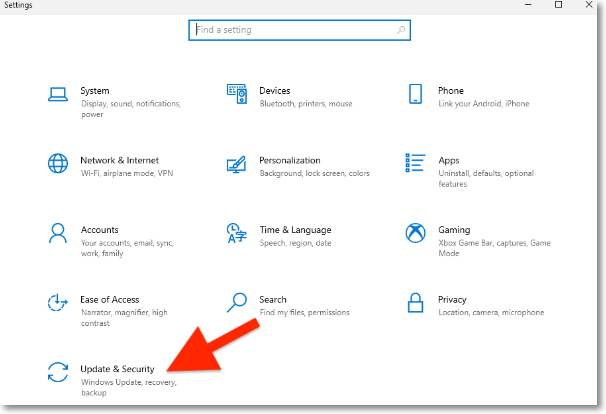
Step 3. Select the "Recovery" option and click on "Get started" under "Reset this PC."
Step 4. Follow the prompts to complete the process.
Concluding Thoughts
Reinstalling Windows 10 is a relatively straightforward process that can be done when the operating system becomes corrupted or outdated. There are many reasons that may require a reinstall, but fortunately, Windows PCs also allow for repair options that can fix issues without deleting files and apps, making it possible to restore your computer to its original state without losing any data.
Compared to other operating systems, Windows is highly flexible and cost-efficient. Users only need to spend money on their Windows PC when a component breaks down, and a simple reinstall of Windows can resolve many issues, making it a more affordable option.
FAQ on Reinstalling Windows 10
1. Can I reinstall Windows 10 for free?
You can download and reinstall Windows 10 for free, but you'll need to have your Windows product key handy, as you'll be prompted to activate Windows and won't be able to use all features without it.
2. Does reinstalling Windows delete everything?
When reinstalling Windows, you'll be asked to choose between deleting everything, keeping your files, or keeping both your files and apps. If you have a backup of your files, you can opt for a clean reinstall, while if you don't have a backup, you can choose to keep your files and apps or just your files.
3. Is it better to reset Windows or reinstall it?
If you're facing a problem and a Windows reset didn't resolve it, you might want to consider reinstalling Windows as a more thorough solution.
Related Articles
- Google Chrome Syne Keeps Pausing? Find Fixes Here
- [Fixed] Windows Cannot Run Disk Checking on This Volume Because It Is Write Protected
- How to Fix Corrupted Recycle Bin in Windows 10 and Restore Lost Data
- How to Use HP USB Format Tool? [2022 Final Guide]
- Invalid Value for Registry JPG/JPEG/PNG Files on Windows 10? Fix it Now!
If you're unable to open JPG, JPEG, or PNG images in the photo app on Windows 10 and receive an “invalid value for registry” error, try the practical methods outlined here to resolve the issue and restore access to your image files. - Is My Computer Running 32-Bit-or 64-Bit Windows? How to check?
Knowing whether your computer runs 32-bit or 64-bit Windows is crucial for installing compatible software and drivers. Learn how to check your system architecture and the key differences between 32-bit and 64-bit.
Products
Articles & Tutorials
- Data Recovery
- Data Backup
- File Recovery
- File Backup
- System Backup and Restore
- Disk and Partition Clone
- Technical articles
- Mobile articles
- Disk Master Help
- Windows Data Recovery Tutorials
- Windows Secure Delete Tutorials
- Windows Partition Management Tutorials
- Windows File Backup and Restore Tutorials
- Windows System Backup and Restore Tutorials
- Windows Disk Backup and Restore Tutorials
- Windows Clone Tutorials