How to Create Windows 10 Installation Media
To create Windows 10 installation media, you can use the Media Creation Tool provided by Microsoft. This tool allows you to create a USB drive or CD/DVD with the Windows 10 installation files, which can then be used to install Windows 10 on a computer. The process involves downloading the Media Creation Tool, running it, and selecting the desired installation media type and language. You can also choose to create a bootable USB drive or a CD/DVD, and the tool will guide you through the process.
This article from Qiling will guide you through creating Windows installation media in 3 different ways. To make Windows 10 installation media, read this comprehensive guide and learn how to do it.
Why Do You Create Windows 10 Installation Media
Windows 10 is the most widely used operating system globally, with its market share continuing to grow. Despite the availability of Windows 11, many users who previously used Windows 7 and 8 still prefer Windows 10, but are unable to directly upgrade to it, prompting them to use installation media to install the operating system.
Creating Windows installation media, typically a USB flash drive or DVD, allows you to boot your computer using a system file stored on the USB flash drive or DVD, bypassing the hardware. This process offers several advantages, including the ability to reinstall Windows, troubleshoot issues, and potentially resolve hardware conflicts. By booting from the installation media, you can start the installation process from scratch, which can be helpful in resolving complex problems or upgrading your operating system.
- Install an operating system. The most common use of installation media is to install a new copy of Windows, reinstall Windows, or perform a clean installation.
- Troubleshooting. If you're experiencing a severe issue with your Windows 10 computer, reinstalling the operating system may be necessary. Fortunately, you can easily do this yourself using Windows installation media, eliminating the need for a professional to fix the problem.
- Deploy computers. Using a bootable USB drive as Windows installation media can save you from repeatedly downloading the Windows ISO file, making it easier to deploy multiple computers simultaneously. By plugging the USB drive into your computer, you can set up your computers without having to download the ISO file multiple times.
The Windows installation media has many practical uses, and you can learn how to make Windows 10 installation media in the next part.
3 Ways to Create Installation Media for Windows 10
To create Windows 10/11 installation media, you can use various methods, including creating a bootable USB without software using CMD, but this method is complex and not recommended for beginners. Instead, there are three simpler methods to easily create installation media, which can be chosen based on personal preference. These methods can be used to create installation media for Windows 10/11.
- Way 1. Using Professional Bootable USB Drive Creator
- Way 2. Using Windows Media Creation Tool
- Way 3. Using Rufus
⭐Tips: To create installation media, here is what you will need:
- A computer with a reliable internet connection is required. The faster the internet, the shorter the wait time.
- To create a bootable device, you'll need a USB drive, external drive, or DVD with at least 8 GB of space. We recommend using a USB or external drive for its portability and flexibility, and make sure the drive is completely blank of any data, as it will be wiped.
Way 1. Using Professional Bootable USB Drive Creator
When creating installation media, using a professional bootable USB creator tool like Qiling OS2Go is the most common and easiest way, allowing you to make a bootable USB drive without downloading a Windows ISO file.
Qiling Disk Master is a tool that allows you to create a Windows To Go drive, with or without an ISO file, and is compatible with Windows 11/10/8/7. It also enables you to create a Windows 11 bootable USB from an ISO and run Windows on a Mac computer without Boot Camp, and even install Windows 10 without a Microsoft account.
Key Features of Qiling OS2Go:
- Install several operating systems. It lets you install two operating systems on one computer.
- Flexibility and user-friendly interface. With just a few clicks, you can automatically download your desired Windows edition using this tool.
- Bypass requirement for Windows installation. This tool allows users to install Windows 11 on their devices without requiring Secure Boot and Trusted Platform Module (TPM) 2.0, which are typically necessary for a legitimate Windows 11 installation.
- Run Windows on macOS. You can use this tool to create a bootable Windows USB drive that can be used on a Mac computer.
- Clone Windows. It allows you to clone Windows to an external drive, making it a portable Windows installation.
To create Windows installation media with Qiling OS2Go, you can follow these steps: First, download the Qiling OS2Go software from the official website. Next, insert a USB drive with at least 8GB of free space into your computer.
Way 2. Using Windows Media Creation Tool
The Windows 10 Media Creation Tool allows you to create Windows installation media to install a fresh copy of Windows 10, reinstall, or perform a clean installation. It also lets you download the Home or Pro version and choose between 32-bit or 64-bit.
You can follow the instruction below to create a Windows installation media USB drive.
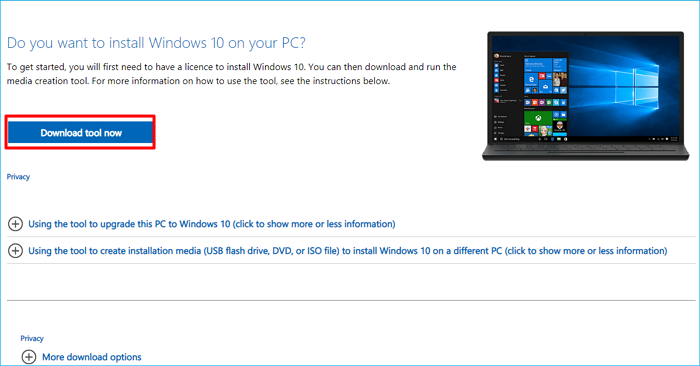
Step 1. To download Windows 10, go to the Windows 10 download page and click "Download tool now" to download the Media Creation Tool. This tool allows you to download the Windows 10 Disc Image (ISO File) for creating a bootable USB, which you can then use to install Windows 10. After downloading the tool, launch it to proceed with the installation process.
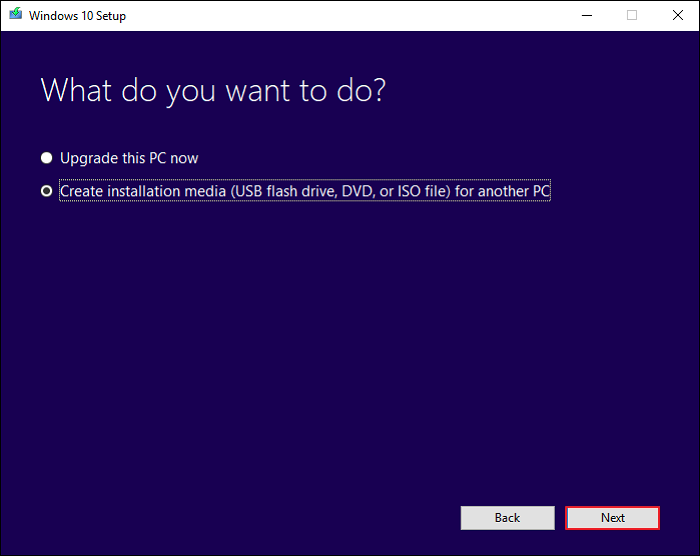
Step 2. Select the "Create installation media for another PC" option under the "What do you want to do" window, and tap Next.
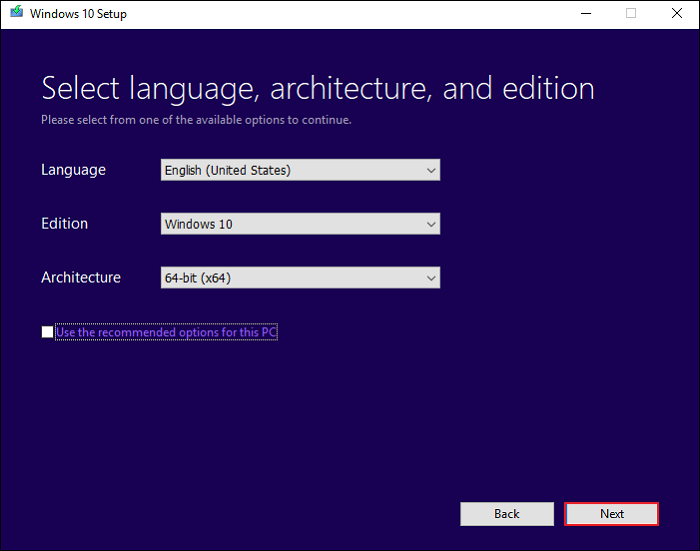
Step 3. Select the language, edition, and architecture of the Windows installation. You can also uncheck the "Use the recommendation for this PC" option and manually specify the settings. Tap Next to proceed.
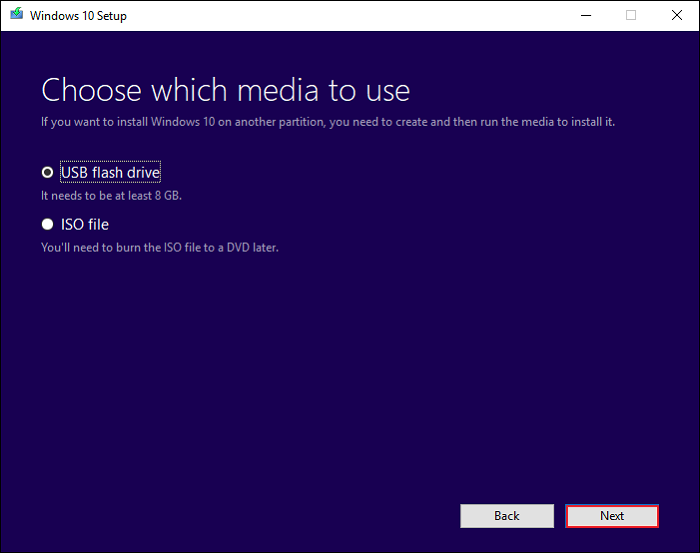
Step 4. Select the USB flash drive under Choose which media to use page.
Step 5. Select the USB connected to your computer, and tap Next.
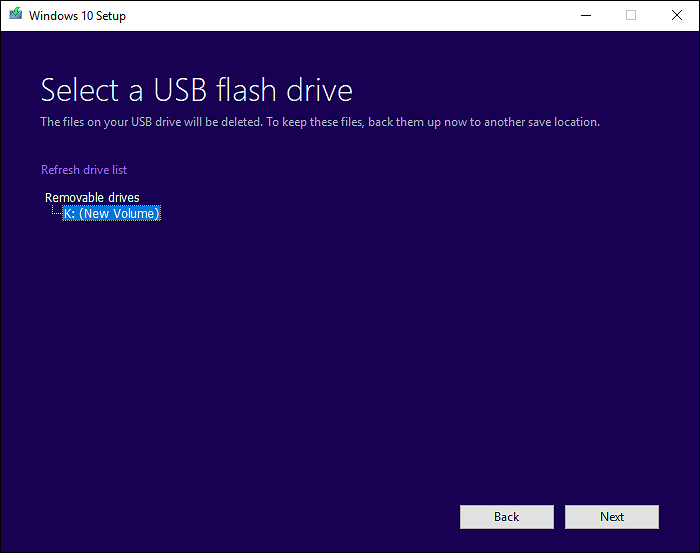
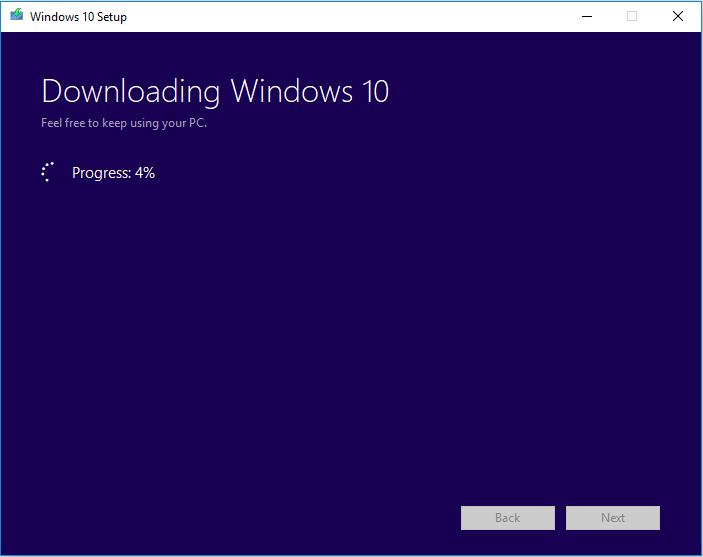
Step 6. The Windows Media Creation Tool will download Windows 10 to the USB drive.
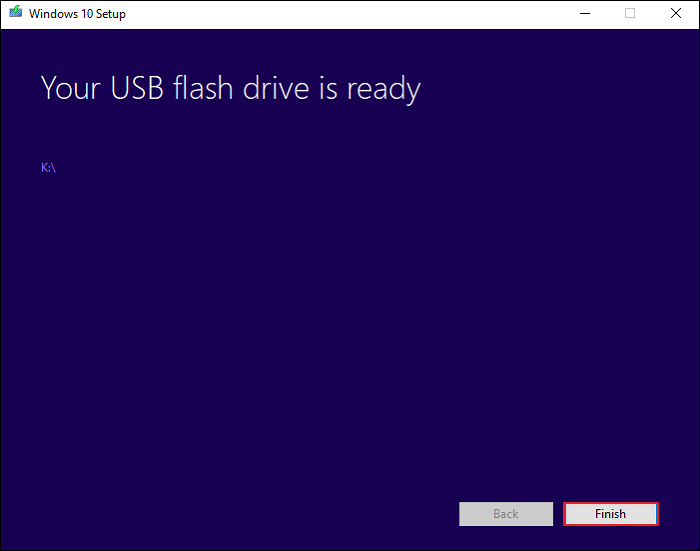
Step 7. When you're done, you'll see "Your USB flash drive is ready" on your screen. Tap "Finish" to complete the process.
You can use the Windows 10 bootable USB to install Windows 10 on your computer by following the step-by-step guide.
Way 3. Using Rufus
You can also create a bootable USB with Rufus, an open-source tool that allows you to create Windows 10 installation media from an ISO file by burning the Windows 10 ISO file to the USB drive. To do this, you'll need to download the Windows 10 ISO file from Microsoft's official site. The process involves using Rufus to burn the ISO file to the USB drive, making it a practical option for creating installation media.
Step 1. Download Rufus from Rufus' official website.
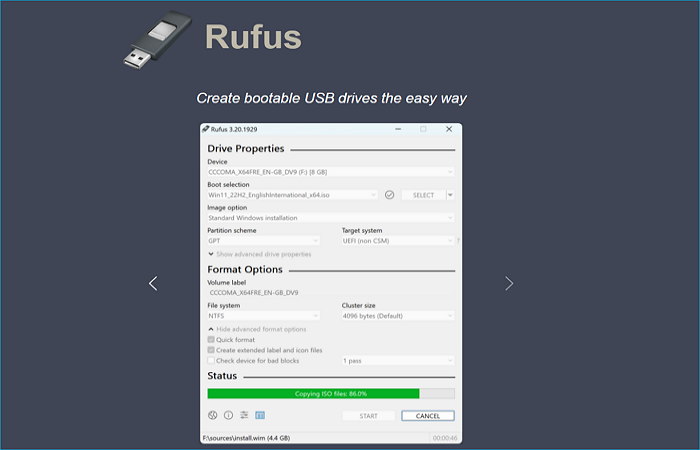
Step 2. Launch the tool, then insert a USB drive with a capacity over 8GB into your computer.
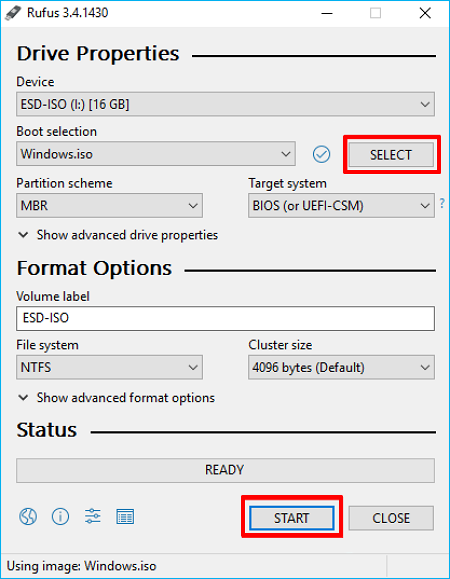
Step 3. Select the target USB drive from the dropdown menu, then select the Windows 10 ISO file. Tap START to create a Windows 10 bootable USB from ISO.
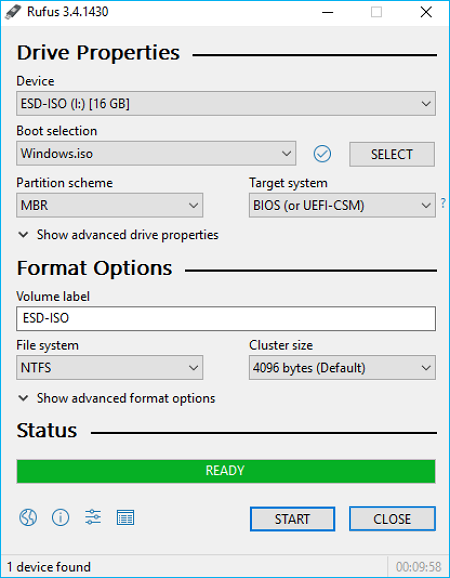
Step 4. When Rufus is ready, click CLOSE to exit the program.
To Wrap Things Up
To create Windows 10 installation media, you can use Qiling OS2Go, Windows Media Creation Tool, or Rufus, which can help you create a bootable USB drive or DVD for a clean installation of Windows 10. These tools provide a convenient way to prepare a Windows 10 installation media, allowing you to choose the method that best suits your needs.
Qiling OS2Go is your best choice when it comes to flexibility, practicality, and convenience. It allows you to create a Windows installation media without downloading an ISO file and offers other valuable features. Simply download and try it to explore its capabilities further.
FAQs on Create Windows 10 Installation Media
1. How to create Windows 10 installer USB?
To create a Windows 11/10 bootable USB, the easiest method is to use a professional bootable USB creator tool like Qiling OS2Go, which can help create a bootable USB drive without the need to download the Windows Disc Image (ISO file).
2. How to create bootable media Windows 10 from ISO?
To create Windows 10 bootable media from an ISO file, you can use a tool like Qiling OS2Go, Windows Media Creation Tool, or Rufus to help you. These tools allow you to create a bootable USB drive or CD/DVD from the ISO file, making it easy to install Windows 10 on a new device or repair an existing installation.
3. Does Windows 10 media creation tool still work?
The Windows Media Creation Tool still works, but with certain restrictions. You'll need an authentic copy of Windows with a product key, and instead of entering a purchased Windows 10 license key, you can use it to obtain a digital license for the latest version of Windows 10. However, you may encounter issues with the tool not working.
For help preparing ISO-based Windows repair or installation media, see Free ISO Creator for Windows Bootable Media.
Related Articles
- How to Install Windows 11 Without Secure Boot and TPM | 3 Ways🔥
- Windows To Go for Mac: How to Install and Use
- How to Play Call of Duty on Your Mac with 3 Methods
- 2023 Best WinToUSB Alternative for Creating a Portable Windows 11/10/7 USB Drive
- How to Create Bootable USB from ISO Windows 11
This is a full guide on how to create bootable USB from ISO Windows 11. This article covers 3 ways to help you create a Windows 11 bootable USB from ISO using Qiling Disk Master, Windows Media Creation Tool, and Rufus.
Products
Articles & Tutorials
- Data Recovery
- Data Backup
- File Recovery
- File Backup
- System Backup and Restore
- Disk and Partition Clone
- Technical articles
- Mobile articles
- Disk Master Help
- Windows Data Recovery Tutorials
- Windows Secure Delete Tutorials
- Windows Partition Management Tutorials
- Windows File Backup and Restore Tutorials
- Windows System Backup and Restore Tutorials
- Windows Disk Backup and Restore Tutorials
- Windows Clone Tutorials