2022 Best WinToUSB Alternative for Creating a Portable Windows 11/10/7 USB Drive
WinToUSB by Hasleo Software: Why Is It so Popular?
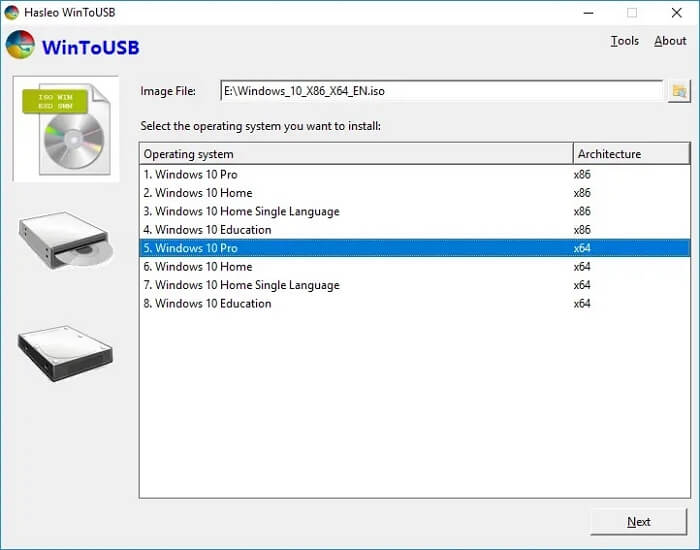
WinToUSB, also known as Windows To USB, is a versatile tool that enables you to install and run a fully-functional Windows operating system on an external storage device, such as a hard disk drive, solid-state drive, USB flash drive, or Thunderbolt drive. This allows you to carry a full-fledged portable Windows with you and use it on any PC, making it a convenient option for those who need to access Windows on different computers.
You can create a portable version of Windows 11/10/8/7 or Windows Server from an ISO, WIM, ESD, SWM, or VHDX file, or even clone your existing Windows to a USB or Thunderbolt drive, all in a straightforward process that takes just a few steps. This allows you to have a self-contained Windows installation that can be run directly from the portable drive, without the need for a CD/DVD drive.
What Do Users Say About WinToUSB?
WinToUSB is a tool that functions like Windows To Go, allowing users to run Windows on a USB drive without needing a Microsoft-certified drive. However, some users have experienced issues with the software, including the error "Copy file Failed," leading them to seek alternative solutions. Despite its compatibility with Windows 11/10/8/7, the tool's reliability has been a concern for some users.
How to Create Windows To Go USB Without Enterprise Edition
Windows To Go allows you to create a portable copy of your Windows operating system on a USB drive, but this feature requires a Windows Enterprise edition and a certified USB drive.

When Do You Need WinToUSB Alternative Software?
WinToUSB, while a good software, has its limitations, particularly for professional use. It's affected by issues like not working or getting stuck at 0, prompting a switch to a more reliable alternative. Compared to other similar software, WinToUSB offers fewer features, and its pricing is a major drawback.
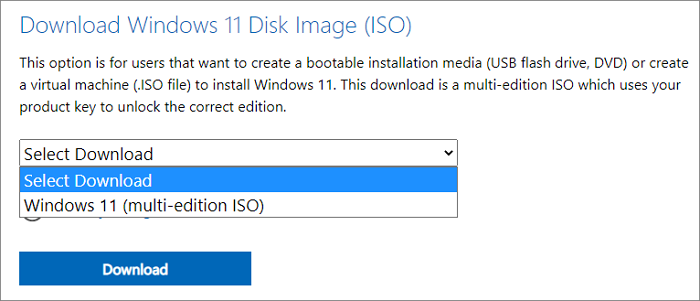
If you're experiencing issues with the ISO file, try re-downloading it from Microsoft's official website. If the problem persists, consider seeking a reliable alternative to WinToUSB for your needs.
Windows 11 Pro Download with ISO
You can find reliable download sources for Windows 11 Pro with ISO full version direct links on official Microsoft websites, such as Microsoft.com, or through authorized partners like Digital River, which provides direct downloads and ISO files for Windows 11 Pro.
Qiling OS2Go: Similar to WinToUSB but with More Integrated Features
Qiling Disk Master is a tool similar to WinToUSB, but with more valuable features integrated within.
*Other similar software comparison articles:
Qiling OS2Go not only creates a bootable Windows USB for Mac use, but also a basic portable Windows 10/11 on a USB. This allows you to take your Windows with you on the go, without needing to carry your entire laptop, making it ideal for frequent travelers. With just a display, mouse, and keyboard, you can access your Windows on a USB drive, making it a convenient and portable solution.
Qiling OS2Go allows you to save and secure your files, serving as a bootable drive if your Windows fails to boot, and is compatible with all current PCs and laptops running Windows 11/10/8/7. It also enables running a Windows system on a MacBook, iMac, or Mac mini.
Qiling OS2Go stands out from other tools with its numerous vital features. Its ability to run Windows on Mac is particularly useful for running Windows-only apps or games. Additionally, it can be accessed from multiple computers once connected, making it a convenient option. The tool is also portable, taking up minimal space and fitting easily in a pocket. Furthermore, Qiling OS2Go is a cost-effective option, making it more accessible to general users.
Qiling OS2Go is a more user-friendly option for creating a Windows To Go environment, allowing for seamless integration and offering 24/7 customer support. It can even work with non-certified USB drives, making it a convenient choice.
How to Create Windows 11/10 To Go USB Drive with WinToUSB Alternative
Step 1. To use Qiling OS2Go, first install it on your Windows computer, which will show you the used space on your system drive. Then, plug in a USB drive that is larger than the used space on your system drive. Next, choose the target USB drive and click Next to continue.
Step 2.Qiling OS2Go will notify you that the operation would delete all data on your drive, so make sure to back up important data before proceeding. Click Continue to proceed.
Step 3.The disk layout on the target drive will be identical to the resource drive, but you can also customize it if needed. If the target drive is a Solid State Drive, select the option to use it as the Windows bootable drive, then click Proceed.
Step 4.Qiling OS2Go will create a portable USB drive, which may take a while depending on the OS and network condition. Once the progress reaches 100%, the USB drive will be bootable.
Step 5. To install Windows on a new computer, start by inserting the portable Windows USB into your computer. Next, restart your computer and press the key (usually F2, DEL, or F10) to access the BIOS settings. From there, select the option to boot from the USB drive, and follow the on-screen instructions to complete the installation.
Note: To ensure a smooth boot process, it's essential that the boot mode of both your portable USB drive and the target computer are identical, whether it's UEFI or Legacy mode. If they differ, you may face difficulties in booting.
You can create a Windows To Go USB drive using the WinToUSB alternative, or refer to the official Qiling OS2Go site which offers helpful tips and guides for their users.
The tool is user-friendly and compatible with any USB drive, requiring only that you select a size sufficient to hold an operating system and a USB drive with sufficient speed to ensure a smooth experience.
Conclusion
Qiling OS2Go is an excellent replacement for the WinToUSB tool, offering the same features but with additional functionality and integration with other features. Unlike WinToUSB, which is a highly effective tool that can save time and increase versatility but is far from perfect, Qiling OS2Go provides more comprehensive functionality, making it a better choice for users.
Related Articles
- Download and Create Windows 10 To Go
- How to Create Windows To Go USB Without Enterprise Edition guide
- How to Run Windows on Mac for Games
- Windows 10 Bootable USB Tool: Auto-Download Windows 10 ISO to USB
- Quick Format an External Hard Drive in Windows 10 With CHKDSK Pass, or Full Format?
Do you need a quick format with CHKDSK or a full format? This page explains the answer and reasons, then provide a full guide on formatting an external hard drive. - How to Fix Raspberry Pi SD Card 'Write-Protected', Help
If you find that your Raspberry Pi 4 SD card is write-protected, This short article will provide an efficient solution to help you remove the write protection from your Raspberry Pi 4 SD card.
Products
Articles & Tutorials
- Data Recovery
- Data Backup
- File Recovery
- File Backup
- System Backup and Restore
- Disk and Partition Clone
- Technical articles
- Mobile articles
- Disk Master Help
- Windows Data Recovery Tutorials
- Windows Secure Delete Tutorials
- Windows Partition Management Tutorials
- Windows File Backup and Restore Tutorials
- Windows System Backup and Restore Tutorials
- Windows Disk Backup and Restore Tutorials
- Windows Clone Tutorials