How to Install Windows 11 Without Secure Boot and TPM
You can still install Windows 11 on your computer even if it doesn't support Secure Boot and TPM 2.0, without needing to buy a new one. There are alternative ways to install Windows 11 on your current computer.
This article will guide you through installing Windows 11 without Secure Boot and TPM, providing step-by-step instructions accompanied by pictures. Let's proceed to the details.
What Are TPM and Secure Boot
TPM is a security module that uses a hardware-based approach to create hashes and store cryptographic keys, biometric information, user data, and other data, often soldered onto a computer's motherboard.

Secure Boot is a security standard that ensures a boot device can only use software trusted by the OEM, preventing unauthorized code from running.
When a computer starts, the firmware performs a signature check on all boot software, including the operating system, EFI programs, and UEFI firmware drivers. If the signatures are valid, the firmware hands control to the operating system, allowing the PC to boot normally.
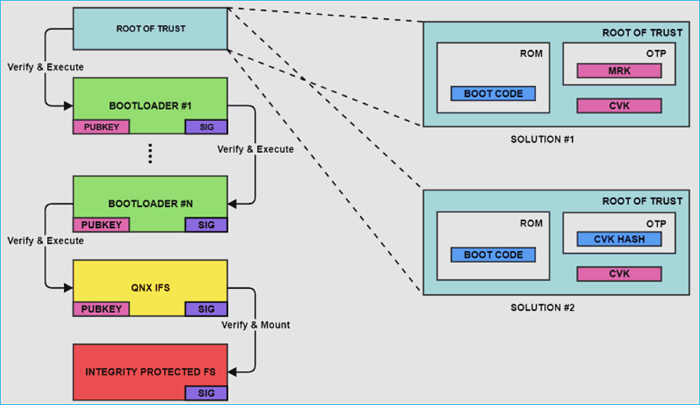
Are Secure Boot and TPM Necessary for Windows 11 Installation
Windows 11 is the latest operating system developed by Microsoft, but some users face issues upgrading from Windows 10 to 11, despite wanting to enjoy the new features.
The issue will occur when you encounter the "TPM 2.0 must be supported and enabled on this PC" or "This PC must support Secure Boot" message.
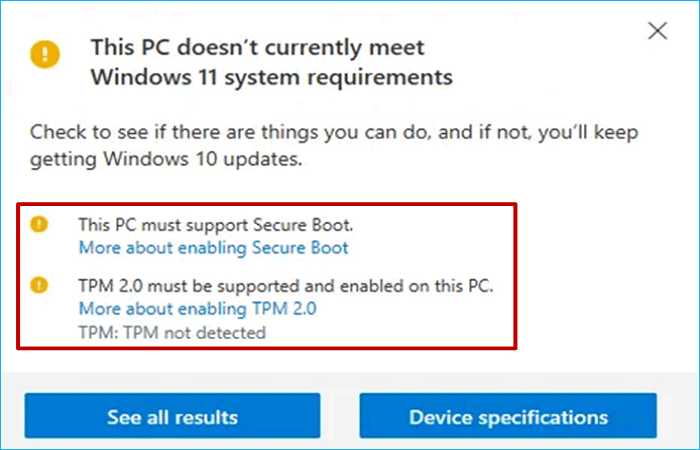
Windows 11 will only work on a computer that meets the basic requirements, such as a 64-bit processor, at least 4GB of RAM, and a Trusted Platform Module (TPM) 2.0 chip.
- 1 GHz or faster core processor
- Secure Boot
- Trusted Platform Module (TPM) 2.0
- 4 GB RAM or higher
- 64 GB storage space or larger
- Internet connectivity and more
No, you can still install Windows 11 without TPM and Secure Boot, but you will not be able to enable certain security features, such as Device Guard and Credential Guard, which rely on TPM and Secure Boot to function. Additionally, you may not be able to take advantage of some other security features and updates that are specific to Windows 11. However, you will still be able to use Windows 11 for general computing tasks, but with some limitations.
Although Microsoft requires TPM 2.0 and Security Boot for Windows 11 installation, you can still find a way out. One of the most straightforward methods is to install Windows 11 from a bootable USB, which bypasses the Secure Boot and TPM requirements. The content below will describe how to do this. Please keep reading!
Microsoft has released the latest Windows 11 version - Windows 11 23H2. To download the ISO file for installation, you can refer to the article.
To download the Windows 11 23H2 ISO file, there are three ways to do so. Firstly, you can download it directly from Microsoft's official website by following the provided link.
You can download the Windows 11 23H2 ISO image file for free using three simple methods. Firstly, Microsoft offers the ISO file for download on its official website, allowing users to create a bootable USB drive or CD/DVD for installation. Secondly, users can also download the ISO file from other reputable sources, such as the official Windows 11 download page or trusted third-party websites.
How to Install Windows 11 Without TPM and Secure Boot
To bypass Security Boot and TPM to install Windows 11, you'll need to follow a 4-part process. This involves disabling Secure Boot in the UEFI settings, creating a bootable USB drive with Windows 11, disabling TPM in the UEFI settings, and finally, installing Windows 11 without TPM 2.0 and Secure Boot. It's essential to carefully follow each step to avoid any potential issues.
- Part 1. Bypassing TPM and Secure Boot Checks
- Part 2. Creating a Windows 11 Bootable USB
- Part 3. Booting Your PC from the Bootable USB
- Part 4. Installing Windows 11 Without TPM and Secure Boot
Part 1. Bypassing TPM and Secure Boot Checks
You can use the Windows Registry to bypass Secure Boot and TPM on your Windows 11. To do this, follow the steps below:
⭐Note:
Qiling Disk Master enables you to create a Windows 11 bootable USB while bypassing TMP and Secure Boot checks. You can proceed directly to Part 2.
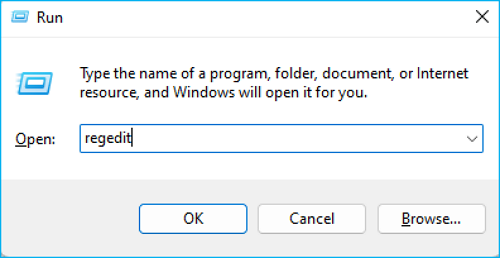
Step 1. Press the Win + R keys to launch the Run box, then type regedit in the box and press Enter.
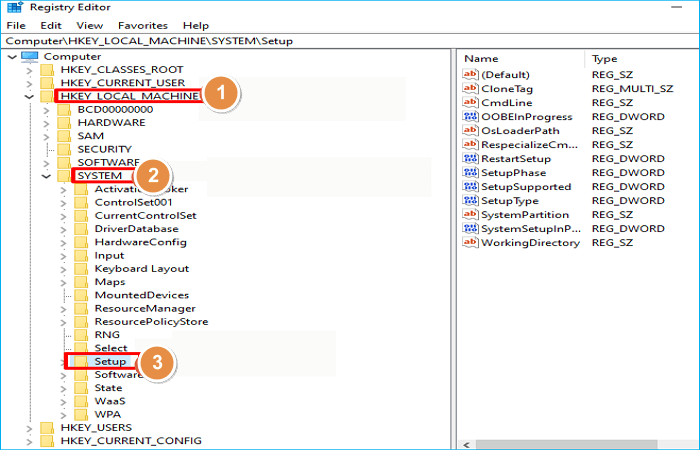
Step 2. Navigate to the path below when Registry Editor opens.
Computer\HKEY_LOCAL_MACHINE\SYSTEM\Setup
Step 3. Right-click the blank in the Setup folder, select New, then Key, and name it LabConfig.
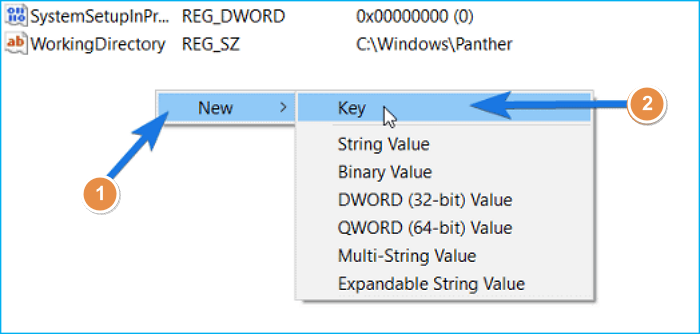
Step 4. To create a new DWORD value, right-click on the blank under the LabConfig folder, select New, and then choose DWORD (32-bit) Value. This will create a new DWORD value that can be used to store a 32-bit unsigned integer value.
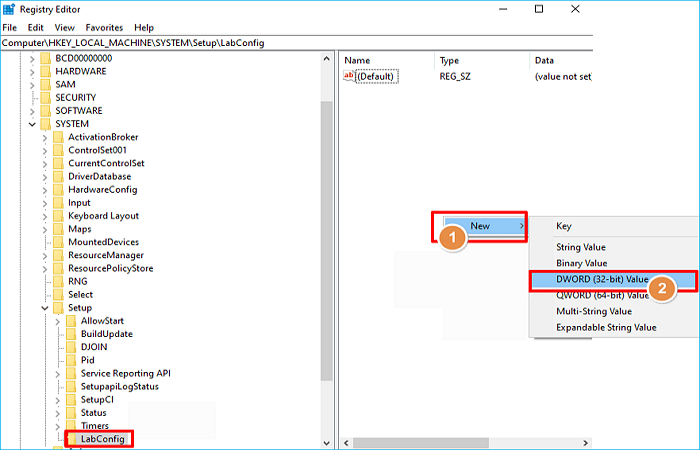
Step 5. When you create the files, name them BypassSecureBootCheck and BypassTPMCheck.

Step 6. Double-click on the two files created, change the Value data from 0 to 1, and then tap OK.
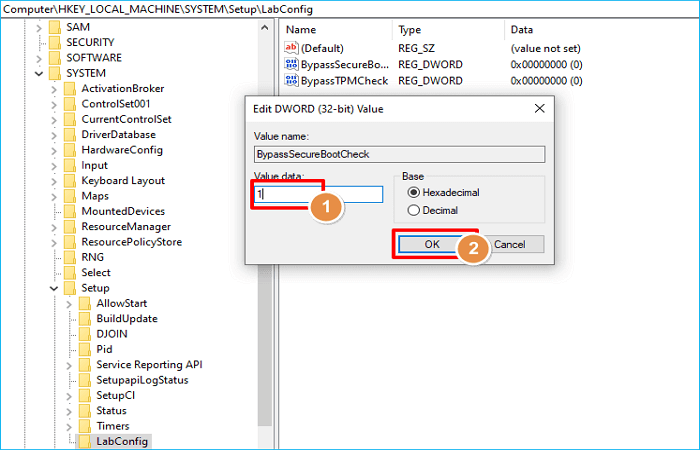
Once you've completed the steps, close the Windows Registry editor and restart your PC to save the changes. This will allow you to bypass the TPM 2.0 and Secure Boot requirements on Windows 11, and you can proceed to the next part of the process.
Part 2. Creating a Windows 11 Bootable USB
To create a Windows 11 bootable USB, you can download the Windows 11 ISO image file from the Microsoft official site and follow the step-by-step process to create a bootable USB drive on your own.
Creating a bootable USB manually can be a time-consuming and troublesome process. Fortunately, there are professional and free bootable USB drive creators, such as Qiling Disk Master, that can help you achieve this with ease.
Qiling Disk Master is a practical and easy-to-use tool that allows users to create a bootable USB for Windows 11/10/8/7, automate the download of a desired Windows 10/11 version, and install Windows 10 without a Microsoft account, also enabling the transfer of Windows 10 to another computer.
This bootable USB creator has several key features. It allows users to create a bootable USB drive from an ISO file, making it easy to install operating systems or other software on multiple computers.
- Play Windows games on Mac
- Install Windows 11 on any PC
- Create a Windows bootable USB drive without ISO
- Install two operating systems on one computer
- Clone Windows 11/10/8/7 to a USB as portable Windows
Part 3. Booting Your PC from the Bootable USB
To boot your computer from a Windows 11 bootable USB drive, insert the USB drive into your computer, then restart your computer and enter your computer's BIOS settings. The key to enter the BIOS settings varies by computer model, but common keys include F2, F12, and Del.
Step 1. To install Windows 11, insert a bootable USB drive into the PC you want to install it on.
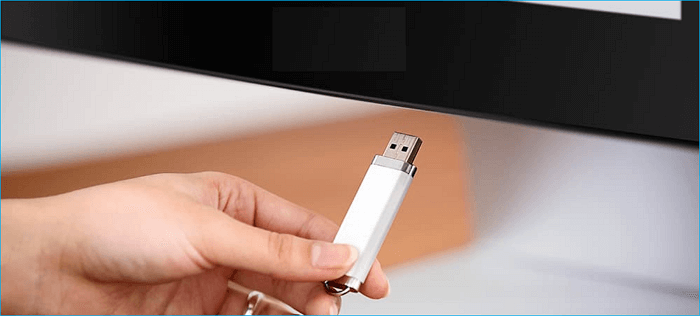
Step 2. To access the BIOS settings, restart your computer and press the F1, F2, F10, ESC, or DEL keys. From there, select USB as the boot drive. This will allow you to boot from a USB device.
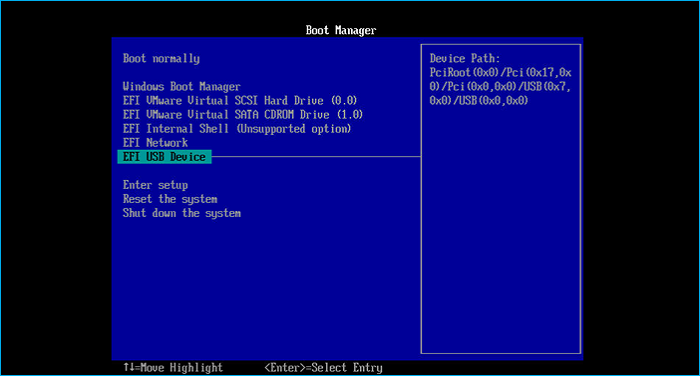
Step 3. To resolve the issue, restart your computer again and it will boot from the bootable USB drive.
Part 4. Installing Windows 11 Without TPM and Secure Boot
To bypass TPM 2.0 and Secure Boot and install Windows 11 on your computer, follow these steps carefully after preparing your system. First, you need to disable Secure Boot in your UEFI settings. Then, you need to disable the TPM 2.0 in your UEFI settings.
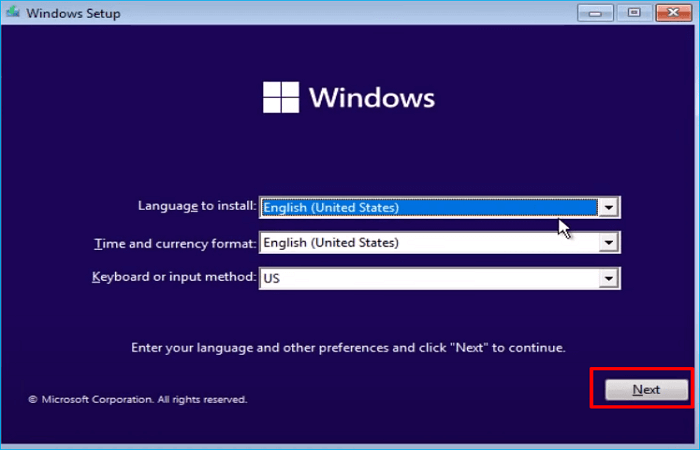
Step 1. Set the parameters when you see the Windows 11 Setup window and click Next.
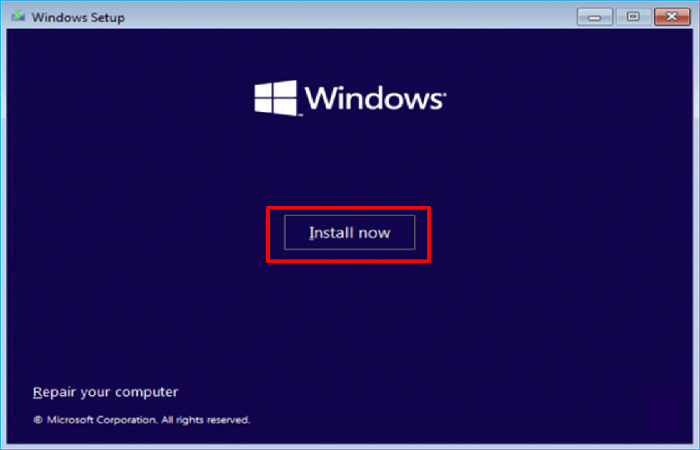
Step 2. Click Install now.
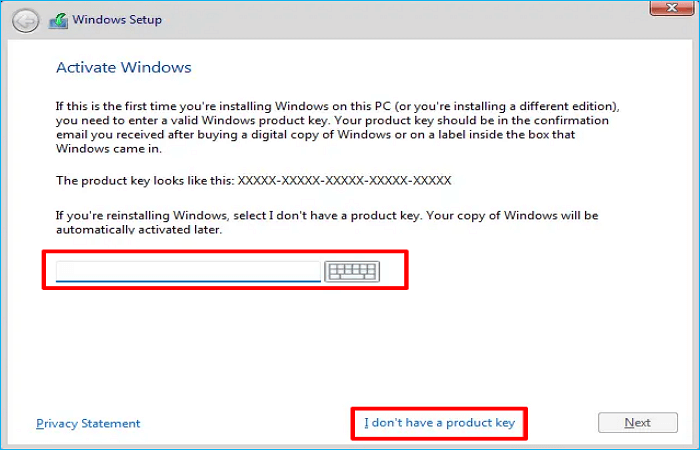
Step 3. Enter the product key or click I don't have a product key.
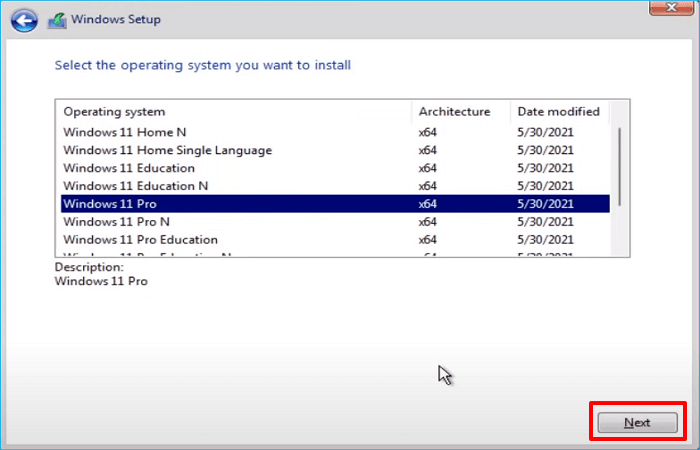
Step 4. Select a Windows edition you want to install and tap Next.
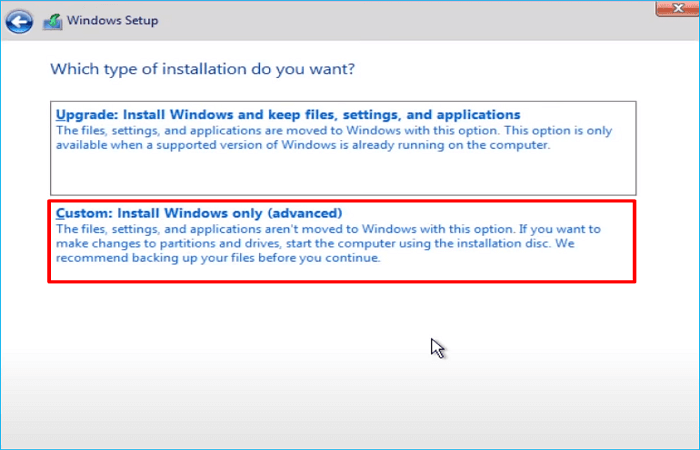
Step 5. Select Custom: Install Windows only (advanced).
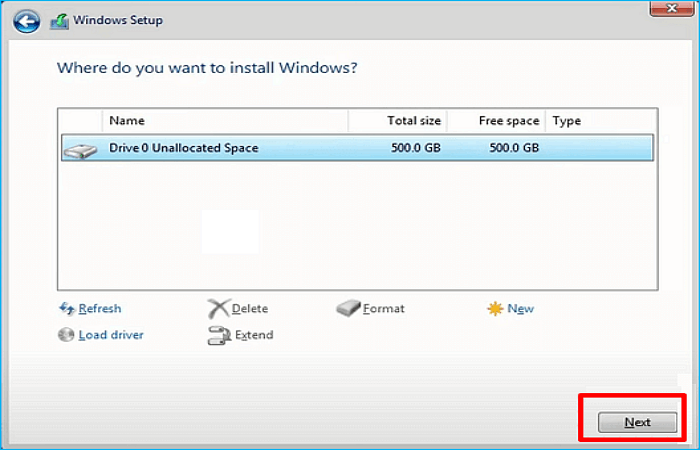
Step 6. Choose a drive where you want to install Windows 11, press Next, and follow the on-screen prompts to complete the Windows 11 installation.
After installation, you can use Windows 11 on your computer without any hassle.
To Wrap Things Up
To install Windows 11 without Secure Boot and TPM, follow the steps outlined in the article, which involves 4 parts. Although Microsoft doesn't allow bypassing TPM 2.0 and Secure Boot, these steps can help you install Windows 11 on your computer without them. This process is a workaround to the usual requirements for installing Windows 11.
Qiling Disk Master is a practical tool that allows you to create a Windows bootable USB, making it possible to install Windows without Secure Boot and TPM. It can also help resolve issues with WinToUSB not working and enable Windows installation on a Mac without Boot Camp. This tool offers valuable features to explore.
FAQs on How to Install Windows 11 Without Secure Boot and TPM
1. How do I enable TPM 2.0 without BIOS in Windows 11?
Users can activate a bypass to enable TPM 2.0 in Windows 11 without BIOS modifications, using registry edits or script-based tools, or through the device's troubleshooter or Microsoft's management console.
2. What happens if I install Windows 11 on unsupported processor?
Installing Windows 11 on an unsupported processor will render the computer unsupported and prevent updates, and the manufacturer's warranty will not cover any damage caused by the incompatibility.
3. Can I enable Secure Boot without TPM?
Secure Boot can function without a Trusted Platform Module (TPM), but the operating systems and boot media must be compatible with Secure Boot for it to be enabled.
4. How to bypass TPM and Secure Boot Windows 11 upgrade?
To bypass the TPM check and install Windows 11, start the installation process until you reach the message "This PC can't run Windows 11." At the Command Prompt, type "regedit" and press Enter. In the Registry Editor, navigate to the "LabConfig" key, right-click on it, and select "New > DWORD (32-bit Value)". Double-click on the new value, change its name to "BypassTPMCheck", and set its value to 1. Press OK to save the changes.
Related Articles
- Windows 10 ISO Download 64-Bit Full Version for Free [2023 Latest]
- Windows To Go vs. Standard Installation: Which Option Is Better For You
- Top 3 Best Windows To Go Creator Software for Windows 11/10/8/7
- How to Backup Old Emails in Outlook: A Comprehensive Guide
How to backup old emails in Outlook? This article provides you with three methods to backup old Outlook emails. Let's see how it works. - [Tutorial] How to Install Windows 11 without Secure Boot and TPM
Although you are not allowed to install Windows 11 on devices that don't enable Secure Boot or TPM 2.0, you can still find some workarounds to get it done. This article will show you the detailed steps to install Windows 11 without Secure Boot/TPM and a way to work Windows 11 on any unsupported PC. - How to Create a Windows 11 to Go USB
Creating a Windows 11 to Go USB drive allows users to run Windows 11 on any qualified device. To do this, you'll need to download the Windows 11 ISO file and use a tool like Rufus to create a bootable USB drive.
Products
Articles & Tutorials
- Data Recovery
- Data Backup
- File Recovery
- File Backup
- System Backup and Restore
- Disk and Partition Clone
- Technical articles
- Mobile articles
- Disk Master Help
- Windows Data Recovery Tutorials
- Windows Secure Delete Tutorials
- Windows Partition Management Tutorials
- Windows File Backup and Restore Tutorials
- Windows System Backup and Restore Tutorials
- Windows Disk Backup and Restore Tutorials
- Windows Clone Tutorials