How to Install Two Operating Systems on One Computer
Installing two operating systems on a computer is no longer a challenge. It's possible to have both Windows and Linux, or any other combination, installed on the same device. This can be achieved by installing one operating system first and then setting up a virtual machine for the second one. Having two operating systems can be convenient in certain situations.
This post can be helpful if you want to run the most current Windows system and another operating system with the features you prefer, and learn how to install two operating systems on one computer.
Can We Install Two Operating Systems in One Computer
Yes. You can install different operating systems on separate partitions of your SSD and HDD, as long as each partition is formatted with a compatible file system for the OS you're trying to install. For example, you can install Windows on a partition formatted with the NTFS file system, and Linux on a partition formatted with the ext4 file system.
You can have multiple operating systems on one computer by using a different partition on your hard drive, which is called dual booting.
Installing multiple operating systems on a computer allows for quick switching between them and using the most suitable one for the task, making it easier to try and experiment with other operating systems.
To dual-boot one Windows and another, such as Windows 11 with Windows 10, follow these steps. First, ensure you have enough free space on your computer's hard drive to install the second Windows operating system. Next, create a separate partition on your hard drive for the second Windows installation.
Windows 11 23H2 has been released, and users can download the ISO file for a clean installation by following the article's instructions.
How to Download Windows 11 23H2 ISO File
You can download the Windows 11 23H2 ISO file for free on your Windows computer using three different methods.
Preparations for Setting Up Two Operating Systems on a Computer
To dual-boot Windows, you'll need to create a separate partition on your hard drive for the second operating system, which will require you to free up some space on your hard drive. You'll also need to ensure that your computer's BIOS is set to boot from the correct drive, and you may need to adjust your boot order. Additionally, you'll need to have a copy of the second operating system that you want to dual-boot with, and you may need to purchase a separate license for it.
- You can download the second operating system you want, such as Windows 10 or 11.
- To be safe, it's a good idea to use reliable backup software to protect your data, as there's no guarantee that everything will go smoothly. Taking a risk is not worth it.
- To add storage to a Windows computer, you can either install a new hard drive or use the built-in Disk Management Tool to create a new partition on an existing one. This allows you to increase the available space on your computer, which can be useful for storing files, programs, and other data.
- A USB drive or other external storage device with enough space is required to create a bootable USB drive.
How to Run Two Operating Systems on One Computer
To install two Windows operating systems on one computer, you'll need to follow a four-part process. After making the necessary preparations, you can proceed with the installation, carefully following each step to avoid any issues. Let's dive into the details of how to accomplish this.
- Part 1. Create a Bootable USB Drive
- Part 2. Create a New Partition
- Part 3. Make some Preparations for Your PC
- Part 4. Install a Second Operating System
Part 1. Create a Bootable USB Drive
When it comes to making a bootable USB, the most efficient and easiest way is to use a professional tool, such as Qiling Disk Master.
Qiling Disk Master is a user-friendly tool that allows you to create a Windows bootable USB drive without needing an ISO file, making it easy to put a Windows 10 installation on another PC, even without a Microsoft account.
This bootable USB creator tool stands out for its ease of use, robust features, and flexibility. It allows users to create bootable USB drives from a wide range of sources, including ISO files, CD/DVD drives, and even other USB drives.
- Easy-to-use design. The software has a user-friendly interface that allows users to easily create a portable Windows To Go USB drive.
- Run Windows on macOS. It allows you to create a bootable Windows USB drive for Mac.
- Make Windows portable. You can make a portable Windows for Windows 10/11.
- Run Windows Apps on Mac. It lets you play Windows games on your Mac.
- Excellent technical support. 24/7 email support is provided to customers for instant and professional solutions to their queries.
Here is how to create a Windows 11/10 bootable USB with Qiling Disk Master.
Part 2. Create a New Partition
To install a second version of Windows on the same drive as the first, you'll need sufficient free space, which can be a challenge if storage is limited. Ideally, dual-booting Windows 10 with 11 requires about 20-25GB of free space, but we recommend at least 50-100GB.
To create a new partition using the Disk Management Tool, follow these steps: Open Disk Management, select the disk where you want to create a new partition, right-click on the unallocated space, and select "New Simple Volume" or "New Spanned Volume" depending on your needs. Then, follow the wizard to assign a drive letter, file system, and other settings for the new partition.
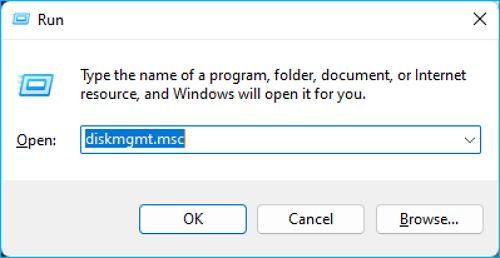
Step 1. To open the Disk Management tool, press the Windows + R keys to open the Run dialogue box, type "diskmgmt.msc" and press Enter.
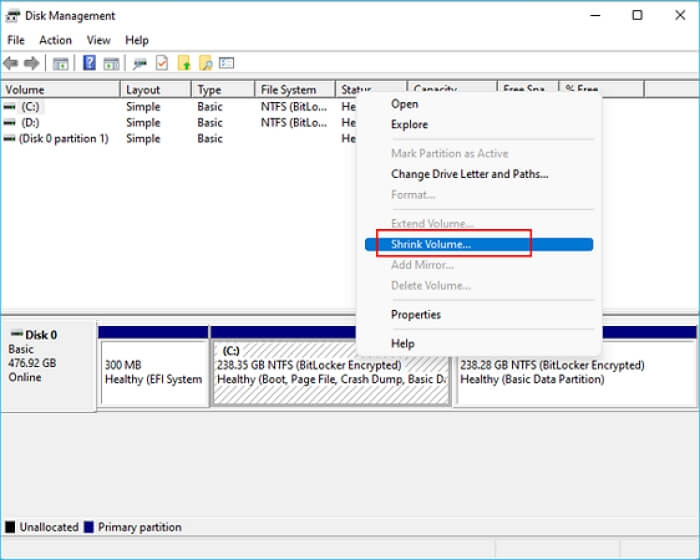
Step 2. Select the primary partition (usually C drive), right-click it, and choose Shrink Volume from the menu.
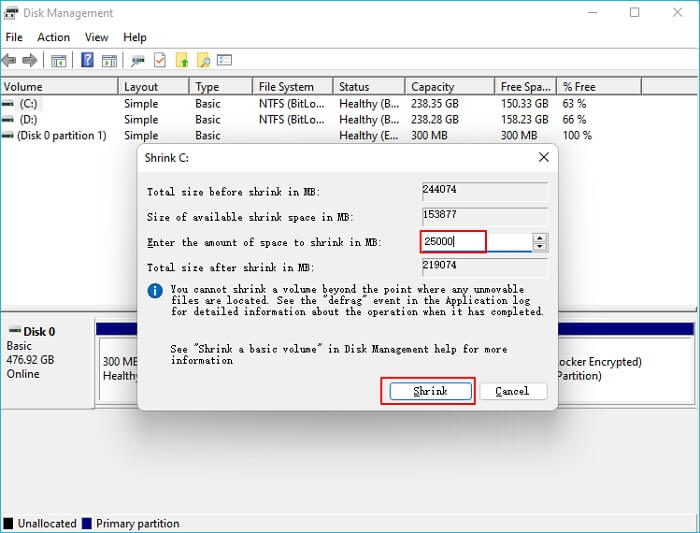
Step 3. To shrink the C drive, open the Disk Cleanup tool, then select the C drive, click the Clean up system files button, and choose the C drive again. In the box near Enter the amount of space you want to shrink in MB, input a number, then click the Shrink button.
- Notice:
- To create a 25GB partition on your hard drive, enter 25000, allowing you to change the partition and make the necessary space for setting up Windows 10 or 11.
Once the process is complete, you will have an unallocated volume. This is the point where you can start formatting the drive to make it usable.
Part 3. Make some Preparations for Your PC
To prepare your computer for installing another Windows, you should back up your data, disable any security software, and boot from a USB drive with a Windows installation media. This will ensure a clean installation of Windows 10 on your computer without any issues.
Step 1. Turn off Fast Boot
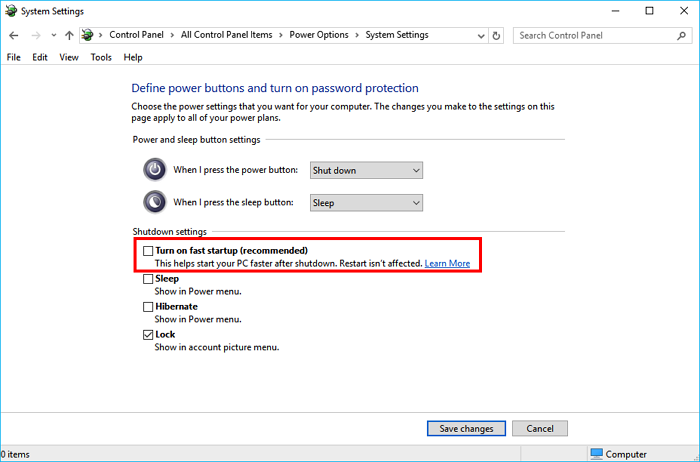
You can disable Windows' Fast Boot by doing the steps shown below.
- To access the Control Panel in Windows, simply type "Control Panel" in the search bar, which is usually located in the bottom left corner of the screen, and then click on the result to open it.
- Click Power Options.
- Tap Choose what the power button does.
- Hit Change settings that are currently unavailable.
- Uncheck the box labeled "Turn on fast startup (Recommended)" and click Save Changes.
Step 2. Enter BIOS on your computer
To install a second operating system, the BIOS needs to be accessed and changed, with steps varying by computer brand and model, often by pressing a specific function key or key combination while booting up.
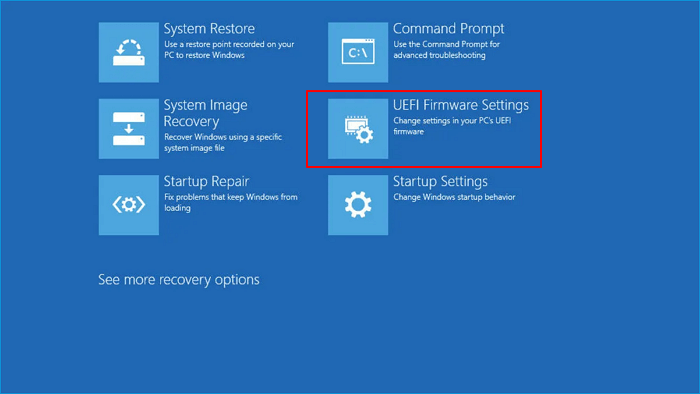
- Click the Windows 10 Start menu.
- Click the Power icon.
- Hold down Shift and click Restart.
- Click Troubleshoot.
- Click Advanced Options: UEFI Firmware Settings
- Click Restart.
Step 3. Disable Secure Boot
To access the BIOS menu, use your keyboard's arrow keys to navigate to the Security, Boot, or Authentication menus, where you may find Secure Boot. Change its status to "Disabled" to access it.

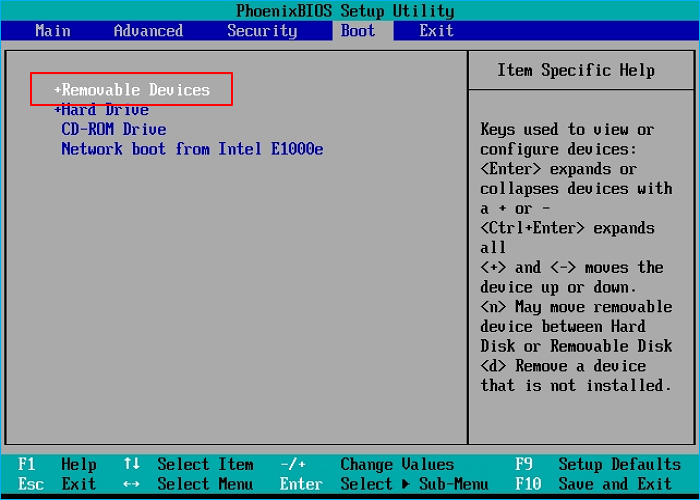
Step 4. Change the boot order to boot from a USB
Typically, this can be located in the Boot menu. Find the boot order menu, and change it so that a USB drive boots up first.
Step 5. Save settings
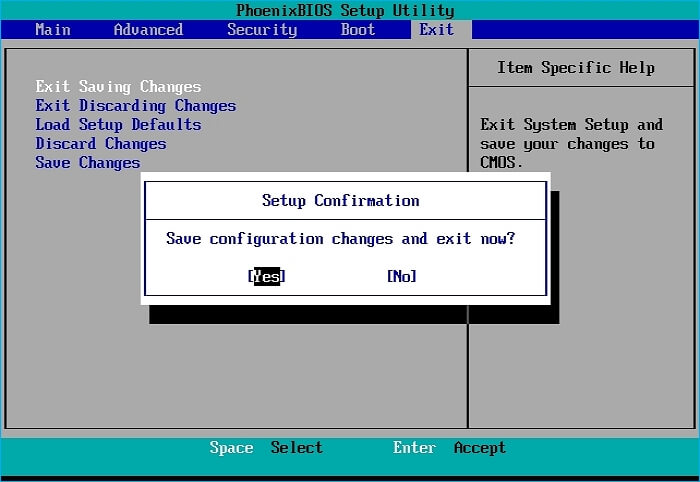
After making the necessary BIOS system changes, save your settings by finding the option to save them. Then, use the BIOS save and exit option to save and restart your computer.
Part 4. Install a Second Operating System
To install a second OS on your computer, follow these steps:
Step 1. Insert the bootable USB drive into your computer.
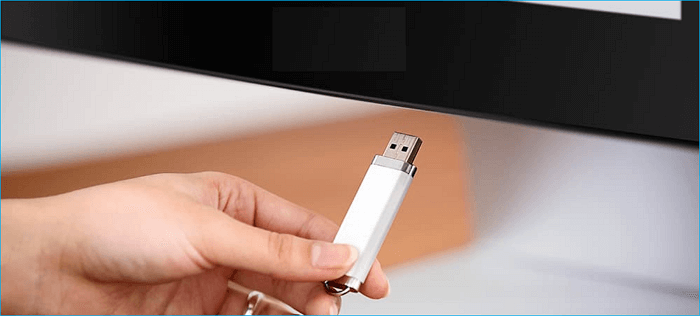
Step 2. If your computer is already on, restart it. If it's off, turn it on by pressing the power button and it will boot from the USB drive.
Step 3. If your computer boots successfully from the bootable USB drive, you can see the setup program for the operating system.
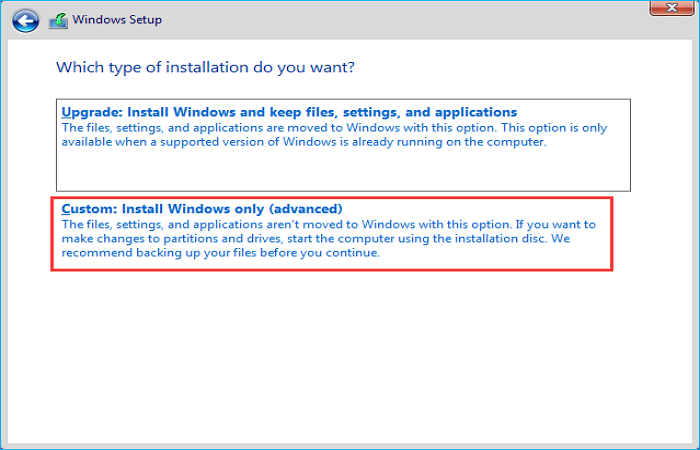
Step 4. You should see a screen that looks like the one below. Select Custom: Install Windows only (advanced).
Step 5. When prompted, select the "Unallocated Space" partition for Windows installation. Then, click "Apply" and proceed to the next step.
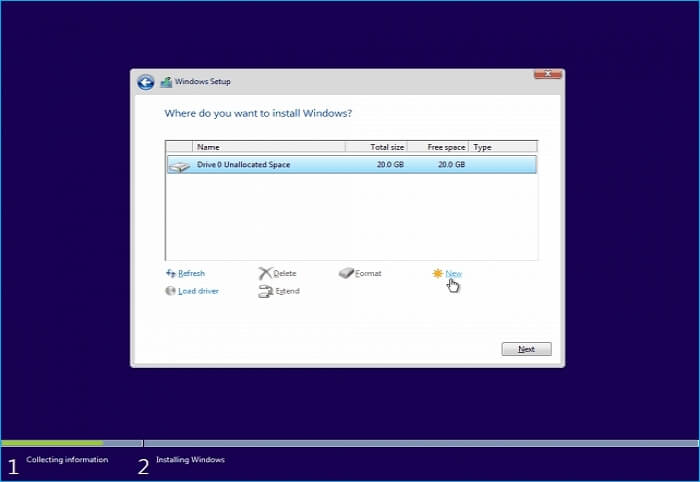
Note: 25GB is a good size for a partition that will be used to install an operating system, as it will give you enough space to install the OS and a few applications, but not so much that you'll waste space on unused files. However, if you plan on installing a lot of applications or storing a large amount of data on this partition, you may want to consider a larger size, such as 50GB or 100GB.
Wait a short while after the installation procedure continues, then you'll be given the option between the two operating systems each time you turn on your device.
If you found this post helpful, you can share it on your social media to spread the knowledge and help others who might be looking for the same information.
To Wrap Things Up
Installing two operating systems on one computer is a relatively easy process. To do this, you can follow the guide in this article, which provides a step-by-step guide on how to install two Windows on one laptop. However, before proceeding, it's essential to back up your data to avoid any potential loss. By following the directions carefully, you can successfully install two operating systems on your computer.
Qiling Disk Master can help you create a bootable USB to install another Windows operating system, run two operating systems on a PC, and fix the WinToUSB not working issue, among other features.
FAQs
1. Is it safe to dual boot?
While choosing dual boot is entirely secure, there are risks involved, but it's viable if your computer's resource requirements make it unable to run a virtual machine.
2. How do I switch between two operating systems?
The reboot process operates as follows:
- Restart your computer on whichever OS (Windows or MAC) you use.
- To force your Mac to boot in safe mode, hold down the power button until the computer turns off, then press the power button again to turn it back on. While it's booting, hold down the Shift key.
- You will be given the option to select between MAC and Windows in a new window. This selection will determine the operating system for the virtual machine.
- Start by selecting the System you want to use.
3. Can I dual boot with 2 hard drives?
To set up a dual boot, you'll need enough space on your hard drive for a second partition, or alternatively, add a second drive and install the second operating system.
Related Articles
- Windows 10 Bootable USB Tool: Auto-Download Windows 10 ISO to USB
- 2 Ways - How to Run Windows Apps on Mac
- How to Play Car Mechanic Simulator on Mac?
- 2023 Best WinToUSB Alternative for Creating a Portable Windows 11/10/7 USB Drive
- How to Install Windows 10 Step by Step with Pictures
- How to Install Windows 10 Without a Microsoft Account
Here is a step-by-step guide on how to install Windows 10 without a Microsoft account in 4 different ways. The article will also introduce a tool called Qiling Disk Master to help you set up Windows 10 without a Microsoft account.
Products
Articles & Tutorials
- Data Recovery
- Data Backup
- File Recovery
- File Backup
- System Backup and Restore
- Disk and Partition Clone
- Technical articles
- Mobile articles
- Disk Master Help
- Windows Data Recovery Tutorials
- Windows Secure Delete Tutorials
- Windows Partition Management Tutorials
- Windows File Backup and Restore Tutorials
- Windows System Backup and Restore Tutorials
- Windows Disk Backup and Restore Tutorials
- Windows Clone Tutorials