How to Play Car Mechanic Simulator on Mac?
Can I Play Car Mechanic Simulator on Mac?
Car Mechanic Simulator is a popular simulation game where players take on the role of a car mechanic, interacting with various vehicles, repairing, painting, tuning, and driving them. The goal is to expand the business, and the game is available on multiple platforms, including PlayStation 4, Nintendo Switch, Xbox One, and Microsoft Windows.
Unfortunately, devices running on macOS cannot run the original car mechanic simulator due to compatibility issues with the operating system and integrated Intel graphics cards, but there are specific ways to efficiently run the game on macOS devices.

2 Ways to Play Car Mechanic Simulator on Mac
To play the Car Mechanic Simulator on a Mac, there are three solutions available, each with a step-by-step guide to follow. We'll explore these options and provide detailed instructions to ensure a smooth gaming experience. Please read the guides carefully to avoid any errors and enjoy playing the game on your Mac.
Method 1. Using A Portable Windows USB Drive
Creating a portable Windows USB drive is an efficient way to run Windows-only programs on other platforms, including Car Mechanic Simulator, allowing you to play the game on a Mac system without any issues.
Qiling OS2Go is a tool that enables creating a portable Windows USB drive, containing the Windows system, programs, and configuration data, making it a suitable choice for running Windows on a Mac device.
To play the Car Mechanic Simulator, you'll need to create a portable Windows USB drive. First, install the game on your C drive, then follow the necessary steps to make a portable Windows USB drive. This will allow you to play the game on any computer without needing to install it.
Step 1. To use Qiling OS2Go, install it on your Windows computer, which will display the used space on your system drive. Then, plug in a USB drive that is larger than the system drive's used space, select the target USB drive, and click Next to proceed.
Step 2. Qiling OS2Go will notify you that the following operation would delete all data on your drive. Make sure you have backed up all important data before proceeding, and then click the Continue button.
Step 3. Adjust the disk layout to match the resource drive, or customize it to your needs, and select the option to use a Solid State Drive as the Windows bootable drive if applicable, then click Proceed.
Step 4. Qiling OS2Go will start creating a portable USB drive, which may take a while depending on the OS and network condition. Once the progress reaches 100%, the USB drive will be bootable.
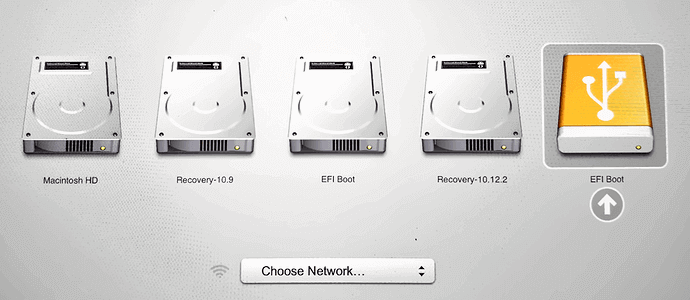
Step 5. To boot your Mac from a portable Windows USB drive, start your Mac, press the Option/Alt key, and choose the yellow EFI Boot icon to boot from the USB drive. Then, follow the on-screen instructions to complete the process.
Method 2. Installing Windows Operating System On Mac
Users who are technically strong with the PC and Mac will benefit from the software, as it offers a range of advanced features and customization options that cater to their needs.
The second way to run the Car Mechanic Simulator on a Mac is by using BootCamp, which allows you to install and run Windows on macOS. While the process is a bit lengthy, it is a reliable method that works smoothly.
Step 1. To install Windows on an external SSD, you'll need an external SSD, an external keyboard and mouse, a Windows ISO file (Windows 10 is recommended), BootCamp support tools, and a Windows PC or Laptop to install Windows on the external drive.
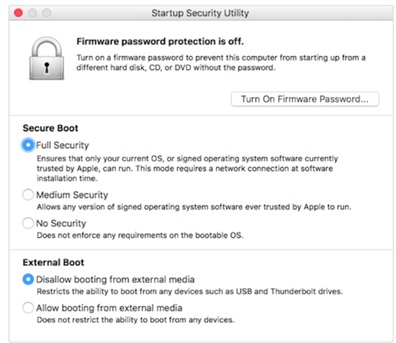
Step 2. On your Mac device, disable security features, then hold the Command and R keys until the Apple logo appears, booting into recovery mode. Next, go to Utilities and select Startup Security Utility, then click on "No Security" and allow booting from external media.
Step 3. Connect your Macbook to the external drive and download the BootCamp support drivers & files. You will then need to copy these files into the connected external storage.
Note: BootCamp will partition your Mac drive for Windows OS installation. When setting partition size, ensure it's at least 64GB.
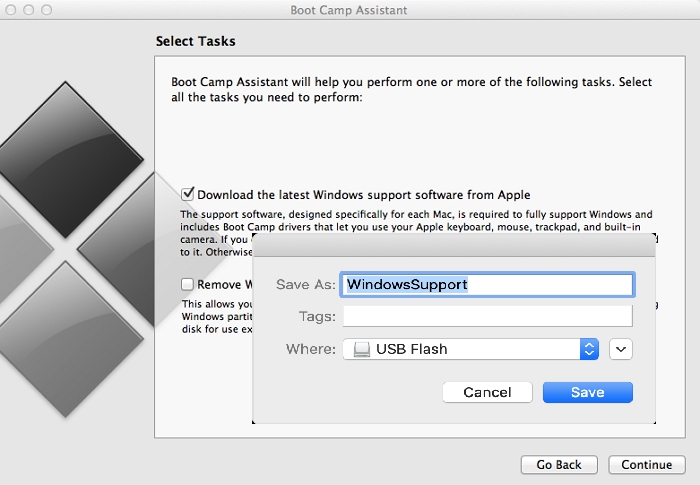
Step 4. To download the Windows Support Software, open the Boot Camp Assistant, click on the Action menu, and select "Download Windows Support Software". Then, choose the USB drive as the destination to save the files, making sure they are saved in the root folder of the drive.
Step 5. To boot up the Mac device using an external storage device, hold the Option key while powering on the device, and when the Apple logo appears, select the external storage as the boot drive, which should be labeled as UEFI.
Step 6. Set up your Windows account, install the necessary drivers, and you're good to go! You can then install the Car Mechanic Simulator and play it with peace.
For Mac Game Lover - How to Play Fortnite on Mac 2022
Since 2020, Apple has prevented Epic Games from signing games and patches for distribution on Mac, effectively blocking Fortnite from being played on Mac computers. This article aims to help Mac game enthusiasts find a way to play Fortnite on their Mac computers again.

Conclusion
You can install and run the Car Mechanic Simulator game on your Mac by installing Windows on your Mac via two different methods, effectively allowing you to run the game without any issues.
Related Articles
- Can I Use My Laptop Windows on My Desktop
- How to Effectively Create Bootable Windows 7 USB Drive
- How to Play Windows Minecraft on Mac Smoothly Without Overheating
- Rufus vs. Windows Media Creation Tool: Everything You Need to Know
- Backup Windows 10 64 Bit OS or Files Easily (2 Ways)
This article tells you how to back up OS or files on Windows 10 64 bit to protect your data and provides you with 2 helpful ways. - 2 Ways | Backup Windows 10 PC to Synology NAS Safely
2 solutions provides in this post to back up Windows 10 PC to Synology NAS? Try the best free Synology NAS backup software to create Synology PC backup.
Products
Articles & Tutorials
- Data Recovery
- Data Backup
- File Recovery
- File Backup
- System Backup and Restore
- Disk and Partition Clone
- Technical articles
- Mobile articles
- Disk Master Help
- Windows Data Recovery Tutorials
- Windows Secure Delete Tutorials
- Windows Partition Management Tutorials
- Windows File Backup and Restore Tutorials
- Windows System Backup and Restore Tutorials
- Windows Disk Backup and Restore Tutorials
- Windows Clone Tutorials