3 Steps Done All: How to Install Windows 11 on Any PC
Have You Checked Your PC Compatibility for Windows 11?
The new Windows operating system is expected to arrive in October and will be available as a free upgrade for Windows 10 users. However, some people may be excluded from the upgrade due to strict system requirements, including TPM 2.0, UEFI secure boot, and a minimum of 64GB of free space on the system drive.
>>Click solutions to how to extend C drive space
To install Windows 11 on your computer, you can either perform a clean install from a bootable ISO file or upgrade directly from Windows 10 through the Settings app. However, before proceeding, it's essential to check if your computer is compatible with Windows 11 using a Windows 11 checker tool, which will verify the hardware requirements for a smooth installation.
Step 1. Download Qiling Windows 11 Upgrade Checker.
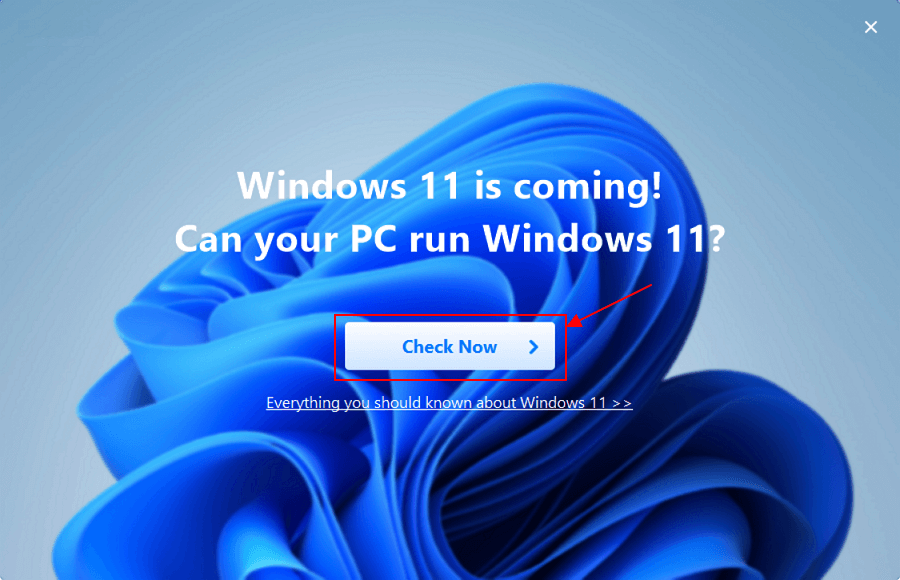
Step 2. Click the Check Now button to start.
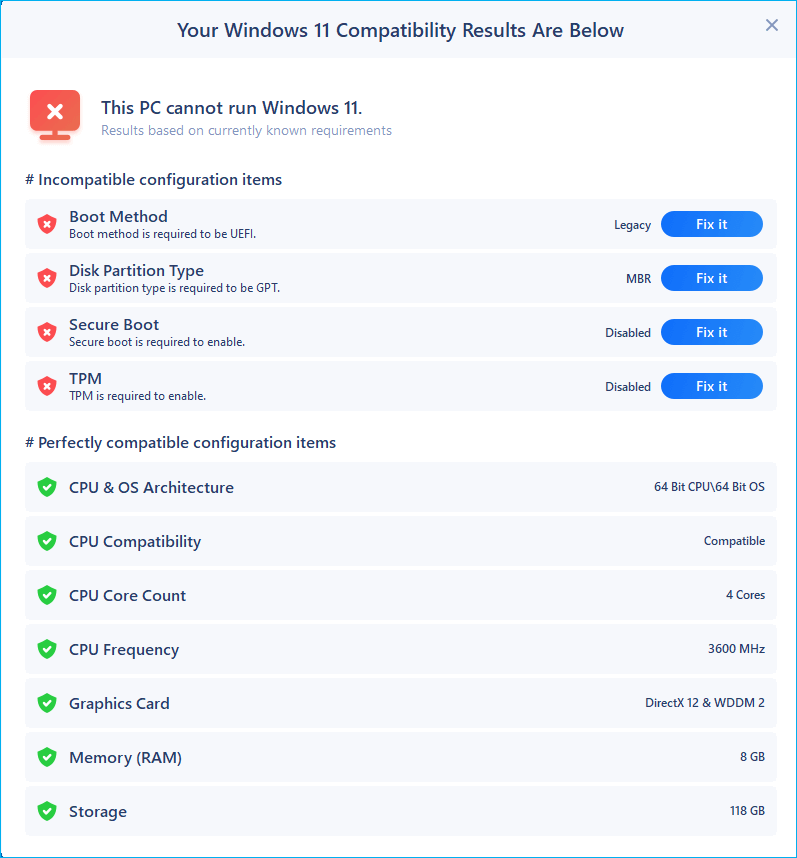
Step 3.The Windows 11 compatibility result window will soon appear, listing all incompatible and compatible configuration items.
How to Install Windows 11 on Any Supported PC - The Best Installation Way Ever
According to your PC checking result, you need to adopt different solutions to get the Windows 11 operating system. For those with compatible computers, it's easy to upgrade to the latest Windows 11 by accessing the automatic installation program, Qiling Win11Builder, which is a useful tool to help with the process.
The Qiling Windows 11 builder software makes upgrading to Windows 11 easier, requiring only a USB device and some time. This tool is the easiest and best way to upgrade, eliminating the need to download ISO image files from external sources and ensuring you receive the automatic update notification on your computer.
Step 1. The Windows11 builder can be accessed through the Qiling OS2Go software, which is integrated with it. After installing Qiling OS2Go, users can click the download button and launch the program to proceed with the Windows11 builder.
Step 2.The name of the software was changed from WinToGo Creator to Windows Install Drive Creator, and it also supports the creation of Windows 10 and 8.1 drives, in addition to Windows 11. The system information is displayed on the home screen and is updated in real-time.
Step 3. To create a Windows 11 installation media, connect your USB flash drive to the computer. The Windows 11 builder will automatically detect the USB device, and you can simply click the "Create" button.
Step 4. The software will erase the data on your used USB drive. Once the download process starts, you can either wait for it to finish or leave to attend to other tasks.
Step 5. After successfully downloading the Windows 11 iso image file onto your USB drive, you can proceed to install Windows 11 on your computer by following the installation wizard step by step from the bootable USB drive.
How to Run Windows 11 on Any Unsupported PC [Two Options]
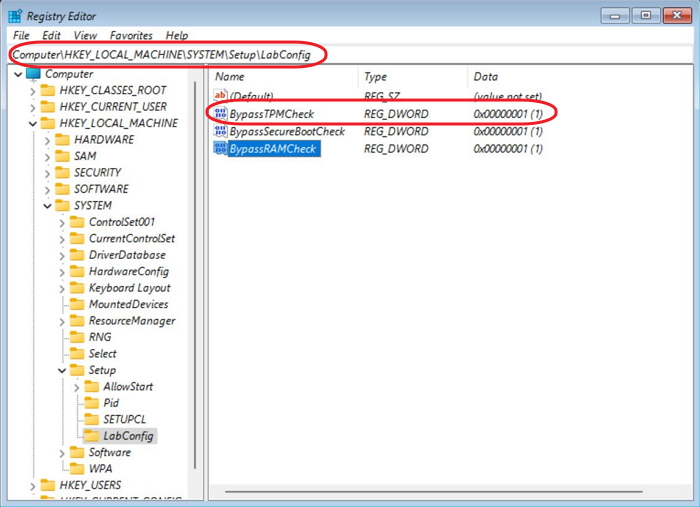
To bypass the security settings requirements for Windows 11 installation, you can modify the Windows Registry Editor settings. This allows you to install Windows 11 without the need for a TPM 2.0 chip or UEFI secure boot, which are typically required. The process is detailed in the post "Windows 11 Download Without TPM2.0".
A portable Windows 11 USB drive is a self-contained operating system environment that can be run from a USB drive, allowing you to use Windows 11 on any compatible computer without modifying the host machine's OS. This can be useful for various purposes, such as troubleshooting, testing software, or using Windows 11 in a virtualized environment. The portable USB drive is essentially a Windows 11 "live" system, which can be booted from the USB drive and run without writing anything to the host computer's hard drive. This means you can use Windows 11 on a computer that doesn't have it installed, or even on a computer that has a different OS, without affecting the host machine's OS. The portable USB drive can be easily updated or modified to suit your needs, and it's a great way to have a Windows 11 environment at your fingertips, without the need for a dedicated installation.
- You can run Windows 11 on any PC, regardless of whether it's Windows 11 compatible or not, by using a virtual machine software like VirtualBox or VMware. This allows you to install and run Windows 11 as a guest operating system on your existing PC, without affecting the host operating system.
- Run Windows 11 on Mac from an external USB device
- Windows 11 can be run on any Windows 7, 8, or 10 computers by creating a virtual machine using software like VirtualBox or VMware, and then installing Windows 11 on the virtual machine. This allows users to run Windows 11 on their existing hardware, even if it's not officially supported by Microsoft.
- You can run Windows 11 on any old PC or Mac without meeting the hardware requirements by using a virtual machine or dual-booting with a compatible operating system. This allows you to still use Windows 11 on your existing device, even if it doesn't meet the minimum specs for a native installation.
- Run Windows 11 on any PC without a clean install
The third tool, Qiling Disk Master, allows you to copy an installed Windows 11 to a USB drive, making it portable and bootable on any computer or Mac.
Step 1. To install Qiling OS2Go on your Windows computer, it will display your system drive's used space. Plug in a USB drive that is larger than the system drive's used space, then choose the target USB drive and click Next to continue.
Step 2. Qiling OS2Go will notify you that the following operation would delete all data on your drive. Make sure you have backed up all important data. Click the Continue button to proceed.
Step 3.Adjust the disk layout by making sure the default layout on the target drive is the same as the resource drive, or edit it according to your needs. If using a Solid State Drive as the Windows bootable drive, select the option and click Proceed.
Step 4.Qiling OS2Go will create a portable USB drive, which may take a while depending on the OS and network conditions. Once the progress reaches 100%, the USB drive will be bootable.
Step 5. To boot from a portable Windows USB, start your computer, press the required key (usually F2, DEL, F10, etc.) to access the BIOS, and select the option to boot from the USB disk.
Note: Ensure that the boot mode of your portable USB and target computer are the same (UEFI or Legacy) to avoid booting issues.
Closing Thoughts of Getting Windows 11
Microsoft Windows 10 and Windows 11 will likely become major operating systems, with new devices shipped with Windows 11 preinstalled. Upgrading to Windows 11 is recommended for secure and comprehensive Microsoft OS services. Qiling's tools can help users become proficient in Windows 11.
Related Articles
- How to Play Car Mechanic Simulator on Mac?
- [2022 Download] Windows to USB Software Download for Windows 11/10/7
- How to Install Windows 11 on An Old PC
- Can You Run Windows from a USB Without Installing? 2 Ways Available
- 2022 Write Protected SD Card Format Software: Erase/Format Write Proteced SD/USB/Pen Drive
Download the powerful write protected SD card format software, also known as the write protected pen drive format tool online on your PC, and follow a few simple steps to remove write protection from SD card, USB flash drive or pen drive. - What Is USB Format for PS3 | How to Format PS3 USB
Formatting your USB for PS3 is a must to use it. Fortunately, a professional tool from Qiling makes it easy, and we'll guide you through the simple steps. With this tool, you can get your PS3 up and running in no time. Just give it a try and start enjoying your PS3 right away.
Products
Articles & Tutorials
- Data Recovery
- Data Backup
- File Recovery
- File Backup
- System Backup and Restore
- Disk and Partition Clone
- Technical articles
- Mobile articles
- Disk Master Help
- Windows Data Recovery Tutorials
- Windows Secure Delete Tutorials
- Windows Partition Management Tutorials
- Windows File Backup and Restore Tutorials
- Windows System Backup and Restore Tutorials
- Windows Disk Backup and Restore Tutorials
- Windows Clone Tutorials