How to Play Call of Duty on Your Mac with 3 Methods
Call of Duty, one of the most popular shooter video games, has been a staple in the gaming world since 2003. The series has released numerous games, including Call of Duty 2, COD: Warzone, and more, entertaining players over the years. Even a mobile version was released in 2019 for iOS and Android users. However, despite its widespread popularity, Call of Duty still lacks a version for Mac users.
Unfortunately, Call of Duty games are not natively compatible with Macs. The series has been primarily developed for PC and console platforms, and as a result, the games are not optimized for Mac hardware. However, you can play Call of Duty on a Mac using a virtual machine or by running a Windows emulator, but this may not provide the same gaming experience as playing on a dedicated Windows PC or console.
You can play Call of Duty on a Mac, but it requires some extra steps since the game was not designed for Mac and has specific Windows requirements.
Mac users can run Windows on their Mac to play Call of Duty, as Macs can support Windows OS, making it a feasible option for them to play the game.
Here are two technical options to run Windows on a Mac and play COD:
- Create a virtual Windows environment on Mac
- Dual boot macOS and Windows
Let's understand both options in detail below.
How to Install Windows on Mac Without Boot Camp
Mac users can install Windows systems without Boot Camp using various third-party tools, which we will explore in this article. These tools provide an alternative way for Mac users to install Windows, making it easier to use both operating systems on their device.
Alternative 1. Create a Virtual Windows Environment on Mac
Virtualization allows you to run Windows on a macOS system using virtual machine tools, eliminating the need to partition your drive and create separate Windows and macOS partitions.
The virtual machine, also known as a VM, is an app that can replicate the Windows environment on a Mac, allowing users to run Windows-based games and applications, such as Call of Duty, on their Mac.
To create a virtual Windows environment on a Mac, you'll need to get virtual machine (VM) software first. There are several options available, although some can be pricey, such as popular choices like VMware and Parallels.
- Parallels start at £69.99/$79.99
- VMware Fusion Pro is $199
Besides the paid VM programs, this method also has many other disadvantages, including.
- Running two operating systems on a Mac can be resource-intensive, potentially putting more pressure on the processor and memory as both systems compete for resources.
- To run Windows on a Mac, a substantial amount of free space on the hard drive is necessary.
Creating a virtual Windows environment on Mac to play COD isn't an ideal solution, as it can be cumbersome and may not provide the best gaming experience.
Alternative 2. Dual Boot macOS and Windows
Running two operating systems on one machine can badly impact the hardware, but Apple's Boot Camp Assistant allows you to boot between Windows and macOS.
The Boot Camp Assistant allows you to split your Mac's hard drive into two separate partitions, one for macOS and one for Windows, and then select which OS to run by pressing the Alt or Options key.
The Boot Camp Assistant allows you to run both Windows and Mac programs on a single computer, and it's a free feature built into macOS.
You can use dual boot macOS and Windows to play Call of Duty on your Mac as follows:
Step 1. Get a Windows OS
To get started with Windows, you'll need to download the Windows OS from the Microsoft website. This will also give you access to ISO files for Windows 7 or 8.1, which you can use to create a bootable USB drive or CD/DVD. If you already have a physical copy of the disk, you can use the installer program on the disk to create the ISO file, making the process faster.
Step 2. Launch Boot Camp Assistant
When running Boot Camp Assistant for the first time, you'll be presented with several options. The initial choice is to select the ISO image you want to use.
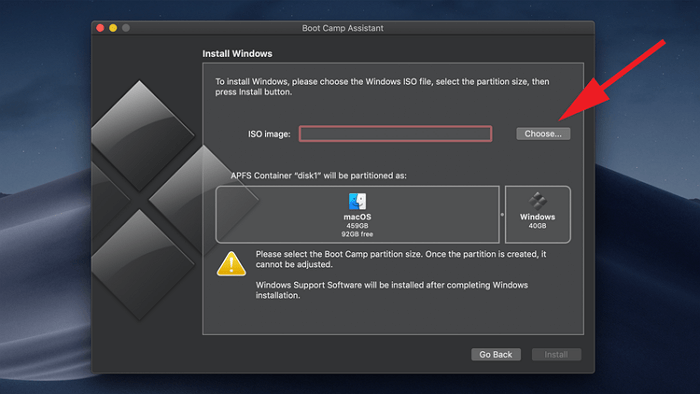
To install Windows, simply click on the "Choose" button, navigate to the Windows ISO file you've just downloaded, and it will be copied to a USB drive, allowing you to install Windows.
Step 3. Download Windows drivers
Once the Windows is downloaded, restart your Mac, and it will automatically download the suitable drivers for you. This process only applies to Windows 8.1 or higher versions.
In older versions, you'll need to visit the Apple website to find compatible drivers for your Mac, and then download them.
Step 4. Create partitions on your drive
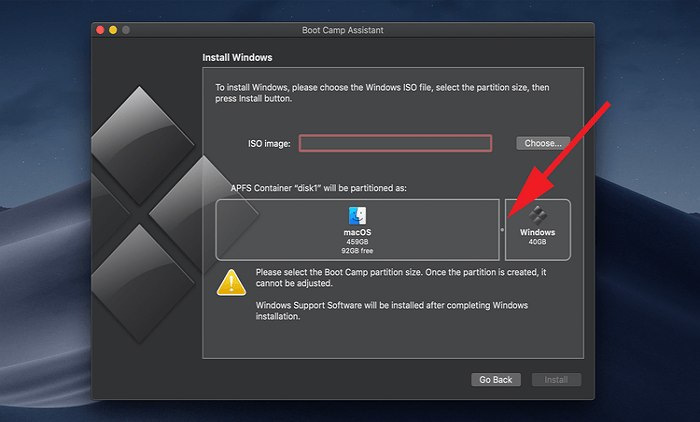
Boot Camp Assistant will split your Mac's hard drive into sections, with a default allocation of about 40 GB for Windows, but you can adjust the size using a slider control to suit your needs.
Step 5. Install Windows
Once you've inserted the USB and selected the Boot Camp partition, Boot Camp will shut down your Mac and launch the Windows installer program. Simply follow the on-screen prompts to complete the Windows installation.
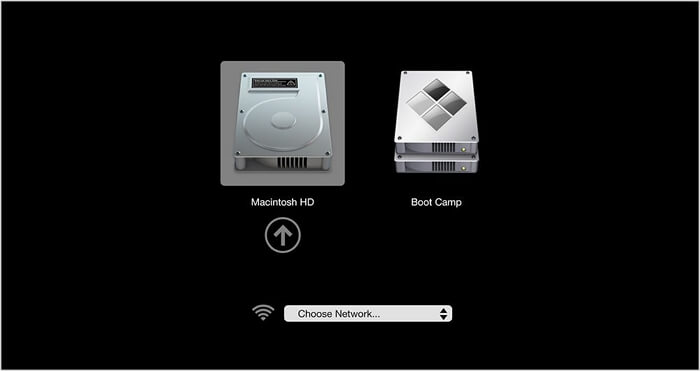
Once you've set up dual booting on your Mac, you can easily switch between macOS and Windows by pressing the Alt or Option key while booting up. To play Call of Duty (COD) on your Mac, simply select the Windows partition and enjoy the game.
Dual-booting might be a free method, but it also has some shortcomings, such as:
- You can install Windows on certain Mac devices, including the MacBook 2015, MacBook Air 2012, MacBook Pro 2012, Mac mini 2012, iMac Pro, and Mac Pro, or any model released after these.
- Some games don't work with Boot Camp Installations.
- Don't work with the latest Apple Silicone M1 Macs.
- Highly technical process.
There are several ways to play Call of Duty on a Mac, but one easy alternative is to use a cloud gaming service like Google Stadia or Microsoft xCloud, which allow you to play high-end games like Call of Duty on a Mac without the need for a dedicated gaming PC or console. You can also use a virtual private server (VPS) or a gaming emulator like Boot Camp or Parallels, but these options may require more technical expertise and may not be as seamless as a cloud gaming service. Additionally, some Mac users may be able to play Call of Duty through the Mac App Store, if it is available for purchase.
Bonus: The Best Way to Play Call of Duty on Mac
Qiling OS2Go is the best way to play Call of Duty on a Mac, allowing you to run Windows-only apps and games on your computer without installing Windows.
Qiling OS2Go allows you to put a Windows OS on a portable USB drive, enabling you to run Windows and play games like Call of Duty on a Mac by simply inserting the USB drive. After use, you can eject the USB and return to your Mac environment.
Qiling OS2Go allows you to run Windows-only programs on your Mac without overloading its hardware, enabling you to play COD and other such programs smoothly.
Besides this, the software offers many other benefits, such as:
- It is an affordable solution rather than getting VM software.
- It's easy to use and set up, unlike the dual-booting process.
- You can now carry a fully functional Windows OS in your pocket, making it incredibly convenient to transport your computer wherever you go.
- Seamless integration with all Windows and Mac apps.
- Qiling offers 24*7 email support to help their customers.
Qiling OS2Go allows users to create a Windows portable USB drive for Mac by booting a Windows system on a Mac using a USB drive. This process involves downloading and installing Qiling OS2Go, which includes a Windows operating system and other necessary tools, onto a USB drive.
Step 1. To install Qiling OS2Go, start by installing it on your Windows computer, which will display the used space on your system drive. Next, plug in a USB drive that is larger than the used space on your system drive. Choose the target USB drive and click Next to continue.
Step 2. Qiling OS2Go will notify you that the following operation would delete all data on your drive, prompting you to back up important data before proceeding. Clicking the Continue button will initiate the deletion process.
Step 3. To adjust the disk layout, the default configuration on the target drive will be identical to the resource drive, but you can also customize it to suit your needs. If the Windows bootable drive is a Solid State Drive, select the corresponding option and then click Proceed.
Step 4. Qiling OS2Go will create a portable USB drive, which may take a while depending on your operating system and network conditions. Once the progress reaches 100%, the USB drive will be bootable.
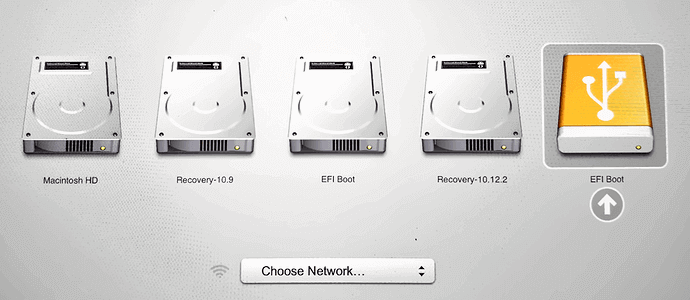
Step 5. To boot your Mac from a portable Windows USB, start by inserting the USB drive and powering on your Mac. As the system starts up, press and hold the Option/Alt key. This will allow you to choose the boot device. Select the yellow EFI Boot icon to boot from the USB drive, and then follow the on-screen instructions to complete the process.
Closing Thought
The Call of Duty game is a well-known and powerful online game that has been popular for 20 years, and is now available to play on Mac. Running Windows on Mac using virtual machines or Boot Camp Assistant can be a bit challenging, but these options are still viable.
With the Qiling OS2Go, you can now easily transfer your Windows OS to a USB drive, allowing you to run it on a Mac and play games like COD without any issues. This tool has overcome the limitations of running Windows on a Mac, and you can experience it firsthand by downloading the free trial version.
Gamers, don't worry - you can play Call of Duty on your Mac! You just need to choose the right approach, and you'll be able to enjoy your favorite game on your Apple device.
Related Articles
- 3 Steps Done All: How to Install Windows 11 on Any PC
- Rufus vs. Windows Media Creation Tool: Everything You Need to Know
- How to Create Windows Bootable USB with Rufus, and Another Easier Way
- How to Play Windows Games on Chromebook [Latest Guide]
- Backup Installed Programs in Windows 11, 10, 8, 7 (3 Ways)
If you are tired of reinstalling programs and apps from scratch when your computer in trouble, please backup installed programs and apps in Windows 11, 10, 8, 7 with given tutorials in this article. - How to Back Up Programs before Reinstalling Windows 10/8/7?
This article explains how to back up programs before reinstalling Windows 10/8/7 with best free backup software - Qiling Disk Master.
Products
Articles & Tutorials
- Data Recovery
- Data Backup
- File Recovery
- File Backup
- System Backup and Restore
- Disk and Partition Clone
- Technical articles
- Mobile articles
- Disk Master Help
- Windows Data Recovery Tutorials
- Windows Secure Delete Tutorials
- Windows Partition Management Tutorials
- Windows File Backup and Restore Tutorials
- Windows System Backup and Restore Tutorials
- Windows Disk Backup and Restore Tutorials
- Windows Clone Tutorials