Why Does Steam Say I Have No Disk Space [Reasons & Solutions]
Steam, a widely used platform in the gaming industry, is not immune to troublesome bugs, with one of the most common issues being low disk space problems. This issue can be frustrating for users, and it's essential to understand the causes and find effective solutions to resolve it. To address this problem, users can try various fixes, including clearing cache, updating Steam, checking disk space, deleting large files, reinstalling Steam, and using the Steam client's built-in disk cleanup feature. By implementing these solutions, users can resolve the low disk space issue and enjoy a smoother Steam experience.
Why Does Steam Say I Have No Disk Space
Getting a notification of no disk space from Steam can be alarming, as it means your essential gaming data is at risk. There are several reasons that can cause this issue, including:
- Completely or almost full disk
- Underlying cache problems
- Gaming installation concerns
- Steam disk write error
To address the issues mentioned, we'll explore solutions that can help.
Further Reading: Install Windows on Steam Deck
How to Solve No Disk Space in Steam - 6 Fixes
Let's break down the solutions step by step. By following each step thoroughly, you can fix all the problems and achieve the desired outcome.
Fix 1. Restart Steam and PC
If your Steam is not working optimally, try closing and restarting it, and if the issue persists, restart your PC to resolve the problem. To restart your PC, follow these simple steps:
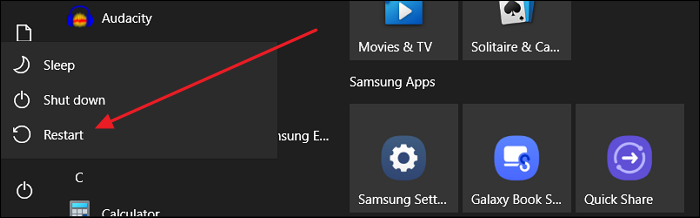
Step 1. To access the "Start Menu" from the bottom left side of your screen, click on the Windows logo. This will open a menu with various options, such as recently used apps, settings, and more.
Step 2. To restart your PC, select the "Power" button and choose the option of "Restart" from the Power menu. This will initiate a restart of your computer.
How to Fix Steam Not Enough Disk Space Error [Updated]
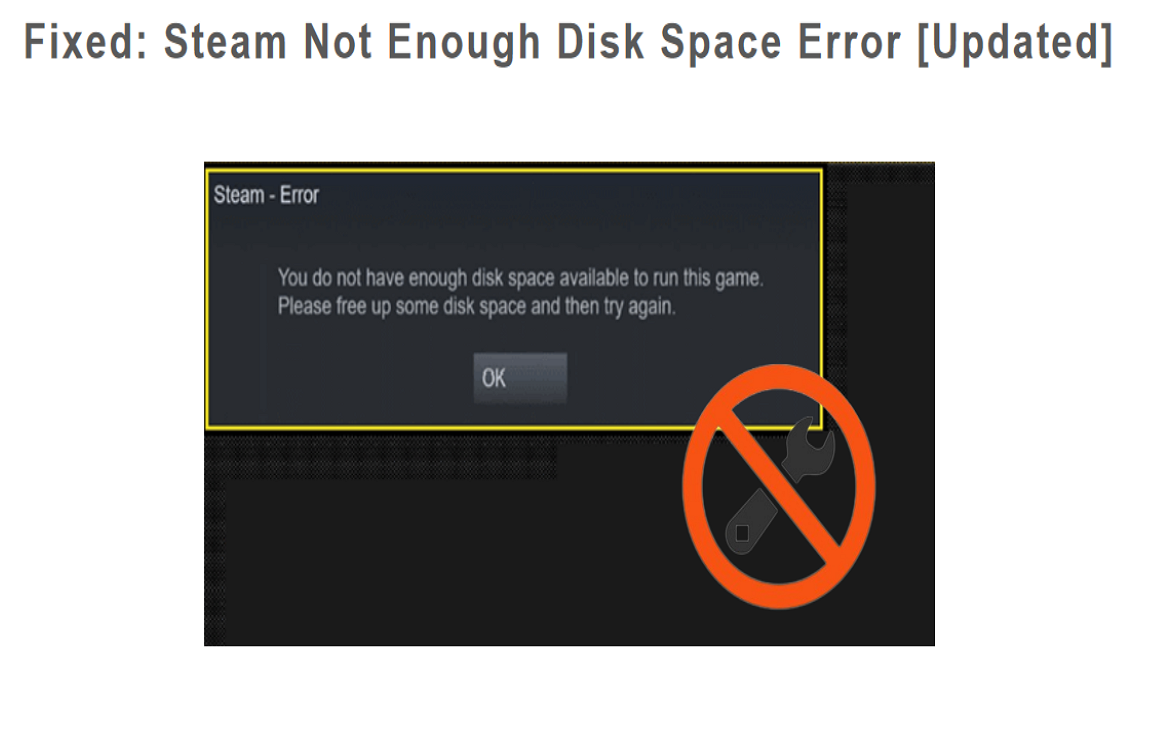
To resolve the Steam not enough disk space error, you can free up disk space on Steam by deleting unnecessary files, updating Steam to the latest version, and checking for any corrupted files. You can also extend your partition directly using third-party free software, such as Qiling Partition Master, to increase the available disk space. This will allow you to continue using Steam without any issues.
Fix 2. Verify the Integrity of Game Files
To ensure your game runs smoothly, Steam allows you to verify the integrity of your game files after downloading. This process checks that all necessary files are present and complete, preventing glitches caused by incomplete downloads. To do this, simply follow the simple steps provided by Steam to verify the game files integrity.
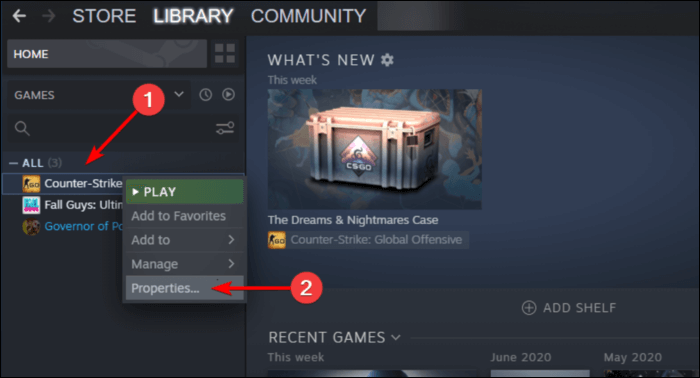
Step 1. After opening your Steam software, click on the "Library" menu from the top, select your desired game, right-click, and choose "Properties."
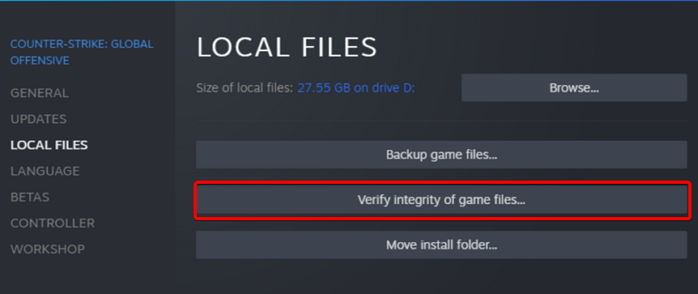
Step 2. To resolve the issue, click on "Local Files" from the available window on the left, then locate and press the "Verify integrity of game files" button. This will scan and repair any corrupted game files, potentially resolving the issue.
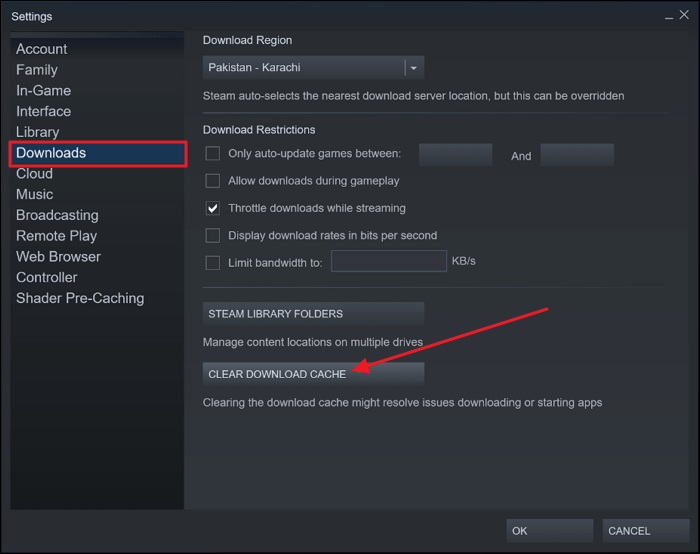
Fix 3. Clear Download Cache
To clear the downloaded cache on Steam, follow these steps: First, close the Steam client. Then, navigate to the Steam installation directory, which is usually located in the "Program Files" folder on Windows or the "Applications" folder on Mac. Next, delete the "cache" and "downloadcache" folders. Finally, restart the Steam client.
Step 1. Launch Steam on your device, and navigate to the top of the screen where you'll see the navigation bar. From there, click on "Steam".
Step 2. To clear the download cache, go to Settings from the drop-down menu, then navigate to Downloads in the left menu, and finally click the Clear Download Cache button on the right screen.
Fix 4. Extend the Partition with Qiling Disk Master
When everything is stored on a single drive location, data becomes cluttered and difficult to manage, while the system's speed is compromised due to the increased load. Extending the partition size can help resolve these issues, and Qiling Disk Master can assist with this process.
Here is why:
Prominent Features of Qiling Disk Master
- To maximize disk space on Windows 10/11, you can resize or extend a partition using built-in tools or third-party software. The built-in Disk Management tool allows you to shrink, extend, or delete partitions, while third-party software like Qiling Partition Master or MiniTool Partition Wizard offers more advanced features and a user-friendly interface.
- You can clone your system or hard drive to upgrade disks without reinstalling Windows by using software such as Qiling Backup. These programs create an exact copy of your current hard drive, including the operating system, applications, and data, which can then be transferred to the new hard drive.
- Convert MBR (Master Boot Record) system disk to GPT (GUID Partition Table) for Windows 11 upgrade.
- Support one-click AI smart space adjustment.
Straightforward Instructions to Extend the Partition
Qiling Disk Master is a straightforward and user-friendly platform that makes it easy to utilize its drive partitioning facility. To get started, simply follow the clear and easy steps provided, which guide you through the process of partitioning your drive in a hassle-free manner.
Step 1. Locate the Target Partition.
To resize or move a partition in Partition Manager, go to the tool and find the target partition. Select the "Resize/Move" option to proceed.

Step 2. Extend the Target Partition.
To add unallocated space to your current partition, drag the partition panel to the right or left, incorporating the unallocated space into your existing partition.

Extra Option: Get Space from Another Drive
If there's not enough unallocated space on your disk, right-click on a big partition with enough free space, select "Resize/Move".
To extend a partition, select the target partition and click on the "Allocate space to" column.
Step 3. Execute Operations to Extend Partition.
To resolve the issue, drag the dots of the target partition into the unallocated space. This action will allocate the unallocated space to the target partition, making it a contiguous and usable partition.
Then Click the "Proceed" to keep all the changes.
If you find this helpful, you can download our Qiling Disk Master right now.
Fix 5. Check Hard Drive Errors
To troubleshoot a slow and unresponsive hard drive, identify the root cause by checking for corrupted files, excessive load, or potential virus issues. You can restore optimal functionality by running a hard drive error check. If you want to check and optimize your hard drive, follow these steps:
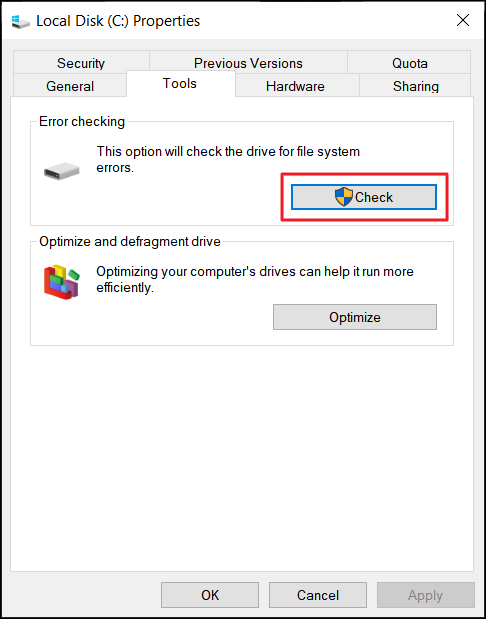
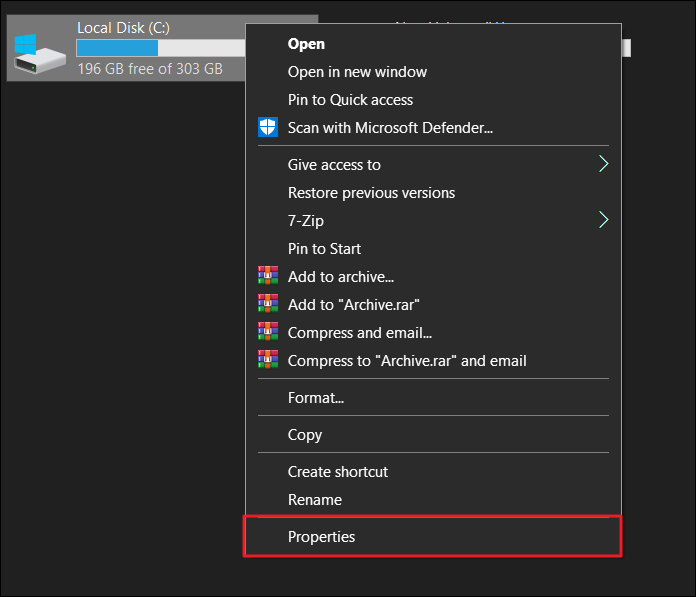
Step 1. To clean Steam Client from errors, double-click on File Explorer, select the drive where Steam is installed, right-click on it, and choose "Properties."

Step 2. To check for drive errors, select "Tools" and click "Check" then press "Scan drive" to initiate the scanning process.
See Also:
Fix 6. Run Disk Cleanup
Your disk may have been overloaded with unwanted files that are grabbing space and causing speed issues to your Steam, alongside problematic glitches. Therefore, erase your data so no one can ever recover it, which is a good idea to proceed with and overcome various issues. These instructions will help you with disk cleanup:
Step 1. Right-click on your C:/ Drive, choose "Properties" from the options and see the Properties window in front of you.
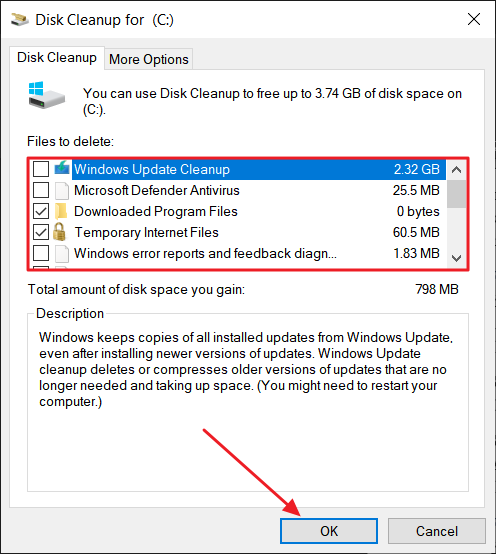
Step 2. To delete system files, press the "Disk Cleanup" button, then select the "Clean up system files" option and choose the files to clear, finally press the "OK" button.
Conclusion
Disk space issues are a common problem on Steam, and they can happen to anyone. The issue can be caused by various factors, including hidden aspects that may not be immediately apparent. When Steam says you have no disk space, it's not the end of the world - your disk space is simply affected, and there are ways to resolve the issue.
Using Qiling Disk Master, you can easily enhance your disk space and speed by extending the partition, making it easier to manage extensive data and resolve various disk write errors and malfunctions.
Why Does Steam Say I Have No Disk Space FAQs
Here are the answers to some essential questions about no disk space issues on Steam:
1. How to free up disk space on Steam Windows 10?
To free up space on your Windows 10, you can try disk cleanup, clearing downloaded cache, drive partitioning, or deleting unrequired games. One way to clean the cache of your Steam client is to follow these steps:
Step 1. To access the settings of your Steam client, navigate to the settings window, and from the left side, choose the "Download" option.
Step 2. After clearing the Steam cache, restart your Steam client to ensure the changes take effect.
2. Why is Steam taking up so much disk space?
The main reason for the lack of space on your drive is often due to excessive game downloads, causing Steam to occupy a significant amount of space. Additionally, installing updates or adding new mods further reduces the available space, leading to a continuous decline in freed space.
3. Does uninstalling Steam games free up disk space?
When you uninstall apps, you'll no longer have storage issues, freeing up space for more games.
If Roblox also reports insufficient space during installation, see Roblox Unable to Install: Not Enough Space - Qiling for checks focused on its installation drive.
Related Articles
- How to Upgrade Windows 7 to Windows 10. Get Your PC Ready in A Day!
- How to Fix PS4 Safe Mode Loop Without Losing Data
- Brand New Ways to Reset/Erase Mac M1/M2 [Safe & Sound]
- Guide on Diskpart Fix Raw Partition: How to Use Diskpart to Fix Raw Partition
A Raw partition is an unrecognizable file system that makes it impossible to access the data on it. - What Is MBR2GPT and How to Use It on Windows 10 [Full]
I have rewritten the text in one paragraph as per your request) - What Is Wuauserv and How to Fix Wuauserv High CPU Usage? [Updated 2023]
This article introduces you to the Wuauserv or the Windows Update Service utility. If you are a user-facing high CPU usage due to these services, the article is a perfect overview of the fixes that can be used to resolve the problem.
Products
Articles & Tutorials
- Data Recovery
- Data Backup
- File Recovery
- File Backup
- System Backup and Restore
- Disk and Partition Clone
- Technical articles
- Mobile articles
- Disk Master Help
- Windows Data Recovery Tutorials
- Windows Secure Delete Tutorials
- Windows Partition Management Tutorials
- Windows File Backup and Restore Tutorials
- Windows System Backup and Restore Tutorials
- Windows Disk Backup and Restore Tutorials
- Windows Clone Tutorials