Roblox Unable to Install: Not Enough Space
Roblox may report not enough space even when File Explorer shows some free capacity.
The installer needs temporary space, update cache, and permission to write to the selected drive.
PAGE CONTENT
- What This Problem Means
- Before You Start
- Use Windows Built-in Tools First
- Use the Qiling Product Workflow
- Check the Result
- FAQs
What This Problem Means
The install path or system temporary folder cannot provide enough usable free space for download, extraction, and installation.
- Roblox uses temporary folders on the system drive.
- A nearly full C drive can block installs.
- Microsoft Store cache can cause install failures.
- A small system partition may need cleanup or extension.
- 顦?/i> Important
- Do not delete unknown system folders manually. Use cleanup tools and backups before changing partitions.
Before You Start
Check C drive free space, empty Recycle Bin, and close Roblox, browsers, and launchers.
- Confirm the exact disk, partition, USB drive, SD card, or Windows installation you are changing.
- Copy irreplaceable files to another drive if the device is still readable.
- Check whether BitLocker, Secure Boot, UEFI/Legacy mode, or a vendor recovery partition is involved.
- Avoid formatting, deleting, wiping, or running DiskPart clean until you know whether data must be recovered first.
Use Windows Built-in Tools First
Start with safe Windows cleanup and installer checks.
Step 1. Open Settings > System > Storage and run Cleanup recommendations.
Step 2. Press Win + R, type %temp%, and delete files not in use.
Step 3. Run wsreset.exe if installing from Microsoft Store.
Step 4. Uninstall old Roblox entries, restart, and download again.
Step 5. If C drive is still low, move files or extend the partition.
Detailed Qiling Disk Master Workflow
Use Qiling Disk Master when Disk Management cannot finish the operation, the option is grayed out, or you need a clearer preview before changing a partition. Back up important files before resizing, formatting, converting, or deleting anything.
Step 1. Open Qiling Disk Master and locate the target disk or partition. Confirm the drive letter, capacity, file system, and position.
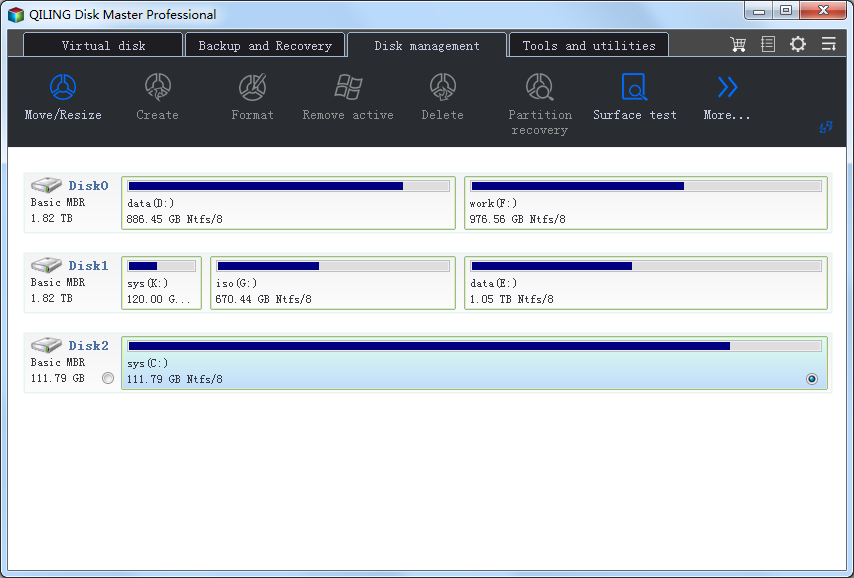
Step 2. Select the required task, such as resize/move, create, format, check partition, convert disk, or change a drive property.
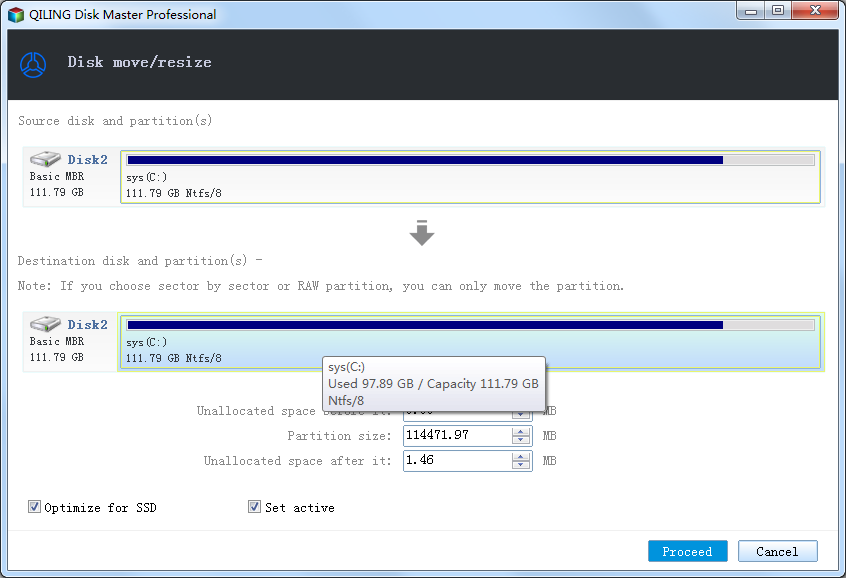
Step 3. Configure the operation. For resize, drag the partition border or enter the size. For format, choose the file system and label. For checking, choose disk health or partition check.
Step 4. Preview the pending operation list. Make sure EFI, System Reserved, Recovery, and data partitions still appear correctly.
Step 5. Click Proceed and keep the computer powered on until the operation completes.
Step 6. Restart if prompted, then reopen Disk Management and File Explorer to verify the result.
Check the Result
Keep at least 10-20 GB free on C drive for Roblox updates and Windows updates.
- Restart Windows and confirm the drive, partition, backup task, or cloned disk appears as expected.
- Open several files instead of only checking that a drive letter exists.
- Keep one recent backup on an external drive before making another high-risk change.
- If the same error returns, check hardware health, cable quality, firmware, and Event Viewer before repeating the same operation.
FAQs
How much space does Roblox need?
The app is not huge, but Windows needs extra temporary space.
Can I install Roblox on another drive?
Some versions allow it, but C drive still needs temporary space.
Why does it say no space when I have space?
The free space may be on another drive or unavailable to the installer.
Conclusion
Roblox install space errors are usually fixed by cleaning C drive, resetting cache, or expanding the system partition with Qiling Disk Master.
Related Articles
- Best Free Partition Manager Software of 2026
- How to Clone HDD to SSD in Windows 10/11/7
- Windows System Backup and Restore Tutorials
- Windows Data Recovery Tutorials
Products
Articles & Tutorials
- Data Recovery
- Data Backup
- File Recovery
- File Backup
- System Backup and Restore
- Disk and Partition Clone
- Technical articles
- Mobile articles
- Disk Master Help
- Windows Data Recovery Tutorials
- Windows Secure Delete Tutorials
- Windows Partition Management Tutorials
- Windows File Backup and Restore Tutorials
- Windows System Backup and Restore Tutorials
- Windows Disk Backup and Restore Tutorials
- Windows Clone Tutorials