Best Free Partition Manager Software for Windows 10/11 (2026)
A free partition manager is an essential tool for anyone who wants to organize their hard drive efficiently. Windows's built-in Disk Management has limited capabilities—it cannot resize partitions without unallocated space, merge non-adjacent partitions, or convert MBR to GPT without data loss. That's where third-party partition manager software comes in.
In this guide, we review the top 6 free partition managers for Windows 10 and Windows 11. We compare their features, ease of use, and safety to help you choose the best tool for resizing, moving, merging, creating, and converting partitions without losing data.
PAGE CONTENT
- What Can a Free Partition Manager Do?
- What to Look for in Partition Manager Software
- Top 6 Free Partition Manager Software in 2026
- How to Resize a Partition with Qiling Partition Master
- Free Partition Manager Comparison Table
- FAQs About Free Partition Manager Software
What Can a Free Partition Manager Do?
A partition manager lets you control how your disk space is divided. Common operations include:
- Resize / Move partition: Change the size of a partition or move it on the disk without losing data.
- Create / Delete partition: Create new partitions from unallocated space or delete existing ones.
- Merge partitions: Combine two partitions into one, including non-adjacent ones.
- Split partition: Divide a single partition into two.
- Convert MBR to GPT (and vice versa): Change the partition style without data loss, essential for drives larger than 2TB or UEFI boot.
- Convert file systems: Convert FAT32 to NTFS or exFAT without formatting.
- Allocate free space: Move free space from one partition to another.
- Wipe partition: Securely erase data from a partition.
What to Look for in Partition Manager Software
When choosing a free partition manager, consider these key factors:
- Data safety: The tool should protect your data during operations. Look for features like "Pending Operations" (apply all changes at once) and data protection technology.
- Ease of use: A clear, graphical interface makes partition operations simple and reduces the risk of mistakes.
- Feature set: Does it support all the operations you need (resize, merge, convert, etc.)?
- Compatibility: Support for Windows 10/11, MBR/GPT, and various file systems (NTFS, FAT32, exFAT).
- Bootable media: The ability to create a bootable USB to manage partitions when Windows cannot start.
- Free limitations: Some free versions restrict certain features (e.g., dynamic disk, server OS). Check the limitations before choosing.
Top 6 Free Partition Manager Software in 2026
1. Qiling Partition Master — Best Overall Free Partition Manager
Qiling Partition Master is our top pick for the best free partition manager. It offers a comprehensive set of partition management features with a clean, intuitive interface and strong data protection. Whether you need to resize the C drive, merge partitions, or convert MBR to GPT, Qiling Partition Master handles it all safely.
- Resize, move, merge, split, create, and delete partitions
- Convert MBR to GPT and GPT to MBR without data loss
- Convert FAT32 to NTFS without formatting
- Allocate free space from one partition to another
- SSD 4K alignment for optimal performance
- WinPE bootable media creator
- Data protection technology prevents data loss during operations
Qiling Partition Master is the best free partition manager for most users because it combines powerful features with a beginner-friendly interface and reliable data protection.
2. MiniTool Partition Wizard Free — Popular Freemium Option
MiniTool Partition Wizard Free is one of the most popular free partition managers. It offers a good range of features for home users, including resize, move, merge, and split partitions. The free version has some limitations, such as no dynamic disk management and no data recovery features.
Compare the Windows editions and partition workflows in MiniTool Partition Wizard vs Qiling Disk Master.
- Free for home use
- Resize, move, merge, split partitions
- Convert FAT to NTFS
- Wipe partition
- Some features locked in free version
3. AOMEI Partition Assistant Standard — Feature-Rich Free Tool
AOMEI Partition Assistant Standard is a feature-rich free partition manager. It supports all common partition operations and includes useful extras like partition alignment, disk surface test, and the ability to allocate free space. The interface is clean and easy to navigate.
For a direct product comparison, see AOMEI Partition Assistant vs Qiling Disk Master.
- Free for personal and commercial use
- Comprehensive partition operations
- SSD partition alignment
- MBR to GPT conversion (free for data disks)
- Bootable media creation
4. EaseUS Partition Master Free — Easy to Use
EaseUS Partition Master Free is a user-friendly partition manager with a straightforward interface. It supports basic partition operations like resize, move, merge, and create. The free version limits some advanced features, such as converting to GPT and managing dynamic disks.
For more detail on Windows partition tasks and edition limits, read EaseUS Partition Master vs Qiling Disk Master.
- Free for home use
- Simple, intuitive interface
- Basic partition operations
- Partition alignment
- Advanced features require upgrade
5. DiskGenius Free — Data Recovery + Partition Management
DiskGenius Free combines partition management with data recovery features. It supports all common partition operations and can recover deleted or lost partitions. The interface is more technical than other tools, making it better suited for advanced users.
- Free for personal use
- Partition management + data recovery
- Supports many file systems
- More technical interface
- Some features limited in free version
6. Windows Disk Management — Built-in Tool
Windows Disk Management is the built-in partition tool included with Windows. It supports basic operations like create, delete, format, and extend/shrink volumes. However, it cannot merge non-adjacent partitions, convert MBR to GPT without data loss, or resize partitions without unallocated space adjacent to the partition.
- Built into Windows (no download needed)
- Basic operations only
- Cannot merge non-adjacent partitions
- Cannot convert MBR to GPT without data loss
- No data protection features
How to Resize a Partition with Qiling Partition Master
Partition resizing depends on the current disk layout. Choose the situation below that matches your goal. Before starting, back up important files, close programs that use the affected partitions, and keep the computer connected to reliable power.
Situation 1: Shrink a Partition to Create Unallocated Space
Use this method when a data partition has free space and you want to create unallocated space for a new partition or another existing partition.
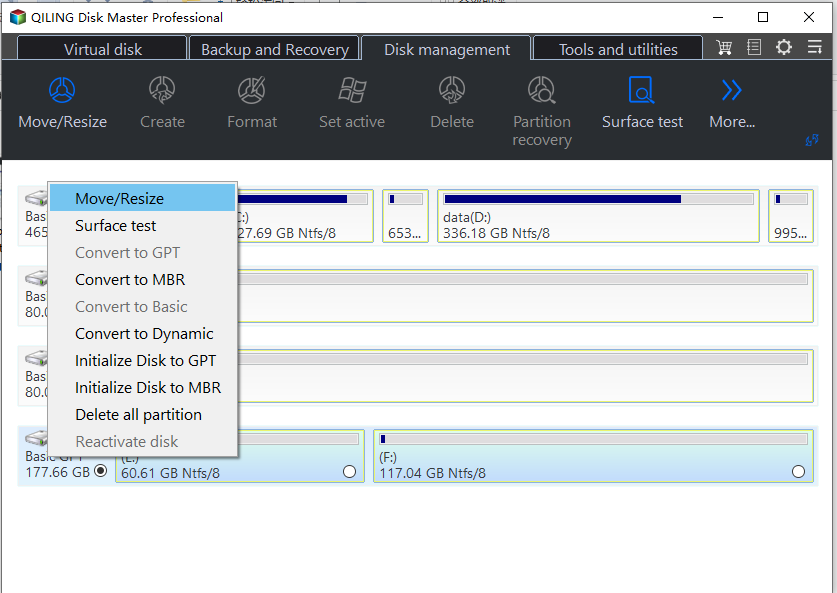
Step 1. Open Qiling Partition Master, select Disk management, and identify the partition you want to shrink by its drive letter, capacity, and used space. Select it and choose Move/Resize.
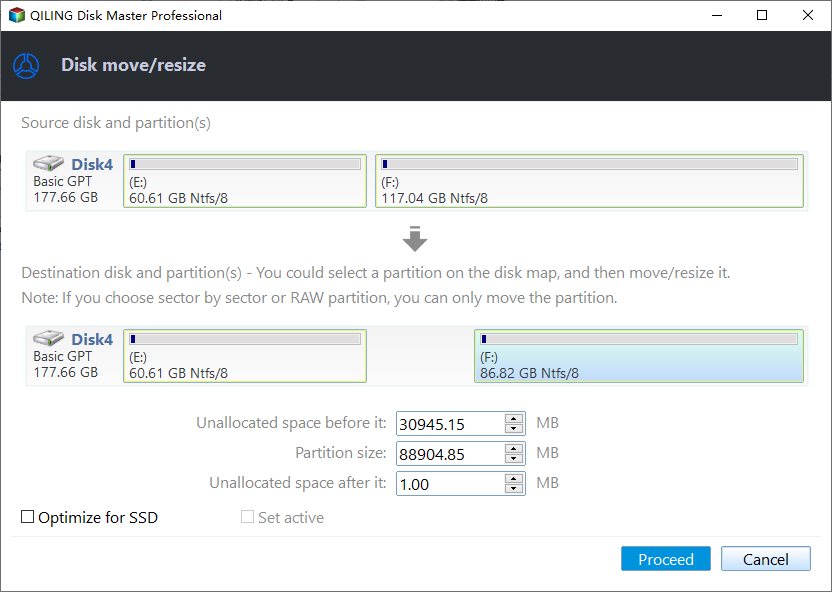
Step 2. Drag the left or right edge inward, depending on where the unallocated space is needed. You can also enter an exact value for Unallocated space before it or Unallocated space after it. Leave enough space for the files already stored on the partition.
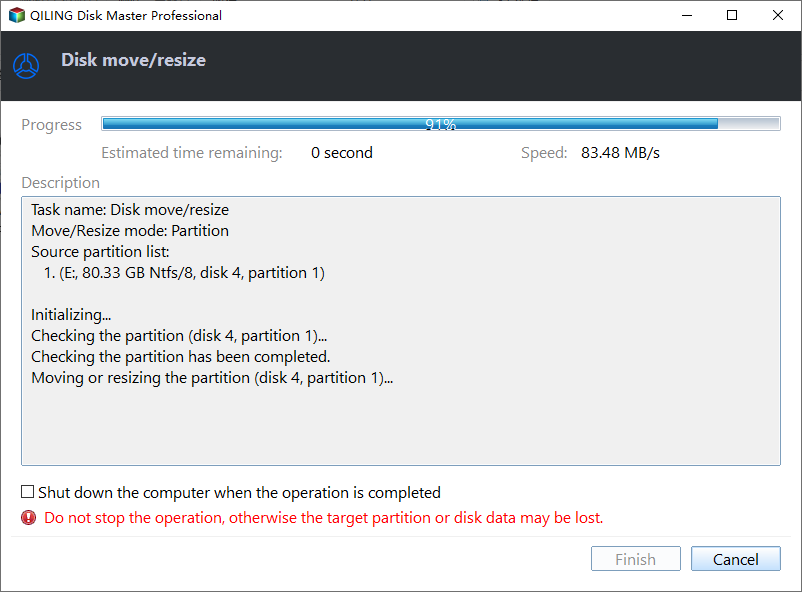
Step 3. Check the new partition size and the location of the unallocated space, then click Proceed. Wait until the resize operation finishes.
Step 4. Return to the disk map and confirm that the partition is smaller and the unallocated space appears on the intended side.
Situation 2: Extend a Partition with Adjacent Unallocated Space
Use this method when unallocated space is already directly before or after the partition you want to enlarge.
Step 1. Open Disk management in Qiling Partition Master and confirm that the target partition and unallocated space are on the same disk and directly adjacent. Select the target partition, then click the Move/Resize button on the toolbar.

Step 2. Select the target partition and choose Move/Resize. Drag the partition edge across the adjacent unallocated space, or enter the required new partition size.
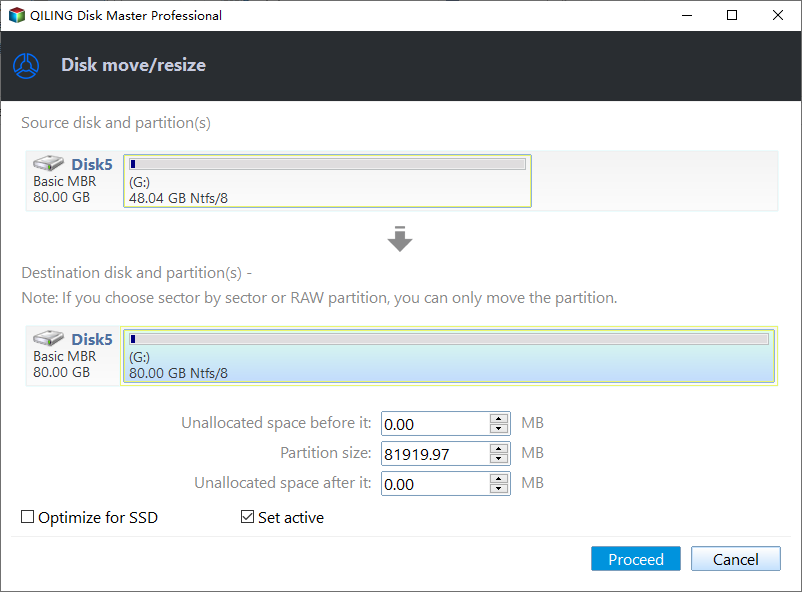
Step 3. Confirm that the destination layout shows the expected larger partition, then click Proceed. Keep the PC powered on until the operation completes.
Step 4. Open File Explorer or Qiling Partition Master and verify that the partition now shows the expected capacity.
Situation 3: Move a Partition When Unallocated Space Is Not Adjacent
Use this method when another partition, often a recovery or data partition, is located between the partition you want to extend and the unallocated space.
Step 1. Review the disk map and identify the partition blocking the unallocated space. Make sure the target partition, blocking partition, and unallocated space are on the same physical disk. Select the blocking partition, then click the Move/Resize button on the toolbar.
Step 2. Drag the entire blocking partition toward the far side of the unallocated area so the unallocated space moves next to the partition you want to extend. Do not drag a partition edge, because that would resize the partition instead of moving it.
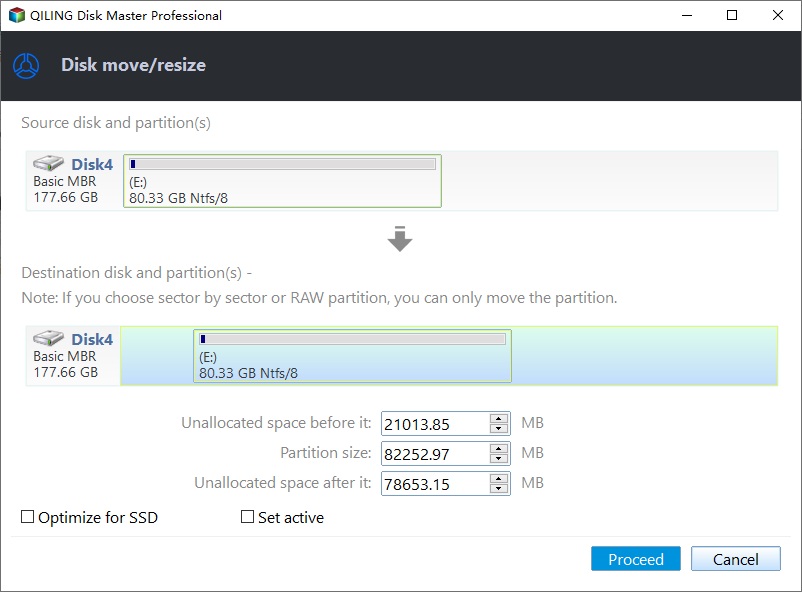
Step 3. Click Proceed and wait for the partition move to finish. Recheck the disk map and confirm that the unallocated space is now directly next to the partition you want to extend.
Step 4. Confirm that the moved partition and its files remain accessible. The unallocated space is now adjacent to the target partition; follow the steps in Situation 2 to extend that partition.
Free Partition Manager Comparison Table
| Software | Free | Resize | Merge | MBR to GPT | Bootable | Best For |
|---|---|---|---|---|---|---|
| Qiling Partition Master | Yes | Yes | Yes | Yes | Yes | All users |
| MiniTool Partition Wizard | Yes (limited) | Yes | Yes | Limited | Yes | Home users |
| AOMEI Partition Assistant | Yes | Yes | Yes | Yes (data disks) | Yes | Home & small business |
| EaseUS Partition Master | Yes (limited) | Yes | Yes | Limited | Yes | Beginners |
| DiskGenius | Yes (limited) | Yes | Yes | Yes | Yes | Advanced users |
| Windows Disk Management | Yes (built-in) | Limited | No | No | No | Basic needs |
FAQs About Free Partition Manager Software
What is the best free partition manager for Windows 10/11?
Qiling Partition Master is the best free partition manager for most users. It offers comprehensive partition operations, strong data protection, SSD alignment, and a clean interface—all for free.
Is free partition manager software safe?
Yes, reputable tools like Qiling Partition Master, MiniTool Partition Wizard, and AOMEI Partition Assistant are safe. Always download from the official website and back up important data before making partition changes.
Can I resize a partition without losing data?
Yes. Modern partition managers like Qiling Partition Master can resize, move, and merge partitions without data loss. However, always back up your data first as a precaution, since power failures or hardware errors can cause data loss.
Can a free partition manager convert MBR to GPT?
Some can. Qiling Partition Master and AOMEI Partition Assistant support MBR to GPT conversion without data loss. Windows Disk Management requires deleting all partitions first, which results in data loss.
Can I use partition manager on an SSD?
Yes. Most partition managers support SSDs. Look for a tool that offers 4K partition alignment, such as Qiling Partition Master, to ensure your SSD runs at maximum performance and lasts longer.
Conclusion
A good free partition manager makes it easy to organize your disk space, extend the C drive, merge partitions, and convert MBR to GPT—all without data loss. For the best combination of features, ease of use, and data safety, Qiling Partition Master is our top recommendation. It covers everything a home user needs and works flawlessly on Windows 10 and Windows 11.
Download Qiling Partition Master today and take full control of your disk partitions.
If you specifically need open-source partition software, the Windows open-source partition-manager comparison distinguishes GParted Live from Windows-native and proprietary tools.
Related Articles
- How to Extend C Drive Without Formatting in Windows 10/11
- How to Resize Partitions in Windows 11
- How to Merge Partitions in Windows 10/11
- How to Convert MBR to GPT Without Reinstalling Windows
- Free Partition Manager for Windows 10/8/7
Looking for a free partition manager for Windows? Qiling Partition Master lets you resize, merge, split, and convert partitions safely without losing data. - How to Convert MBR to GPT Using CMD Without Data Loss
Learn how to convert an MBR disk to GPT using Command Prompt or MBR2GPT tool, with or without data loss. Step-by-step guide for Windows 10/11.
Products
Articles & Tutorials
- Data Recovery
- Data Backup
- File Recovery
- File Backup
- System Backup and Restore
- Disk and Partition Clone
- Technical articles
- Mobile articles
- Disk Master Help
- Windows Data Recovery Tutorials
- Windows Secure Delete Tutorials
- Windows Partition Management Tutorials
- Windows File Backup and Restore Tutorials
- Windows System Backup and Restore Tutorials
- Windows Disk Backup and Restore Tutorials
- Windows Clone Tutorials