Qiling Disk Master vs MiniTool Partition Wizard for Windows Partitions
Both tools can help reorganize disk space in Windows, but the best choice depends on the layout of your drive and the exact operation you need. This comparison focuses on moving and resizing an existing data partition, not on unverified speed or recovery-rate claims.
What each tool is for
MiniTool Partition Wizard provides partition move and resize controls and a disk map for checking the planned layout. Its feature availability depends on the edition and the operation. Qiling Disk Master combines partition management with backup and clone tools, which is useful when you want a recoverable copy before changing partitions.
| Question | Qiling Disk Master | MiniTool Partition Wizard |
|---|---|---|
| Can it move or resize a partition? | Yes, through Disk management. | Yes, through Move/Resize Partition. |
| Can I prepare a backup in the same product? | Yes, choose a system, disk, partition, or file backup task. | Check the edition and available copy or backup workflow before relying on it. |
| Is every operation free? | No. Check the current Qiling edition and trial terms. | No. Check MiniTool's current edition matrix. |
Neither tool makes partition changes risk-free. A power loss, existing file-system damage, or choosing the wrong disk can interrupt an operation. Back up important files and verify the disk number, capacity, and drive letter first.
Which should you choose?
Use MiniTool if you already know its interface and the feature you need is included in your edition. Consider Qiling when you want backup and partition tools together. If Windows Disk Management can extend a volume using adjacent unallocated space, its built-in tools may be sufficient; do not install another program for a simple operation you can already perform safely.
How to shrink a data partition with Qiling Disk Master
This example creates unallocated space from a data partition. If you need to enlarge C:, first check whether the unallocated space is on the same disk and adjacent to C:. Do not select an EFI, Recovery, or unknown partition merely because it is nearby.
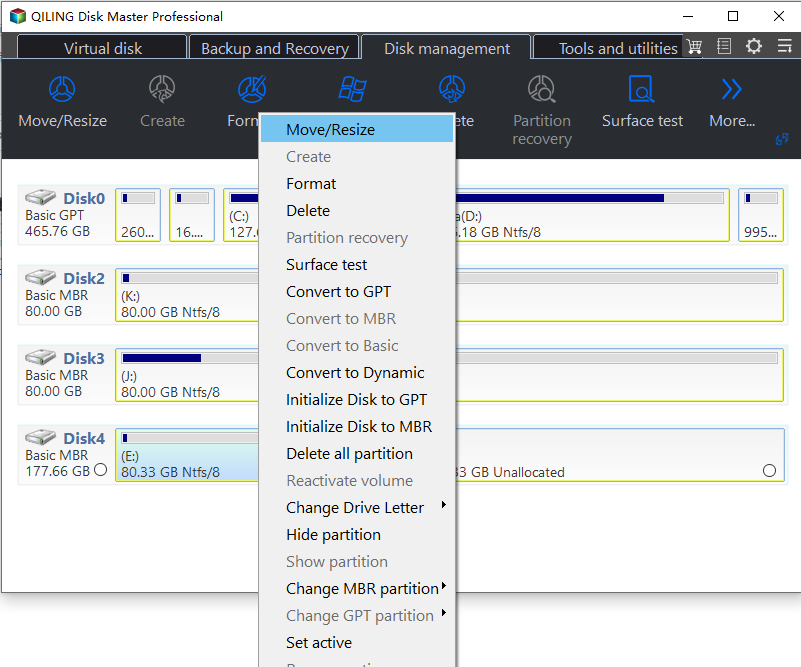
Step 1. Open Disk management. Identify the data partition by disk number, drive letter, total capacity, and used space. Select it, right-click, and choose Move/Resize.
Step 2. Drag the left or right boundary inward. Choose the side on which the unallocated space is needed and leave enough room for existing files. Check the displayed sizes before continuing.
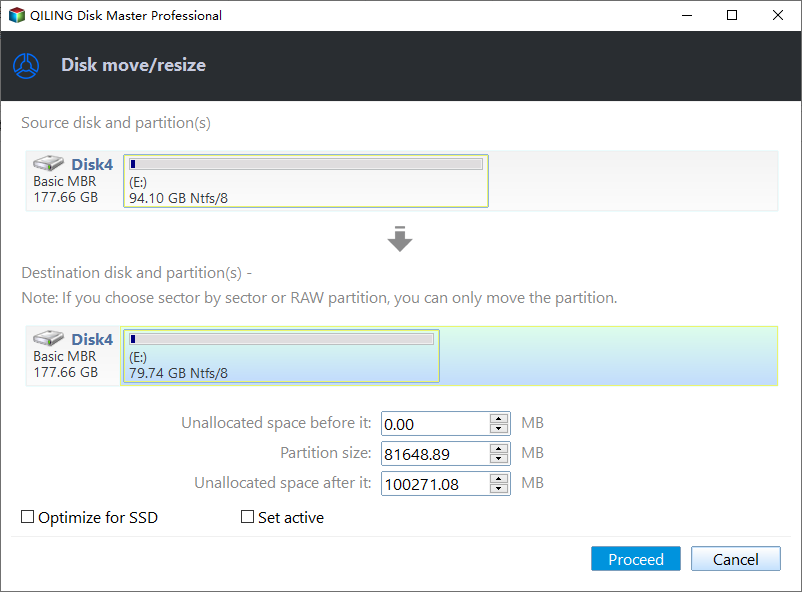
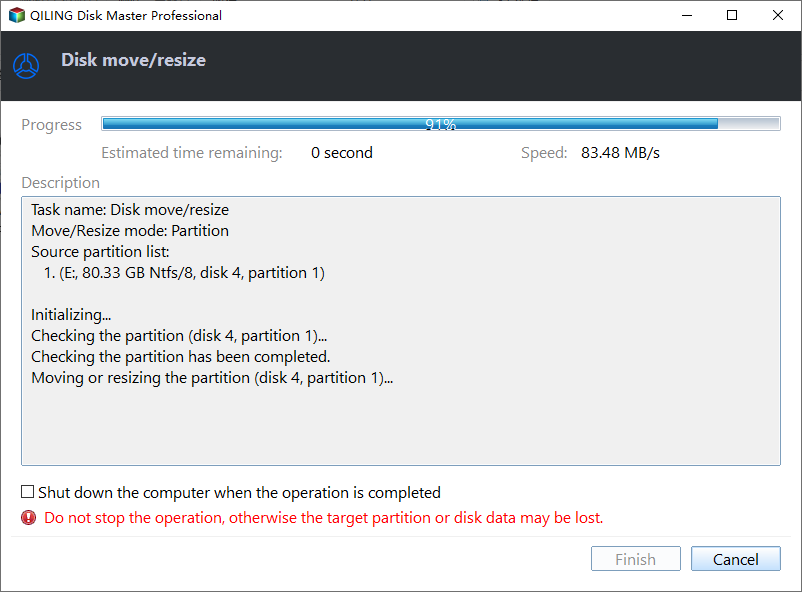
Step 3. Review the planned layout. Click Proceed to run the resize and wait for it to finish. If a restart is requested, keep the computer powered on until Windows starts again.
Step 4. Reopen the disk map and confirm that the data partition and unallocated space are where you intended. Open a few files from the resized partition to verify access.
Common questions
Can I extend C: with space from another physical disk? No. A normal Windows system partition cannot be extended with unallocated space on a different physical disk.
Does shrinking delete my files? It is intended to preserve them, but a backup is still necessary before changing partition boundaries.
Related Articles
- Best Free Partition Manager Software for Windows
Compare partition tools and learn when to resize, move, or create a volume. - Windows Disk Backup and Restore Tutorials
Choose a backup workflow before editing a disk layout.
Products
Articles & Tutorials
- Data Recovery
- Data Backup
- File Recovery
- File Backup
- System Backup and Restore
- Disk and Partition Clone
- Technical articles
- Mobile articles
- Disk Master Help
- Windows Data Recovery Tutorials
- Windows Secure Delete Tutorials
- Windows Partition Management Tutorials
- Windows File Backup and Restore Tutorials
- Windows System Backup and Restore Tutorials
- Windows Disk Backup and Restore Tutorials
- Windows Clone Tutorials