Open-Source Partition Managers for Windows: Options and Limits
An open-source partition manager can be useful when Windows Disk Management cannot perform a required layout change. However, many popular open-source tools, including GParted, run from bootable Linux media rather than as native Windows desktop applications. That difference matters for encryption, drivers, and safe shutdown.
Choose the tool for the task
Use Windows Disk Management for straightforward tasks such as creating a volume in unallocated space or extending an NTFS volume into adjacent free space. GParted Live can inspect and manipulate many file systems offline, but changing a Windows system disk from a live USB requires extra care. A Windows-native partition manager can be easier to use when you need to see drive letters and current Windows disk layout.
Open source does not automatically mean a tool is risk-free, and a paid tool does not replace a backup. Check whether the specific operation and file system are supported by the version you will actually use.
Prepare before any partition change
Step 1. Back up the entire disk or at least all important files to a separate physical device and verify the backup.
Step 2. Record the disk model, capacity, GPT or MBR style, partition order, and BitLocker state in Disk Management.
Step 3. If BitLocker protects the disk, save the recovery key and follow the encryption vendor's guidance before using an offline partition editor.
Step 4. Connect AC power, close active applications, and make sure the target disk is healthy. Do not resize a disk that is reporting I/O errors until data is secured.
Using GParted Live
Step 1. Download the current GParted Live image from the official project, and create bootable media with a trusted imaging tool.
Step 2. Boot the media in the same firmware mode as the installed Windows system where possible. Identify the target disk by model and capacity, not only by Linux device name.
Step 3. Inspect the partition map. Select the intended partition, choose the required operation, and read the proposed layout before applying pending changes.
Step 4. After completion, shut down cleanly, remove the USB, and boot Windows. Run a file-system check if Windows requests one, then verify files and recovery options.
GParted Live is still maintained; check the official GParted Live page for current releases and limitations rather than relying on old download lists.
When a Windows-native tool fits better
If you must move an intervening partition to extend C:, review the disk map carefully in a Windows partition manager. Confirm the source and target disks, preview the new layout, and use its documented execution command. Do not delete an EFI or recovery partition merely because it blocks an extension. For a boot-critical change, keep tested recovery media and a full-disk backup at hand.
Qiling Disk Master Pro as a Windows-native option
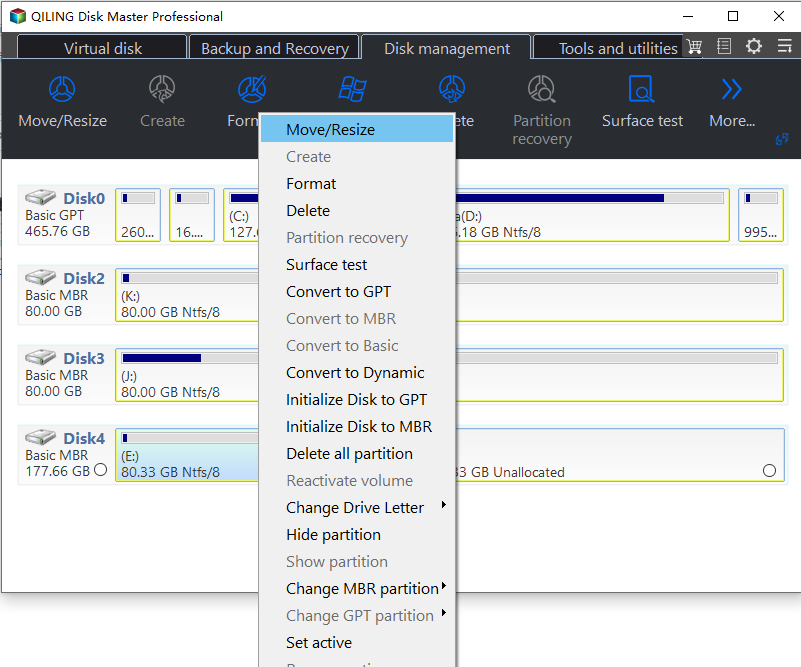
Qiling Disk Master Pro is proprietary software, not an open-source replacement for GParted. Its Disk management view provides Move/Resize, partition creation, formatting, and other tasks inside Windows. It can be easier to identify the familiar Windows disk layout before changing a partition. Confirm the disk model and capacity, make a tested backup, and review the operation's proposed result before clicking Proceed; a graphical interface does not remove the risk of selecting the wrong partition.
Related Articles
- Disk Management Limits
Understand why built-in commands may be unavailable. - Cloned Disk Capacity
Choose a safe way to use unallocated space.
Products
Articles & Tutorials
- Data Recovery
- Data Backup
- File Recovery
- File Backup
- System Backup and Restore
- Disk and Partition Clone
- Technical articles
- Mobile articles
- Disk Master Help
- Windows Data Recovery Tutorials
- Windows Secure Delete Tutorials
- Windows Partition Management Tutorials
- Windows File Backup and Restore Tutorials
- Windows System Backup and Restore Tutorials
- Windows Disk Backup and Restore Tutorials
- Windows Clone Tutorials