Disk Management Options Grayed Out in Windows: What to Check
Disabled options in Disk Management are not one single error. The reason depends on the selected object, the volume's file system, and where unallocated space sits. First identify the exact command that is gray and whether you clicked the disk label, a volume, or unallocated space.
Identify the selected object
Step 1. Open Disk Management with Win + X and choose Disk Management.
Step 2. Look at the lower graphical pane. The left box identifies a physical disk; colored blocks to its right are volumes or unallocated space.
Step 3. Record the disk number, partition style, capacity, file system, and the order of its partitions.
Step 4. Right-click the intended block. A command available on unallocated space may be unavailable on an existing volume, and vice versa.
If Extend Volume is gray
Windows Disk Management normally extends an NTFS volume only into immediately adjacent unallocated space on its right. Space on another disk, space separated by a recovery partition, or a FAT32 volume will not meet that condition. Do not delete a recovery or data partition simply to enable the button. Back up the disk, then decide whether moving partitions with a suitable tool is justified.
When Qiling Disk Master Pro can help
Qiling Disk Master Pro offers Move/Resize in its Disk management view. After a verified backup, it can be used to adjust a supported partition so unallocated space becomes adjacent to the volume you want to extend. Select the disk and partition by capacity and position, review the proposed layout, then use the operation's Proceed button only when the map matches your plan. Moving a system or recovery partition carries boot risk; do not treat it as a universal fix for every gray command.
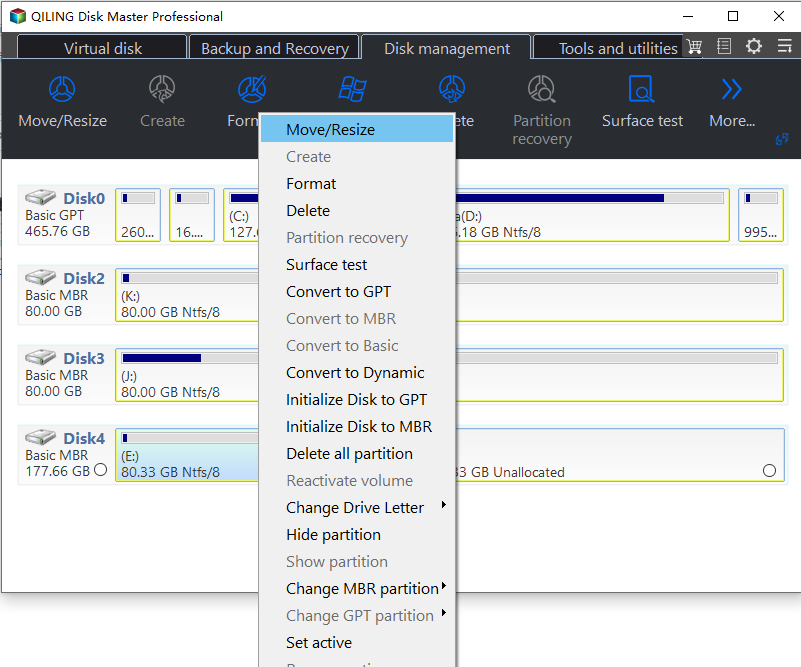
If Format or New Simple Volume is gray
The active Windows system volume cannot be formatted from the running installation. New Simple Volume is for unallocated space, not a formatted volume. A read-only disk, offline disk, unsupported partition type, or policy-managed device can also limit commands. Check Properties and status before changing disk attributes. If the drive has important files, copy them before any formatting or partition deletion.
If Change Drive Letter is gray
EFI, recovery, and some OEM partitions intentionally lack letters. Assigning one can expose service data without making it a normal storage volume. If a regular data volume lacks a letter, select that volume specifically and check whether Windows reports it as healthy and online. Avoid modifying system-reserved partitions.
Choose a safe next step
For a disk with physical errors or repeated disconnections, address hardware health first. For a layout limitation, make an image backup and verify the target disk and partition map before using a partition manager. For an administrator-permission issue, reopen Disk Management with an account that can manage disks. If only one operation is gray, search for that operation and its prerequisites rather than applying a generic disk reset.
Related Articles
- Extend a FAT32 Partition
Understand why Windows cannot extend some volumes. - Disk Management Access
Troubleshoot the console itself.
Products
Articles & Tutorials
- Data Recovery
- Data Backup
- File Recovery
- File Backup
- System Backup and Restore
- Disk and Partition Clone
- Technical articles
- Mobile articles
- Disk Master Help
- Windows Data Recovery Tutorials
- Windows Secure Delete Tutorials
- Windows Partition Management Tutorials
- Windows File Backup and Restore Tutorials
- Windows System Backup and Restore Tutorials
- Windows Disk Backup and Restore Tutorials
- Windows Clone Tutorials