How to Safely Resize Partitions in Windows 11 Without Losing Data
| Workable Solutions | Step-by-step Troubleshooting |
|---|---|
| Fix 1. Qiling Partition Master | Step 1: Locate the drive/partition; Step 2: Resize or move the partition...Full steps |
| Fix 2. Disk Management |
Srink: Step 1. Press Win+R keys to open the Command box on your Windows 11...Full steps Extend: Step 1. Press Win+R keys to open the CMD and Type diskmgmt.msc...Full steps |
Resizing or moving Windows 11 partitions is a great way to free up space and better organize your computer's storage. As hard drives tend to run out of space, resizing or moving partitions can help create more room for your data, making it easier to keep your files and programs organized. By doing so, you can make the most of your computer's storage capacity and avoid running out of space.
Resizing partitions can be a complex task that requires caution, as it involves modifying the partition table and potentially affecting the operating system and data stored on the disk. The process can be time-consuming, especially for large partitions, and if not done correctly, it may result in data loss or render the computer inoperable. If you're not familiar with partition management, it's recommended to seek guidance from a professional or use a reliable partition resizing tool to minimize the risk of errors.
When your disk is running low on space, Windows will display a "Low Disk Space" error. To resolve this, you can move a partition to free up space, a process known as moving a disk partition. This can be done within the same PC or even transferred to another PC.
How to Resize Partition with Qiling Partition Master
To avoid low disk space issues in Windows 11, you can use Qiling Partition Master to resize or move system partitions safely. For more guidance, see Fix Low Disk Space Error on Windows 11/10/8/7.
Qiling Partition Master is a reliable software that helps users extend, merge, and resize/move partitions, making it an all-in-one free partition manager. It also enables users to recover lost partitions with simple operations, effectively solving low disk space issues and helping to fully utilize hard disk space.
Partition Master is a comprehensive partition management tool that enables users to resize, move, merge, and copy partitions, as well as manage disk space, all within the Windows 11 operating system.
If you're a PC user looking to resize partitions and fix disk overrun errors, Qiling Partition Manager is a tool worth considering. To use it, you can follow these steps: follow the steps below.
Step 1: Locate the drive/partition
Select the drive/partition that want to adjust its size and click on it to choose "Resize/Move".

Step 2: Resize or move the partition
1.To shrink the partition, simply drag one of its ends to free up unallocated space. Once done, click "Proceed".

2. To extend the partition, ensure there is unallocated space available. If not, create some by following the previous steps. Then, click and drag the mouse into the unallocated space and click "Proceed".
3. To move a partition position, you need to leave unallocated space next to the target partition. If there isn't any, free up some space first.
To adjust the position of a partition, click on the target partition, select "Resize/Move" from the context menu, then drag the whole partition left or right to adjust its position, and finally click "OK" to confirm.
How to Move Partition in Disk Management
Disk Management provides a graphical user interface to manage disks, partitions, and volume storage. It allows users to shrink a partition or volume that has become fragmented and extend a region of unallocated space, as well as convert disk volumes from FAT32 to NTFS to improve file sharing capability and convert file system formats from one FAT type to another.
Shrink Partition in Windows 11
Shrinking a partition reduces its size by eliminating unnecessary disk space, allowing you to create additional free space on the same disk volume, which can be useful in situations where free disk space is less than anticipated or when more space is needed due to storage-system errors or growing files.
Shrinking a partition can only reduce its size to the amount of used space, not freeing up unused space. This means that shrinking a disk volume doesn't delete data, but rather uses up the empty space and moves onto another drive or disk volume.
Shrinking a partition is easy to do and only takes a few minutes. Here are some helpful step by step instructions that will show you how to shrink a partition in Windows 11 with Disk Managment.
Step 1. To open the Command box on your Windows 11, press the Win+R keys together. This will open the Run dialog box, which is a command prompt that allows you to run commands, open applications, and access system settings.
Step 2. Type diskmgmt.msc and then click "OK".
Step 3. To resize a partition in Disk Management on Windows 11, select the partition you want to resize and right-click it, choosing "Shrink Volume".
Step 4. A new dialog box will open, allowing you to specify the minimum amount of space to shrink the partition, in megabytes or gigabytes, and optionally set a maximum value for how much space to remove.
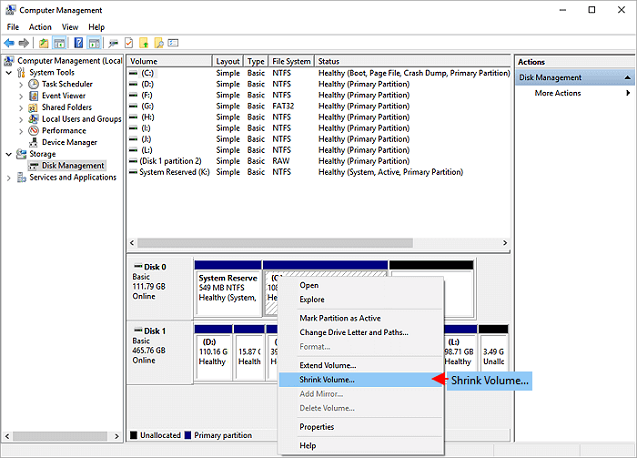
If there is unallocated space adjacent to your partition, you can shrink the partition by entering the desired size in MB and clicking the Shrink button.
Disk Management will then shrink the partition, effectively allocating that unallocated space for other uses, allowing you to allocate it to another partition of your choice.
Note: Shrinking partitions is possible on basic disks, dynamic disks, and mirrored volumes, but it's not supported if the disks contain BitLocker-protected data or have been encrypted using EFS.
Extend Hard Drive Partitions in Windows 11:
To expand a volume using Disk Management, you need to have enough free space available, which must be marked as "Unallocated". This space will be used to increase the size of the volume. The process is similar to shrinking a volume, where you would select the volume to expand, right-click on it, and choose "Extend Volume". From there, you can specify the amount of space to add to the volume.
Step 1. To open the Disk Management console, press the Windows key + R to open the Run dialog box, type `diskmgmt.msc`, and press Enter. This will open the Disk Management console, where you can manage and configure your disks.
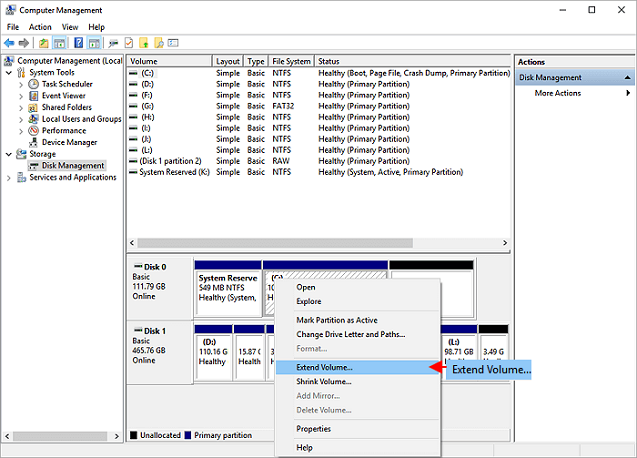
Step 2.To extend the volume, go to the Unallocated partition or any partition disk you want to extend, right-click on it, and select the "Extend Volume" option.
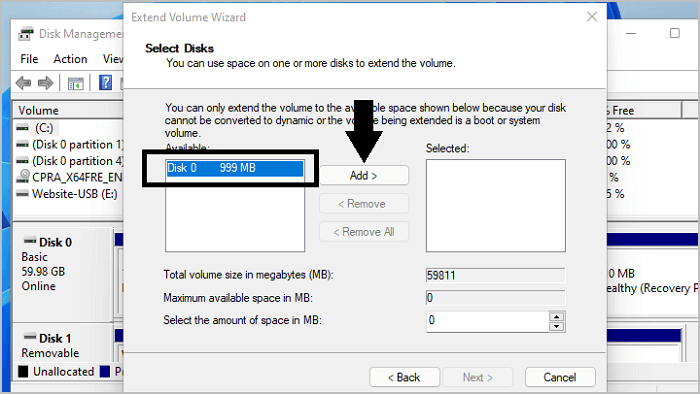
Step 3. Click the Next button. Under Select Disks, choose the disks you want to extend and keep the default value in "Select the amount of space in MB".
Step 4. Click on "Next > Finish" to extend the disk partition.
Conclusion
Imagine being responsible for managing the hard drive on someone else's computer. It would be incredibly useful to have a program that allows you to resize, move, and modify partition attributes with just one click, making it easy for even the most inexperienced user to optimize their setup.
Qiling Partition Master simplifies disk management, allowing users to easily resize disk space by converting unused space into an additional partition without data loss. As a popular disk management solution, it has helped thousands of users achieve this with ease.
If you're tired of struggling with partition resizing on your PC, Qiling is a game-changer. This user-friendly partition software offers a comprehensive set of features, making it easy to manage disk space without losing data. With Qiling, you can resize existing partitions, migrate your OS to an SSD, convert MBR disks to GPT and vice versa, making it a powerful tool for advanced users and simple enough for beginners to use.
Unlike other partition tools like Windows Disk Management, Qiling Partition Master offers more advanced features, making it a more efficient tool for complex tasks. While Disk Management can only handle simple tasks such as creating a new partition or resizing an existing one, Partition Master can perform a wider range of operations, making it a more versatile option. Additionally, Partition Master is more user-friendly and easier to use than the native Windows 11 Disk Management tool.
If you're a beginner, Qiling Partition Master is your best choice for resizing partitions in Windows 11, as the native Disk Management tool provided by Microsoft can be outdated and challenging to use. With Qiling Partition Master, you can easily resize partitions without needing to use the native tool.
Related Articles
- How to Fix DPC Watchdog Violation Error in Windows 10
- How Can I Check USB Health and Fix USB Errors on Windows 11 and Mac
- Best Free GParted Windows Alternative Tool
- How to Fix 'Can't Extend Volume' in Windows Server [2022 Guide]
- How to Fix Nintendo Switch Not Reading SD Card Error
Is your Nintendo Switch not recognizing your SD card? Find out what could be the cause and how to fix Nintendo Switch no reading SD card issue in this guide. - [FIXED]No Bootable Image Found, Notebook Will Be Shutdown
When you receive the error message 'No bootable image found, notebook will be shutdown', it means your computer is unusable. Fortunately, Qiling offers 6 effective fixes, providing both professional technical advice and experimentation to help resolve the issue.
Products
Articles & Tutorials
- Data Recovery
- Data Backup
- File Recovery
- File Backup
- System Backup and Restore
- Disk and Partition Clone
- Technical articles
- Mobile articles
- Disk Master Help
- Windows Data Recovery Tutorials
- Windows Secure Delete Tutorials
- Windows Partition Management Tutorials
- Windows File Backup and Restore Tutorials
- Windows System Backup and Restore Tutorials
- Windows Disk Backup and Restore Tutorials
- Windows Clone Tutorials