How to Fix Unsupported SanDisk SD Card Error [Step-by-Step Guide]
An unsupported SD card error can be frustrating, and it's often caused by a problem with the file system. However, other issues like logical errors or viruses can also lead to this error, making it essential to investigate the root cause to resolve the issue.
We've gathered practical fixes to solve the error and recover lost data from the SD card, which are effective in helping you recover all of your data, regardless of your device.
The unsupported SanDisk SD Card error typically occurs when the operating system or device is unable to recognize or support the specific type of SanDisk SD card inserted. This can happen due to various reasons such as outdated device firmware, incorrect SD card formatting, or the use of a SanDisk SD card that is no longer supported by the device.
Why Unsupported SanDisk SD Card Error Appears
When you see the error, it means your device doesn't support the Sandisk SD Card.
Here are the main factors that could trigger this error:
- Bad sectors: A damaged or corrupt sector on a storage device like a hard drive or SD card is known as a "bad sector." This can cause the device to permanently stop working over time.
- File system errors and SD card corruption can render your SD card unusable.
- Raw file system: A computer can't read raw files from an SD card, causing issues when the file format changes to "raw", making it inaccessible in Windows.
- Virus infection: Viruses or malware on a computer can cause SD card failure due to virus attacks.
- Inappropriate SD card usage: When an SD card is not used correctly, it can become corrupted, which means the data stored on it may become inaccessible or damaged.
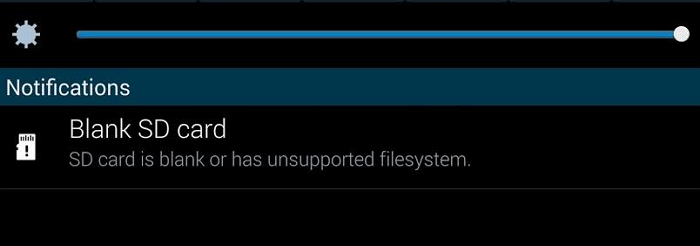
If you're having the same issue accessing your SanDisk SD, follow the instructions in the next sections, as we show you practical fixes to solve the "unsupported SanDisk SD card" error.
How to Fix Unsupported SanDisk SD Card Error - 6 Fixes
Here are six efficient fixes for the error:
- Fix 1. Check Bad Sectors and File System Error
- Fix 2. Run CHKDSK on SD Card
- Fix 3. Reboot the Device
- Fix 4. Reinsert the SanDisk SD Card to Android
- Fix 5. Connect SD Card to Another Device
- Fix 6. Format the SanDisk SD Card
To fix the issue, we'll start by checking for bad sectors and file system errors. This is the first step in resolving the problem, and it's essential to identify any potential issues that might be causing the problem.
Fix 1. Check Bad Sectors and File System Error
To rescue your data from a SanDisk SD card with bad sectors, start by scanning for and repairing the drive errors, which can help recover the few problematic sectors.
Qiling Disk Master Free has proven to be an effective tool that can help you check bad sectors and file system errors. This powerful software can skip damaged sectors to create a full copy of your hard drive, making it a reliable option for maintaining the health of your hard drive.
Step 1. Open Qiling Disk Master. Right-click the disk that you want to check, and then click "Surface Test".
Step 2. The operation will be performed immediately, and all bad sectors will be marked red.
After checking the bad sectors, you can use this tool to fix the file system errors. Here are the steps:
Step 1. Right-click the target partition that has a problem.
Step 2. Choose "Advanced" > "Check File System".
Step 3. Confirm if you want to hide the partition or not.
Step 4. In the Check File System window, select the option to "Fix the error on the disk".
Step 5. Click "Start" to check errors on your partition.
To easily update and clone an HDD with bad sectors to a healthy hard drive, you can use a disk copy software that can handle faulty drives.
Fix 2. Run CHKDSK on SD Card
When Windows displays an "unsupported SanDisk SD card" error, you can try running the CHKDSK command on the SD card to resolve the issue.
NOTE: Your saved files will be permanently removed when fixing this error, so ensure your SD card is connected to the computer, then implement the steps shown below:
Step 1. To open the Command Prompt, press the "Windows + R" keys, then type "cmd" in the "Run" dialog box.
Step 2. Right-click on the Command Prompt icon and select "Run as administrator" from the context menu.
Step 3. In the command Window, enter the "CHKDSK C: /F/R/X" command. Here "C" is the drive letter of your SD card.
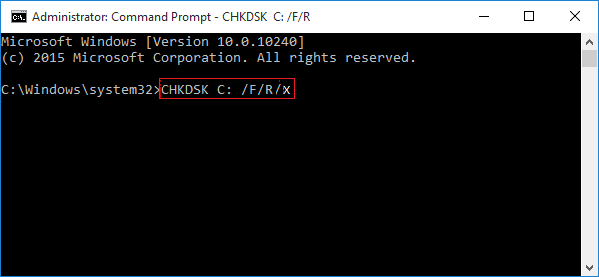
Step 4. Press "Enter" after typing the command.
If your SD card is not showing up on your mobile, you can try checking for the problem. After completing the process, insert your SD card again on your mobile to see if the issue has been resolved.
You may also like:
Fix 3. Reboot the Device
Here's how to restart or reboot your smartphone or computer, irrespective of your device, either a smartphone or a computer, reboot the device. To reboot a smartphone, press and hold the power button until the device shuts down, then press and hold the power button again to turn it back on. For a computer, click the Start menu and select Shut down or Restart, or press the Windows key + X and select Shut down or Restart.
Step 1. Press the power button on your device and hold it until you see the "Options" menu. This menu will allow you to shut down the device completely.
Step 2. Restart or Reboot your system by selecting the appropriate option, depending on the available choices.
Step 3. Your device will automatically reboot or restart, which should resolve the SanDisk SD card error.
Fix 4. Reinsert the SanDisk SD Card to Android
You can also reinsert the SD card into android to solve this error. Follow these steps:
Step 1. Power Off your phone and unplug the SD card slot.
Step 2. If your SD card is not working properly, try removing it and checking if it's clean. If it's dirty, clean the card with a soft cloth or brush to remove any debris or dust. This should resolve the issue and allow you to use the SD card again.
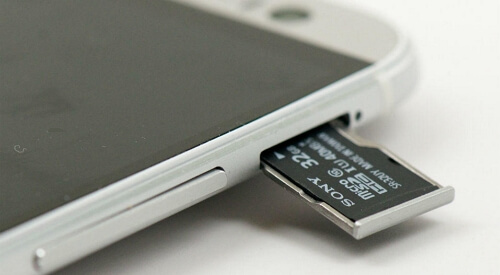
Step 3. To insert the SD card into your phone, simply return the SD card to the SD card slot on your phone.
Step 4. Turn on your phone and check if the SD card is accessible.
Fix 5. Connect SD Card to Another Device
If your device can't detect the SD card, try using it with another device to see if it's readable, and also try a different card reader or USB port as they might be the issue.
Fix 6. Format the SanDisk SD Card
To resolve complicated errors on your SanDisk SD card, you can try formatting it using a professional tool like Qiling Disk Master. This software is user-friendly and allows you to format your SD card with just a few clicks, effectively restoring its ability to store files. It's a simple solution to help resolve your disk partition issues.
Here are the steps:
Step 1. To format an SD card, locate it and right-click on the partition you want to format, then select the "Format" option from the context menu.
Step 2. Set a new partition label, file system (NTFS, FAT32, EXT2, EXT3, EXT4, exFAT), and cluster size to the selected partition.
Step 3. Click the "Proceed" button to start formatting your SD card.
Step 4. Click "Yes" on the pop-up window to continue.
Conclusion
The "Unsupported SanDisk SD card" error occurs when your device can't access data on your SD card, often due to issues like bad sectors, file system errors, a raw file system, or a virus infection, which can be triggered by improper SD card usage.
This error can be fixed with a few simple methods. You can apply any of the six fixes listed above, and the problem will be checked, allowing you to access your file again.
You may also like the following:
FAQs Related to Unsupported SanDisk SD Card
Do you have more questions about fixing the unsupported SanDisk SD card error? You will find answers in the following FAQs.
1. How to format an unsupported SD card in Android?
The steps listed here can also be used to format your SD card in Android.
- Open the "Settings" app on your Android.
- To format or erase an SD card, you need to select it from the list of available storage devices, then choose the option to format or erase it. This process will delete all data on the card.
2. Why is my SD card unsupported?
The "Unsupported SanDisk SD card error" is triggered by issues such as bad sectors, logical damages, a corrupt raw file system, and improper SD card usage.
3. Why is the SanDisk SD card not being recognized?
SanDisk SD card errors can be caused by several factors, including physical damage to the card, corruption of the file system, or the card not being assigned a drive letter, which can prevent it from functioning properly.
Related Articles
- (Solved!) How to Effectively Download Windows 10 ISO Without Tool
- How to Solve Convert to MBR Greyed Out in Disk Management [Best Ways]
- How to Improve SSD Read and Write Speed [100% Working Solutions]
- Windows 10 System Interrupts 100 CPU - How to Fix?
Do you know how to fix Windows 10 system interrupts 100 CPU? this guide can help. It explains what System Interrupts is, what causes high CPU usage, and how to fix it. After reading, you can choose a suitable method to solve System Interrupts 100% CPU usage. - Top 8 SSD Temperature Monitor Software Recommended in 2023
Want to manage the temperature of your SSD? Then follow this guide, where we've shared some SSD temperature monitor software for Windows. These tools allow you to monitor your SSD's temperature in real-time and receive alerts when it gets too high. - Stardew Valley Saves Location: All You Want to Know
Find Stardew Valley saves location on Windows, Mac, Linux, and mobile. Learn how to back up, move, and recover Stardew Valley save files.
Products
Articles & Tutorials
- Data Recovery
- Data Backup
- File Recovery
- File Backup
- System Backup and Restore
- Disk and Partition Clone
- Technical articles
- Mobile articles
- Disk Master Help
- Windows Data Recovery Tutorials
- Windows Secure Delete Tutorials
- Windows Partition Management Tutorials
- Windows File Backup and Restore Tutorials
- Windows System Backup and Restore Tutorials
- Windows Disk Backup and Restore Tutorials
- Windows Clone Tutorials