8 Ways to Fix MacBook Screen Goes Black But Still Running
If your MacBook screen goes black yet the laptop is still running, don't worry! There are several solutions to fix the issue. You can start by checking the power, adjusting the brightness level, and even resetting the System Management Controller (SMC) to resolve the problem.
| Workable Solutions | Step-by-step Troubleshooting |
|---|---|
| Adjust the Brightness of Mac | Some models have a brightness slider on the keypad. You need to slide it in the right direction...Full steps |
| Check the Power | Sometimes, the battery may be responsible for the black screen of your system...Full steps |
| Change the Sleep and Wake Settings | Go to the Apple menu and choose System Settings from the drop-down menu...Full steps |
| Other Working Solutions | Restart the MacBook Pro > Reset the SMC > Reset the PRAM/NVRAM > Run the Mac Power Cycle...Full steps |
MacBook Screen Goes Black But Still Running
If you're experiencing a black screen on your MacBook, whether it's during use or booting, it can be a frustrating issue that wastes your time. This problem can be especially annoying if you have important work to do, and it's not uncommon. The black screen can occur due to various reasons such as software or hardware issues, so it's essential to identify and resolve the root cause to get your MacBook up and running smoothly again.
Your MacBook screen going black but still running can be caused by software issues or hardware damage, so it's essential to be cautious to avoid potential data loss.
A MacBook black screen can be a frustrating issue, but it's essential to take immediate action to resolve the problem. By understanding the potential causes, such as a faulty power adapter, overheating, or software glitches, you can take steps to troubleshoot and potentially fix the issue. This article will explore the possible reasons behind a MacBook black screen and provide potential solutions to get your device up and running again.
To avoid losing important data, it's a good idea to back up your files using Deep Data Recovery for Mac Pro before installing or updating macOS.
Back Up Your Mac and Never Lose Data
You can back up and restore your MacBook or iMac without relying on Time Machine, iCloud, or external hard drives. There are alternative methods to save and recover your data, including using the built-in Backup and Restore feature in macOS, creating a bootable clone of your startup disk, or using third-party backup software.
Why Does the MacBook Pro Go Black?
Your MacBook Pro suddenly going black can be caused by a variety of reasons. It could be due to a software issue, such as a problem with the operating system or a malfunctioning app, or it might be related to a hardware problem, like a faulty graphics card or a failing battery. Additionally, overheating, a loose connection, or a power surge could also be contributing factors. Furthermore, it's also possible that the issue is caused by a corrupted system file, a faulty RAM, or a malfunctioning logic board.
- Lack of battery
If your MacBook's screen goes black throughout the day, it might be due to battery drainage. Try charging it. If it's already plugged in but won't turn on, check the power cables. Also, ensure the battery is in good condition.
- Problems with the display
The MacBook Pro may not turn on due to a display issue, resulting in a black screen, which should be addressed promptly.
- App errors
Several third-Party apps can sometimes cause glitches or bugs, which might result in a black screen. To resolve this issue, simply force quit the app or uninstall it to free up space and prevent further problems.
- Login items
When booting the MacBook Pro, certain apps take priority in the startup list, potentially causing a black screen. This can lead to an unresponsive screen, preventing any work from being done. A force shutdown may resolve the issue.
How to Recover Data from Crashed or Unbootable Mac?
If your MacBook screen goes black or your Mac crashes, you can use Deep Data Recovery for Mac software to recover your data. This software can be installed to help you retrieve your lost files.
The Mac USB data recovery software is an excellent tool for recovering lost data. Its wide range of features and user-friendly interface make it a popular choice for both amateurs and experts, allowing users to retrieve their lost data regardless of the reason for the loss.
- This software can recover lost photos, videos, music files, documents, and other files.
- Data can be retrieved from various devices, including hard drives, solid-state drives, USB flash drives, and pen drives.
- Data recovered from a device can be easily sent to cloud storage services such as Google Drive or Dropbox.
- With a file filter, you can quickly scan the lost files and choose the one you want to recover.
Step 1. Search for lost files
To search for lost files on macOS Sierra, High Sierra, Mojave, Catalina, Big Sur, Monterey, Ventura, and the latest Sonoma, select the disk location where you'd like to search, such as an internal HDD/SSD or a removable storage device, and click the "Search for lost files" button.
Note: Before attempting data recovery, it's recommended to click "Disk Backup" from the left sidebar to create a backup of your Mac, ensuring that your data is safe in case of further loss. Once backed up, the software can recover data from the Mac backup, allowing your computer to write new data again.

Step 2. Go through the scanning results
Deep Data Recovery for Mac scans the selected disk volume and displays the scanning results immediately.

Step 3. Select the file(s) and recover
Select the desired file(s) from the scan results and click the "Recover" button to restore them.

How to Fix MacBook Pro Screen Goes Black?
The frustration of a MacBook Pro screen going black can be frustrating, but it's often due to a simple solution, such as a loose connection or a software issue, rather than a hardware problem. Checking the power cord, adjusting the brightness, or restarting the computer can often resolve the issue.
Here are the solutions to the problem:
Fix 1. Adjust the Brightness of the Mac Screen
If the MacBook Pro is on but the screen is black, check if the brightness has been turned down. If the screen is still black, try using the built-in function to reset the MacBook Pro. This will restore the system to its original settings and may resolve the issue. If the problem persists, it's possible that the MacBook Pro's logic board has failed, and in that case, it's recommended to contact Apple support for further assistance.
Some phone models have a brightness slider on the keypad that needs to be slid in the right direction to increase brightness, while others have buttons to adjust the brightness.
Fix 2. Check the Power of Your MacBook
If your system's battery may be causing the black screen, first check if the charge indicator is green. If it's not, inspect the power cable for any physical damage.
If the battery is dead, you won't hear chimes or see an indicator light. In this case, replacing the battery is the best solution, which requires contacting Apple's support team.
Fix 3. Change the Sleep and Wake Settings for Your Mac
To resolve the black screen problem, you can try changing the sleep and wake settings. This involves going to Settings, then Display, and selecting the option to turn off the screen after a certain period of time. You can also set the screen to turn on automatically when you wake your device.
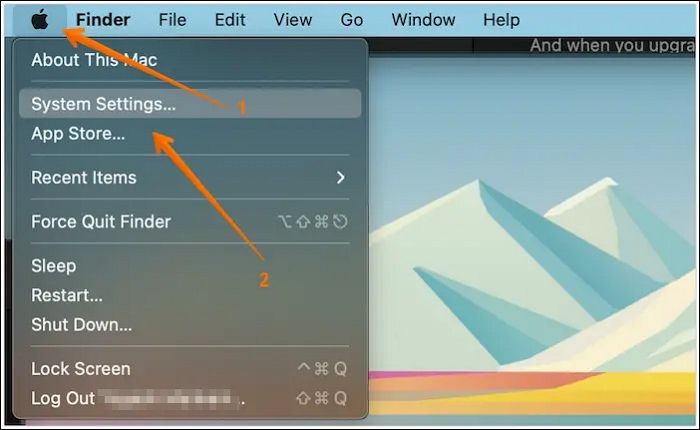
Step 1: Go to the Apple menu and choose System Settings from the drop-down menu.
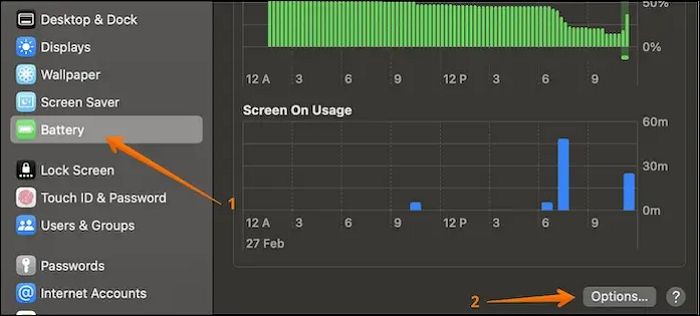
Step 2: Select Battery from the sidebar, then choose Options from the right-hand settings.
These features include putting hard disks to sleep, updating your system while it's sleeping, and allowing your Mac to wake briefly for users to access shared services (if applicable).
Fix 4. Restart the MacBook Pro to Fix the Black Screen
If your MacBook Pro screen goes black, try restarting the system. If the screen is only partially black, you can still navigate to the Apple logo, select it, and restart from the drop-down menu.
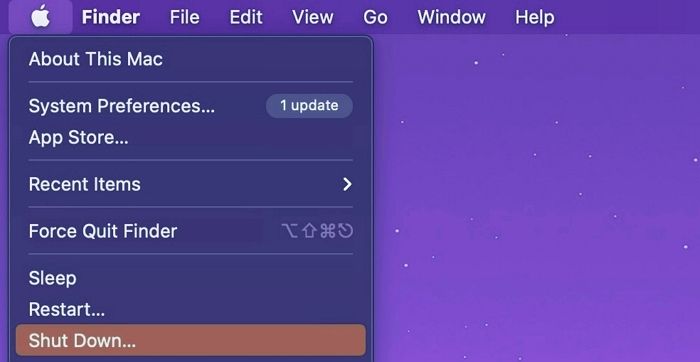
The system will shut down, and it will turn on again after a few seconds. If you can't see the screen, force shut down the system.
Fix 5. Reset the SMC to Fix MacBook Screen Goes Black
If you are eager to fix the MacBook black screen problem, you can reset the SMC or System Management Controller. For that, take a look at the steps you must adopt.
Step 1: To shut down the system, press the Power button along with the Shift, Control, and Option buttons, and hold them for a few seconds.

Step 2: Release the buttons.
Step 3: Restart the system, as the SMC is now reset.
Fix 6. Reset the PRAM/NVRAM to Fix MacBook Screen Goes Black
To fix a black screen issue, resetting the PRAM/NVRAM can be helpful. This process involves pressing the power button, then immediately holding down the Command (⌘) + Option (⌥) + P + R keys. Release these keys when the computer starts to beep, then release the power button.
Step 1: Press the Power button, wait for the chime, shut down the system.

Step 2: To reset the System Management Controller (SMC) on a Mac, press the Command, Option, P, and R keys simultaneously and hold them down. When you hear the computer's startup chime for the second time, release the keys. This will reset the SMC, which can help resolve issues like a frozen or unresponsive computer.
Fix 7. Run the Mac Power Cycle to Fix the Black Screen on Mac
The new MacBook models have a battery life of around 1000 cycles, which translates to approximately three years of use. The Mac Power cycle can assess the battery's health, but this requires a functional screen.
Once the screen starts working, you can follow these steps.
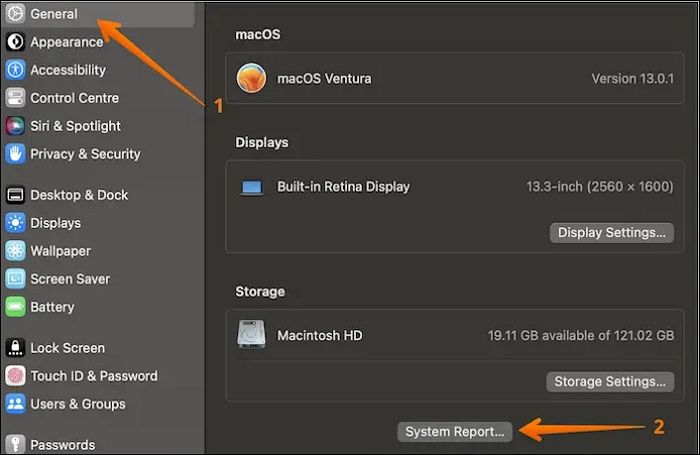
Step 1: Select the Apple logo. Go to System Settings.
Step 2: To view the System Report, click on the General option on the left-hand bar and scroll down on the right-hand settings to select the System Report option.
Step 3: In the Power section, go to the right-hand side to view health information.
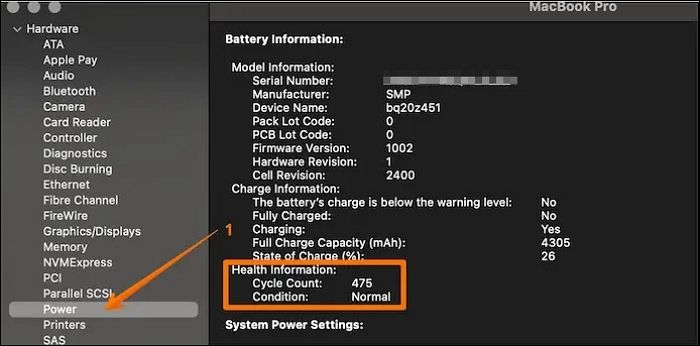
Note: If the cycle count exceeds a thousand, it's recommended to replace the battery.
Fix 8. Boot into Safe Mode to Fix MacBook Pro Black Screen
Startup disk issues can lead to a black screen problem, so booting into safe mode may resolve the issue.
Here are the steps to follow.
Step 1: Turn on the system.
Step 2: Press the Power button along with the Shift key.
Step 3: Release the keys when you come across the Apple logo.
Note: The system will enter safe mode, run diagnostics, and then restart the computer.
Conclusion
A MacBook Pro's screen may go black due to various reasons, including battery drainage, login items, glitches, or other system issues, which can occur during startup or while working.
To resolve the issue, you can try running a power cycle, booting into safe mode, or resetting the System Management Controller (SMC). However, before attempting these solutions, be aware that they may result in data loss, so proceed with caution.
If you experience data loss, it's crucial to use professional data recovery software, such as Deep Data Recovery for Mac, which is a user-friendly and reliable tool for recovering various data types. Alternatively, you can try Qiling Mac data recovery software, which is also available for installation today.
Step 1. Search for lost files
To search for lost files on macOS Sierra, High Sierra, Mojave, Catalina, Big Sur, Monterey, Ventura, or Sonoma, select the disk location to search, then click the "Search for lost files" button.
Note: Before attempting data recovery, it's recommended to click "Disk Backup" from the left sidebar to create a backup of your Mac, which will help prevent further data loss. Once backed up, the software can then recover data from the Mac backup, allowing your computer to write new data again.
Step 2. Go through the scanning results
Deep Data Recovery for Mac will immediately scan the selected disk volume and display the scanning results.
Step 3. Select the file(s) and recover
Select the file(s) you want to recover from the scan results and click the "Recover" button to restore them.
MacBook Pro Screen Goes Black FAQs
Fixing a MacBook Pro screen that goes black can be achieved through various solutions. To troubleshoot, users can refer to the list of questions and answers provided, which may offer additional information on resolving the issue.
1. Why is my Mac screen black but still on?
Your Mac screen may be black but still on due to various reasons such as SMC issues, corrupt startup disks, or power problems. To resolve this, taking proactive steps is the best course of action.
2. How do I fix the black screen of death on my Mac?
If your Mac has a black screen, check the power cable and switch to troubleshoot the issue. Also, verify if the display's brightness is turned down or if the system needs a force reboot.
3. How do I recover data from a black-screen Mac?
To recover data from a black-If you're using a Mac and it's not booting, you can try using Time Machine backup from the recovery mode, but you need to have backed up your data first. Alternatively, you can use professional data recovery software like Deep Data Recovery for Mac if you haven't backed up your data.
4. How does Apple fix the black screen of death?
If your iPhone is experiencing a black screen, don't worry, there are solutions to fix it. However, if none of these work, you can visit the nearest Apple Store where the support team will assist you in resolving the issue.
Related Articles
- Fixes for Windows 10 Corrupt/Crash in Boot
- How to Solve OneDrive Sync Pending Error in Every Possible Way
- Hogwarts Legacy Save File Location & Config File Location [Detailed Info]
- How to Fix MacBook Pro/Air/iMac Won't Turn on with Black Screen [6 Solutions]
- How to Fix: SD Card Command Volume Partition Disk Failed with Null
Here is the easy fix for command volume partition disk, including command 7, 8, 9, 10, 11, 12, 13, 14, 16, 18, 21, 24 volume partition disk failed with the null problem. - What Is Vulkan Run Time Libraries and Do I Need or Remove It? [Updated 2023]
Vulkan is one of the key essentials of modern drivers. But, is Vulkan runtime libraries a part of it? In this article, we'll answer this question and analyze the purpose of Vulkan.
Products
Articles & Tutorials
- Data Recovery
- Data Backup
- File Recovery
- File Backup
- System Backup and Restore
- Disk and Partition Clone
- Technical articles
- Mobile articles
- Disk Master Help
- Windows Data Recovery Tutorials
- Windows Secure Delete Tutorials
- Windows Partition Management Tutorials
- Windows File Backup and Restore Tutorials
- Windows System Backup and Restore Tutorials
- Windows Disk Backup and Restore Tutorials
- Windows Clone Tutorials