How to Open Files With No Extension in Windows 10/11? [Updated 2023]
Every file on your computer has its own file extension, which is usually a three- or four-letter identifier that appears at the end of a file name after a period. This extension provides information about the file's features and functions, such as the type of data it contains, and is often used to determine how to open or interact with the file. For example, a PowerPoint presentation file has a PPTX extension, making it clear that it's a presentation file rather than a document or image file.
Extensions give your computer information about the software needed to open them, allowing you to double-click on a file and have it automatically open in the corresponding program, such as PowerPoint for a presentation file or a media player for an audio or video file. Common file extensions include .jpg, .jpeg, .docx, .mp3, and .pdf.
When a file doesn't have an extension, Windows may struggle to determine which program to use to open it, resulting in a suggestion bar that offers alternative program suggestions.
Why Do Some Applications Have Files with No Extensions?
Windows typically doesn't display file extensions by default. However, you can enable the setting in File Explorer to see them. If you're unable to see the extension, it's likely because the function is currently disabled.
Some application files, particularly those in the installation folder, may not have file extensions. These files are often plaintext and are typically written in all capital letters, indicating they are not executable.
How to Open Files without Extensions in Windows 11?
In Windows 10 and 11, file extensions are often hidden by default to prevent accidental changes that could cause harm to files. This is a safety precaution to prevent users from accidentally modifying a file's extension and rendering it unusable.
In Windows, you can open files in three different ways. Firstly, you can double-click on the file icon in File Explorer, which will automatically launch the associated application and open the file.
- Double-click the file you wish to open.
- Right-click the file and choose Open.
- Choose the file you wish to open and press Enter.
But none of these methods are useful when dealing with a file without extensions. If you know what sort of file you downloaded or transferred to your system, you may modify its extension manually to allow Windows to associate it with the correct software. To do so, you must make extensions visible.
If you're using Windows 11, follow these steps:
Step 1. In the taskbar, tap the File Explorer icon.
Step 2. To view the File Explorer window's Quick Access view, click on the "View" tab at the top of the window.
Step 3. To show file name extensions, select "Show" > "File Name Extensions" from the View menu. This will display the file extensions. That's all.
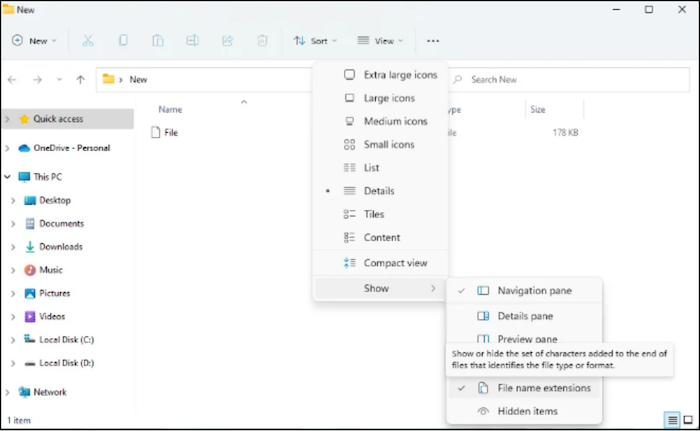
Now that file extensions are visible, you can change them as you like, but be aware that using the wrong extension might render the file unusable.
How to Open Files without Extensions in Windows 10?
If you're using a Windows 10, follow these steps:
Step 1. In the taskbar, tap the File Explorer icon.
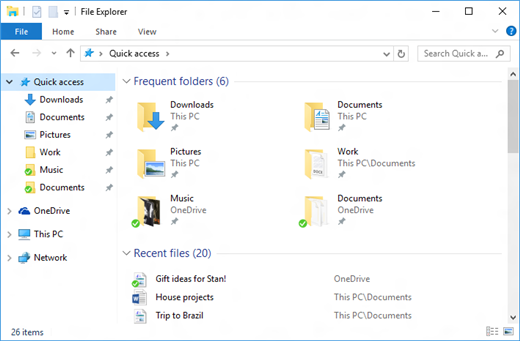
Step 2. When the window appears, select the View tab at the top.
Step 3. To enable file name extensions, check the box next to File Name Extensions. That's all.
Find File Extensions or File Types in Windows
To see the file extension or type, change the view mode in File Explorer to Details. In this view, the file extensions will be displayed in the Type column. Alternatively, right-click on the file and select Properties, then go to the General tab to see the file type. This can help you identify the file extension.
If you have a file without an extension and are unsure what it could be, you can use third-party freeware to identify unfamiliar file extensions. Some resources that can help include 7-Zip, PeaZip, and File Analyzer. These tools can scan and identify the type of file, providing you with information on its contents and potential uses.
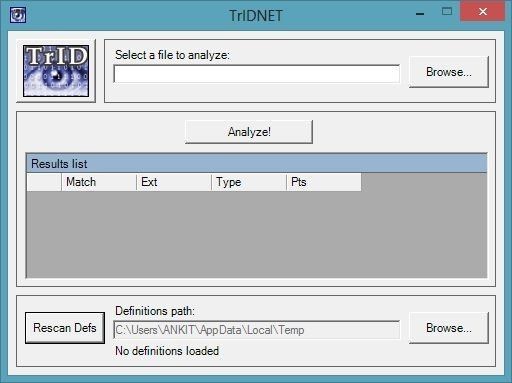
1. TrID
TrID is a powerful and widely used file identification tool that is still being actively developed, with an expanding database of file type definitions that allows it to identify new file types as they emerge.
2. Toolsley File Identifier
Toolsley File Identifier is available in web extension and online versions, utilizing the site's JavaScript tool to handle detecting work, eliminating file size restrictions and concerns about internet upload speed or harmful activities.

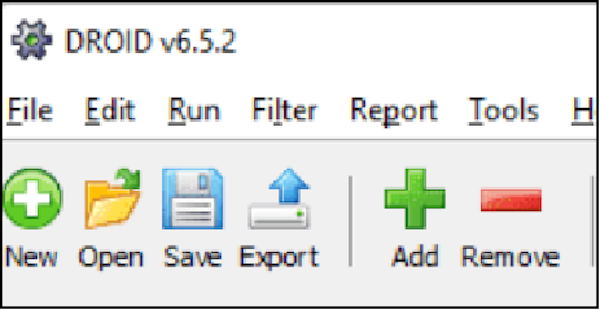
3. DROID (Digital Record Object IDentification)
This utility is unique in that it can detect many unknown files at the same time, and it has been trusted by many individuals due to its creation by the UK National Archives.
To access the National Archives website, go to the website and select the Current Version zipped package.
Final verdict
Working with an unfamiliar file format can be frustrating, but identifying the file and appending the correct extension can be done using the file types listed above, which can help open the file.
FAQ
1. Why Is Displaying File Extensions Important?
File extensions are used to instruct the computer on how to handle a file and inform it about the program that may open it.
2. How to open files without extension in Python?
The file can be opened normally because Python has no trouble reading files without extensions.
Related Articles
- Force Quit Not Working on MacBook Pro/Air, How to Fix
- Google Chrome Sync Keeps Pausing? Find Fixes Here
- macOS Sonoma Issues, Problems, Bugs | Top 6
- How to Factory Reset Mac Without Keyboard? Keyboard Not Working
- Fix A Device Which Does Not Exist Was Specified [100% Working Solutions]
This blog post will help you identify the reasons behind the 'a device which does not exist was specified' error and provide you with effective solutions to fix it. - What Should I Do After Accidentally Marked Drive C Active [2023 New]
If you've mistakenly marked drive C as active, you'll encounter the “unable to boot MBR” error on your PC. To resolve this, you need to understand the difference between system and boot partitions, how they work, and how to set the correct system partition as active.
Products
Articles & Tutorials
- Data Recovery
- Data Backup
- File Recovery
- File Backup
- System Backup and Restore
- Disk and Partition Clone
- Technical articles
- Mobile articles
- Disk Master Help
- Windows Data Recovery Tutorials
- Windows Secure Delete Tutorials
- Windows Partition Management Tutorials
- Windows File Backup and Restore Tutorials
- Windows System Backup and Restore Tutorials
- Windows Disk Backup and Restore Tutorials
- Windows Clone Tutorials