How to Factory Reset Mac Without Keyboard? Keyboard Not Working
A factory reset can be necessary for various reasons, such as selling, replacing, or giving away your Mac, or when you encounter issues like a virus attack, ransomware, or slow performance. By resetting your Mac, you can restore it to its original state, making it like new again. This can be a helpful solution to fix problems and give your Mac a fresh start.
If you're trying to factory reset your Mac, it's frustrating to find that the keyboard isn't working, and you may also have forgotten the admin password. Fortunately, you can still factory reset your Mac without a password and without a keyboard. To do this, you can connect a wireless keyboard or a USB keyboard, and then follow the full guides on how to factory reset your Mac, which we'll cover in this article. We'll walk you through the process of connecting a keyboard and then show you how to factory reset your Mac.
Before performing a factory reset on macOS, there are two essential steps to take beforehand.
Two Things Need to Do Before Factory Reset Mac
Before factory resetting your Mac, create a backup of your drive to secure your files. You can use backup software to do this efficiently. If you don't have a backup, don't worry - you can still recover your data with a reliable recovery tool.
1. Recover Data Before Factory Reset macOS
You may factory reset your MacBook for various reasons, and you may have lost some essential data on your Mac already before you reset it. It will be wise to download Deep Data Recovery for Mac and let it help your Mac recover lost files.
Deep Data Recovery for Mac
- Recover deleted files on a Mac effectively by using reliable software such as Disk Drill, Deep Data Recovery Wizard, or Stellar Data Recovery. These tools can scan the device's storage, identify deleted files, and restore them to their original location or a designated folder.
- To recover files from a formatted USB drive, emptied recycle bins, memory cards, hard drives, digital cameras, and camcorders, you can use data recovery software. This software can scan the device and recover deleted or lost files, even if they have been formatted or emptied.
- Data recovery services can help recover lost data in various situations, including sudden deletion, formatting, hard drive corruption, virus attacks, and system crashes. Whether it's due to human error, hardware failure, or malicious activity, data recovery solutions can help retrieve crucial information, minimizing downtime and financial losses.
Step 1. Search for lost files
To search for lost files on a Mac, select the disk location to search, click the "Scan" button, and the software will scan the selected disk location for lost files.
Step 2. Go through the scanning results
Deep Data Recovery for Mac will immediately scan your selected disk volume and display the scanning results.
Step 3. Select the file(s) and recover
Select the file(s) you want to recover and click the "Recover" button to retrieve them.
2. Back Up the Mac with Time Machine
To put it simply, Time Machine is a feature on Macs that takes regular snapshots of your drive, allowing you to easily restore your computer to a previous state if needed. To back up your Mac with Time Machine, you simply need to set up the feature on your computer, connect an external drive, and let it do its job, taking snapshots at the interval you specify. This way, you can easily restore your Mac to a previous state if something goes wrong, or if you want to roll back to a previous version of your system.
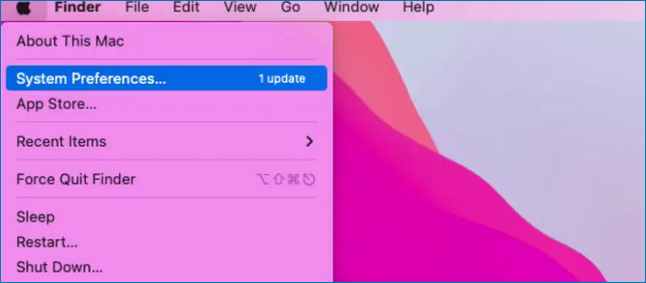
Step 1. Open the Apple menu and click "System Preferences".
Step 2. Click "Time Machine" to run it.
Step 3. Follow the prompts to create a Mac backup.
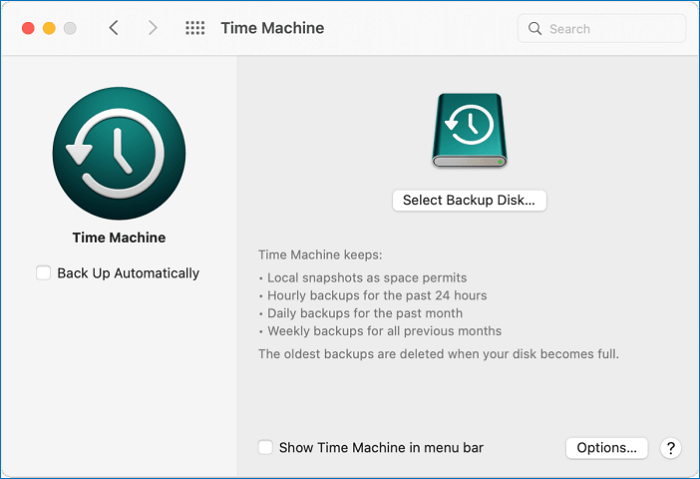
Time Machine backups are stored on an external or USB drive, not in the cloud. If you didn't set up Time Machine before, you can't recover lost data through it, but you can use Deep Data Recovery for Mac to restore files.
How to Factory Reset Mac Without Keyboard
If your keyboard has become renderless, it could be due to various reasons, with the number one culprit being the Butterfly keyboard mechanism used in MacBooks, which is notorious for causing issues with its keyboard functionality.
If your MacBook's keyboard isn't working, you can still factory reset your MacBook without it by using the built-in recovery mode. To do this, turn off your MacBook, then press the power button while holding down the Command (⌘) + R keys.
- Connect your Mac with a wireless keyboard
- Connect your Mac with a USB keyboard
How to Connect a Wireless Keyboard to the Mac
To connect a wireless keyboard to your Mac, you'll need to pair the keyboard with your device. Typically, this is done by turning on the keyboard and then clicking the Bluetooth icon in your Mac's menu bar.
Step 1. Open "System Preferences".
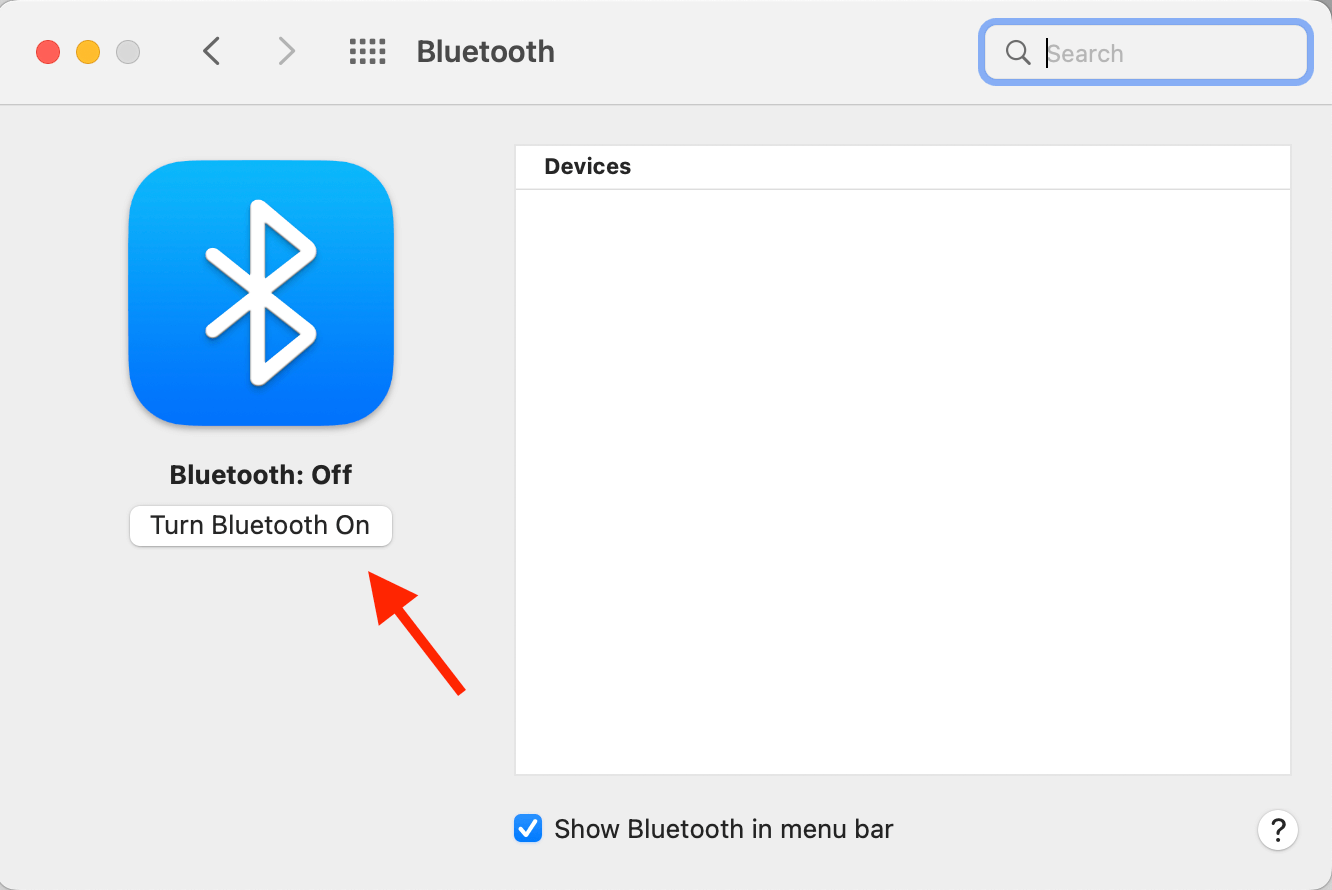
Step 2. Click on "Bluetooth" and then click on "Turn Bluetooth On" on the left side of the Bluetooth window.
Step 3. Press the button that has the Bluetooth icon on it or next to it on your keyboard.
Step 4. Your Mac will now detect new Bluetooth signals nearby.
Step 5. Once it detects your keyboard, click on it to connect.
Step 6. 1. Make sure your keyboard is turned on and ready to pair.
That's it! You've successfully connected your wireless keyboard to your MacBook.
How to Connect a USB Keyboard to Mac
Connecting a wired keyboard to your Mac is relatively straightforward, but the latest MacBooks' lack of USB A ports and use of USB C ports adds a twist. To connect a wired keyboard, you'll need an adapter or a keyboard with a USB C port, making the process slightly more complicated than with older MacBooks.
If your keyboard has a USB C port, you can plug it directly into your Mac. If it has a USB A port, you can get a USB A to USB C adapter to connect it to your MacBook.
How to Factory Reset a Mac [2 Plans]
You can factory reset your Mac by using the option "Erase All Content and Settings" or by putting your Mac into recovery mode and using "Disk Utility" to factory reset it.
Now here's how to reset your MacBook Air or a Macbook Pro using the "Erase All Content and Settings" option:
Step 1. Open Spotlight and search for "System Preferences".
Step 2. To reset your Mac, click on "System Preferences" in the menu bar, then select "Erase All Content and Settings".
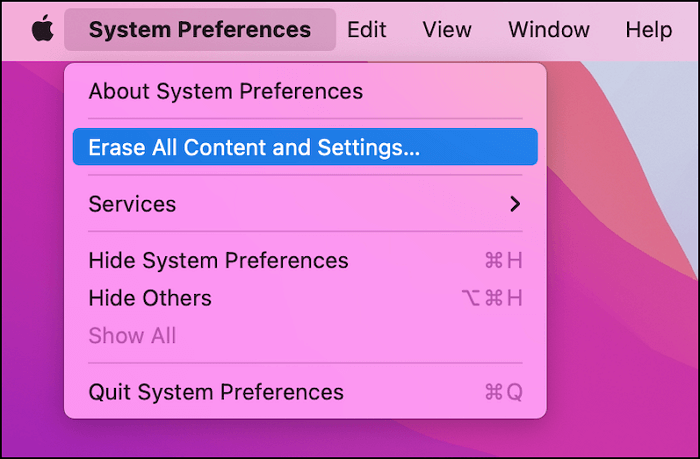
Step 3. Enter your MacBook's login credentials, then click on "OK".
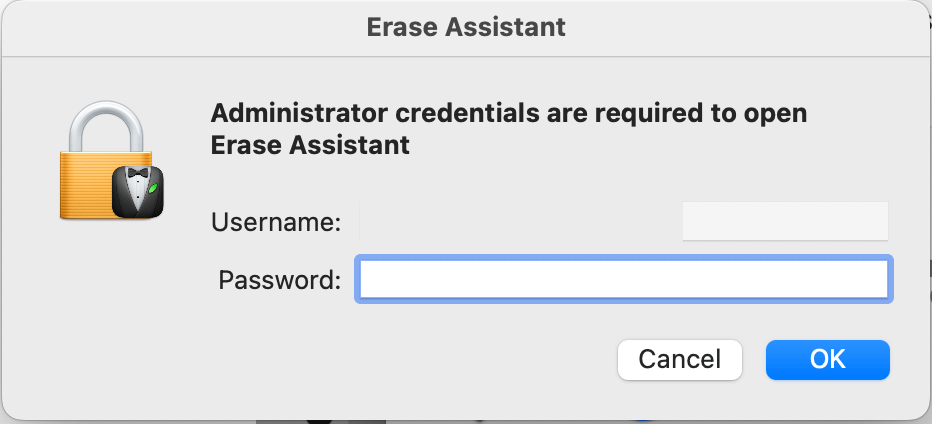
Step 4. Follow the prompts accordingly.
Step 5. Your MacBook will restart. After it restarts, click on the Apple logo on the menu bar.
Step 6. Click on "Shut Down".
Now here's how to reset your MacBook Air or a MacBook Pro in recovery mode with Disk Utility:
Step 1. To shut down your Mac, click on the Apple icon in the top menu bar, then select "Shut Down" from the dropdown menu. This will initiate the shutdown process.
Step 2. To restart your Mac, turn it on, immediately press and hold the Command (⌘) and R keys, and keep holding them until you see the Apple logo on your screen. Release the keys at that point.
Step 3. On the latest M-series Macs, turn off your Mac, press the power button, and hold it until the "Startup Option" window appears.
Step 4. Click on "Options" followed by "Continue" to bring up the "Utilities" window.
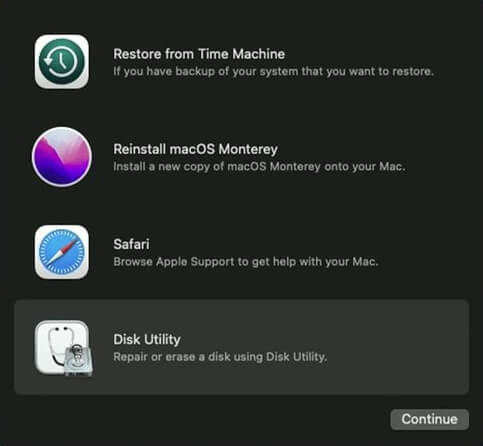
Step 5. To access the Disk Utility, select the "Disk Utility" option from the Utilities window and then click "Continue". Next, select "Internal disk/startup disk" from the list of available disks in the Disk Utility window.
Step 6. To erase a drive, click on the drive you want to erase in the Disk Utility window, then click on the "Erase" button at the top of the window. This will initiate the erase process, which may take a few minutes depending on the size of the drive.
Step 7. Give your disk a name, such as "My Disk", and choose the disk format type as "APFS" (Apple File System).
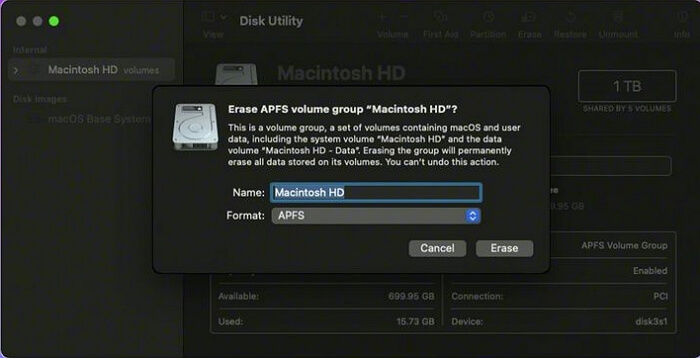
Step 8. To erase a volume group, click the "Erase Volume Group" button and wait for a few minutes for the disk to be erased.
Step 9. After resetting, you will be taken back to the macOS utility window. If you weren't redirected, restart your Mac and press CMD+R again to open your MacBook in recovery mode.
Step 10. To reinstall macOS, click on the "Reinstall macOS" option and follow the on-screen instructions to complete the installation.
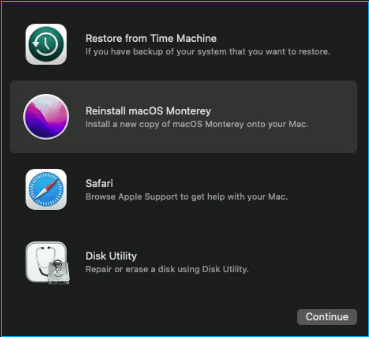
Step 11. The Setup Assistant will open after installing the macOS. Close the Setup Assistant and shut down your Mac. Then, press and hold the power button on your Mac until you see the boot menu.
Step 12. Now, you are done factory reset your Mac.
Summary
Wasn't everything pretty easy? I told you so!
If your MacBook with a butterfly keyboard is no longer working, you can try to factory reset your Mac without a keyboard by following these steps: first, restart your MacBook; then, immediately hold down the 'Command (⌘) + R' keys; next, release the keys when you see the Apple logo; after that, go to Utilities and select Disk Utility; next, select your startup disk and click 'Erase'; finally, restart your MacBook and follow the on-screen instructions to set it up as a new Mac. This method can help you reset your MacBook's keyboard without needing a physical keyboard.
I highly recommend downloading and installing Deep Data Recovery for Mac, a safe data recovery program that can help you recover permanently deleted files on your Mac. Even after a factory reset or reinstallation of macOS, this tool can help you recover your lost data, making it a valuable asset to have on your Mac.
Factory Reset Mac Without Keyboard FAQs
If you're looking to factory reset your Mac, this section has got you covered! You can easily reset your Mac by going to System Preferences, then clicking on "Erase All Content and Settings," and following the on-screen instructions. Alternatively, you can use the built-in Recovery Mode to reset your Mac.
Can you reset a Mac without a keyboard?
To factory reset your Mac, follow these steps: you can simply reset your Mac by going to System Preferences, then clicking on Erase All Content and Settings, and finally clicking on Continue to confirm the reset. This will restore your Mac to its original factory settings, deleting all installed software, user accounts, and other data. No technical expertise is required, and the process is straightforward and easy to follow.
- 1. Connect a new keyboard to your Mac.
- 2. Use the Erase All Content and Settings option.
- 3. Follow the prompts to erase data on Mac.
How do I factory reset my Mac with a Windows keyboard?
To reset your Mac's keyboard, connect the keyboard to your Mac using Bluetooth or a USB A to USB C converter, and then follow the steps to reset it to its factory settings.
- 1. Connect a new keyboard to your Mac.
- 2. To reset your Windows 10 computer, you can either use the Erase All Content and Settings option or enter the Recovery Mode.
- 3. If you're using the Erase Assistant on your Mac, follow the prompts to erase the data. This process will securely erase all data on the Mac, including files, apps, and settings.
- 4. One way to resolve the issue is to erase disk data in Disk Utility and reinstall macOS. This approach can help resolve the problem.
How do I force my Mac to erase all the contents without a keyboard?
You will need a keyboard to complete some steps, but you can use your trackpad or mouse to confirm a few others.
How do I log into my Mac if my keyboard doesn't work?
You can open an accessibility keyboard by going to Settings > Accessibility > Keyboard, and then turning on the "Accessibility Keyboard" option. This will allow you to use a keyboard layout that is designed for people with disabilities, such as a one-handed keyboard or a keyboard with high contrast colors. Alternatively, you can connect an external keyboard to your device, which can be especially helpful if you have difficulty typing on the built-in keyboard.
- 1. Press CMD+Option+F5 and open "Accessibility Shortcuts".
- 2. To access the virtual keyboard, go to the "Physical and Motor" section and click on the "Accessibility Keyboard" checkbox. This will bring up a virtual keyboard.
- 3. Now enter your password using the virtual keyboard.
Related Articles
- Free PDF Editor - Top 6 Best Free PDF Editors 2020 Update
- How to Fix Mac Flashes Folder with Question Mark? [Updated 2023]
- What Is the Latest Version of macOS Until 2023 [Ventura]
- How to Backup PS4 to External Hard Drive? [Full Guide 2022]
- How to Backup Sticky Notes Windows 11 [Step-by-Step Guide]
We're providing you with various ways to back up Sticky Notes on Windows 11. We'll show you how each method works and which one is best suited for your needs, giving you a better understanding of Sticky Notes. - Backup VS Archive, What're the Main Differences and Which One to Choose
Backup vs archive are similar, and both are used to protect data. But there also exist some differences. We should be clear about their differences and make a reasonable choice when we need to save data and avoid some unnecessary data mistakes.
Products
Articles & Tutorials
- Data Recovery
- Data Backup
- File Recovery
- File Backup
- System Backup and Restore
- Disk and Partition Clone
- Technical articles
- Mobile articles
- Disk Master Help
- Windows Data Recovery Tutorials
- Windows Secure Delete Tutorials
- Windows Partition Management Tutorials
- Windows File Backup and Restore Tutorials
- Windows System Backup and Restore Tutorials
- Windows Disk Backup and Restore Tutorials
- Windows Clone Tutorials