macOS Sonoma Issues, Problems, Bugs | Top 6
Even though macOS Sonoma is packed with enhancements and new features, some users have reported trouble with the upgrade process or after that. Users can more easily diagnose and fix macOS Sonoma issues if they understand the causes and potential fixes. This post will examine the six most common complaints about Macs running macOS Sonoma, providing step-by-step tutorials, clear screenshots, and instructions on how to contact Apple for help with these situations.
To fix the issue with your iPhone's camera, try restarting your phone. If that doesn't work, try resetting the camera app.
| macOS Sonoma Issues | Step-by-step Troubleshooting |
|---|---|
| 1. macOS Sonoma Download Stuck | When trying to download macOS Sonoma, customers sometimes run into difficulties. This may be...Full steps |
| 2. macOS 14 Installation Failed | Restart MacBook Pro/Air and modem/router. Open "System Preferences" from the Apple menu. Access...Full steps |
| 3. macOS 14 Internet Disconnection | Update network drivers in Mac Software Update, reset network settings, and check for software...Full steps |
| 4. Mac Is Running Slow with Sonoma | Open Activity Monitor from Utilities or Spotlight. Quit resource-intensive programs to free up system...Full steps |
| More Issues | Shut down and restart your Mac. After hearing the starting sound, hold Shift. Release Shift when the...Full steps |
We're introducing Deep Data Recovery for Mac, a robust data recovery application that can rescue files deleted or corrupted by macOS Sonoma. This is especially important in case of data loss during the upgrade process. If you're experiencing issues after upgrading to macOS Sonoma, such as trouble downloading or installing, losing your internet connection, sluggish performance, trouble booting, or software conflicts, this article will guide you through the troubleshooting process.
Issue 1. macOS Sonoma Download Stuck
Some users may experience difficulties when trying to download macOS Sonoma, which can be frustrating and may discourage them from using the new features and enhancements offered by the operating system.
Download troubles can be caused by various factors such as broken connections, overloaded servers, or incompatible programs. However, there are several options available to help resolve these issues, and this comprehensive guide provides step-by-step instructions and visual representations to assist users in fixing download problems.
Here are several possible fixes for the download-blocked issue when trying to upgrade to macOS Sonoma: refreshing the download, deleting the cache, switching to a wired connection, and testing the internet connection. By following these steps, users can successfully upgrade to macOS Sonoma.

Issue 2. macOS 14 Installation Failed
Users may encounter difficulties with the installation of macOS Sonoma, including failed or stuck upgrades, which can prevent them from utilizing the new features and capabilities of the operating system. Potential causes of these issues include incompatible hardware or software, insufficient disk space, or corrupted installation files. Fortunately, there are available solutions to help resolve these setup problems and ensure a smooth installation process.
If you're experiencing internet connectivity issues while installing macOS Sonoma, try the following steps to resolve the problem.
Step 1. Restart MacBook Pro/Air and modem/router.
Step 2. Open "System Preferences" from the Apple menu. Access "Network" settings.
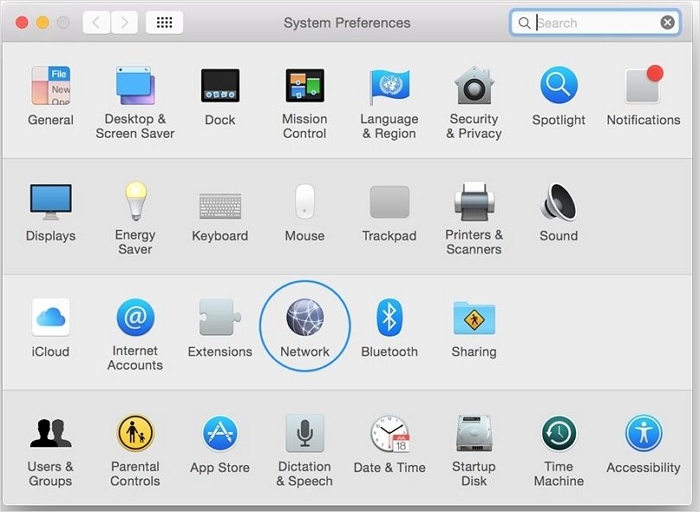
Step 3. To resolve the issue, delete the current network connection by clicking "-" and then reboot your Mac. After the reboot, click "+" and select the network connection type you want to re-add, which should resolve the issue.
Step 4. Security and third-party software may disrupt your internet connection.
Step 5. If the issue persists, contact your internet service provider (ISP) to report the internet outage and resolve network problems.
If you have fixed the macOS Sonoma installation issues with this method, don't forget to share this page on social media!
Issue 3. macOS 14 Internet Disconnection
After updating to macOS Sonoma, some users may encounter internet or Wi-Fi connectivity problems, which can affect their productivity and online activities due to outdated network drivers, incorrect network settings, or software issues.
Method 1. Update network drivers in Mac Software Update, reset network settings, and check for software problems.
MethodTo get your Wi-Fi router or modem working and other devices connected to the internet, first, ensure the router or modem is turned on and properly plugged in. Next, check the power cord and outlet for any issues. If it's still not working, try restarting the router or modem. Also, verify that other devices are set to the correct Wi-Fi network and password.

MethodIf the issue persists, consumers can reach out to their internet service provider or consult the official Apple support forums for network-specific troubleshooting guidance.
Issue 4. Mac Is Running Slow with Sonoma
If your MacBook Pro is slow and laggy with macOS Sonoma, it's likely due to incompatible or obsolete software, excessive background processes, inadequate system resources, or system settings. To optimize your Mac's speed and enhance its overall system efficiency, you can try updating incompatible software, closing unnecessary background processes, freeing up system resources, and adjusting system settings to improve performance. By following these steps, you can help your MacBook Pro run smoothly and efficiently even after updating to macOS Sonoma.
Method 1. To free up system resources, open Activity Monitor from Utilities or Spotlight, and quit resource-intensive programs.
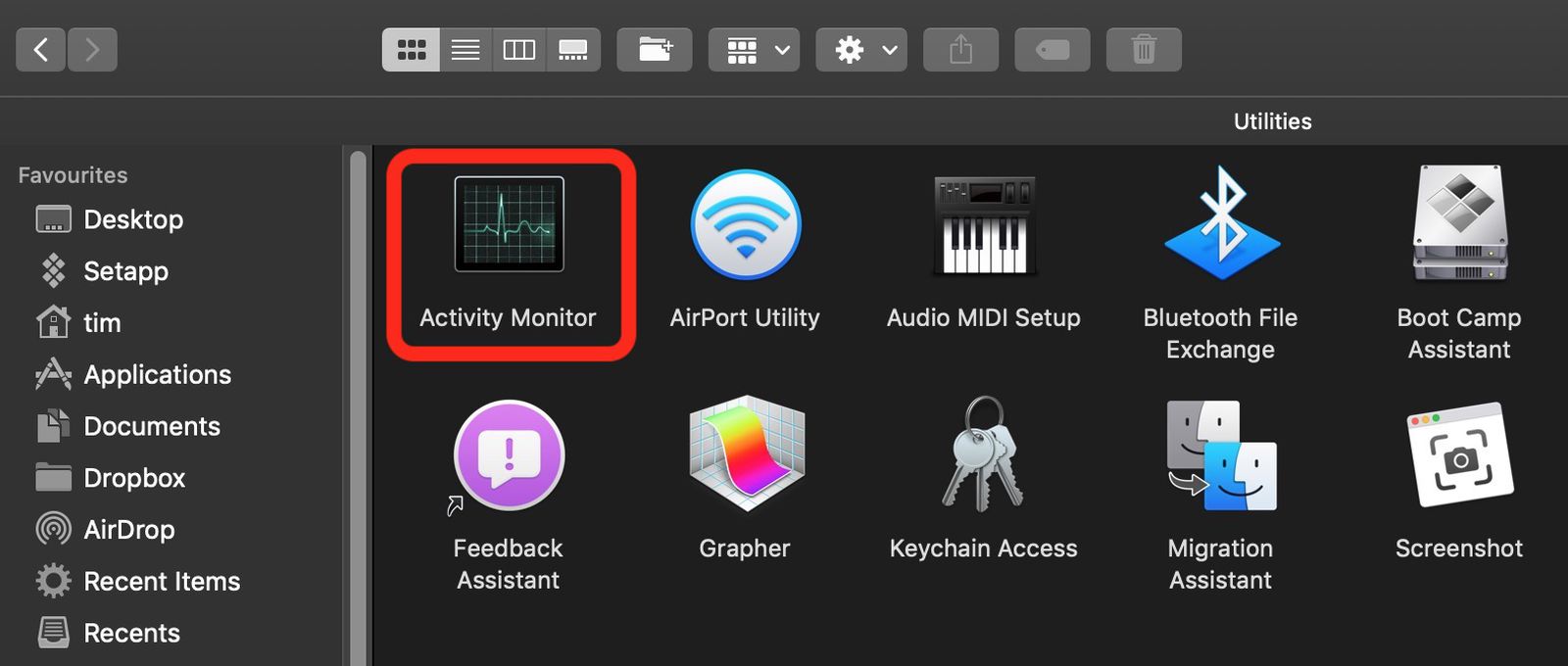
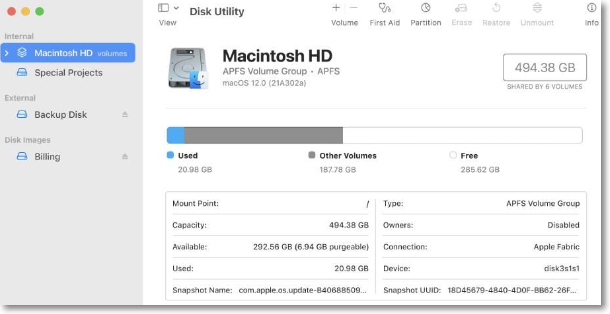
Method 2. To resolve disk issues on a Mac, use the built-in Disk Utility to clean and fix problems. This tool can also remove temporary, cached, and old downloads, freeing up storage space.
Method 3. To remove extra programs from your login items, open Users & Groups in System Preferences, select your user account, click Login Items, and delete any unwanted programs.
Method 4. To reset the System Management Controller (SMC) on your Mac, turn it off, disconnect all cables, and hold the power button for 10 seconds. This will reset the SMC.
Method 5. To reset your Mac's NVRAM or PRAM, simply restart your device and immediately start pressing the Command, Option, P, and R keys simultaneously. Continue holding these keys until you hear the startup sound for the second time.
Method 6. To make your Mac more accessible, go to System Preferences and select Accessibility. On the Display tab, check the boxes next to "Reduce motion" and "Reduce transparency".
Method 7. To improve your computer's performance, use Activity Monitor to identify CPU- and memory-intensive apps. You can then update or delete these resource-hungry apps to free up system resources and enhance overall performance.
If your Mac is running slow after updating to macOS Ventura, don't worry, there are some fixes you can try. First, check for any software updates and install them to ensure you have the latest security patches.
How to Fix Mac Runs Slow After macOS Ventura Upgrade
If your Mac is running slow after the macOS Ventura update, there are steps you can take to speed it up. First, check for and install any available updates. Next, consider restarting your Mac in Safe Mode to see if a third-party app is causing the issue. You can also try clearing out unnecessary files and data using the Storage tab in About This Mac.
Issue 5. Mac Cannot Boot After Sonoma Update
Here are the steps to try if you can't boot your Mac after upgrading to macOS Sonoma: Try to boot your Mac in Safe Mode, reset the System Management Controller (SMC), and reset the Parameter RAM (PRAM). If these steps don't work, try booting from a different startup disk or using a USB drive with a compatible operating system. If none of these steps resolve the issue, you may need to restore your Mac to its factory settings or seek further assistance from Apple Support.
Method 1. Shut down your Mac, then immediately hold down the Shift key as you start it up again. Release the Shift key when you see the Apple logo or progress bar appear.
Method 2. To reset your Mac, completely turn it off, then press and hold the power button for 10 seconds. Next, press and hold the Command (⌘) + Option (⌥) + P + R keys simultaneously, while still holding the power button. Hold these keys for 20 seconds.
Method 3. To fix the Mac Startup disk, restart your Mac and hold Command+R until the Apple logo appears. Then, select Disk Utility from the macOS Utilities menu. Next, select your starting disk and choose First Aid to repair any issues with the Mac Startup disk.
Method 4. To reinstall macOS, restart your Mac and hold Command+R until the Apple logo appears. Then, select the "Reinstall macOS" option from the Utilities window.
If the problem still persists after trying the above procedures, it's likely that the issue is more complex and may require additional assistance. In this case, it's recommended to seek help from a professional or contact Apple Support for further guidance. Alternatively, you can refer to the provided passage for more detailed solutions and troubleshooting steps.
6 Ways to Fix Mac Won't Restart After Update
If your Mac won't restart after updating to macOS Sonoma, Ventura, Monterey, or Big Sur, don't worry, it's a common issue.
Issue 6. Software Conflicts and Bugs on macOS 14
macOS Sonoma upgrades may cause software incompatibilities and glitches due to incompatible software, drivers, or macOS update compatibility problems, as well as software defects that can lead to application and system crashes, abnormal behavior, and other difficulties, ultimately affecting the stability of the operating system.
Method 1. Update all applications and software to their latest versions, which can be downloaded from the developers' websites or through built-in update features.
Method 2. To fix the issue, go to the Applications folder in your Mac Finder, delete the problematic app, and then restart your Mac.
Method 3. To resolve the issue, open the Library folder by navigating to "Go" in the Finder menu and selecting "Go to Folder." Then, type in "~/Library/Preferences" and click "Go." Locate and delete the preference file associated with the problematic app, and finally, restart the app to see if the issue is resolved.
Method 4. Clear Mac system data with third-party applications.
Method 6. Back up all vital files and data, then perform a clean install of macOS Sonoma.
To create a macOS Sonoma bootable USB, you'll need a USB drive with a minimum capacity of 16GB. First, download the macOS Sonoma installer from the App Store and make sure you have a valid Apple ID.
Create macOS Sonoma Bootable USB Installer
If you have macOS Sonoma installed, it's a good idea to create a bootable USB drive in case something goes wrong with your operating system. This way, you'll have a backup and can easily restore your OS if needed.
Bonus Tip: How to Report macOS Sonoma Issues, Bugs and Recover Data
To file a bug report for macOS Sonoma, you can follow these steps:
Step 1. Before reporting an issue, gather all relevant details such as the problem, any error messages, and steps to reproduce it.
Step 2. Visit the Apple feedback website in your browser and select "macOS Sonoma" from the "macOS and Mac Software" category.

Step 3. Enter your name and email. Explain the problem, including any error messages or strange activity. Provide images or files if needed and describe how to replicate the problem.
Step 4. Check your feedback for completeness. Click "Submit" or "Send" to send Apple your feedback.
Reporting macOS Sonoma problems helps Apple fix bugs and improve user experience by providing precise information that can be used to make improvements for everyone.
How to Recover Data with Sonoma Data Recovery Software
If you've lost data due to issues with macOS Sonoma, Deep Data Recovery for Mac may be a reliable solution. This software can help you recover your lost data if it was deleted accidentally, or if your system crashed, or if a program conflict occurred. You can download it for free using the provided buttons.
The Deep Data Recovery for Mac is a powerful tool that can recover a wide range of data, including deleted documents, crashed system data, and lost files due to macOS Sonoma difficulties. It features an intuitive UI and can recover various types of files, such as photos, movies, documents, emails, and music files, making it a reliable solution for recovering missing data.
The program allows you to preview recoverable data before starting the recovery process, enabling you to selectively recover specific data. Additionally, it safeguards recovered data using read-only procedures, minimizing the risk of further loss or damage.
Deep Data Recovery for Mac allows easy recovery of deleted files on macOS Sonoma and earlier, making it simple to restore essential information and resume work after data loss on macOS. The process involves selecting the disk or location to scan, starting the scan, reviewing the results, choosing the files to recover, and initiating the recovery process.
This section introduces a data recovery option for users who lose files while troubleshooting macOS Sonoma issues.
Deep Data Recovery for Mac Review
Deep Data Recovery for Mac is a trusted and effective data recovery software that supports the recovery of various file types, including images, videos, documents, and more.
Summary
Using MacOS Sonoma can be challenging, but most issues can be resolved with research and persistence. This page addresses common difficulties, such as downloading and installing the operating system, losing internet connection, poor performance, booting issues, and software conflicts. By following the provided guidance, you can troubleshoot and fix these problems, getting the most out of your macOS Sonoma experience.
If you've lost data due to issues with the macOS Sonoma upgrade, prioritize data recovery. Software like Deep Data Recovery for Mac and Qiling can help restore lost data, and having a regular backup strategy in place can also protect important files.
macOS 14 Issues FAQs
1. Can I install macOS Sonoma with a USB installer?
You can create a bootable USB installer for macOS Sonoma using Apple's official instructions, which enables you to install the operating system on compatible Mac systems.
2. How to roll back from Sonoma to Ventura?
To downgrade macOS Sonoma to Ventura, you'll need to perform a clean installation of Ventura, which involves formatting your Mac's drive and reinstalling Ventura using a bootable installer.
3. What are macOS Sonoma's pros and cons?
macOS Sonoma offers new features and enhanced productivity, but may have compatibility issues with older software and potential bugs or stability issues in its early stages. (shortened)
4. Can I recover lost data on the macOS Sonoma beta?
With the macOS Sonoma beta, you can recover lost data using data recovery software like Deep Data Recovery for Mac. This tool can help retrieve lost files due to system issues or accidental deletion, even in beta testing scenarios, ensuring your data is recovered.
Related Articles
- Sims 4 Saves Location: Where and How to Find It
- What Happens If an SD Card Is Corrupted [Full Guide on 10 Fixes]
- Which Is the Best Time Machine Disk Format [Fast & Full Guide]
- Adobe Illustrator AutoSave, Backup and Protect Illustrator from Crash Error
- What Is ISP? Introduction to Internet Service Provider
An ISP is one of the key aspects of accessing the Internet. In this article, we'll define the key traits of an ISP and talk about some of the examples and the importance of ISP. - What Is Microsoft Defender Advanced Threat Protection and How to Use It
Microsoft Defender Advanced Threat Protection (ATP) is an enterprise security platform that helps identify, investigate, and respond to advanced cyber threats across networks.
Products
Articles & Tutorials
- Data Recovery
- Data Backup
- File Recovery
- File Backup
- System Backup and Restore
- Disk and Partition Clone
- Technical articles
- Mobile articles
- Disk Master Help
- Windows Data Recovery Tutorials
- Windows Secure Delete Tutorials
- Windows Partition Management Tutorials
- Windows File Backup and Restore Tutorials
- Windows System Backup and Restore Tutorials
- Windows Disk Backup and Restore Tutorials
- Windows Clone Tutorials