How to Fix MacBook Pro Screen Goes Black and Unresponsive [7 Practical Ways]
MacBook Pro screen goes black and unresponsiveThis issue may have several causes. Thus, this article will help you fix the problem and regain control of your MacBook Pro's display so you can resume work without interruption.
Say goodbye to the frustration of a black screen and hello to a seamless and productive computing experience on your MacBook Pro. Let's get it running smoothly again!
If your MacBook Pro screen is going black and unresponsive, try restarting your computer, checking your power cord, and ensuring your display is properly connected. You can also try resetting the System Management Controller (SMC) and the Power Manager (PMU) to resolve the issue.
| Workable Solutions | Step-by-step Troubleshooting |
|---|---|
| Fix 1. Check Power and Brightness | Checking the power supply and brightness settings is a basic step to fix the black screen issue...Full steps |
| Fix 2. Hard Restart MacBook Pro | Hold down the Command + Control + power buttons simultaneously, and keep pressing them...Full steps |
| Fix 3. Fix Black Screen via Keyboard | Once you've pressed the power button, press the S key and do a forceful shutdown...Full steps |
| Fix 4. Boot Up in Safe Mode | Start the system. Press the Shift and power keys together. Let go of the keys...Full steps |
| Other Practical Fixes | Reset the NVRAM and PRAM on Mac, reset the System Manager Controller, and reinstall macOS...Full steps |
Why MacBook Pro Screen Goes Black and Unresponsive
A Mac blacking out and stopping working can be a frustrating and concerning issue, especially if it's a MacBook screen that's gone black but still running, making it difficult to diagnose the problem. This can be caused by a variety of factors, including software issues, overheating, or hardware malfunctions.
A MacBook Pro black screen and inactivity might be caused by a range of issues, including a dead or faulty battery, a malfunctioning logic board, a failing or dead hard drive, a faulty power adapter, a software glitch, a corrupted operating system, a faulty display, or a hardware failure due to overheating or physical damage.
🍏Software Glitches: Software-related issues, including frozen apps or system crashes, can cause a black screen, often resulting from incompatible software updates, corrupted files, or conflicting applications.
⚙️Power Management Settings: Faulty power management settings can cause a MacBook Pro's screen to turn off unexpectedly or fail to wake up from sleep mode, resulting in a black display.
😰Hardware Problems: A MacBook Air's screen may go black or be unresponsive due to physical hardware issues, including a faulty display cable, a defective logic board, or failing components.
⚠️Battery Troubles: A MacBook Pro shutting down abruptly due to a depleted or damaged battery can result in a black screen and unresponsive state.
⛔Overheating: Excessive heat can cause internal damage and trigger thermal sensors to shut down the system, leading to a black screen and an unresponsive device as a protective measure.
Fix MacBook Pro Screen Goes Black and Unresponsive [with 7 Practical Ways]
Now that you know why your MacBook Pro's screen turns dark and slows down, fix it. We've offered actual solutions with step-by-step instructions below:
Fix 1. Check Mac Power and Brightness
Checking the power supply and brightness settings is a basic but often overlooked step in MacBook Pro's black screen and unresponsiveness troubleshooting.
To prevent sudden blackouts on your MacBook Pro, make sure it's properly connected to a power source and that the battery is not drained. A green signal on the charger's pin indicates a stable power supply. A sudden loss of power can cause the screen to become unresponsive. Ensure the power connection is secure to avoid any issues.

The screen may appear black due to low brightness, which can be resolved by adjusting the brightness level.
Press the "F2" key (or the "Brightness Up" key) on your MacBook Pro's keyboard to gradually increase the brightness level. If the screen responds with a faint image, adjusting the brightness should resolve the issue.
Fix 2. Hard Restart MacBook Pro
To fix technical issues on a Mac, you can quickly and easily restart the machine by pressing a specific sequence of keys, which powers down and restarts the system, resetting the system and removing any problematic temporary files.
To hard restart your Mac using the keys combination, press and hold the Power button and the Command (⌘) + Option (⌥) + P keys simultaneously. Hold the keys for a few seconds until the computer shuts down.
Step 1. Press and hold the "Command + Control" keys and the power button at the same time to force restart your Mac.

Step 2. Press and hold the power button on your Mac until it turns off. Wait a minute and then press the power button again to turn it back on. If that doesn't work, press and hold the power button again until it turns off.
Step 3. Click the power button to turn on your Mac.
If your MacBook Pro is experiencing frequent freezing and sluggishness, a hard restart might be your last resort. However, it's essential to be aware that this approach can lead to data loss or corruption, making it crucial to have a reliable data recovery solution, such as Deep Data Recovery for Mac, in place to protect vital files and documents.
Data Recovery Wizard is a reliable and powerful software that can help users recover lost data in various scenarios. It can recover permanently deleted files on Mac and restore data lost due to a sudden black screen crash, making it a trustworthy solution for salvaging valuable data. With its intuitive interface and efficient scanning process, this software is accessible to users of all technical expertise levels.
You can recover files on your Mac using a recovery tool, even after a factory reset, system crash, hardware failure, or accidental deletion. To do this, follow these 3 simple steps:
Step 1. Select the drive to be scanned
Select the drive you need to recover lost/deleted files from, and click the "Search for lost files" button in the main Deep Data Recovery window.
Note: Before attempting data recovery, it's recommended to create a backup of your Mac by clicking "Disk Backup" from the left sidebar to avoid further data loss. Once backed up, the software can recover data from the Mac backup, allowing your computer to write new data again.

Step 2. Select your lost data/files
Deep Data Recovery for Mac will immediately scan your selected disk volume and display the scanning results on the left pane. You can sort the results to find the wanted files if you are looking for certain files.

Step 3. Recover lost/deleted data
Once you have located the desired files, preview them and then click "Recover" to initiate the recovery of your deleted or lost Mac files.

Fix 3. Fix the Black Screen via the Keyboard
The legendary key sequence for reviving a non-reacting MacBook Pro screen is said to be passed down through the legend of MacBooks, and is claimed to have the ability to occasionally bring a non-reacting blank screen back to life, although this information is not officially confirmed by Apple.
Step 1. Press the power button, then press the "S" key to activate the sleep shortcut.
Step 2. To force a shutdown, press and hold the power button on your device until it powers off completely. This is usually done in a situation where the device is not responding or is frozen.
Step 3. Wait 15 seconds, then press the button to initiate the restart.
If your MacBook Pro screen is black and unresponsive, don't worry - it's likely a software issue that can be easily fixed! Try restarting your MacBook in Safe Mode, which can help identify if the problem is caused by a third-party app or a system issue.
Fix 4. Boot Up MacBook Pro in Safe Mode
To troubleshoot a black screen issue on your Mac, try starting it in Safe Mode. This can help determine if the problem is resolved. To start in Safe Mode, shut down your Mac, then press the power button and hold it until you hear the boot chimes, then release the button. Immediately hold the Shift key and continue holding it until you see the login screen.
Step 1. To start the system, press the "Shift" and power keys together, then release them at the Apple logo.
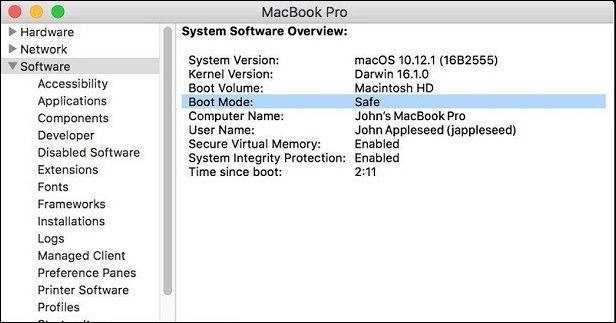
Step 2. The system will run diagnostics in safe mode to ensure everything is functioning properly, then restart the device after booting.
Fix 5. Reset NVRAM/PRAM
To reset the NVRAM/PRAM, shut down your Mac, then press the power button while holding down the Command (⌘) + Option (⌥) + P + R keys. Hold these keys for 20 seconds, then release them. This will reset the NVRAM/PRAM to its default settings.
Step 1. Turn off the system. Press the power button to start the gadget. Wait for the chime to sound.
Step 2. To reset your Mac's System Management Controller (SMC), press and hold the "Command + Option + P + R" keys. When you hear a second chime, release the keys. This will reset the SMC, which can help resolve issues like battery life, fan speed, and other system-related problems.

Fix 6. Reset System Manager Controller on MacBook Pro
To fix a MacBook Pro's dark screen, reset the System Management Controller (SMC) by following these steps.
Step 1. Start by turning off the computer. Press the power button and "Shift + Control + Option" simultaneously. Press all these buttons for a few seconds.

Step 2. Once the System Manager Controller has been reset, it is time to restart your MacBook Pro.
Fix 7. Reinstall macOS
To overcome persistent software problems on your MacBook, you can try reinstalling macOS. However, this process will erase everything on your device, so it's essential to back up your data before proceeding.
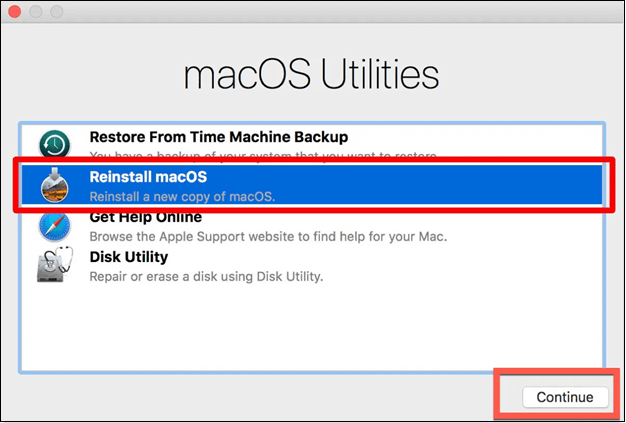
Step 1. Turn off your MacBook, then hold down the power button and simultaneously press the "Command + R" buttons until the Apple logo appears.
Step 2. To reinstall macOS, choose the "Reinstall macOS" option from the Utilities window and follow the on-screen instructions.
Conclusion
If your MacBook Pro screen is blank and unresponsive, you can try to repair it. First, check if the power supply and brightness are working properly. If not, try a hard restart. However, be aware that a hard restart may result in data loss.
To safeguard your important data and files, use a trusted data recovery solution like Deep Data Recovery for Mac. Qiling is a valuable ally in the fight against data loss, offering speedy scanning, a variety of recovery methods, a file preview tool, and a reputation for reliability.
MacBook Pro Screen Goes Black and Unresponsive FAQs
When the MacBook Pro screen goes black and unresponsive, users often wonder what causes the issue, how to
1. Why is my MacBook Pro screen black and not turning on?
A MacBook Pro may not start due to a dead battery, software bugs, or hardware issues, and a forced restart may be necessary, but if the problem persists, it's best to seek the help of an expert.
2. Why does my MacBook Pro screen suddenly go black?
A sudden black screen may be caused by software errors, application conflicts, or graphic card issues. Check for recent software updates or applications that could be causing the problem. If the issue persists, consider troubleshooting or seeking professional assistance.
3. Why is my MacBook screen black, but the keyboard lights up?
If the screen is dark but the keyboard is lit, the display or graphics may be malfunctioning. Adjusting the screen brightness might help, but if the issue persists, a technician's evaluation may be necessary.
4. Why is my MacBook Air screen black and unresponsive?
A non-A MacBook Air with a black screen may be caused by power management settings, software issues, or hardware problems. Before trying to fix it, plug the laptop into its charger. If the issue persists, try using recovery modes or seek professional help.
Related Articles
- Upgrade Hard Disk to Fix 100% Disk Usage Error in Windows 10 & More Tips
- Safari Not Working on Mac | 7 Proven Ways to Fix It
- How to Get Live Wallpapers on Windows 10 [Full Guide]
- What Is "Format FS=NTFS Quick" and How to Use It? [2023 Full Guide]
- Types of Hard Drives 2023 | Which One to Choose - Qiling
Learn the main types of hard drives, including HDD, SSD, SATA, and NVMe drives, and how to choose the right storage device for your computer. - Types of Network Switches That You Need to Know
In this post, we will walk you through the various types of network switches and their uses, so read on to learn more
Products
Articles & Tutorials
- Data Recovery
- Data Backup
- File Recovery
- File Backup
- System Backup and Restore
- Disk and Partition Clone
- Technical articles
- Mobile articles
- Disk Master Help
- Windows Data Recovery Tutorials
- Windows Secure Delete Tutorials
- Windows Partition Management Tutorials
- Windows File Backup and Restore Tutorials
- Windows System Backup and Restore Tutorials
- Windows Disk Backup and Restore Tutorials
- Windows Clone Tutorials