Safari Not Working on Mac | 7 Proven Ways to Fix It
Safari, the default browser on Mac, is a popular choice among users due to its user-friendly interface and security features. However, some Mac users have reported issues with Safari not working properly, despite Mac's efforts to troubleshoot and resolve these problems.
If Safari isn't working on your Mac, but Chrome is, try resetting Safari by going to Safari > Preferences > Advanced > Reset. If that doesn't work, try deleting Safari's cache and history by going to Safari > Preferences > Advanced > Show Develop menu in menu bar, then click Develop > Empty Caches. You can also try disabling extensions and plugins in Chrome to see if they're causing the issue. If none of these steps work, you may want to try reinstalling Safari or seeking further assistance from Apple Support.
Safari not working on Mac can be caused by several reasons, but knowing the underlying causes is essential to administer the right solution. Fortunately, there are multiple solutions that can help users resolve the issue.
| Workable Solutions | Step-by-step Troubleshooting |
|---|---|
| Fix 1. Force Quit Safari | Go to the Apple menu, choose Force Quit, or press Command + Option + Escape shortcuts...Full steps |
| Fix 2. Update Safari | Go to the Apple menu, select System Settings, also called System Preferences on some macOS...Full steps |
| Fix 3. Clear Safari Cache | From the menu bar, select Safari, choose Settings from the drop-down, and select Advanced...Full steps |
| Fix 4. Disable Safari Extensions | Go to Safari, select Settings or Preferences from the drop-down, and click on Extensions...Full steps |
| Other Practical Fixes | Clean Safari preferences, restart your Mac, or boot it into Safe Mode to fix Safari not working...Full steps |
In this article, we will discuss the possible causes and potential fixes. Read on.
Safari Not Working on Mac: Possible Causes
If you're experiencing issues with Safari not working on your Mac, there are several potential causes to consider. Various factors can lead to this problem, and understanding the underlying reasons is the first step to resolving the issue.
- Out-of-date Safari version: One of the primary causes of Safari not working on Mac is an outdated version of Safari, which can be resolved by updating it as soon as possible.
- Bugs: Safari may stop working due to various reasons, including bugs in the system.
- Multiple opened tabs: If multiple tabs are opened simultaneously in Safari, this problem can occur. Closing the unnecessary tabs and keeping only the needed ones resolves the issue.
- Malware: A severe computer virus attack could cause significant damage to the system. Installing anti-virus software and removing the malware promptly is essential to prevent further harm.
- Old macOS version: Have you not updated your system recently? Try to update your Mac and see if the issue resolves on macOS Sonoma or macOS Ventura.
If your Mac is running an outdated macOS version, it's essential to update it to ensure compatibility with new features in applications installed on your Mac. If you're unable to update your Mac, this article will provide a solution to your problem.
If your Mac won't update to the latest macOS Big Sur, don't worry! There are a few simple steps you can take to fix the issue. First, make sure your Mac meets the system requirements for Big Sur.
This article will list all the possible causes that prevent you from upgrading your Mac via Apple software update, macOS installer, etc.
How to Fix Safari Not Working on Mac
If Safari isn't working on your Mac, there are several solutions you can try. Check if the issue is resolved by restarting your browser, as sometimes a simple reboot can fix the problem. If not, try clearing Safari's cache and history, or resetting the browser to its default settings.
Fix 1. Force Quit Safari
If Safari is not working on your Mac, try forcing it to quit, then reopen it to see if the issue is resolved.
To force quit Safari, follow these simple steps:
Step 1. Go to the Apple menu.
Step 2. Choose the "Force Quit" option.
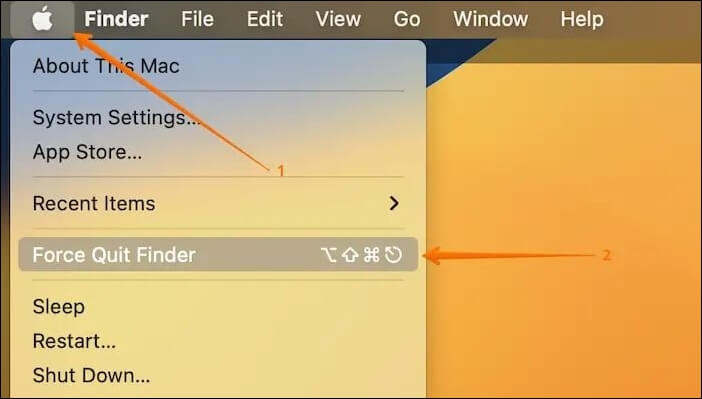
To force quit Safari, you can press the Command + Option + Escape keys simultaneously, or use the Force Quit Applications box to select and quit the Safari browser.
Force Quit Not Working on MacBook Pro/Air, How to Fix
If you're experiencing issues with Force Quit not working on your Mac, there are several simple solutions to try. Firstly, try restarting your Mac, as this can resolve the issue. Alternatively, you can try restarting the application itself by clicking on the Apple menu and selecting 'Force Quit'.
Fix 2. Update Safari
Updating Safari is crucial to ensure your Mac runs efficiently and prevents software-related bugs. It's essential to keep all applications and programs up-to-date to maintain a smooth and secure user experience.
The browser, in this case, Safari, is automatically updated when the macOS is updated, eliminating the need for a separate browser update.
Follow these steps to update Safari:
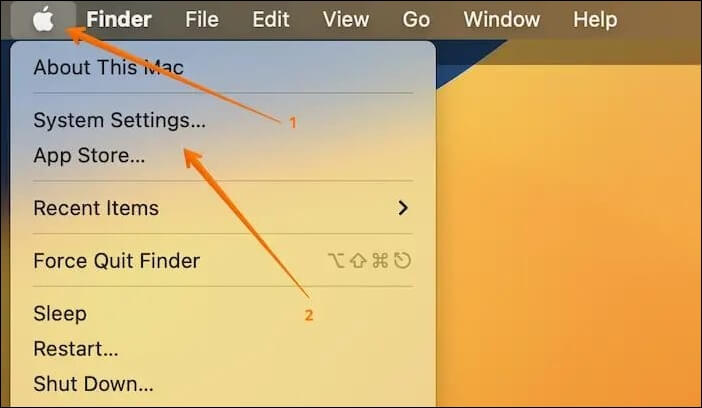
Step 1. Go to the Apple menu.
Step 2. Select "System Settings" from the drop-down menu, also known as "System Preferences" on some macOS versions.
Step 3. On the left-side settings, click "General" and then select "Software Update" from the right.
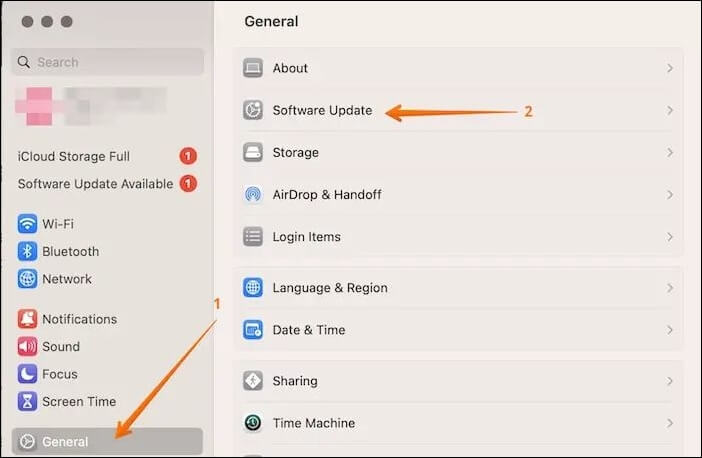
Step 4. Look for updates. If you find any, choose "Update Now".
If Safari won't work on your Mac, don't worry! This issue can be caused by various reasons, including corrupted cache, outdated browser, or software conflicts.
Fix 3. Clear Safari Cache
Safari not working on Mac can be caused by an outdated browser cache, which can be resolved by clearing the cache on your Mac. To do this, follow these steps:
Step 1. From the menu bar, select "Safari".
Step 2. Choose "Settings" from the drop-down.
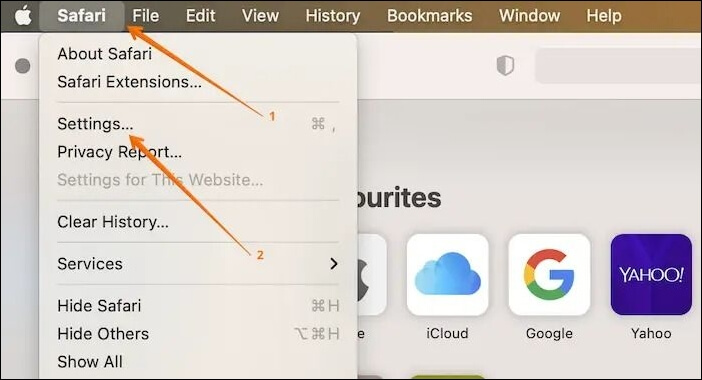
Step 3. Go to the Advanced tab.
Step 4. Checkmark the box "Show Develop menu in menu bar".
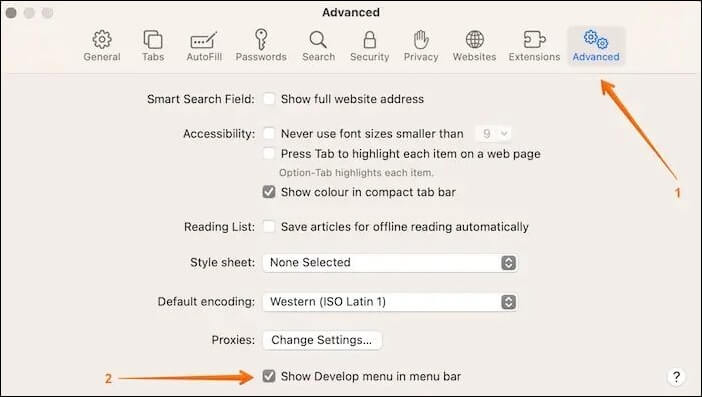
Step 5. Go to the "Develop" option on the menu bar.
Step 6. From the drop-down menu, select "Empty Caches".
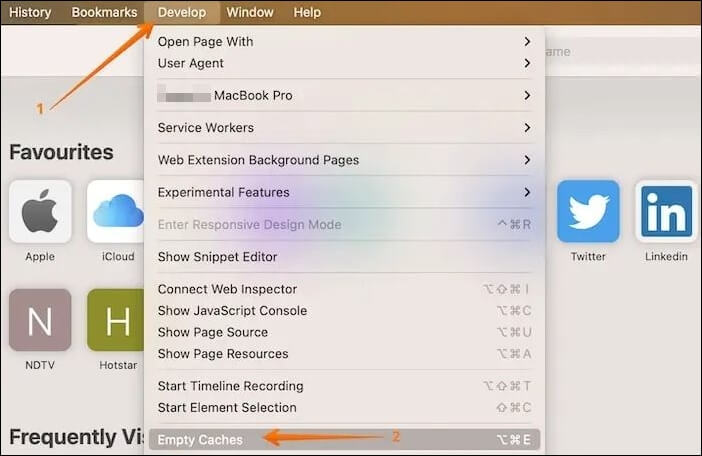
To clear Safari cache, go to Settings > Safari > Clear History and Website Data. Then, tap 'Clear Now' to delete the Safari caches. This should resolve the issue and allow you to use the browser as usual.
If you want to recover deleted cache files on Mac, be cautious not to accidentally delete essential files in the process. Instead, opt for the reliable recovery software Deep Data Recovery for Mac.
This efficient file recovery tool aids users in restoring data with a few clicks, including recovering cache files, recovering deleted Safari history, and restoring bookmarks in Safari on Mac. It is easy to use and highly popular, allowing users to retrieve lost data regardless of the cause.
- Accidental deletion: The Qiling Mac data recovery software is capable of recovering permanently deleted files on Mac devices.
- System crash: If your Mac experiences a crash, you can use Qiling data recovery software to retrieve your lost data.
- Formatted partition: Formatting the partition can wipe out all data. In that case, you can use this tool to recover partition Mac.
- Virus attack: Malware can cause significant damage to a system and lead to data loss, but a data recovery software can help recover deleted data.
To recover deleted cache or files, follow these steps: Check if the cache is still accessible through the browser's cache settings, use a data recovery software to scan the device for deleted files, check the recycle bin or trash for the deleted files, and if none of the above methods work, consider seeking professional help from a data recovery service.
Note: The software creates a backup of your Mac by clicking "Disk Backup" on the left, allowing it to recover deleted files from the backup image, preventing further damage to your disk and data, making it safer and more reliable.
Step 1. Select the location and scan
Launch Deep Data Recovery for Mac, select the disk where the lost data is located, and click "Search for lost files" to initiate the scanning process.

Step 2. Filter and preview lost files
After scanning, use the file format filter on the left or upper right corner to locate the deleted files you are looking for.

Step 3. Recover lost data or files
You can double-Click on a file to preview its content, or select multiple files to recover them simultaneously. Once selected, click "Recover" to restore the lost data to a local or cloud drive.

Fix 4. Disable Safari Extensions
You can improve the Safari browsing experience with extensions, but outdated extensions can freeze the browser and cause crashes.
To resolve the issue, disable the Safari extensions. You can do this by following these steps:
Step 1. Go to "Safari" on the menu bar.
Step 2. Select "Settings" or "Preferences" from the drop-down.
Step 3. To access the list of extensions, click on the "Extensions" tab. This will display a list of all installed extensions.
Step 4. Uncheck all the boxes and deactivate them.
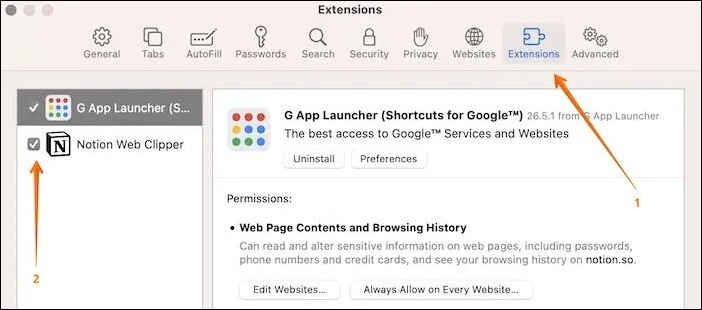
Now, quit Safari and re-If your browser is not functioning correctly, try disabling all extensions, then re-enable them one by one to find the problematic one. If the browser starts working correctly, you can activate the extensions again, but ensure they are up-to-date.
Fix 5. Clean Safari Preferences
If your Safari browser is not working on your Mac, it could be due to incorrect configuration of the browser settings. In this case, deleting the Safari Preferences is the best solution.
To resolve the issue where Safari won't close normally on your Mac, you can try force quitting it. If that doesn't work, you can try restarting your Mac or using the Activity Monitor to close the process. If none of these steps resolve the issue, you may need to reset Safari or reinstall it.
Step 1. Open "Finder".
Step 2. To access the "Go to the folder" box, click on the "Go" option, which will open a drop-down menu. From there, select "Go to the folder" to proceed.
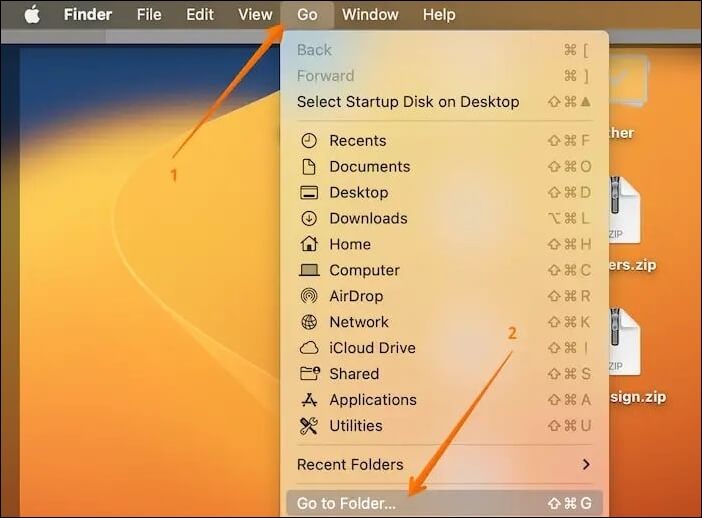
Step 3. Type ~/Library/Containers/com.apple.Safari/Data/Library/Preferences and press "Enter" on your keyboard.
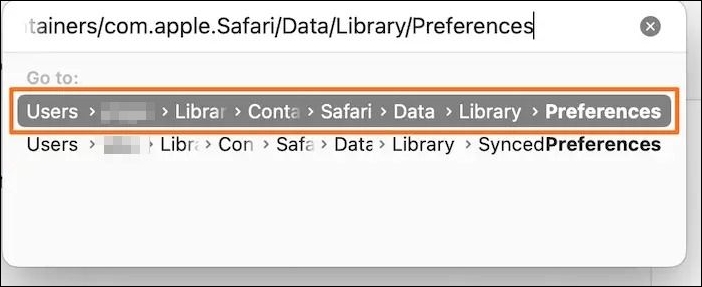
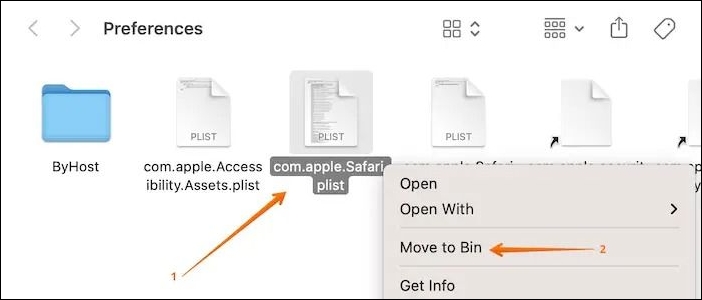
Step 4. A new window will open. Look for the file "com.apple.Safari.plist".
Step 5. Right-click on it.
Step 6. Choose the "Move to Trash/Move to Bin" option.
Step 7. To resolve the issue with the browser not working properly, I recommend restarting the system and then opening "Safari" to see if it's functioning correctly. This will help determine if the problem was caused by a software glitch or another factor.
Fix 6. Restart Mac
To resolve the Safari not working on Mac issue, try restarting your MacBook Pro or Air, as this simple fix can often resolve a wide range of problems.
To restart the system, you need to follow these steps:
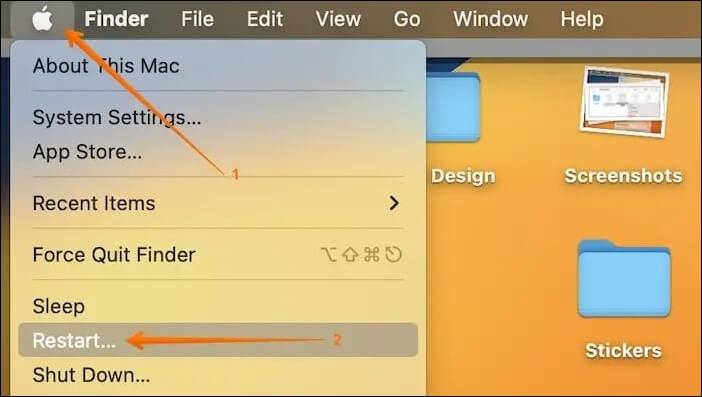
Step 1. Go to the Apple icon.
Step 2. Select the "Restart option" from the drop-down menu.
If the screen is frozen, try restarting your Mac by waiting for the system to restart and see if the problem persists. If you can't navigate to the "Restart" option, press the power button to shut down your Mac, then press it again to turn it back on. If the problem persists, wait for the system to restart. If the screen is frozen and you can't navigate to the "Restart" option, you can also try shutting down your Mac by pressing the power button and holding it until it shuts down, then press it again to start your Mac. If the problem persists, try restarting your Mac by waiting for the system to restart.
How to Hard Restart Mac or MacBook [2023 Update]
If your MacBook suddenly stops responding or experiences technical issues, there are three simple ways to hard restart it. First, press and hold the Power button until the MacBook shuts down. Alternatively, press the Command (⌘) + Option (⌥) + Power buttons at the same time to force a hard restart.
Fix 7. Run Safe Mode
If you're having trouble opening Safari, try booting your Mac in Safe Mode. To do this, turn off your system, wait a few seconds, then turn it back on while holding down the Shift key. This can help resolve issues with the browser.
When your Mac is in Safe Mode, try opening Safari. If it doesn't open normally, you can try the solutions mentioned earlier. Booting into Safe Mode and then quitting it may also resolve the issue.
Conclusion
Worried about your Mac's Safari not working? Don't stress, just restart your system, update Safari, and clear its cache and preferences.
Understanding that data loss can occur while applying these solutions is vital. In that case, you can opt for professional data recovery software, such as Deep Data Recovery for Mac, which aids in easy data recovery, irrespective of the cause of its loss.
Safari Not Working on Mac FAQs
If Safari isn't working on your Mac, you might want to check out these frequently asked questions and answers for more information.
1. How do I fix Safari not responding on my Mac?
If Safari is not responding on your Mac, you can try restarting the system to see if it resolves the issue. Alternatively, you can clear Safari's cache and preferences, or run the system in Safe Mode to troubleshoot the problem.
2. Why is my Safari browser not working?
Your Safari browser may not be working due to various reasons such as outdated Safari or Mac version, bugs, or malware attacks.
3. How do I reset Safari on my Mac?
To reset Safari on your Mac, go to System Preferences, click on Safari, then click on the "Reset" button at the bottom of the window, and confirm your choice by clicking "Reset Safari" in the pop-up window. This will clear your browsing history, cookies, and other temporary data, and will also reset your search engine and homepage settings.
Step 1. Select "Preferences" from the Safari menu and go to "Privacy".
Step 2. Click on the "Remove All Website Data" button.
Step 3. A pop-up box will appear asking if you want to remove the data. Select the "Remove Now" option.
Step 4. Go back to the "Advanced" tab, check-mark the box "Show Develop menu in menu bar" after that.
Step 5. Go to "Develop" and select "Empty Caches".
4. Why doesn't Safari connect to the internet?
If your Safari browser isn't connecting to the internet, try clearing the cache, history, and website data, and also check your network settings for any issues.
Related Articles
- How to Fix Windows 11 KB5026446 Update Error Efficiently
- Fixed: The Office Open XML Cannot Be Opened [Full Guide]
- [2 Ways] How to Boot Mac into Disk Utility/Recovery Mode with Mac Startup Keys
- Fix Unallocated Space Cannot Create Partition in Disk Management [Windows 7/8/10/11]
Are you trying to create a partition in your hard drive with unallocated space and getting the 'Unallocated Space Cannot Create Partition' error? Learn more about this error, its causes, and the possible solutions in the article below. - 3 Ways to Factory Reset Samsung Laptop on Windows 10/8/7
Learn how to factory reset a Samsung laptop in Windows or recovery mode. Follow safe steps to reset the laptop and protect important files first. - How to Factory Reset Toshiba Laptop [Detailed Info]
Do you know how to factory reset Toshiba laptop? If you do not know about it, then this article can help you. After reading the article, you will learn what needs to be done before resetting your Toshiba laptop to factory settings. You will also get to know how to factory reset it.
Products
Articles & Tutorials
- Data Recovery
- Data Backup
- File Recovery
- File Backup
- System Backup and Restore
- Disk and Partition Clone
- Technical articles
- Mobile articles
- Disk Master Help
- Windows Data Recovery Tutorials
- Windows Secure Delete Tutorials
- Windows Partition Management Tutorials
- Windows File Backup and Restore Tutorials
- Windows System Backup and Restore Tutorials
- Windows Disk Backup and Restore Tutorials
- Windows Clone Tutorials