How to Factory Reset Toshiba Laptop [Detailed Info]
Why Need to Factory Reset Toshiba Laptop
Here are a few reasons you can check out that call for a factory reset of a Toshiba laptop: If your Toshiba laptop is running slow, freezing frequently, or experiencing other performance issues, a factory reset may be the solution. Additionally, if you're selling or giving away your laptop and want to erase all of your personal data, a factory reset is a good option. If you're experiencing software or hardware issues that you can't resolve, a factory reset may also be necessary.
- It helps in speeding up a PC.
- It assists in wiping off all the data
- It helps in providing longevity to a computer.
- It helps in getting rid of any malware.
- It allows getting rid of errors related to BSOD.
What is the Toshiba laptop boot menu? What does the boot menu of Toshiba can do? You can refer to the following article for help.
The Toshiba Boot Menu is a feature that allows users to select which operating system to boot from, typically when multiple operating systems are installed on a computer. It is usually accessed by pressing a specific key during the boot process, such as F2, F12, or Del, depending on the Toshiba laptop model.
This article discusses the Toshiba boot menu in detail. If you want to get more information on it, read this article. Toshiba boot menu guide
Backup Your Computer Before Factory Reset
A factory reset returns a computer to its original state, erasing settings, data, and installed applications, but not the device's original packaging.
Before factory resetting a laptop, it's essential to back up your important data. However, Windows' built-in backup may not be sufficient, and you may encounter issues such as a long backup process. To ensure a complete and efficient backup, consider using professional backup software like Qiling Disk Master.
Qiling Disk Master Pro is an award-winning solution that creates backups and provides all-around protection, allowing users to factory reset a PC without losing data, and enables creating multi-path backups on cloud platforms, USB drives, and shared network locations. It also supports system backup, disk cloning, compression, and offers 250G free cloud storage.
Here is how to back up your Toshiba laptop before performing a factory reset: Connect your laptop to a power source and ensure all external devices are disconnected. Insert a blank USB drive with sufficient storage capacity into your laptop.
Step 1. On the main page, click "Select backup contents".

Step 2. Among the four available categories, click System backup.

Step 3. Qiling Disk Master will automatically select your system partition, allowing you to simply choose a backup destination.

Step 4. You can save the backup file on either your local drive or a network-attached storage (NAS) device.

Step 5. After finishing the backup process, you can check the backup status, recover, open, or delete the backup by right-clicking the backup task on the left.

3 Ways to Factory Reset Toshiba Laptop
When you get a new laptop, you may require factory resetting wherein you want to erase old data to scratch. We are suggesting three valuable ways to factory reset a Toshiba laptop. Check them out below:
| Workable Solutions | Step-by-step Troubleshooting |
|---|---|
| Method 1. Factory Reset Toshiba Laptop from Startup | If your Toshiba laptop cannot be logged in, how to factory reset toshiba laptop...Full steps |
| Method 2. Factory Reset Toshiba Laptop in Settings | You get a reset feature in Windows 10 of your Toshiba laptop, bringing...Full steps |
| Method 3. Factory Reset Toshiba Laptop Using Command Prompt | Using the command prompt, you can reset your Toshiba laptop to its factory reset...Full steps |
Method 1. Factory Reset Toshiba Laptop from Startup
If your Toshiba laptop cannot be logged in, how to factory reset toshiba laptop? For this, you need to try the Startup steps mentioned below.
Steps to Use:
Step 1: Power off your laptop from Toshiba completely.
Step 2: Press the power button to turn on the laptop and hold it until it shuts down automatically. Repeat this process 2-3 times until you see the "Preparing Automated Repair" option on the screen.
Step 3: Tap on the "Startup Repair" button, and then follow the prompts to run a system file check. This may take a few minutes. Once the check is complete, Windows will attempt to repair any issues it finds.
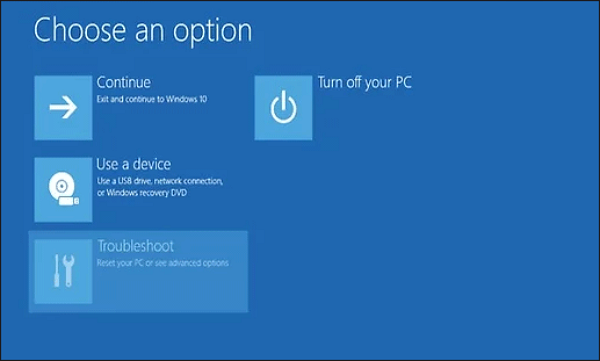
Step 4: To reset your laptop, tap on the "Troubleshoot" option, then select "Reset my PC," and choose whether to "Keep my files" or "Remove everything." Follow the on-screen instructions to complete the reset process.
Method 2. Factory Reset Toshiba Laptop in Settings
Before resetting your Toshiba laptop to factory settings, remove all external peripherals and ensure it's connected to a power source. This will allow you to complete the process successfully.
Steps to Use:
Step 1: To access the Settings app on Windows, right-click on the Windows button in the taskbar and select "Settings" from the menu.
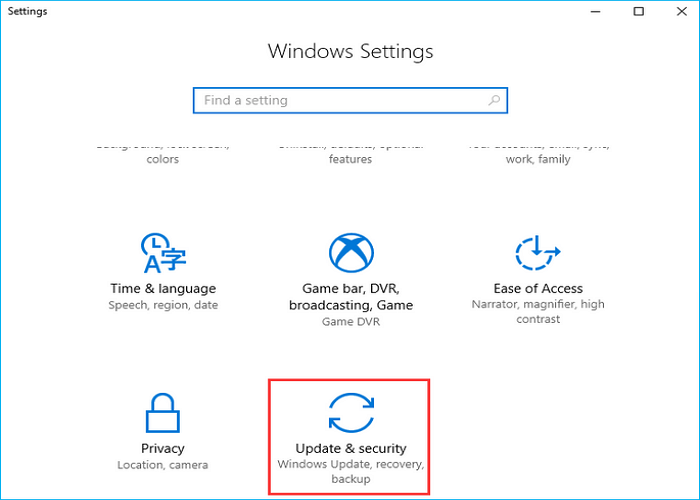
Step 2: To update and secure your Windows device, you can start by tapping on the "Update and security" option from the Settings window. This will open a new window where you can access various options related to updating and securing your device.
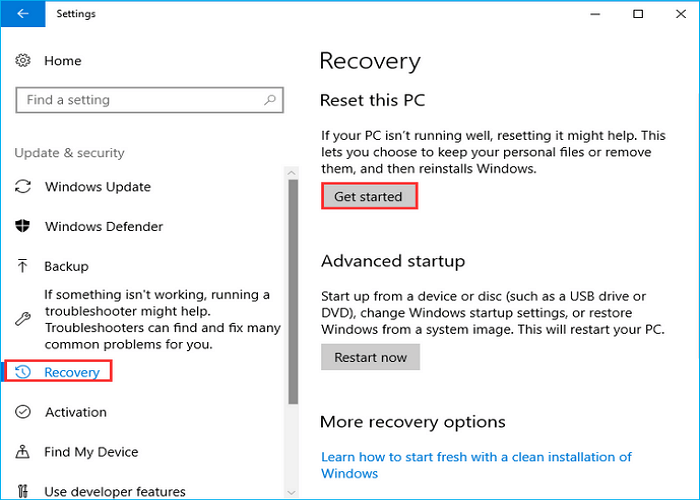
Step 3: To initiate the recovery process, tap the "Recovery" option from the left menu and then select the "Get started" option that appears.
Step 4: Herein, you can choose between options: "Keep everything" and "Remove everything." Choose as you desire.
Step 5: If you choose to Keep everything, you will see "Getting things ready" and have to tap on the "Next" option, followed by tapping on the "Reset" option.
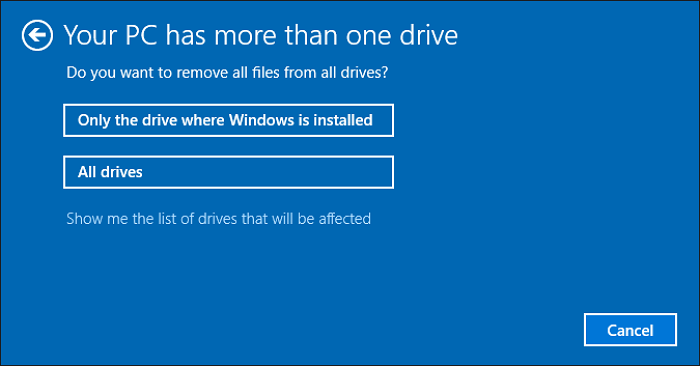
Step 6: To remove everything, you will see the "Getting things ready" chance and choose "All drives" or "Only the drive where Windows is installed."
Step 7: Complete the instructions on the screen and finish resetting.
Method 3. Factory Reset Toshiba Laptop Using Command Prompt
Using the command prompt, you can reset your Toshiba laptop to its factory reset position. You can opt for this option if you are well-versed in technical commands. Here is what you need to do.
Steps to Use:
Step 1: First, you need to open an elevated command prompt.
To access the command prompt as an administrator on a Windows 10 computer, type "cmd" in the search bar and right-click on the Command Prompt icon that appears, selecting "Run as administrator" from the context menu. This will open the Command Prompt with elevated privileges, allowing you to run commands that require administrative access.
If you're having trouble loading Windows normally, try restarting your laptop and holding the Power button for 5-10 seconds, repeating this process twice. This should trigger the Windows Recovery Environment on the third boot. From there, select "Advanced options," then "Troubleshoot," and choose "Command Prompt" to access troubleshooting tools.
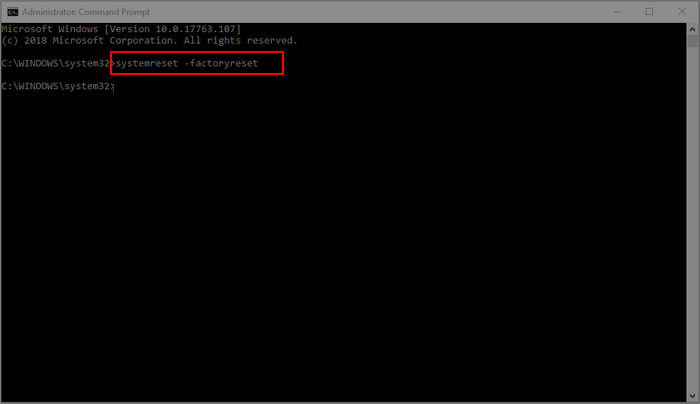
Step 2: Type systemreset-factoryreset in the Command Prompt window and press Enter to execute the command and initiate the factory reset process.
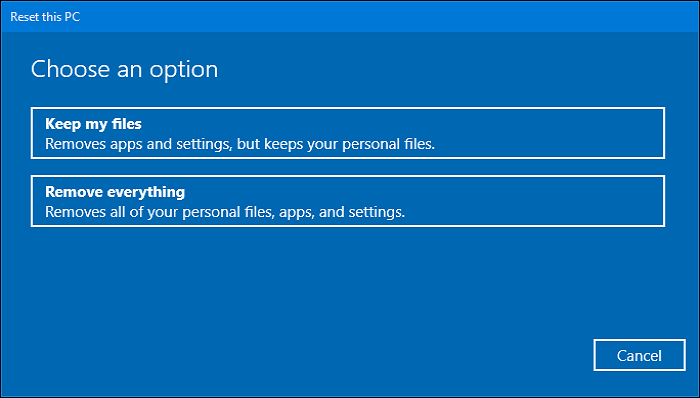
Step 3: Choose between "Remove everything" and "Keep my files" options to reset your laptop.
Step 4: If your laptop is running slowly or giving you trouble, you can use the built-in Disk Cleanup tool to free up space on your system drive. To do this, go to the Settings app, then select "System" and "Storage," and choose the "Completely clean the system disk" option, which will remove temporary files, system logs, and other items that are no longer needed.
Step 5: Confirm the items needing removal and tap "Reset."
Read Also: Toshiba Laptop Black Screen
Pro Tip: Factory Reset Toshiba Laptop Without Password
If you need to factory reset your Toshiba laptop without a password, you can use the hidden partition on the SSD or HDD, which contains system recovery options and files for restoring pre-installed software.
Steps to Use:
Step 1: Start your PC.
Step 2: To turn on the laptop, hold down the power button for a few seconds, and then release it once you see the power light turn on. This will initiate the boot process.
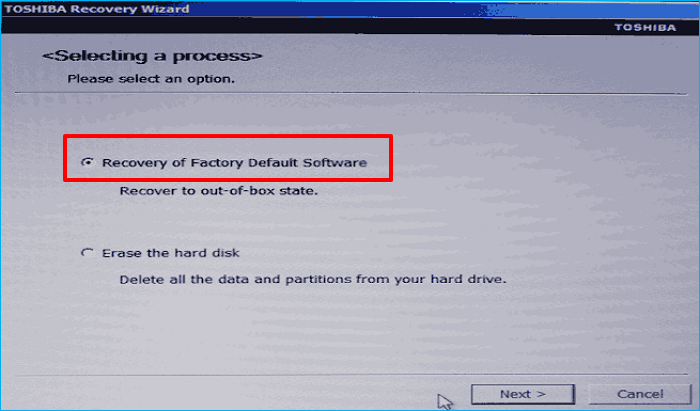
Step 3: To troubleshoot the issue, select the "Troubleshoot" option, then tap on "TOSHIBA maintenance utility," and finally select "TOSHIBA Recovery Wizard."
Step 4: Once you open the wizard, you'll see an option to "Recover Factory Default Software." Follow the on-screen instructions to complete the recovery process.
The Bottom Line
We hope you found the hints on how to factory reset your Toshiba laptop helpful. You can try a factory reset from startup if your laptop isn't opening up, or use settings to make a factory reset. If those methods don't work and you're comfortable with command prompt, that can also help. Additionally, we provided steps to factory reset your Toshiba laptop if you've forgotten your password.
We suggest creating a backup before performing a factory reset on your Toshiba laptop, and using Qiling Disk Master Pro to make the process smooth and enjoyable.
FAQs
1. Is there any reset button on Toshiba laptops?
To reset a Toshiba laptop, press the "0" key and the power button simultaneously. This will restart the laptop and clear any temporary issues. Note that this is not the same as a factory reset, which would erase all data on the laptop.
2. How do I factory reset my computer manually?
To reset your computer manually, follow these steps: restart your computer, go to the BIOS settings by pressing the corresponding key (usually F2, F12, or Del), navigate to the Advanced tab, select the Boot Order option, set the primary drive as the first boot device, save the changes, exit the BIOS settings, and restart your computer again. This should resolve the issue.
- Tap on "Settings" then "Update and Security," then "Recovery."
- Tap on "Restart Now."
- You will see options for Start.
- Tap on "Troubleshoot."
3. What does a Toshiba factory reset do?
Doing a factory reset on a Toshiba device will completely erase all data and uninstall all installed apps.
4. Does factory reset delete everything?
A factory reset deletes everything on your device, including apps, contacts, games, and files, so it's essential to back up all data before performing the reset.
Related Articles
- Outlook 2016 Not Working with Gmail | How to Fix
- Can I Clone a Damaged Hard Drive [Detailed Guide]
- How to Improve SSD Read and Write Speed [100% Working Solutions]
- What Is MBR Maximum Size [Full & Quick Guide]
This article details MBR maximum size and provides an easy way to convert MBR to GPT without losing data. - SanDisk Unveils 4TB Extreme Portable SSD V2 for Lightning-Fast On-The-Go Storage
If you would like to know about SanDisk 4TB Extreme Portable SSD V2 Review, this post will tell you all you need to know about SanDisk 4TB Extreme Portable SSD V2 with detailed information. - Ultimate Guide to Choosing the Right SD Card for Nintendo Switch
Are you using a Nintendo Switch and running out of space? You need to know what an SD Card for Switch is. Read this post to find the answer and also learn about the best SD Card for Switch.
Products
Articles & Tutorials
- Data Recovery
- Data Backup
- File Recovery
- File Backup
- System Backup and Restore
- Disk and Partition Clone
- Technical articles
- Mobile articles
- Disk Master Help
- Windows Data Recovery Tutorials
- Windows Secure Delete Tutorials
- Windows Partition Management Tutorials
- Windows File Backup and Restore Tutorials
- Windows System Backup and Restore Tutorials
- Windows Disk Backup and Restore Tutorials
- Windows Clone Tutorials