Fix Unallocated Space Cannot Create Partition in Disk Management [Windows 7/8/10/11]
Partitions are used to divide a hard disk into multiple parts, but sometimes a created partition may not utilize the entire storage space, leaving unallocated space unused.
When trying to create a new partition for unused space using Disk Management, you may encounter the "unallocated space cannot create partition" error. This issue can be resolved by following the article, which provides guidance on troubleshooting and resolving this error.
Why Unallocated Space Cannot Create Partition
Windows may display the "unallocated space cannot create partition" error due to various reasons, including issues with hard disk format and size, as well as problems with USB and external devices. The error is often caused by a combination of factors, such as incorrect disk formatting, insufficient disk space, or conflicts with existing partitions. In these cases, users may encounter difficulties when trying to create a new partition for unallocated space.
1. The Format of Hard Disk (MBR/GPT)
The error is often caused by using the Master Bootable Record (MBR) format, which is outdated and only supports up to 2TB hard drives and 4 partitions, whereas the GUID Partition Table (GPT) format can support larger drives and unlimited partitions.
2. Connected Peripheral Devices
If Windows mistakenly identifies peripheral devices as hard drives, preventing a new partition from being created, especially on MBR formatted hard drives, removing these devices and trying again may resolve the issue.
3. Unable to Create Inactive Partitions
In some cases, you may not be able to create a specific partition because it is not active. An active partition is where the operating system is located, and when it's inactive, the system can't load that OS. To create the partition, you'll need to make the desired partition active first.
How to Fix Unallocated Space Cannot Create Partition
To resolve the "unallocated space cannot create partition" error on Windows, you can try various methods. Some of these can be run directly on Windows, while others may require the use of reliable third-party software. This article will cover four common and helpful methods to address the issues preventing Windows from creating new partitions.
Method 1. Convert MBR to GPT
The most common issue behind the "unallocated space cannot create partition" error is the MBR disk format. Converting to GPT is recommended, but doing so on Windows using the Disk Management tool will result in data loss. To avoid this, using a tool like Qiling Disk Master is suggested, which can convert the hard disk format from MBR to GPT without deleting any partitions or data.
The process required to convert MBR to GPT in Qiling Disk Master is simple and short. You can follow the steps below to convert your hard disk from MBR to GPT:
Step 1. Download and launch Qiling Disk Master on your computer.
Step 2. Right-click the target MBR disk and click "Convert MBR to GPT" to start the conversion process.
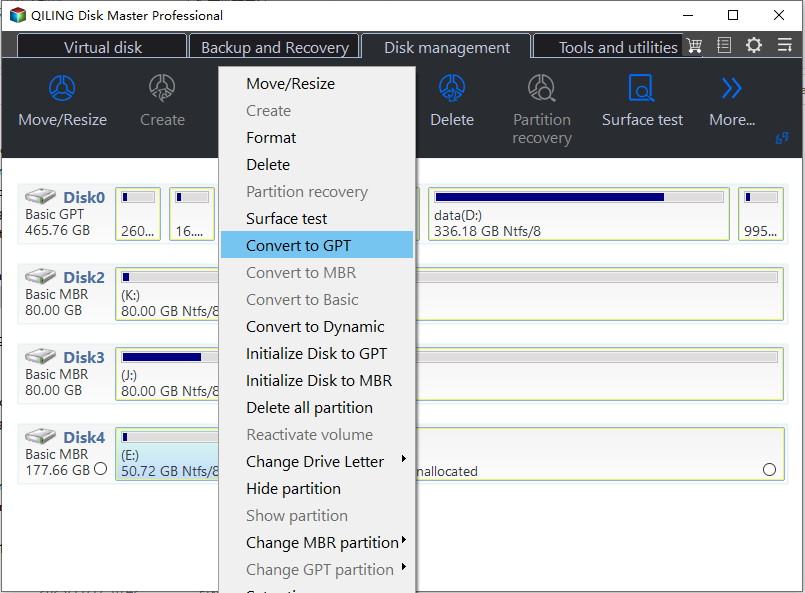
Step 3. Waiting for a moment, Disk master will convert this disk to GPT.
Converting MBR to GPT using Qiling Disk Master is a simple and quick solution to resolve the "unallocated space cannot create partition" error, and it can also address other MBR-related issues.
- Rebuilding damaged MBR
- Convert dynamic disk to basic and vice versa
- The process of initializing unallocated, unknown, or not initialized disks to MBR (Master Boot Record) or GPT (GUID Partition Table) involves using a tool like `gdisk` or `fdisk` to create a new partition table on the disk. This process is also known as "partitioning" the disk.
- Delete your partitions or wipe them clean to make the data inside unrecoverable.
Qiling Disk Master is a highly effective disk partition tool that offers a range of benefits to computer users. By downloading and utilizing it, users can experience improved convenience and efficiency in managing their computer's disk partitions.
Method 2. Remove External Drives
The inability to create new partitions is often caused by external devices connected to the system, such as USB drives or external storage devices. If you're installing a new Windows, remove all peripheral devices except for the Windows-booted USB. If you're trying to create a partition using Windows, follow these steps to remove your external devices.
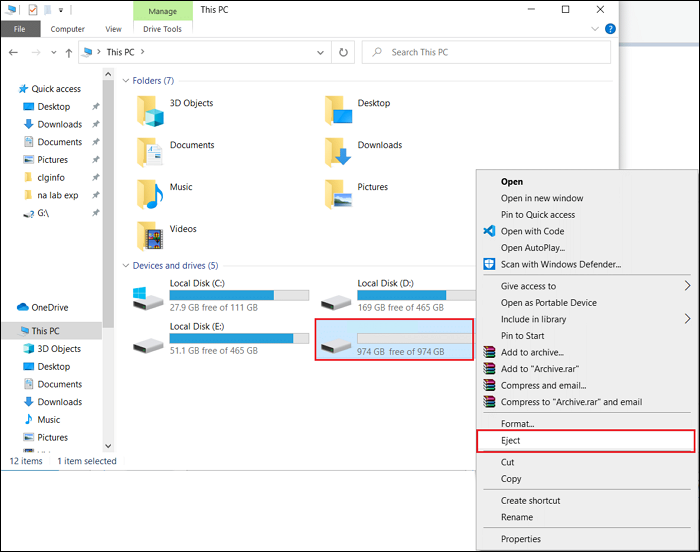
Step 1: To access an external device, open the "My Computer" window and right-click on the external device. This will allow you to select the appropriate action to take with the device, such as opening its file system or ejecting it.
Step 2: To safely remove an external device from your system, right-click on it and select "Eject" from the context menu. This will ensure the device is properly disconnected from your computer.
Method 3. Create A New Partition
There is also a direct way to create a partition if you can't create it manually. For that, you need to use a third-party tool like Qiling Disk Master, which is a true all-in-one solution for all problems regarding partitions on hard drives, allowing you to create a partition from unallocated space.
On Windows, you can also use the Diskpart command to create new partitions, but the operation is more difficult and requires careful typing of the command.
Method 4. Make Partition Active
An active partition is a partition that contains an operating system, and is designated as such so the system can load the OS from that partition during boot-up, allowing the system to function properly.
Qiling Disk Master offers a simple solution to make a desired partition active, using its "Set Active" function, which can be done with just one click, thereby preventing Windows boot failure errors. It is recommended to format a disk before making it active to ensure it only contains the operating system.
Conclusion
The unallocated space on your hard drive is a waste of vital resources, and maximizing hard drive usage space is the top priority. If you're experiencing issues like "unallocated space cannot create partition" when trying to create new partitions for unallocated space, Qiling Disk Master is the recommended solution to resolve all partition-related problems and errors in your system.
FAQ of Unallocated Space Cannot Create Partition
The article addresses all major questions related to Windows's "unallocated space cannot create partition" error, providing comprehensive answers. Additionally, it covers frequently asked questions from the internet, offering a one-stop solution for users seeking clarification on this issue.
1. How do I turn unallocated space into a partition?
To turn unallocated space into a partition, open the Disk Management tool, select the hard drive you want to extend, right-click on it, and choose "Extend Volume." Follow the on-screen instructions to create a partition using unallocated space.
2. How do I fix an unallocated hard drive partition?
To fix an unallocated drive partition, you can either delete and recreate it or try to update your disk drivers. You can delete the unallocated partition using Diskpart and then create a new one, or update your disk drivers to see if that resolves the issue.
3. Why can I not extend C drive with unallocated space?
Windows typically does not allow extending the C drive or any other primary drive using the built-in "Extend Volume" feature with unallocated space. To extend the C drive volume or any other primary drive, third-party software like Qiling Disk Master is often required.
Related Articles
- How to Factory Reset Mac Mini M1[with Video Tutorial]
- Fix Hard Drive Won't Power Up/Turn on Without Data Loss
- How to Factory Reset an Acer Laptop on Windows 10/8/7
- 2 Most Effective Ways to Install/Run Windows 10 on Mac (2024 Guide)
- Solve Silicon External Hard Drive Not Showing Up [Windows & Mac]
Is your silicon external hard drive not showing up on your Mac or Windows? Discover some excellent solutions in this article to help your system recognize your hard drive and offer fixes for all of the issues. - Sims 4 Saves Location: Where and How to Find It
Finding the Sims 4 file location is crucial, allowing you to access previous saves or back up file data to prevent loss. This article will guide you to the Sims 4 saves file location and introduce a backup software to provide a strong shield for your game saves.
Products
Articles & Tutorials
- Data Recovery
- Data Backup
- File Recovery
- File Backup
- System Backup and Restore
- Disk and Partition Clone
- Technical articles
- Mobile articles
- Disk Master Help
- Windows Data Recovery Tutorials
- Windows Secure Delete Tutorials
- Windows Partition Management Tutorials
- Windows File Backup and Restore Tutorials
- Windows System Backup and Restore Tutorials
- Windows Disk Backup and Restore Tutorials
- Windows Clone Tutorials