Fix This Copy of Windows Is Not Genuine in Windows 7
The "This copy of Windows is not genuine" error is a common issue in Windows 7 and 10. You can try to resolve it by uninstalling the update KB971033, using the RSOP command, or other troubleshooting methods.
| Workable Solutions | Step-by-step Troubleshooting |
|---|---|
| Fix 1. Uninstall Update KB971033 | The KB971033 update has an updated file that is capable to detect your Windows operating system...Full steps |
| Fix 2. Use SLMGR -REARM | By using the SLMGR-REARM command, you can fix the problem in both Windows 32-bit and 64-bit...Full steps |
| Fix 3. Use RSOP command | Use the RSOP command to make changes to the system's policies and check the Plug and Play...Full steps |
| Fix 4. Turn off Windows updates | To resolve the This copy of Windows is not genuine error, you can turn off automatic Windows updates...Full steps |
| Fix 5. Use legitimate license | The Windows is not genuine issue occurs when you use pirated copies of Windows 7or Windows 10...Full steps |
"After updating to Windows 7 build 7601, my computer's desktop background turned black with program icons still visible, and an error message appeared stating that this copy of Windows is not genuine."
To permanently remove the "Windows is not genuine" error and get your computer working properly, you can try the following steps. First, restart your computer and see if the issue persists. If it does, try running a System File Checker (SFC) scan to check for any corrupted system files. You can do this by typing "sfc /scannow" in the Command Prompt.
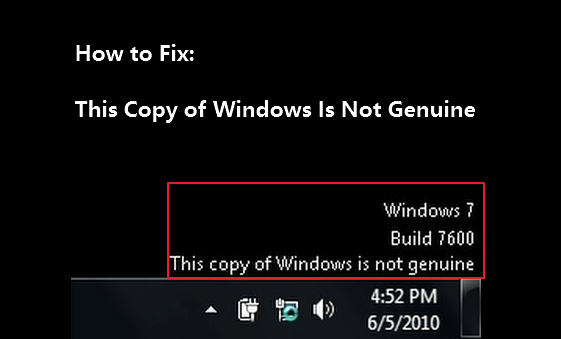
Why does "Windows 7 build 7601 this copy of Windows is not genuine" arise?
- You've likely encountered the error about a month after installing a Windows 7 OS crack, indicating that your system is not genuine.
- You did not activate your Windows license after the trial period.
- The Windows operating system's license you're using is expired or blocked.
Though This copy of Windows is not genuine message keeps showing up when you're at work, and it's annoying; there are some effective ways to remove the problem and the black background trouble that it came with. Here is how you can do to resolve Windows is not genuine issue.
How to Permanently Remove This Copy of Windows Is Not Genuine on Windows 7/10
To fix the "Windows is no genuine" error, you can try various methods, but note that these won't convert a pirate copy to a genuine one. If you're using a legitimate version of Windows 7 or 10, you can attempt to resolve the issue, but to use all features, you'll need to purchase a genuine copy and use a verified activation code.
Fix 1. Uninstall Update KB971033 on Windows 7
Windows 7's KB971033 update includes Windows Activation Technologies and an updated file to detect genuine Windows. If Windows 7 isn't activated, a message may appear on the desktop saying "Windows 7 build 7601 this copy of Windows is not genuine".
You can choose to delete this update to remove Windows 7 genuine notification build 7601/7600.
Caution: This method can be a bit risky, as uninstalling update files might cause other program files to malfunction or result in unexpected data loss. To minimize the risk, it's recommended to use backup software like Qiling to back up the computer before erasing the update file.
Step 1. Launch Qiling Backup software and then choose "File Backup", "Disk/partition Backup" or "System Backup" for different backup purpose.

Step 2. To back up your data, first select the system, disk partition, files, or apps you want to save. Next, choose a destination to store the backup file, such as an external hard drive, cloud storage, or another location on your computer.

Step 3. Click "Proceed" to start the data backup process.
You may also want to read:
- How to back up files without booting into Windows
- How to schedule a backup automatically on Windows 10
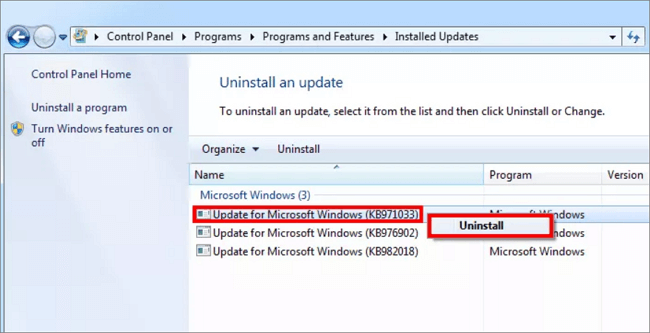
The step-by-step guide to delete update KB971033.
Step 1. Go to "Start" > open "Control Panel".
Step 2. Open "Programs and Features". Click on "View installed updates".
Step 3. After loading all installed updates, check for update "KB971033" and uninstall.
Step 4. Restart your PC.
Fix 2. Reset the Licensing Status of Your Computer with SLMGR -REARM Command
To avoid seeing the "This copy of Windows is not genuine" message on your desktop, you can run the SLMGR -REARM command on your computer. This command will reset your Windows licensing status, allowing you to use your computer without the watermark.
The Windows Server License Manager Script, also known as SLMGR, manages the license of your computer. The REARM command can reset the licensing status of the machine, and it works on both Windows 32-bit and 64-bit, as well as all versions of the Windows operating system.
Step 1. To run the Command Prompt as Administrator, click on the Start menu, type 'cmd' in the search field, right-click on the 'cmd' result, and select 'Run as Administrator'.
Step 2. Type SLMGR -REARM and press Enter. Now you will see a confirmation window; click on "OK".
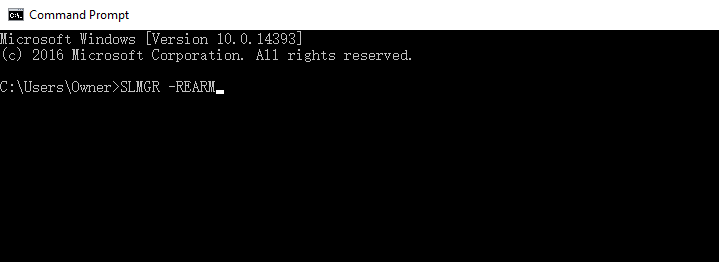
Step 3. Restart your PC, and you will find that the "This copy of Windows is not genuine" message no longer occurs.
Step 4. If the Windows is not genuine message is still there, you can repeat try slmgr /rearm in the command prompt.
If you encounter the error message "This maximum allowed number of rearms has been exceeded" when running the SLMGR -REARM command, you can resolve the issue by running the command with the /x option, which will allow you to bypass the rearm limit and complete the rearm process. For example, you can run the command as follows: SLMGR -REARM /x.
Step 1. Open the Run window by hitting Win + R keys. Input regedit.exe and press Enter to open Registry Editor.
Step 2. Go to "HKEY_LOCAL_MACHINE > Software > Microsoft > WindowsNT > Current version". Expand the Current version, find and click on the SoftwareProtectionPlatform.
Step 3. Find SkipRearm and right-click it to choose Modify. Change the value from 0 to 1 and click on OK.
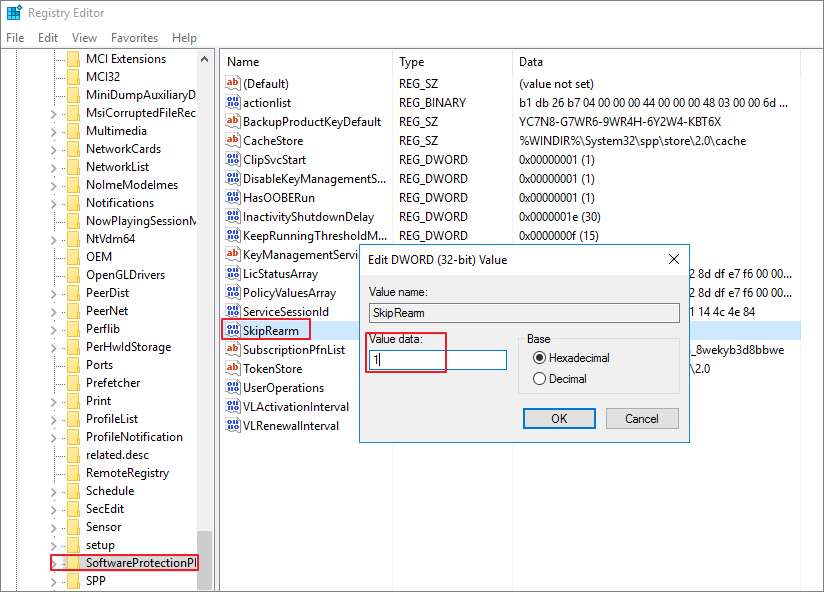
Step 4. Exit the Registry Editor and restart your computer. The Windows not genuine should be solved this time.
Fix 3. Reconfigure Plug and Play Service with RSOP Command
If your computer is experiencing a "Windows is not genuine" error, it may be due to an incorrectly configured computer policy. To resolve this issue, you can try reconfiguring the Plug and Play Group Policy object using the RSOP command, which stands for Resultant Set of Policy Window. This command can help fix the error and get your Windows operating system running smoothly again.
Step 1. Press Windows + R button to start the Run tool. Type rsop.msc and press the Enter button.
Step 2. Go to "Windows settings" > "security system" > "system services", then look for the "Plug and play services".
Step 3. To enable the Windows Search service to start automatically, right-click on the service in the Services window, select "Properties", and in the "Startup type" dropdown, choose "Automatic". Then, click "Apply" and "OK" to save the changes. This will ensure the Windows Search service starts automatically when the system boots up.
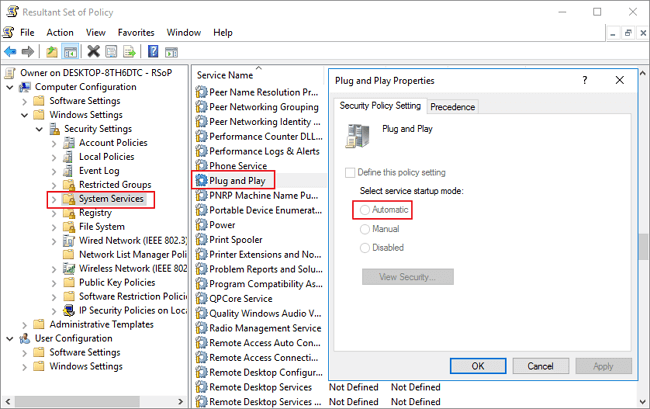
Step 4. To force an update of Windows Group Policy, press the Windows + R keys to open the Run dialog box. Type "gpupdate/force" and press Enter. This will initiate the update process, which may take a few minutes to complete. Once the update is finished, you can verify that the changes have taken effect by checking the Group Policy settings on your computer.
Step 5. Restart your PC and check whether the Windows is not genuine issue is fixed or not.
Fix 4. Turn Off Automatic Windows Updates
To avoid installing updates that can detect your Windows authenticity, it's recommended to switch off all Windows automatic updates. This will prevent any potential updates from being installed in the future.
Disabling Windows updates can prevent Windows from upgrading to the latest version, which may leave it vulnerable to bugs and security issues, and is not approved or supported by Microsoft.
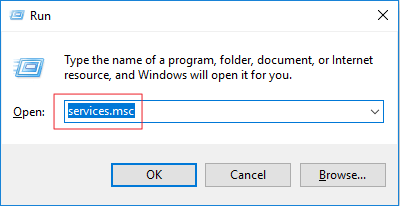
Step 1. Press the Windows + R keys to launch the Run box. Type services.msc and press Enter.
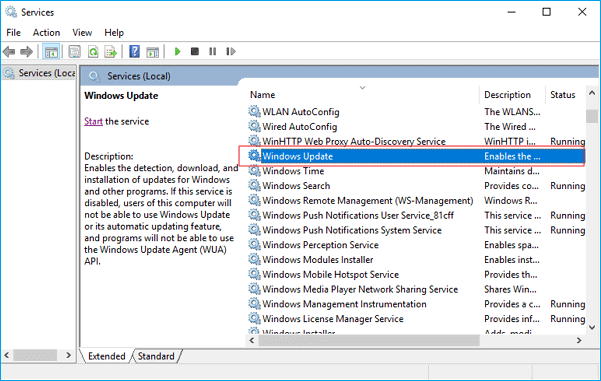
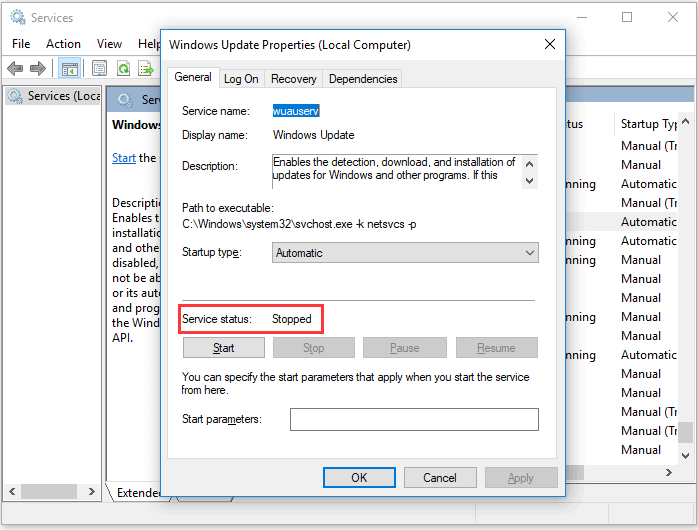
Step 2. Go to find "Windows Update" and double-click it.
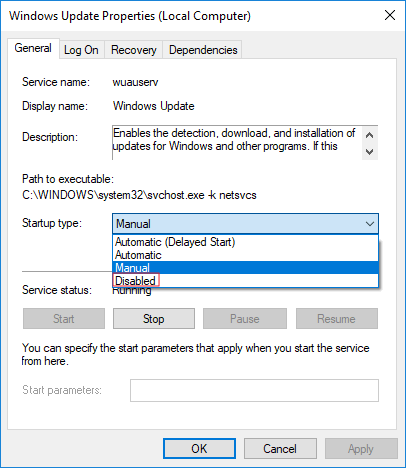
Step 3. In Startup type, select "Disabled". Then click "Apply" and "OK" to save the settings.
Step 4. To check if you've disabled the service automatically, go to the "Start" menu, type "Services", right-click on "Services" and select "Run as administrator".
Step 5. To check the status of the Windows Update service, go to the list of services, right-click on "Windows Update", select "Properties", and in the "Service status" section, verify that the service has been stopped.
Fix 5. Make Sure Your Computer License Is Legitimate
The "This copy of Windows is not genuine" issue is likely due to using a pirated Windows system, which can lead to security risks and limited functionality. It's recommended to use a legitimate Microsoft Windows operating system to ensure full functionality and security.
Microsoft advises against purchasing Windows operating system from third-party e-commerce stores, as Microsoft support will only assist with issues when the OS is bought directly from the Microsoft store. If problems arise and a license has been paid for, the buyer should contact their vendor instead.
Conclusions
We hope the above methods could solve this copy of Windows is not genuine build 7601/7600 issue on your Windows 7 or Windows 10 computer. The methods include using the Windows Activation Troubleshooter, running the System File Checker, checking for corrupted system files, and using the Command Prompt to activate Windows. These steps can help resolve the issue and prevent further problems with your Windows installation.
Windows is not genuine is a common issue that doesn't usually cause data loss, but other unexpected problems like system crashes, hard drive failures, or virus attacks can lead to severe data loss. To protect your data, back up your computer regularly to a USB flash drive.
FAQ: Read More About This Copy of Windows Is Not Genuine Issue
Here's a quick Q&A on Windows is not genuine and how to fix it:
How do I get rid of this copy of Windows 7 is not genuine?
To resolve the "This copy of Windows is not genuine" issue, first verify that your Windows license is legitimate. If it is, you can try using the RSOP or SLMGR -REARM commands to fix the problem, which is specific to Windows 7. This may resolve the issue.
If the two methods don't work, you can try deleting the KB971033 update on Windows 7 or disabling the Windows update to troubleshoot.
Why does my computer say this copy of Windows is not genuine?
Windows 7 KB971033 update contains an updated file and Windows Activation Technologies that can detect if your Windows operating system is genuine or pirated, and if it's not legitimate, it displays the message "This copy of Windows is not genuine".
If you're seeing the error message "Your Windows license will expire soon" or "Your Windows license has expired," it's likely because your Windows license has not been activated or has expired. This can happen if you did not activate your Windows license after the trial period ended or if your license has run out.
Do I have a genuine copy of Windows?
You can perform Windows genuine validation in Settings.
Step 1. Go to the Start menu, click "Settings" > "Update & security".
Step 2. If you click "Activation" in the left panel, you can see if your Windows 10 is activated and shows that it's activated with a digital license, which means it's genuine.
How do I upgrade to Windows 10 if my Windows 7 is not genuine?
You cannot activate the non-To install Windows 7 with a Windows 10 product key, you'll need to download the Windows 10 Home ISO from Microsoft's official website and perform a custom install. This is the only way to achieve a genuine Windows 7 installation with a Windows 10 product key.
Related Articles
- How to Install Software on Multiple Computers at the Same Time
- Migrate OS to M.2 SSD with M.2 SSD Clone Software
- Restore System to Dissimilar Hardware with Qiling Backup
- WD SmartWare Backup Alternative for Windows 10/8/7
- Best Software to Automatically Clone Hard Drive[2022 Roundup Review]
Find the best software to automatically clone a hard drive on Windows. Schedule disk cloning, protect data, and migrate HDD or SSD safely. - 5 Best USB Backup Software Free Download [2022 Roundup Reviews]
To protect data on your computer, it's a good idea to regularly back up the hard drive's content to an external USB drive using a reliable backup software, which can be found among the top 5 USB backup software options reviewed on this page.
Products
Articles & Tutorials
- Data Recovery
- Data Backup
- File Recovery
- File Backup
- System Backup and Restore
- Disk and Partition Clone
- Technical articles
- Mobile articles
- Disk Master Help
- Windows Data Recovery Tutorials
- Windows Secure Delete Tutorials
- Windows Partition Management Tutorials
- Windows File Backup and Restore Tutorials
- Windows System Backup and Restore Tutorials
- Windows Disk Backup and Restore Tutorials
- Windows Clone Tutorials