8 Ways to Fix Migration Assistant Not Working on Mac
Migrating data from an old Mac to a new one can be challenging, but Apple's Migration Assistant is a helpful tool that can make the process easier, though it may sometimes fail, leaving users without a solution.
Fortunately, there are several effective fixes to overcome the issue of Migration Assistant not working on a Mac. These fixes include simple troubleshooting techniques such as checking shared settings and restarting the Mac, as well as more advanced solutions like running Apple's diagnostics center and reinstalling macOS, which are explained in easy-to-follow steps.
What Is Migration Assistant Used for
You may need to transfer data from a broken Mac to a new one in various scenarios, such as when your previous Mac is outdated or encounters technical issues that cannot be fixed, requiring you to switch to a new laptop.
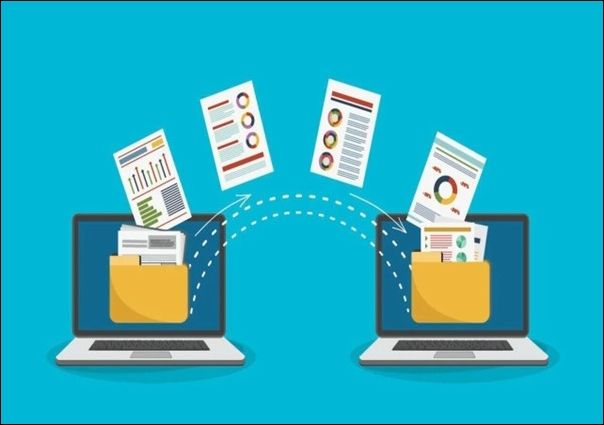
Migration Assistant is a software developed by Apple that simplifies transferring data, settings, and applications from an old Mac to a new one, making the process easy, fast, and customizable. It automatically copies everything to the new Mac, ensuring all important files and settings are safely transferred.
Why Is Migration Assistant Stuck or Frozen
Many users experience issues with the migration assistant app not working on their Mac due to various hardware and software-related causes. These include outdated operating systems, corrupted system files, incompatible hardware configurations, and software conflicts. Additionally, issues with user accounts, login problems, and permissions can also hinder the app's functionality. Furthermore, problems with the migration assistant's database, corrupted user data, and issues with the app's integration with other system tools can also cause the app to malfunction.
- 💽Disk drive issues: Migration Assistant may not work properly if the disk drive on either the old or new Mac is experiencing issues, such as being full or having errors.
- 🖥️Out-dated Mac operating system: Migration Assistant is designed to work with the latest macOS version. If either the old or new Mac is running an outdated operating system, users may experience problems with the software.
- 🔌Faulty USB/Ethernet cable: If using a USB or Ethernet cable to transfer data between the old and new Mac, a faulty cable may cause the Migration Assistant to become stuck or frozen.
- 🧱Firewall or antivirus software: Sometimes, firewall or antivirus software can interfere with the data transfer process, causing Migration Assistant to become stuck or frozen.
- 📱Too many applications are running: If too many applications are running on either the old or new Mac, the software may become overwhelmed and unable to transfer data.
How to Fix Migration Assistant Not Working
This section will help you overcome the migration assistant not working with 8 fine methods with easy-to-follow steps. Before proceeding with any fixes, it is essential to safeguard your data security by backing up important files and documents.
- Fix 1. Check Sharing Settings
- Fix 2. Check the Internet or Cable Connection
- Fix 3. Disenable the Firewall on Mac
- Fix 4. Run Apple Diagnosis
- Fix 5. Use Target Disk Mode on Mac
- Fix 6. Clean Reinstall macOS
- Fix 7. Start Mac in Recovery Mode
- Fix 8. Migrate from a Time Machine Backup Instead
Fix 1. Check Sharing Settings
On a Mac, sharing settings allow other users or devices to access your computer's files, printers, and resources over a network, making it easy to transfer files, access files remotely, or collaborate on projects with others.
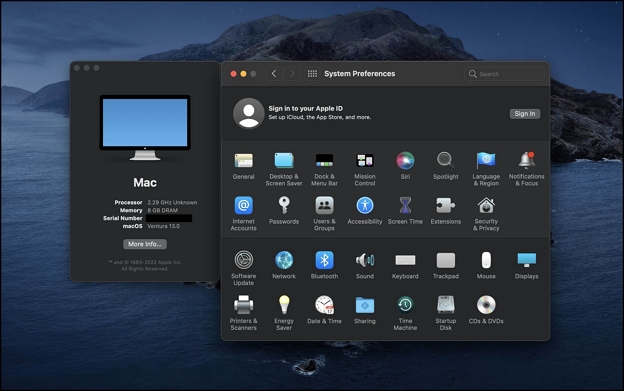
Step 1. Click the Apple menu in your old Mac's upper-left corner.
Step 2. Select "System Preferences" from the drop-down menu.
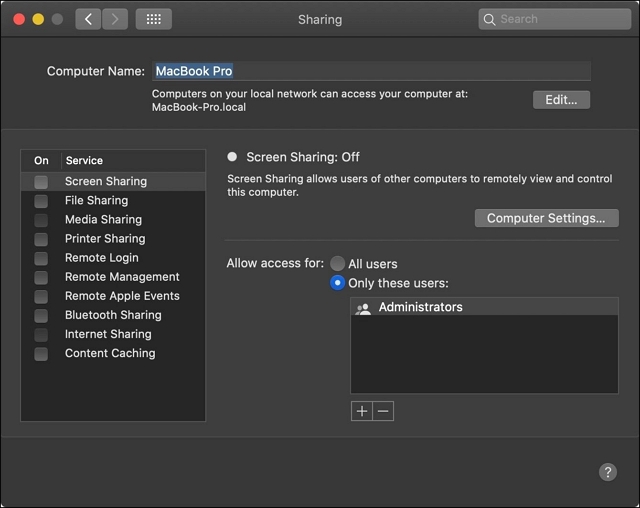
Step 3. To access the sharing options, go to System Preferences, then select the "General" tab, followed by the "Sharing" option.
Step 4. Enter the correct name of your Mac PC in the "Computer Name" field.
How to Solve Windows Migration Assistant Not Working
If you're experiencing issues with the Windows Migration Assistant not working, there are effective solutions to fix the problem. To troubleshoot, follow step-by-step tips, ensuring a smooth transition to a new Windows system.
Fix 2. Check the Internet or Cable Connection
To ensure a functional internet or cable connection is available for using the Migration Assistant, check the network connection by following these steps: check the Wi-Fi or Ethernet cable connection to the router, restart the router if necessary, and check for any network issues or outages in the area. If the connection is still not working, contact the internet service provider for assistance.
Step 1. Click the Apple menu in the upper-left corner of your Mac's screen.
Step 2. Select "System Preferences" from the options.
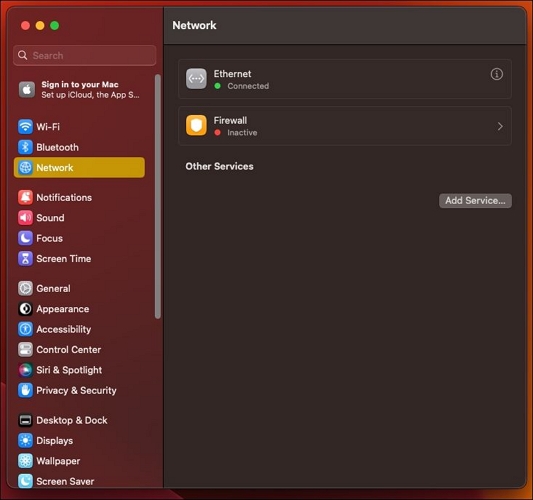
Step 3. Click on "Network" in the System Preferences window.
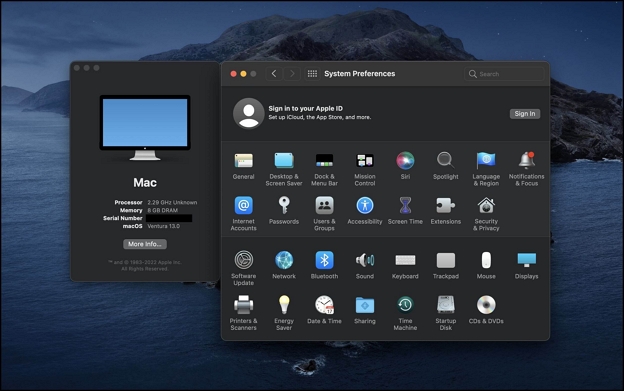
Step 4. To confirm that your internet or cable connection is working, look for a green dot next to your active connection type, such as Wi-Fi or Ethernet. If the dot is not green, you may need to troubleshoot your connection or contact your internet service provider.
Fix 3. Disenable the Firewall on Mac
To resolve issues with the migration assistant not working, try disabling the firewall on your Mac. This security feature helps protect your device from unauthorized access and incoming network traffic, but sometimes needs to be temporarily turned off to resolve connectivity issues. To disable the firewall, follow these easy steps.
Step 1. From the top-left navbar, click on the Apple icon.
Step 2. From the drop-down options displayed, click on "System preferences."
Step 3. Click "Security & Privacy" in the System Preferences window.
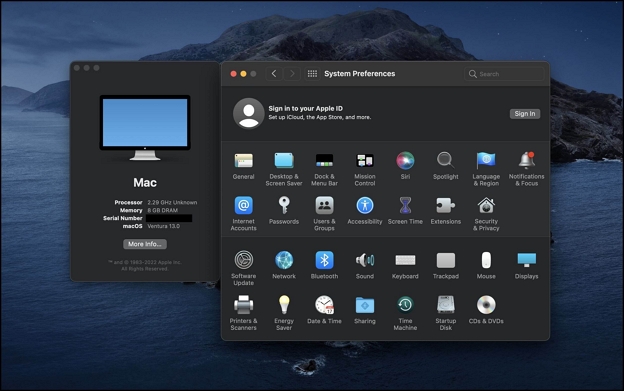
Step 4. To disable the firewall on a Mac, click on the "Firewall" tab from the top, then click on the lock icon in the bottom left corner of the window and enter your administrator password, and finally click the "Turn Off Firewall" button.
Fix 4. Run Apple Diagnosis
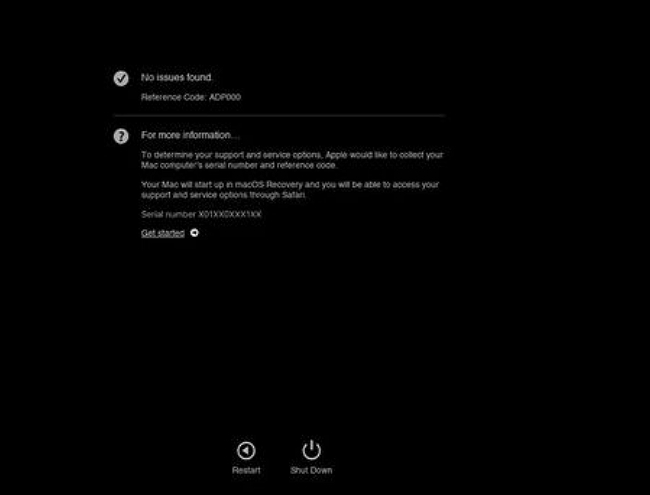
To run the tests. There is no numerical answer to this question. The rewritten text is a concise version of the original, focusing on the main idea and the steps to run Apple Diagnostics. The final answer is not a number, but rather the action to be taken, which is to run the tests.
Step 1. Make sure your Mac is turned off.
Step 2. To run Apple Diagnostics on your Mac, start by turning it on, then press and hold the "D" key on your keyboard as soon as it starts up. Keep the "D" key held down until the Apple Diagnostics screen appears.
Step 3. Follow the on-screen instructions to run the diagnostic tests once the Apple Diagnostics screen appears, and then wait for the process to complete.
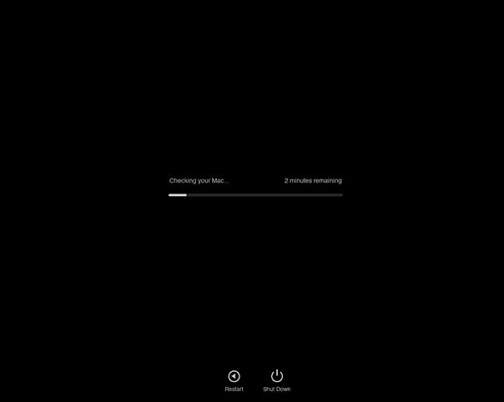
Step 4. After running the scan, a summary of the detected issues on your Mac will be displayed, highlighting any potential problems or malware that needs to be addressed.
Fix 5. Use Target Disk Mode on Mac
To use Target Disk Mode on a Mac, follow these steps: you can quickly and easily transfer files and data between two Macs, even if one has a problem with its internal drive. To access the Target Disk Mode, press the power button on the Mac you want to access, and immediately press the 'T' key. This will boot the Mac into Target Disk Mode, making its internal drive visible to the other Mac. From there, you can transfer files and data as needed.
Step 1. Turn off both macs you want to use for Target Disk Mode.
Step 2. Connect the two Macs using a Thunderbolt, FireWire, or USB-C cable, depending on the ports available on both Macs.

Step 3. To start the target disk mode on a Mac, hold down the "T" key on the keyboard while turning on the Mac you want to use as the target disk. This will boot the Mac into target disk mode, allowing you to use it as an external disk.
Step 4. Once the target Mac is in target disk mode, it displays a Thunderbolt, FireWire, or USB-C symbol on the screen, indicating it's functioning as an external hard drive.
Fix 6. Clean Reinstall macOS
A clean reinstall of macOS can resolve issues like slow performance or software glitches, but it will erase all data on your internal drive, including apps, settings, and user data, so backing up your data is essential before doing so.
Step 1. Restart your Mac.
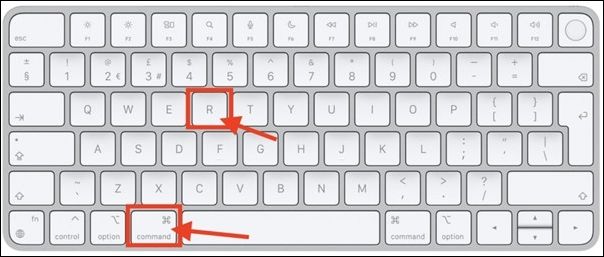
Step 2. Hold down the Command and R keys on your keyboard until the Apple logo appears, which will boot your Mac into Recovery mode.
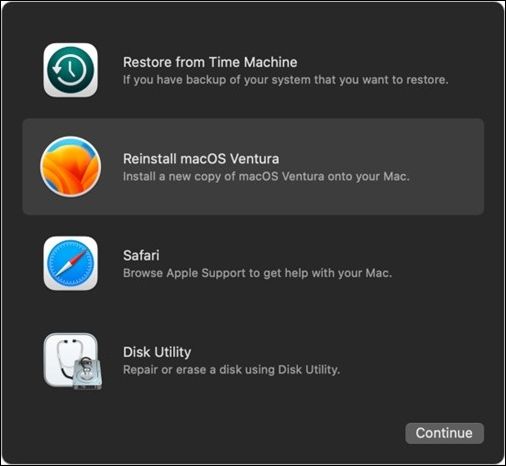
Step 3. To reinstall macOS, select the "Reinstall macOS" option in the Recovery mode, and then follow the on-screen instructions to complete the process.
Step 4. After reinstallation, restore your files and data from your backup and reinstall necessary applications from the App Store or other sources.
Fix 7. Start Mac in Recovery Mode
To enter Mac Recovery Mode, shut down your Mac. Then, press the power button to turn it back on, and immediately hold down the Command (⌘) and R keys. Keep holding them until you see the Apple logo and a progress bar. Release the keys when the progress bar is complete, and you'll be taken to the macOS Utilities window, where you can select various tools and options to help you recover your Mac.
Step 1. Power off your Mac.
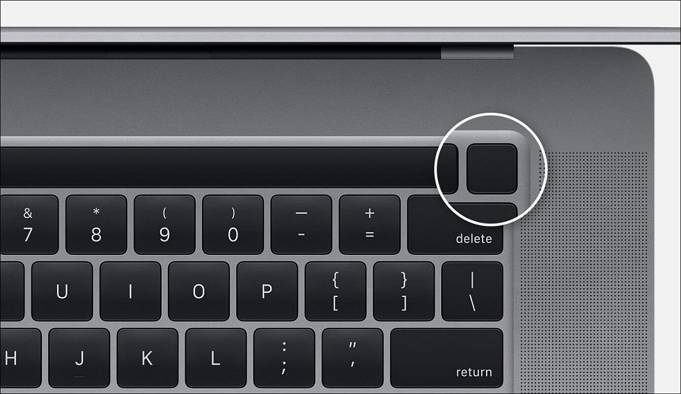
Step 2. Press the power button to turn on your Mac, and hold down the "Command" and "R" keys on your keyboard immediately after pressing the power button until you see the Apple logo.
Step 3. Once you have successfully started Mac in Recovery mode, you can access various utilities for repairing and troubleshooting your Mac, such as Disk Utility, Terminal, and Reinstall macOS.
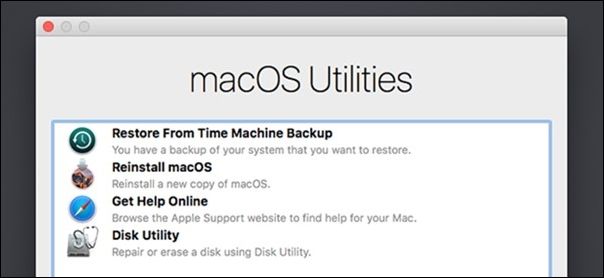
Step 4. When you're done using Recovery Mode, restart your Mac normally to exit.
Fix 8. Migrate from a Time Machine Backup Instead
Here are the steps to migrate from a Time Machine backup:
Step 1. Connect your external hard drive or Time Capsule to your Mac, then open Time Machine and select the device as your backup destination. You can also select the drive you want to back up to and the frequency of backups, such as hourly, daily, or weekly.
Step 2. To open the Migration Assistant app, navigate to the utility folder located within the Applications folder on your computer, and then select the Migration Assistant app to launch it.
Step 3. Select "From a Mac, Time Machine backup, or startup disk" when prompted to choose how to transfer your information.
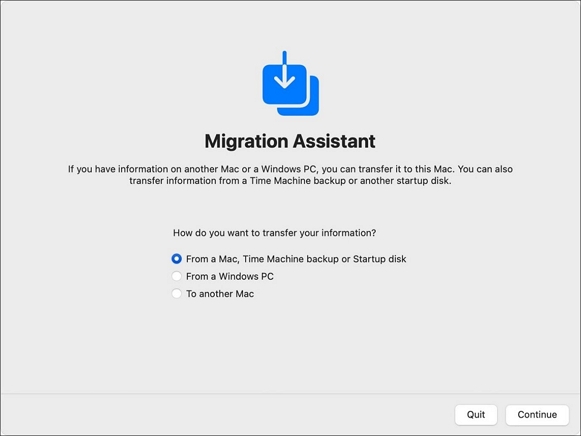
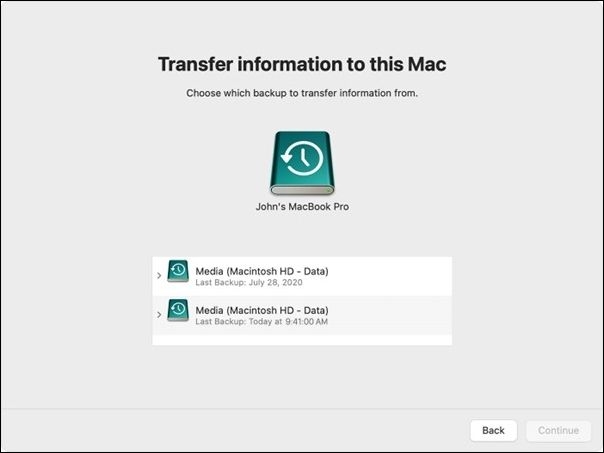
Step 4. Select the Time Machine backup you want to migrate from and choose the specific data you want to transfer before clicking "Continue."
PC users have successfully used these fixes to resolve the issue. If one of the methods helps, consider sharing it on social media platforms like Facebook, Twitter, Instagram, and others to help others who may be experiencing the same problem with the migration assistant not working.
Migration Assistant VS. Time Machine
| Feature | Migration Assistant | Time Machine Backup |
| Transfer methods | Wireless or wired | External hard drive or Time Capsule |
| Time of use | Initial setup or Migrating to a new Mac | Scheduled or on-demand backups |
| Data transferred | User accounts, applications, and settings | Files and folders selected for backup |
| Flexibility | Limited to Mac-to-Mac transfer | For backup and restore on multiple Macs |
| Purpose | Transfer data from an old Mac to a new one | Backup files and data regularly |
Whether Migration Assistant or Time Machine is better for specific scenarios depends on your needs. If you're setting up a new Mac or migrating to a new one, Migration Assistant is the better option due to its specific design for that purpose. However, if you want to back up your data regularly or have the ability to restore specific files or folders, then Time Machine is the better choice.
If you've lost your data, you can still recover deleted files on Mac, even without a Time Machine backup. You can use professional data recovery software, such as Deep Data Recovery for Mac, to restore your data. You can download this software directly from this page without leaving it.
To use Deep Data Recovery for Mac, follow these steps below.
Step 1. Select the drive to be scanned
In the main Deep Data Recovery window, select the drive you need to recover lost/deleted files from and click the "Search for lost files" button.
Note: Before attempting data recovery, it's recommended to create a backup of your Mac using the "Disk Backup" feature, which can be accessed from the left sidebar. This will ensure that your data is safe and can be recovered if needed. Once the backup is created, the software can then recover data from the backup, allowing your computer to write new data again.

Step 2. Select your lost data/files
Deep Data Recovery for Mac will immediately scan your selected disk volume and display the scanning results on the left pane, allowing you to sort the results to find specific files.

Step 3. Recover lost/deleted data
Once you have found the desired files, preview them and then click "Recover" to initiate the recovery of your deleted/lost Mac files.

Final Words
Migrating data from an old Mac to a new one can seem daunting, but tools like the Migration Assistant make the process relatively straightforward. However, if the tool becomes irresponsive, don't worry - with 8 simple fixes and easy-to-follow steps, you can resolve the issue and successfully transfer your data. This article provides guidance on how to troubleshoot and fix the problem, so you can seek help and complete the migration process with ease.
Migration Assistant Not Working FAQs
What are the key points to consider when evaluating a person's mental health?
1. How long should Apple Migration Assistant take?
The time the Apple Migration Assistant takes to transfer data can vary depending on several factors, including the amount of data being transferred, the speed of your mac's hard drive, the internet or cable connection used, and the type of connection, taking a few hours for a moderate amount of data between two macs.
2. What to do if Mac Migration Assistant freezes?
If the Mac Migration Assistant freezes during the transfer process, try restarting both the source Mac and the destination Mac, then retry the migration. If the issue persists, try migrating the user account manually by creating a new user account on the destination Mac and copying the necessary files and settings from the source Mac.
- Force Quit the Migration Assistant.
- Restart your mac.
- Reconnect your devices.
- Try a different connection method.
3. Does Apple Migration Assistant transfer everything?
The Migration Assistant may not transfer certain items, such as system settings, preferences, and login items. Additionally, some third-party apps may not be compatible with the new macOS version, and the Migration Assistant won't transfer them. It's essential to check for compatibility issues and back up your important data before transferring it.
4. Can I migrate Windows to Mac with Migration Assistant?
The Migration Assistant can transfer user accounts, documents, emails, and contacts from Windows 7/8/10/11 to a Mac, but cannot transfer Windows operating system files or third-party applications, and some file formats may not be compatible with macOS.
Related Articles
- FIXED: Windows Update Error 80072EFE [Windows 7 Tips]
- Mac Won't Go to Sleep [7 Proven Ways to Fix It]
- SD Card Not Showing Up on Steam Deck? What to Do?
- How to Hard Reset Mac [New Possible Plans in 2023]
- What Is Transcode and Why Is It Important for Video Streaming [Everything You Need]
Transcoding is changing the file format of an already compressed material. The term - What Is Unified Memory and How to Compare Unified with RAM? [Complete Information]
Unified memory is a virtual address space that can be shared between the operating system and applications. The latest and greatest technology on the market can be tricky to understand, especially if you're just getting started. Here's the comparison between unified memory and RAM.
Products
Articles & Tutorials
- Data Recovery
- Data Backup
- File Recovery
- File Backup
- System Backup and Restore
- Disk and Partition Clone
- Technical articles
- Mobile articles
- Disk Master Help
- Windows Data Recovery Tutorials
- Windows Secure Delete Tutorials
- Windows Partition Management Tutorials
- Windows File Backup and Restore Tutorials
- Windows System Backup and Restore Tutorials
- Windows Disk Backup and Restore Tutorials
- Windows Clone Tutorials