How to Solve Windows Migration Assistant Not Working
Migrating data from a Windows PC to a Mac is usually straightforward, but Windows Migration Assistant may fail because of incompatible software, network problems, disk errors, background apps, or incorrect settings. This guide explains the common causes and provides practical fixes to help you complete the transfer.
If Windows Migration Assistant still does not work, you can also use reliable transfer software such as Qiling Disk Master Tech to back up and move important files, apps, and settings more safely.
Use Qiling Disk Master Tech When Windows Migration Assistant Not Working
If Windows Migration Assistant cannot transfer your data properly, consider an alternative tool for moving files, apps, settings, and programs. Qiling Disk Master Tech offers a stable and user-friendly way to protect data and simplify migration tasks.
Main Features of Qiling Disk Master Tech:
- PC to PC Migration: This feature allows for the transfer of files, folders, applications, and settings from one PC to another, making it easy to set up a new computer with the desired configuration.
- Backup & Restore: During the migration process, protect your data by backing up important files and applications beforehand, preventing any potential loss.
- App Migration: You can easily transfer your applications to a new PC without having to reinstall them, saving you time and effort.
- Excellent Compatibility: Qiling Disk Master Tech is a software that is compatible with various Windows operating systems, allowing it to work seamlessly across different versions of Windows.
How to Fix Windows Migration Assistant Not Working Error
If Windows Migration Assistant is not working, try the five methods below. They cover common causes such as Edge background tasks, startup conflicts, disk errors, compatibility issues, and security software interference.
Fix 1. Disable Edge from Running
If Microsoft Edge is running in the background, it could be causing the error of the Windows migration assistant not working.
Follow the steps to disable Edge from running:
Step 1. Open Microsoft Edge and go to Settings.
Step 2. In the Edge Settings, click "System and performance" from the left side menu.
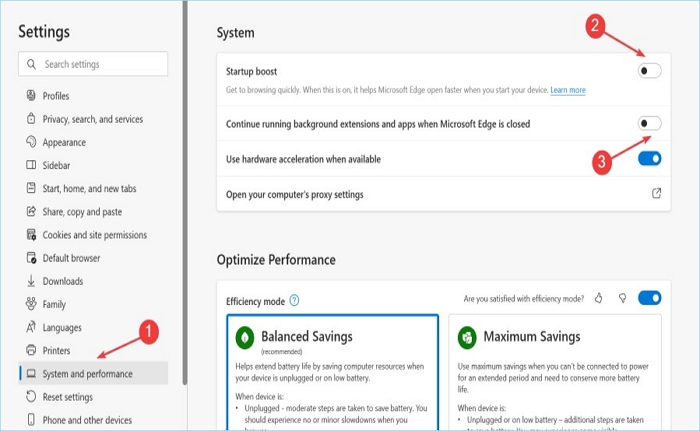
Step 3. To disable the "Startup boost" and "Continue running background extensions and apps when Microsoft Edge is closed" features, click the toggle buttons next to them. This will turn them off.
Step 4. Restart your computer and check whether Migration Assistant works properly.
🔎Also Read: Transfer Edge File Location and Transfer to Another Drive
Fix 2. Disable Startup and Background Apps
Startup and background programs may interfere with Migration Assistant. Disable unnecessary startup items in Task Manager, then try the migration again to see whether the tool responds normally.
Follow the steps:
Step 1. To open the Task Manager, right-click on the Windows Taskbar and select "Task Manager" from the context menu that appears.
Step 2. To disable unnecessary startup items, go to the Task Manager's Startup tab, where you'll see all the apps labeled Enabled. Select each app and click the "Disable" option at the bottom right corner, repeating this process for all apps that are Enabled. This will prevent them from launching automatically when you start your computer.
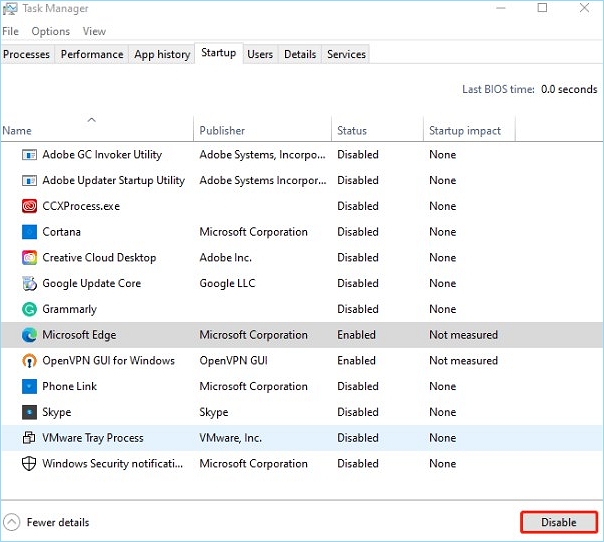
Step 3. Finally, check if the issue is resolved.
Fix 3. Disable Security Software
Software conflicts may occur due to antivirus or firewall applications. Consider uninstalling or temporarily disabling the Windows firewall to potentially resolve the issue.
If you find these fixes helpful, share this article with others who are experiencing the same issue, as sharing can help more people overcome the challenge.
Fix 4. Run CHKDSK for Disk
Disk errors can also prevent the Migration Assistant from working, which can be resolved by running the chkdsk command in the Command Prompt.
Follow the steps:
Step 1. To open the Command Prompt as an administrator, type "CMD" in the search box of the taskbar, right-click on the result, and select "Run as administrator".
Step 2. To run a full disk check in the Command Prompt, type `chkdsk /r` and press the Enter button from your keyboard. This will execute the command and scan the entire disk for errors and fix them if possible.
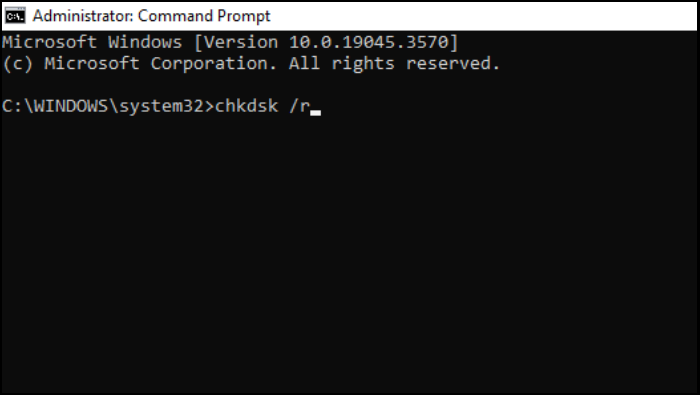
Step 3. Press the 'Y' key and then the Enter key to confirm the scan for the next reboot.
You May Also Like:
Fix 5. Run Migration Assistant in Compatibility Mode
Utilizing compatibility mode in Windows Migration Assistant can be a helpful workaround for users experiencing persistent issues, such as the tool getting stuck or failing to function properly. This feature allows the application to run as if it were optimized for an earlier Windows version, helping to resolve compatibility concerns and provide a seamless experience.
Follow the steps:
Step 1. Right-click on the Windows Migration Assistant and click Properties from the dropdown menu.
Step 2. To make an application run in compatibility mode for Windows 7, go to the Compatibility tab and check the box that says "Run this program in compatibility mode." Then, from the dropdown menu, select 'Windows 7' to run the application in compatibility mode for Windows 7.
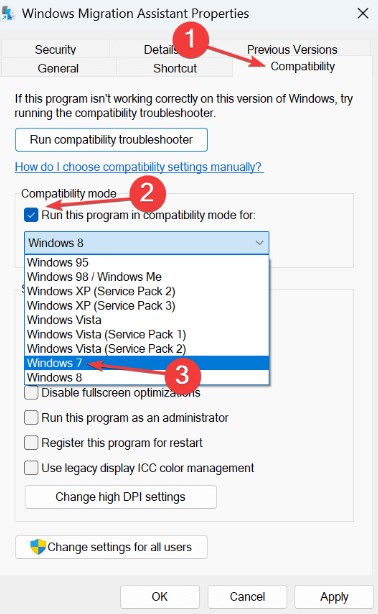
Step 3. Click Apply and OK to save the modifications.
Why Is Windows Migration Assistant Not Working
Various factors could be contributing to this issue.
Windows Migration Assistant is not working due to various reasons such as incorrect installation, corrupted files, outdated software, and incompatible hardware. To resolve these issues, users can try reinstalling the software, running a virus scan to remove malware, updating the operating system and software to the latest versions, and checking for hardware compatibility.
Some possible reasons:
- Background applications running on your computer may be conflicting with the migration process, causing disruptions.
- Disk issues, such as disk errors or limited disk space, could affect Migration Assistant and prevent a smooth data transfer.
- The operation of the Migration Assistant can be obstructed or slowed down by security software, including firewalls and antivirus programs, if they unintentionally interfere with its functionality.
- The Assistant might not be able to access certain files or folders due to insufficient permissions, which can hinder the migration process. This can be resolved by granting the necessary permissions to the Assistant.
- Connectivity problems between your PC and Mac can cause issues with the migration process, potentially leading to the Assistant not functioning as expected. This may be due to network issues or hardware connectivity problems.
- Using outdated versions of Windows or MacOS may lead to compatibility issues with the Migration Assistant, as it may not be optimized for older operating systems.

Conclusion
The Windows Migration Assistant is a valuable tool for a seamless transition, but encountering the Windows Migration Assistant Not Working issue can be a roadblock. This comprehensive guide has disclosed the reasons behind this problem and provided practical solutions for each, helping to resolve the issue and ensure a smooth migration process.
Qiling Disk Master Tech is a reliable choice for those seeking a smooth and secure data migration, offering safety, stability, and user-friendliness.
To overcome Windows Migration Assistant issues, prepare the source and target systems, check the connection, fix disk or software conflicts, and test the migration again. If the problem continues, consider an alternative migration tool for more flexibility.
We hope these solutions help you complete the migration successfully. Share this article with others who are facing the same issue.
Windows Migration Assistant Not Working FAQs
If you have more questions or need further clarification regarding the Windows Migration Assistant not working issue, explore these frequently asked questions.
1. Why doesn't Windows Migration Assistant work?
The Windows Migration Assistant may not be working as expected due to various reasons, including compatibility issues, outdated software, or incorrect setup. To resolve the problem, users can try updating the Migration Assistant to the latest version, checking for compatibility with their current operating system, and ensuring that all necessary software is up-to-date. Additionally, users can attempt to reinstall the Migration Assistant or seek further assistance from Microsoft support.
2. Why is my Migration Assistant not connecting?
Connectivity issues can hinder the migration process, often due to problems with the connection between the PC and Mac, such as network issues or hardware connectivity problems.
3. What should you do when the Windows migration assistant says Edge is running?
If you're seeing a notification about Microsoft Edge running in the background, you can disable it to resolve the issue.
Related Articles
- How to Save/Run Microsoft Office to/from External Hard Drive
- Can I Transfer Game Saves to Another Computer? Yes, Sure!
- How to Transfer PC Files to Cloud [OneDrive, Dropbox, Google Drive, WeTransfer]
- What Is Dropbox Transfer? Everything You Need to Know [Pros & Cons] - Qiling
- [Easiest] How to Transfer/Move/Migrate Outlook to New Computer
Need a hassle-free way to move Outlook to a new computer? This page explains how to transfer Outlook to a new computer or hard drive using automated Qiling PCTransfer software or a manual method, helping move data, accounts, and settings smoothly. - How Do I Transfer Photos from Verizon Cloud to My Phone
You can transfer photos from Verizon Cloud to your phone, and also use it to transfer photos to a new phone or computer, allowing you to easily sync and keep your photos safe on your devices.
Products
Articles & Tutorials
- Data Recovery
- Data Backup
- File Recovery
- File Backup
- System Backup and Restore
- Disk and Partition Clone
- Technical articles
- Mobile articles
- Disk Master Help
- Windows Data Recovery Tutorials
- Windows Secure Delete Tutorials
- Windows Partition Management Tutorials
- Windows File Backup and Restore Tutorials
- Windows System Backup and Restore Tutorials
- Windows Disk Backup and Restore Tutorials
- Windows Clone Tutorials