How Do I Transfer Everything from My Old Computer to My New Computer? Full Guide Is Here!
You have a Lenovo Yoga running Windows 10 and a newer model as a replacement, and you're looking for information on what to do with the older model. Is that correct?To transfer everything from your old computer to your new one, you can use a combination of methods. First, back up your old computer's files and data to an external hard drive or cloud storage service like Google Drive or Dropbox.? Ideally, it would look and operate the same as my old computer. Any suggestions?" - A user from the Microsoft forum
How to transfer files from one computer to another Windows 10 or Windows 11 Copying data, applications, and settings to a new computer has become a pressing need for many users. Fortunately, there's a solution to this problem, making it easier to transfer everything to the new device.
In this how-To guide you through the process, we provide the most effective ways to transfer files from PC to PC on Windows 10 or Windows 11. Just follow our instructions to complete the PC migration and enjoy your new computer!
| Workable Solutions | Step-by-step Troubleshooting |
|---|---|
| 1. Use PC data transfer software | Free download PC data transfer software to transfer everything from old computer to new computer...Full steps |
| 2. Use external storage devices | Manually copy files from your old computer to your new computer with an external hard drive/USB drive...Full steps |
| 3. Use cloud storage tools | Cloud storage tools make it easy to migrate to a new PC. You can use OneDrive, Google Drive, Dropbox...Full steps |
| 4. Use a USB transfer cable | Use a USB-to-USB bridging cable or USB networking cable to transfer files from PC to PC...Full steps |
| 5. More file transfer methods | Use a backup and restore tool, create a shared folder, or try Windows Nearby Sharing to transfer files...Full steps |
1. Transfer Everything from Old Computer to New Computer with PC Data Transfer Software (Free)
Transferring everything from an old computer to a new one on Windows 10 or 11 can be done easily using a PC migration tool, which is the simplest and most effective method.
Qiling Disk Master Free allows for easy transfer of programs, files, user accounts, and settings from an old computer to a new one, supporting Windows 11/10/8.1/8/7/Vista/XP.
Some stunning features of Qiling PC file transfer program:
- Transfer installed programs from one computer to another without re-installing
- To move software from C drive to D drive and speed up Windows 10 or Windows 11, you can follow these steps: Right-click on the Start button and select "File Explorer" to open File Explorer. Navigate to the "This PC" section and right-click on the "D" drive.
- Share files between two laptops or PCs quickly using WiFi
- Free cleanup functions for system and large files cleanup
You can download Qiling Disk Master to transfer files from one computer to another, including Windows 10/11 transfers to a new PC, with or without an internet connection.
How to Transfer Everything from Old Computer to New Computer with Network
Step 1. Launch Qiling Disk Master on both old and new computers, then click the "File sync" button on the main screen to proceed.

Step 2. Connect the two PCs on the same LAN by entering the password or verification code of the target PC, then choose the right transmission direction and click "Connect" to continue.
The verification code is located in the top right corner of the main screen on the target computer, specifically on the "PC to PC" screen. To proceed, click the "Turn on" button that is situated behind the Connection Verification.

Step 3. Go to the "Files" section, select the individual files you need to move, and then proceed with the transfer.

Step 4. To begin the data migration, click the "Proceed" button, then wait for the process to complete, which takes time varying based on the size of the files.
How to Transfer Files from Old PC to New PC Windows 10/11 Without Internet
Step 1. Create a backup file to transfer
- Launch Qiling Disk Master on the source PC, click "Backup & Restore" and then select "File backup" to proceed.
- To create a backup of your data, select the "Data Backup" option. Then, name the backup file and specify the external USB drive as the destination for the backup. This will ensure that your data is safely stored on an external device.

- To begin, click on the "Files" section to select the files you want to process. Once you have chosen the files, click on the "Proceed" button to initiate the process. You will then need to wait for the process to complete.

When the creation process is finished, click "OK" to confirm. Safely eject the USB drive and connect it to the target PC. Then, use the USB to recover the backup of files to the new PC.
Step 2. Restore and transfer backup files to PC without network
- Connect the external USB drive with the file created from the source PC to the target PC. Launch PCTrans, click "Backup & Restore".

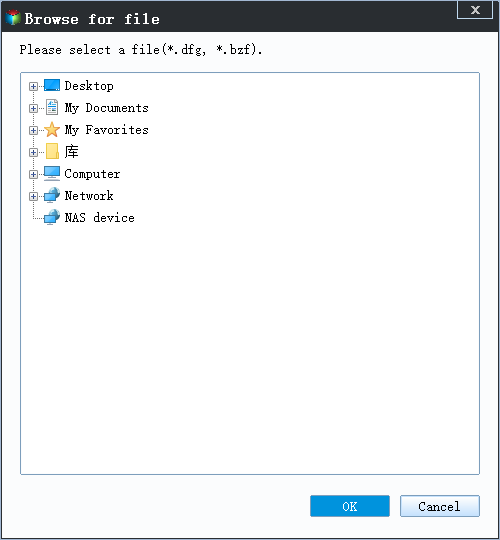
- To proceed, click "Browse for recovery" to locate the image file on your USB drive. Next, select the correct backup file and click "OK" to continue.
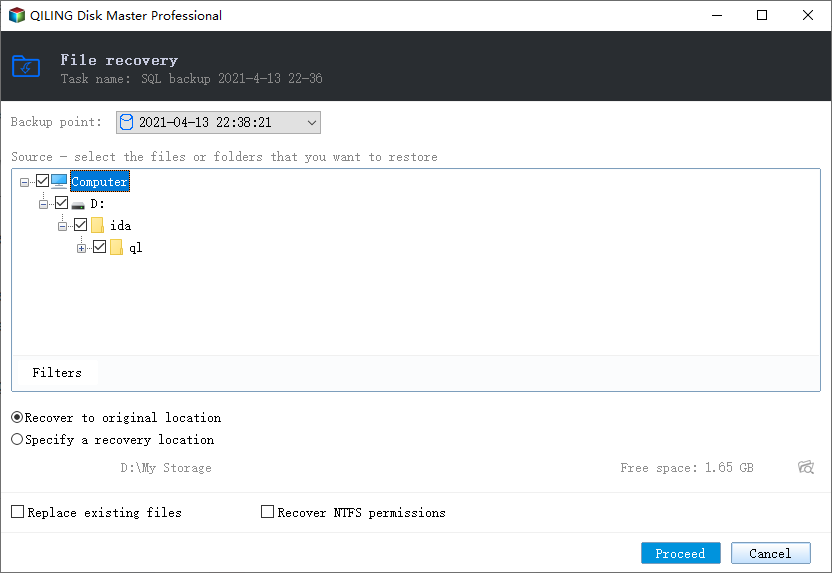
- Choose specific files and click "Restore".
To transfer everything from your old computer to the new computer, watch video instructions on how to use the Qiling Windows 10/11 PC data transfer program. This program will guide you through the process of transferring all your files, settings, and applications to your new computer.
To share files between Windows 7 and Windows 10, you can use various methods. One way is to use the built-in feature in Windows 7 called "Network and Sharing Center" to create a network and share files.
Windows 7 and Windows 10 users can share files between their operating systems using various methods. These include using a network, where users can map a network drive, use the Network and Sharing Center, or enable file and printer sharing.
2. Transfer Files to New Computer with an External Storage Media by Manual Copy
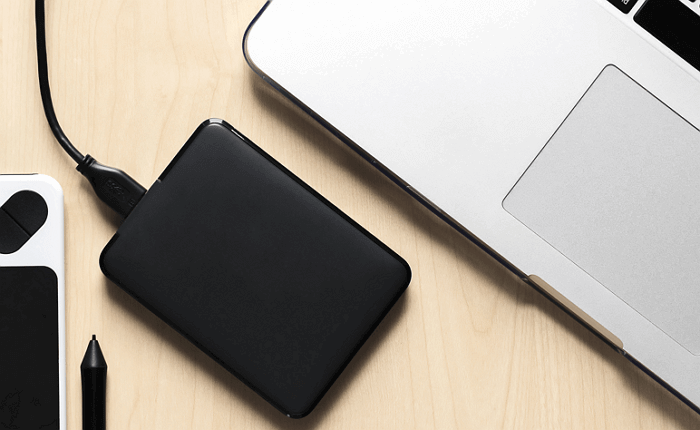
You can use an external storage device like a USB drive, SD card, or external hard drive to transfer your files to a new PC by copying and pasting them. This method doesn't require any software, internet access, or services, making it a convenient and hassle-free way to move your files.
Transferring applications and settings from one computer to another can be a tedious task, making manual copying impractical. For a seamless transfer of all data to a new PC, using a tool like Qiling PCTrans is the most efficient option.
Step 1. Connect external devices to the old PC, using USB 3.0 ports if available, to transfer data quickly.
Step 2. To transfer files from an old PC to a new one, you can copy the files from the old PC to an external drive, then connect the drive to the new PC and copy the files over. This method ensures a smooth transfer of files without the need for cables or direct connections between the two PCs.
If you don't have an external hard drive or don't want to purchase one to move files from an old computer to a new computer, you can transfer Windows 10/11 files using cloud storage tools instead.
3. How to Transfer Files from Old Computer to New Computer Windows 10/11 with cloud storage (OneDrive/Google Drive)
Using a cloud drive like Microsoft OneDrive, Dropbox, or Google Drive allows you to quickly transfer files between PCs or Macs, with no device limitations if you're migrating to a new PC. You can also access and edit your files from the OneDrive app on other devices, such as Androids and iPhones, or by signing in to the OneDrive website on any computer.
Cloud drive tools like Google Drive, Dropbox, and OneDrive are primarily designed for storing and syncing files, not programs. They won't allow you to upload and sync programs on PCs. Additionally, if you delete files from your local device, the corresponding files in the cloud will also be lost. If you need to recover deleted files, you can check out guides like "how to recover permanently deleted files from OneDrive Windows 10".
To finish transferring files from your old Windows 10/11 PC to a new one using OneDrive, follow these steps:
Step 1. To upload files to OneDrive, simply open the OneDrive app and click the "Add" button, which will initiate the file upload process to your OneDrive cloud account.
Step 2. Download the files on the other laptop, then open the OneDrive app, right-click on the file, and select "Download" to transfer the files.
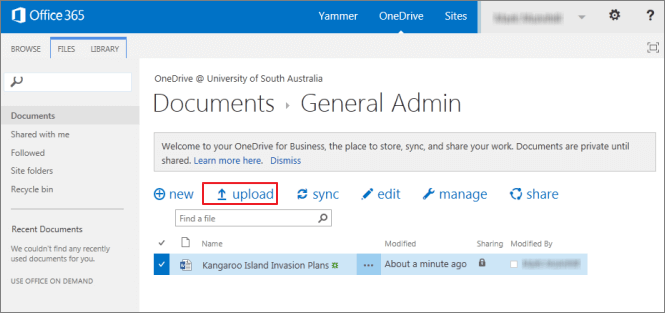
You can browse OneDrive files in File Explorer without downloading them to your PC, which can help with hard drive space concerns.
4. How to Transfer Files from PC to PC via a USB Transfer Cable
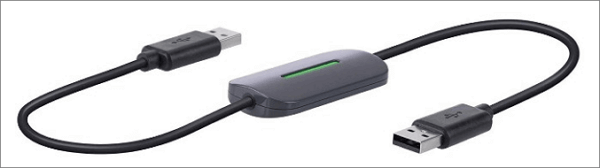
A USB data transfer cable allows data to be moved between two computers, with a small electronic circuit in the middle that enables communication between the two devices.
Using cloud-based copying is faster than relying on external devices because it eliminates the need to transfer data between three devices (the external drive and the two computers involved). Instead, the copy and paste process happens directly between the two computers, reducing the number of drives involved to just two. This also eliminates concerns about disk space, as the data is being transferred directly from one computer to another without the need for an external drive.
How to transfer files to new computer on Windows 10/11 with a USB cable:
Step 1. Start both computers and attach the USB cable to both of them.
Step 2. To share files between computers, click the Windows "Start" button, type "windows easy transfer" in the Search field, and press "Enter. Then, follow the prompts of the Easy Transfer wizard to share files.
Ethernet Cable:
Step 1. Insert one end of the Ethernet cable into the PC and the other end into the new PC.
Step 2. Open Control Panel.
- Press Windows + R, and input Control Panel, and press Enter.
- To enable file and printer sharing on your computer, go to the "Network and Internet" section, then click on "Network Sharing Center". From there, select "Change advanced sharing center" and click on "Turn on file and printer sharing".
Step 3. To share a file, right-click on it and select "Share". Then, choose "Specific people" and select "Everyone" from the dropdown menu. After that, click "Share" and finally "Done" to complete the process.
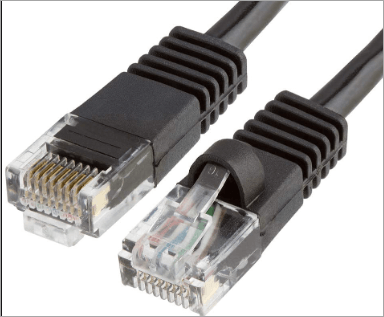
Different transfer cables have different usage methods, so if you encounter any issues, please consult the specific cable's after-sales support for assistance.
5. Transfer Files to New Computer Using a Backup and Restore Tool
You can use a backup and restore tool like Qiling Backup to transfer files from an old computer to a new one by backing up all files on the old PC and then restoring them to the new PC in simple steps.
Step 1. To begin the backup process, click the File backup button.
Step 2. The left-hand side of the screen displays lists of both local and network files, allowing you to expand the directory and select the files to be backed up.
Step 3. Please choose the location where you want to save the backup.
Step 4. To ensure the backup is secure, encrypt it, and set a schedule for backups by clicking on Options in Backup Options. This allows for customization of various settings.

You can also choose to start the backup at a certain time by clicking Options in Backup Scheme.

Step 5. You can store the backup file either on your computer, in Qiling's cloud service, or on a network-attached storage device (NAS).

Step 6. Qiling Backup allows customers to store backup copies of their files on a third-party cloud drive or the company's own cloud storage.
To back up data on a third-party cloud drive, select Local Drive, scroll down to add Cloud Device, and fill in your account information.
Step 7. Click on "Proceed" to start a backup. When the backup process is complete, it will be displayed as a card on the left-hand side of the screen, and clicking on it will provide more information on how to manage the backup job.
To transfer files from an old PC to a new one, you can use various methods such as using a USB drive, external hard drive, or cloud storage. You can also use the built-in Windows Backup and Restore tool, or third-party software like Qiling Backup, which can help you transfer files from the old PC to the new one. Alternatively, you can set up the old PC to boot from the new PC's hard drive, or use a cloning software to create an exact copy of the old PC's hard drive on the new one. If you want to save time and energy, these methods can help you transfer files quickly and easily.
6. Create a Shared Folder to Transfer Files from PC to PC
In Windows 10 or 11, you can share files on your computer with others over the network using the File Sharing feature, allowing you to share files with devices like Mac, Android, and Linux.
In a local area network (LAN), large files can be accessed directly and used simultaneously by multiple users, making it a convenient option for businesses.
Here are the steps to share files on your local network using the express settings:
Step 1. To share a file, locate the file you want to share, right-click or press it, and select the option to give access to specific people.
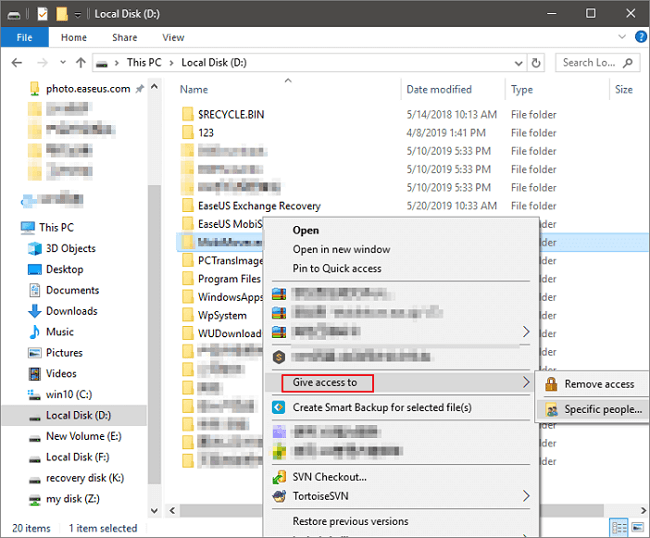
Step 2. To share a file or folder, select it and click the "Share" button. Then, select a user or group to add and click "Add". Enter the username you want to share with, or select "Everyone" to share with all users. Finally, adjust the privilege level as needed.
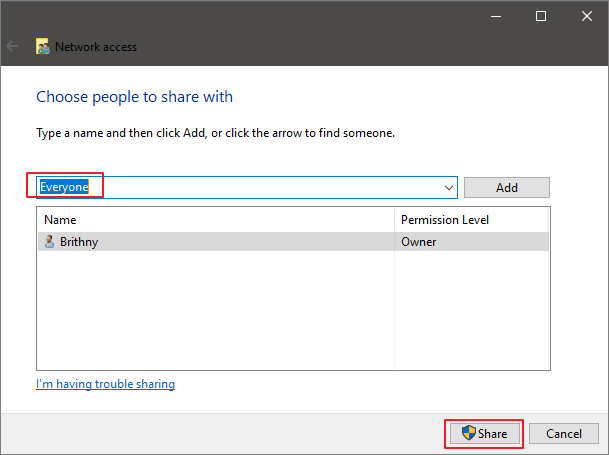
Step 3. To enable network discovery and sharing, click the "Share" button in the dialog. Next, press the Windows key + R to open the Run dialog, then type "\IP address" and press Enter. This will display all the shares available on the specified IP address.
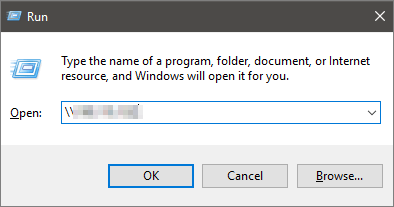
If you don't know your IP address, you can find it by pressing "Win+R", typing "cmd", then inputting "ipconfig" and pressing "Enter". This will display your IP address. You can also share multiple files or folders at once, which will work in the same way.
To share files over the network without needing a password on Windows 10/11, follow these steps: disable password protection for file sharing. This allows you to access shared files without entering a password.
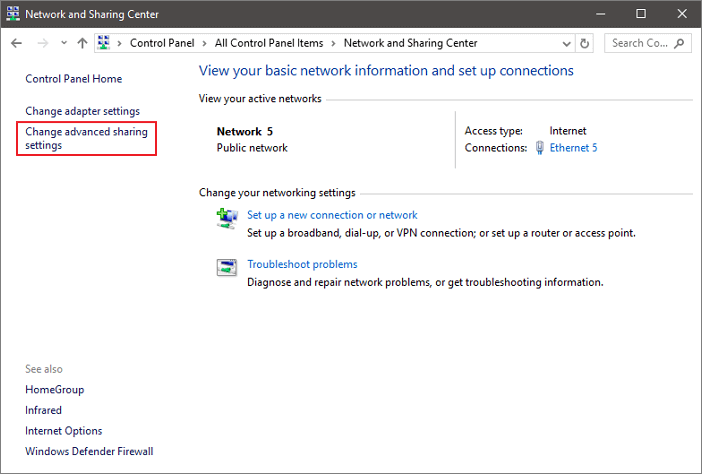
Step 1. To access advanced sharing settings, go to the "Control Panel" and select "Network and Internet", then click on "Network and Sharing Center". On the left-hand side, click the "Change advanced sharing settings" link.
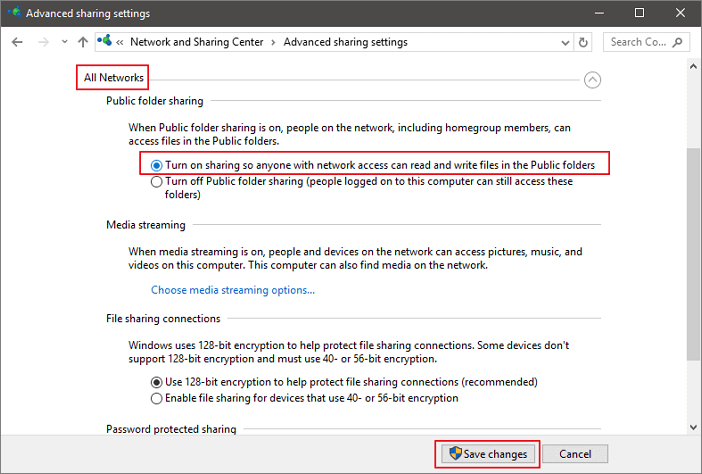
Step 2. In the All Networks tab, expand the section for "Password protected sharing", then select the option to "Turn off password protected sharing" and click "Save changes".
7. Try Windows Nearby Sharing to Transfer Files to New PC Windows 10
In Windows 10, you can use the Nearby Sharing feature instead of HomeGroup to transfer files between PCs. This feature uses Bluetooth to share files between devices in close proximity, and it's a good alternative to HomeGroup, which was removed from Windows 10.
Nearby Sharing allows seamless sharing of files between devices, eliminating the need for third-party platforms like Dropbox, and making it easy to share files with others in the same room without requiring passwords or device pairing.
Note: Make sure your Windows 10 is version 1803 or later, as this feature is only available in versions after 1803.
To transfer files from an old PC to a new one, you can use a combination of methods. First, ensure both PCs are connected to the same network.
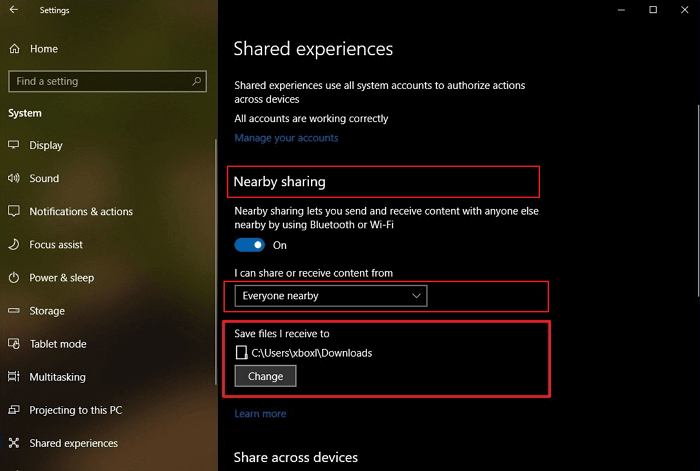
Step 1. To enable nearby sharing, go to Settings, then click on System, followed by Shared experiences, and finally toggle on Nearby sharing. This will allow you to share content with nearby devices.
Step 2. Under "Nearby sharing," select "Everyone nearby".
- Your PC will be able to share and receive content with all devices nearby, including those you don't own.
- Your PC will only share and receive content with devices that are also using the Microsoft account.
- To change the location where files are saved when shared via Nearby Sharing, follow these steps: click on "Nearby sharing" and then click on "Save files I receive to", followed by clicking the "Change" button to select a new location for saved files.
Step 3. To share a file between two computers, open File Explorer, right-click the file you want to share, click the "Share" option, and select the device from the list.
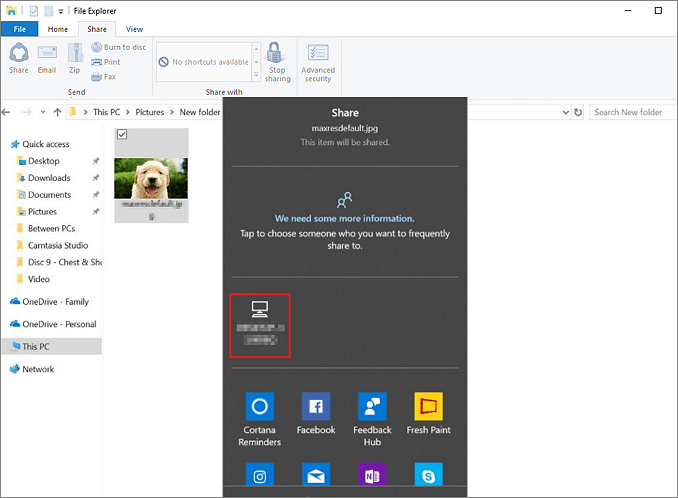
When you've completed the steps, the other PC will receive a notification to accept or decline the transfer. If accepted, the transferring process will begin, allowing you to share files between the two PCs.
What's the Best Way to Transfer Everything from Old Computer to New Computer on Windows 10/11
Seven solutions are available to help transfer files to a new PC, with only the first method, Qiling Disk Master, capable of transferring all files, apps, and settings from the old computer to the new one on Windows 11/10/8/7. The remaining six methods can only transfer files, without migrating applications and user settings.
You can quickly and completely migrate to your new PC by downloading Qiling PC data transfer software for free.
Related Articles
- Download Best Steam Mover Software to Transfer Steam Games in Windows 10/8/7
- How to Install/Run Applications from an External Hard Drive (New)
- How to Transfer Files from Laptop to Laptop Using Bluetooth on Windows 10
- Transfer Data, Software/Applications to Windows 10 or Windows 11
- How to Back Up External Hard Drive to Dropbox [ Recommend 3 Ways]
Back up external hard drive to Dropbox is not difficult. The best way to back up an external hard drive to Dropbox is by applying backup software. You can drag and drop files and folders on Dropbox web and Dropbox Desktop. - [3 Ways] How to Back Up Laptop to OneDrive Quickly
Learn how to backup your laptop to OneDrive using 3 effective methods. Use Qiling Backup for automatic scheduled backups, the OneDrive web interface for manual uploads, or the OneDrive Desktop app for seamless syncing.
Products
Articles & Tutorials
- Data Recovery
- Data Backup
- File Recovery
- File Backup
- System Backup and Restore
- Disk and Partition Clone
- Technical articles
- Mobile articles
- Disk Master Help
- Windows Data Recovery Tutorials
- Windows Secure Delete Tutorials
- Windows Partition Management Tutorials
- Windows File Backup and Restore Tutorials
- Windows System Backup and Restore Tutorials
- Windows Disk Backup and Restore Tutorials
- Windows Clone Tutorials