How to Transfer PC Files to Cloud [OneDrive, Dropbox, Google Drive, WeTransfer]
| Workable Solutions | Step-by-step Troubleshooting |
|---|---|
| OneDrive | #1. Transfer through Website...Full steps #2. Transfer through Program...Full steps |
| Dropbox | #1. Transfer through Website...Full steps #2. Transfer through Program...Full steps |
| Google Drive | #1. Transfer through Website...Full steps #2. Transfer through Program...Full steps |
| WeTransfer | Step 1: Sign in to your WeTransfer account on its website. Step 2: Click "+Add your files" to select the files...Full steps |
| Bonus Tip: Transfer Files between PCs | Step 1. Open Qiling Disk Master on both of your computers. Choose "PC to PC" to go to the next step...Full steps |
Can I Transfer PC Files to Cloud?
Yes, you can transfer pc files to the cloud. Transferring files to the cloud can help free up space on your computer, improve performance, and make files easily accessible from anywhere with an internet connection. This can be done by uploading files to a file-sharing service, which stores them off-site and allows access from any device.
Best Cloud Drive Service
Cloud storage is a file storage service that allows users to upload, share, and access files via the internet.
Using a cloud drive offers numerous benefits, particularly in protecting data from loss or damage. Unlike local drives, which are vulnerable to corruption or deletion due to device failures, cloud drives store files on remote servers, minimizing the risk of data loss. Additionally, cloud drives often provide more storage space than local drives, making them ideal for storing large collections of files. Furthermore, many cloud drives enable seamless file sharing and collaboration, making them an excellent choice for users who need to work on projects with others. We recommend transferring files to a cloud drive for these and other reasons.
Popular cloud drives like OneDrive, Dropbox, Google Drive, and WeTransfer are easy to use and can be customized to meet individual needs, making them a convenient option for users.
Transfer PC Files to OneDrive
OneDrive is a Microsoft-operated file hosting service launched in August 2007, offering a generous amount of free space, allowing users to store, share, and access files from anywhere on all devices, with integration with Windows 10.
OneDrive offers both a web version and a desktop version, allowing users to choose their preferred method to transfer files to the cloud storage service.
#1. Transfer PC Files to OneDrive through Website
Transferring files from your computer to OneDrive is a straightforward process that requires just a few basic tools: a web browser and an internet connection.
Step 1: Sign in to your Microsoft account on the OneDrive website.
Step 2: To start the file transfer, click the "Upload" button. Then, select the files you want to transfer from your computer and click "Open" to initiate the transfer.
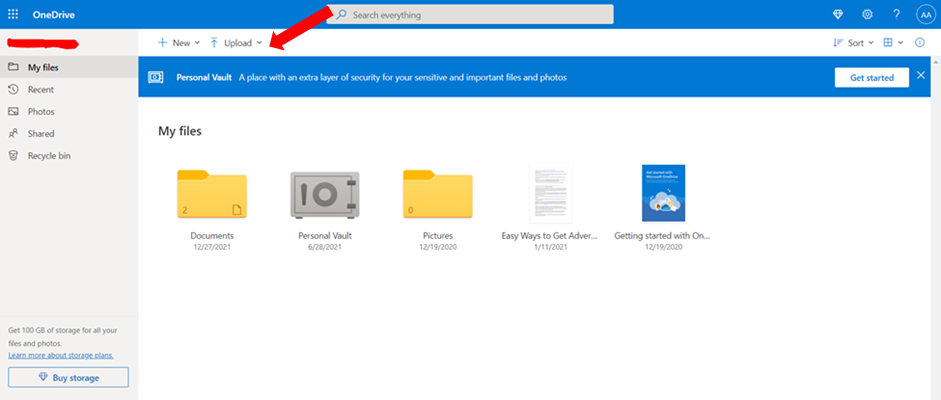
Step 3: After uploading, your files can be accessed directly in OneDrive.
#2. Transfer PC Files to OneDrive through Program
This easy-The To-Use program allows you to quickly and easily transfer your files to OneDrive from any computer with just a few clicks of the mouse.
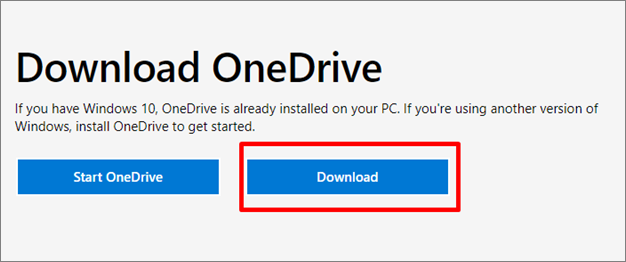
Step 1: Download OneDrive on your PC. If you're using Windows 10, OneDrive is already installed on your PC.
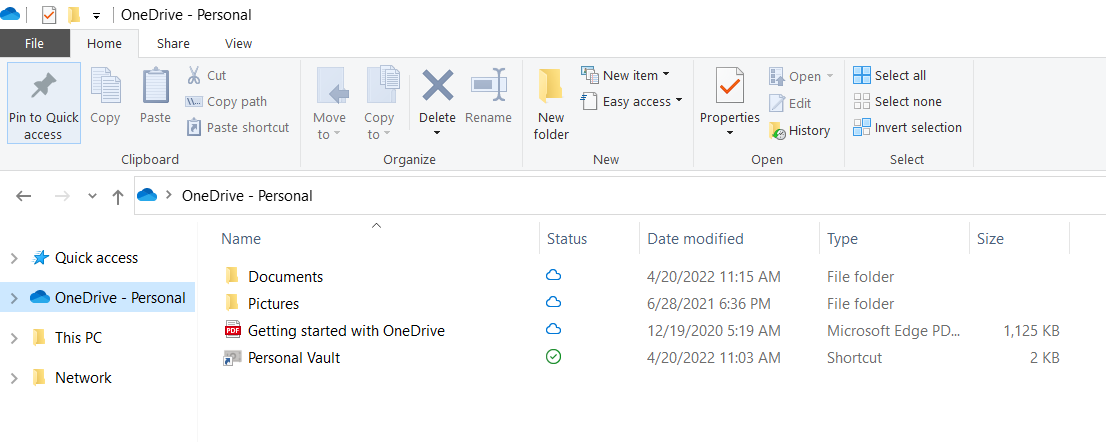
Step 2: To transfer files to OneDrive, locate the OneDrive folder in your directory and drag and drop the files you want to transfer into it.
Transfer PC Files to Dropbox
Dropbox is a cloud-Dropbox is a cloud storage service that allows users to upload and sync files across devices. Founded in 2007, it has become one of the most popular cloud storage services available, with over 500 million users worldwide.
Users can easily transfer files to Dropbox using the website or desktop program, requiring only a few clicks.
#1. Transfer PC Files to Dropbox through the Website
You can easily upload your files to Dropbox without installing any extra software, and you can also share folders with others without any additional cost.
Step 1: Sign in to your Dropbox account on the website.
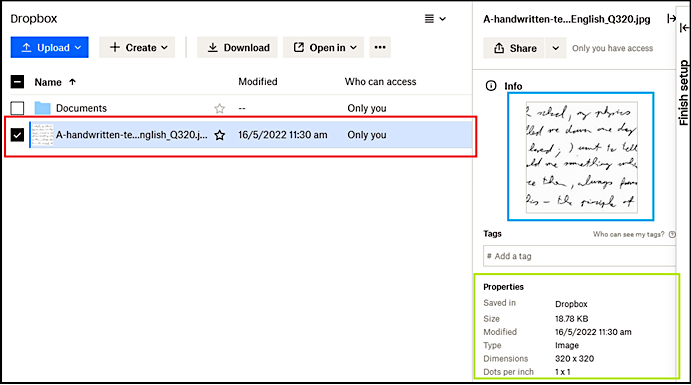
Step 2: To upload files or folders, click the "Upload" button. This allows you to select and add files or folders from your device to the platform.
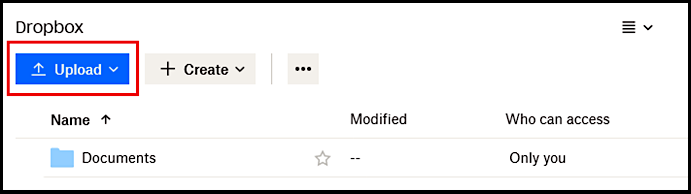
Step 3: Select the PC files you want to transfer to Dropbox and click "Open".
Step 4: After uploading, you can also check more information about this file.
#2. Transfer PC Files to Dropbox through Program
You can quickly transfer files from your computer to Dropbox using the Dropbox desktop program, a free software that allows you to easily move your files from any computer to Dropbox.
Step 1: Download and open Dropbox on your computer.
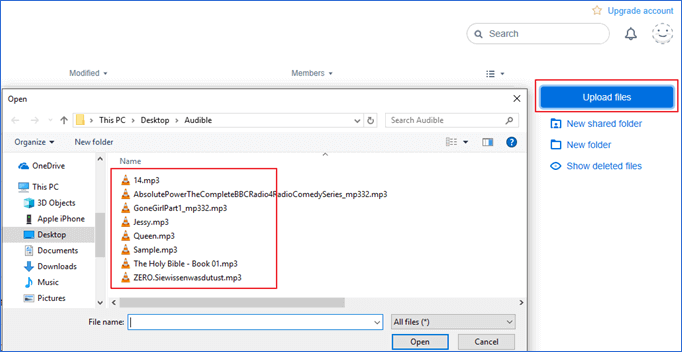
Step 2: To start the file transfer process, click the "Upload files" button located on the right-hand side of the interface. Then, select the files you wish to transfer from your device and click "Open" to initiate the transfer.
Send Files to the Cloud - Google Drive
Google Drive is a cloud storage service that allows you to save and share files, including photos, videos, documents, and more, and access them from anywhere via the app or website. You can also share files with others and collaborate on projects, with the option to upgrade to a paid plan for more storage space.
You can send website or program-based uploads, allowing access to files from any device.
#1. Send PC Files to Google Drive through the Website
Google Drive allows users to send files to the cloud through its website, making content accessible on any device or platform. The service supports a wide range of file types and formats, ensuring that your files are always available and ready to use.
Step 1: Sign in to your Google Drive account on the website.
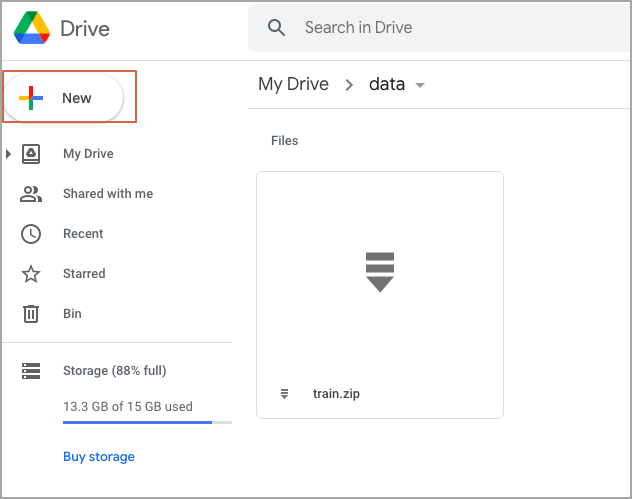
Step 2: Click "New" on the upper left.
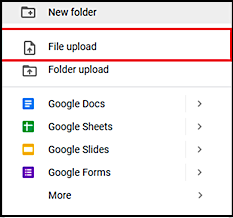
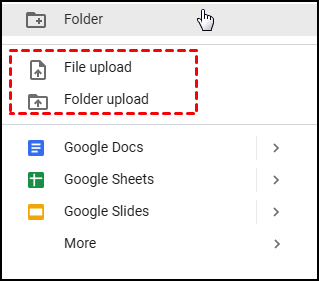
Step 3: Click "File upload".
#2. Send PC Files to Google Drive through Program
You can download Google Drive, send files through its program, and they'll be saved securely onto Google Drive.
Step 1: Download Google Drive on your PC.
Step 2: To upload PC files to Google Drive, sign in to your account and click on "File upload" or "Folder upload" to initiate the upload process.
Move File to the Cloud by WeTransfer
WeTransfer is a file-WeTransfer is a file-sharing service that allows users to easily move files to the cloud, making it simple to share large files with others. This convenient service eliminates the need for physical storage devices like USB drives or external hard drives, and comes in both free and paid versions, with additional features available in the latter. Overall, WeTransfer is a great choice for those who need to share large files regularly, thanks to its ease of use and convenient functionality.
Step 1: Sign in to your WeTransfer account on its website.
Step 2: Click the "+"Add your files" button to select the files you want to move.
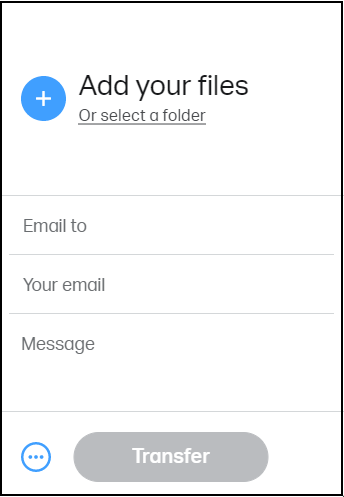
Step 3: To share the Google Meet link, click the three-dot icon on the lower right, then select "send as link".
Step 4: To start the migration, click the "Transfer" button. This will upload your files to WeTransfer. Alternatively, you can click "Copy Link" to share the files with others by sending them the link.
Bonus Tip: Transfer Files between PCs
Instead of transferring files to a cloud service, you may also need to transfer files between PCs. Qiling Disk Master can help with this, allowing you to easily transfer files from one PC to another with just a few clicks.
Step 1. Open Qiling Disk Master on both of your computers, then select "File sync" to proceed.

Step 2. To connect two PCs via the network, enter the password or verification code of the target PC, and ensure the correct transfer direction is selected before clicking "Connect" to proceed.
The verification code is located on the top right corner of the "PC to PC" main screen on the target computer.

Step 3. To transfer files, select the "Files" option, choose the specific files you want to transfer, and if desired, edit the storage path for the transferred data.

Step 4. You can transfer files from one PC to another by clicking "Proceed" after selecting the files you want to transfer. The time it takes will depend on the size of the file, so be patient and wait for the transfer to complete.
Qiling Disk Master offers advanced features like transfer settings and games, allowing users to transfer files of any size and type, including photos, music, videos, documents, and applications, between all Windows operating systems, with a user-friendly interface, making it an ideal solution for users who want to move files from one PC to another.
Conclusion
Transferring PC files to the cloud offers numerous benefits, including the ability to access them from anywhere and share them with others. With various cloud drive services available, you can choose the one that best meets your needs and enjoy the convenience of having your files readily available online.
Qiling Disk Master allows users to transfer files, applications, and settings from one PC to another, making it a useful tool for those upgrading their computer.
Related Articles
- (2022 Update) How to Move Microsoft Office to Another Drive
- How to Transfer Data from One User Account to Another in Windows 10/11
- How to Transfer System Settings in Windows 10
- 5 Solutions to Fix How to Free Up Space on C Drive Windows Server 2008 (R2)
- Encrypt Backup Disk or Not | What Would Be the Best Choice
The article discusses whether to encrypt backup disks, providing a detailed guide on the topic and recommending the best choice for encryption. - Top 5 Best External Backup Drive Windows 10 of 1-4 TB Capacity
Searching for the best external backup drive for Windows 10? Here is a review list of the most popular hard drive selections used for backup purposes.
Products
Articles & Tutorials
- Data Recovery
- Data Backup
- File Recovery
- File Backup
- System Backup and Restore
- Disk and Partition Clone
- Technical articles
- Mobile articles
- Disk Master Help
- Windows Data Recovery Tutorials
- Windows Secure Delete Tutorials
- Windows Partition Management Tutorials
- Windows File Backup and Restore Tutorials
- Windows System Backup and Restore Tutorials
- Windows Disk Backup and Restore Tutorials
- Windows Clone Tutorials