Top 5 Best External Backup Drive Windows 10 of 1-4 TB Capacity
How to Choose a Good External Backup Drive for Windows 10 Backup?
When choosing an external backup drive, consider its speed, with external SSDs offering improved performance over traditional HDDs due to their use of flash memory.
When choosing an external backup drive, consider storage capacity, as HDDs offer large capacities at affordable prices, in addition to other factors like speed and price.
People often look for affordable storage options that fit their needs. Hard Disk Drives (HDDs) tend to be cheaper than Solid State Drives (SSDs), with a 4TB HDD costing around $100, compared to a similar capacity SSD which is relatively more expensive.
A Backup Software: Help You Complement External Backup Drives in Windows 10
In addition to saving files and data on Windows 10 using external backup drives, you can also use Qiling Backup software to back up files, system settings, and program files, saving them to internal hard drives, external drives, the cloud, or NAS.
Qiling Backup offers a free cloud storage space of 250GB for each user, enhancing the safety of your files with password-enabled protection, allowing you to recover files in case of a computer system crash or malware attack.
Qiling Backup Free allows for full backups, as well as incremental and differential backups. It also provides multi-path backup storage, bootable backup and recovery, and basic backup scheduling. A trial version of the software can be downloaded and installed on your computer today.
To back up your files via Qiling Backup, you can follow these steps:
Step 1. Open Qiling Backup and choose "Disk/partition Backup" on the home page.

Step 2. Qiling Backup offers flexible backup options, allowing you to choose between backing up an entire disk or a specific partition, giving you the freedom to customize your backup according to your needs.

Step 3. You can choose to save the backup to a local drive or to a Network-Attached Storage (NAS) device.

Step 4. After completing the backup process, click "Proceed" and then select one of the tasks to further manage your backup, such as recovering it or creating an incremental backup.

5 Best External Backup Drives Windows 10
External backup drives are essential for providing various options to save files and data on Windows 10. If you're looking for the best external backup drives in 2022, we've got you covered. Below, we'll discuss the top 5 external backup drives for Windows 10, helping you find the perfect one for your needs.
- Top 1. WD My Book
- Top 2. SanDisk Extreme Pro Portable SSD
- Top 3. WD Black P10 Game Drive
- Top 4. Samsung Portable SSD T7
- Top 5. WD My Passport SSD
Top 1. WD My Book (WDBBGB, USB 3.O, 4TB)
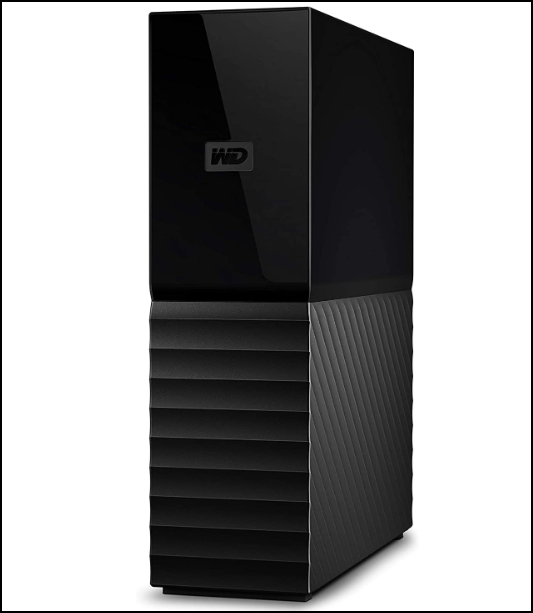
The WD My Book is the best external backup drive for Windows 10 due to its large storage capacity of 3-18TB and fast USB 3.0 interface, allowing for transfer speeds of 177.3MBps write and 171.5MBps read. It is also compact and lightweight, weighing 2.2 pounds and measuring 6.7x5.5x1.9 inches.
The WD My Book hard drive offers a large storage space, is relatively affordable, and provides 256-bit AES encryption and WD backup software, making it a good option for storing files, despite being bulky and less portable.
Pros
- It has an encryption functionality
- Inexpensive
- Has a backup software
- Fast speed for hard drives
Cons
- It needs a power outlet
- Bulky
Top 2. SanDisk Extreme Pro Portable SSD (SDSSDE80, USB 3.1, 1TB)
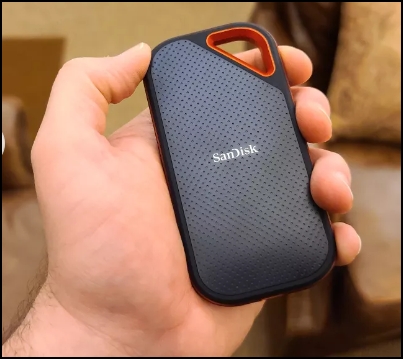
The SanDisk Extreme Pro Portable SSD is available in 500GB, 1TB, and 2TB storage capacities, and features a compact design that weighs 2.8 ounces and measures 4.3x2.3x0.4 inches. It supports USB 3.1 and has impressive speeds of 906.1MBps for writing and 857.7MBps for reading.
The SanDisk Extreme Pro Portable SSD is a compact and lightweight device that's perfect for carrying in a bag or pocket. Its sleek and modern design features a black-red color scheme and rounded corners, making it a stylish external drive suitable for Windows 10 users.
This drive can read data at a speed of up to 1050MBps, making it comparable to other drives in terms of speed. Additionally, it has an encryption feature that ensures the security of your files and data.
Pros
- Its software comes with a basic encryption feature and a backup functionality, allowing users to protect their data and ensure it is safely stored.
- It has a nice cross-balance in design, price, and speed.
Cons
- The integrated loop of this product is quite large, which may not be suitable for all uses.
Top 3. WD Black P10 Game Drive
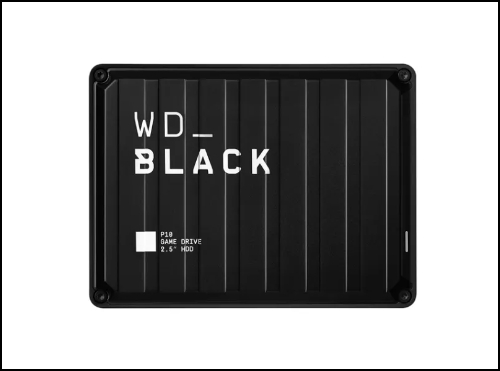
The WD Black P10 Game Drive is a plug-and-play external hard drive designed for gamers, available in 2TB, 4TB, and 5TB capacities, with a USB 3.0 interface and weighing 250g. It measures 11.81x8.79x2.08cm and is highly rated by gamers for its compatibility.
It has a pre-The drive is formatted with the exFAT file system, making it compatible with many PCs and Macs, as well as Sony PlayStation 4, Microsoft Xbox One, and PS5. It has an average read speed of 140MBps, suitable for storing downloaded games.
To ensure file and data security, you can set passwords using the WD Security app and the WD Drive Utility app, which also help monitor the drive's health and performance.
Pros
- Comes with a pre-formatted exFAT file system.
- Compatible with most gaming consoles
- Provides an ample storage space
Cons
- There's no adapter for USB-C devices.
Top 4. Samsung Portable SSD T7 (MU-PC, USB 3.2, 1TB)
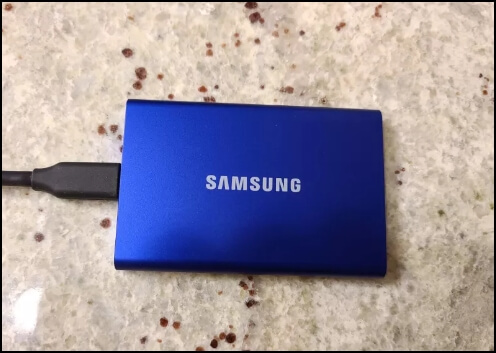
The Samsung Portable SSD T7 has a similar design to its predecessor, the T5, but is slightly heavier. It comes in various storage options, including 500GB, 1TB, and 2TB, and supports the USB 3.2 interface. The drive measures 3.4x2.2x0.3 inches and weighs 2.1 ounces.
The Samsung T7 has a high reading and write speed of 848.2MBps and 838.7MBps respectively, making it a fast drive. It is also cost-effective with a cost per gigabyte of $0.23, although it is one of the most expensive drives on the market, its features and brand name justify the price, with copy speeds exceeding 1,050MBps.
Pros
- Fast
- Implement password encryption to protect user data and files, ensuring their safety and security.
Cons
- High cost-per-gigabyte
Top 5. WD My Passport SSD (WDBAGD, USB 3.2, 1TB)
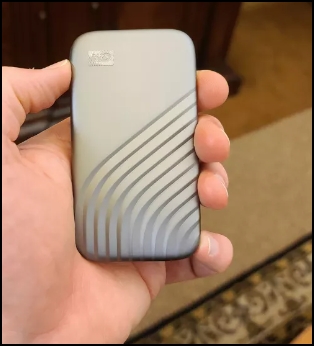
The My Passport SSD has a USB 3.2 interface for improved drive performance, comes in various colors, has a weight of 1.6 ounces, measures 3.9x2.2x0.4 inches, and is available in 500GB, 1TB, and 2TB storage capacities.
The WD My Passport SSD offers a write speed of 855.3MBps and a read speed of 855.9MBps, making it a high-performance drive. At a cost-per-gigabyte of $0.19, it's also quite affordable. Additionally, it allows access to WD utilities and My Cloud Home Storage, making it a feature-rich option.
The WD My Passport drive is relatively fast due to its SSD feature, but it comes with a major drawback - a shorter USB Type-C cable that's only 6.5 inches long. Despite this, its benefits still shine through.
Pros
- Enhanced performance speed
- It grants you access to many WD utilities
- It has many color options
Cons
- It comes with a short USB Type-C cable
FAQs about External Backup Drive Windows 10
To give you an in-depth understanding of external hard drives, we've provided answers to some of the commonly asked questions below.
1. How Can I Backup My Entire Computer to an External Hard Drive?
You can achieve this through the following steps:
Step 1. Connect the external drive to your PC.
Step 2. Open File Explorer.
Step 3. Hold the CTRL button and select all the files and folders you want to copy to the external drive. Then, right-click on any of the selected items and choose the "Copy" option.
Step 4. After the system highlights all files and folders, go to the Home tab, select "Organize", then "Copy to", and choose your external storage drive from the list.
Step 5. After selecting the files, they will be copied to your external hard drive. Wait for the backup process to complete, and you'll have a backup of your entire PC on the hard drive.
2. What's the Best External Hard Drive for a PC?
The WD My Book (WDBBGD, USB 3.0, 4TB) is the best external hard drive for a PC, offering a balance of affordability and high-performance speed. It's priced at just $100 for 4TB and comes in larger storage capacities up to 18TB, making it ideal for storing and transferring files and data quickly.
The 256-The external backup drive has a built-in AES encryption feature, making it secure for storing personal files. Despite its bulkiness, it can store large file sizes that would be impossible for smaller capacity drives.
Related Articles
- Is Vimm's Lair A Safe Site to Download Games?
- Best Free Norton Ghost Alternative for Windows 10
- Guideline: Backup Specific Folders to OneDrive on Windows 10/11
- New Protection Strategy: Protect Backups from Ransomware
- Best Computer Backup Devices and Software for Windows PCs
This page provides information on top computer backup devices and the best backup software to back up data on Windows 10, 8, and 7. It offers a comprehensive guide to help users learn more about the best options available. - Computer Stuck on Restarting Screen - 8 Effective Ways
To safely fix "computer stuck on restarting screen" in Windows 10 or 11, you need to get the reasons, back up your system, and try the following 8 effective methods.
Products
Articles & Tutorials
- Data Recovery
- Data Backup
- File Recovery
- File Backup
- System Backup and Restore
- Disk and Partition Clone
- Technical articles
- Mobile articles
- Disk Master Help
- Windows Data Recovery Tutorials
- Windows Secure Delete Tutorials
- Windows Partition Management Tutorials
- Windows File Backup and Restore Tutorials
- Windows System Backup and Restore Tutorials
- Windows Disk Backup and Restore Tutorials
- Windows Clone Tutorials