How Do I Transfer Photos from Verizon Cloud to My phone
| Workable Solutions | Step-by-step Troubleshooting |
|---|---|
| Transfer Photos to phone [Android/IOS] | Step 1: Download the Verizon Cloud app on the phone. Step 2: Run Verizon Cloud on your phone...Full steps |
| Transfer Photos to a New phone | Step 1: Open Verizon Cloud on both phones. Step 2: Click the Navigation icon on the upper right...Full steps |
| Transfer Photos to a Computer | #1. Transfer Photos to Computer through the App...Full steps #2. Transfer Photos to Computer through the Website...Full steps |
| Bonus Tip: Transfer Verizon Cloud App between PCs | Step 1. Run Qiling Disk Master on both PCs. On the source PC, select "PC to PC" on the main...Full steps |
Things about Verizon Cloud
Verizon Cloud is a secure cloud storage service that allows you to back up and sync content across devices, encrypting and storing files securely. It enables wireless syncing of contacts, photos, videos, call logs, and more between phones, tablets, computers, and other devices, accessible through the Verizon Cloud website or mobile apps on Android, iOS, Windows, and Mac.
Features:
- With the "Stories" feature, you can easily organize your photos and videos into albums, making it simple to keep your memories in order and share them with others.
- To label photos of your friends or family, use the "Tag & Search" function. This feature allows you to add names or keywords to specific photos, making them easily searchable and accessible.
- Save your private information in a PIN-protected private folder.
You can easily transfer photos from your Verizon Cloud account to your phone for various reasons, such as viewing them offline during travel, switching to a new phone, or freeing up storage space. To do this, follow the steps outlined in the detailed guide, which will help you successfully transfer your photos from Verizon Cloud to your phone.
Transfer Photos from Verizon Cloud to My phone [Android/IOS]
It's simple to transfer photos from Verizon Cloud to a phone, as users can download the mobile app on their device.
Step 1: Download the Verizon Cloud app on the phone.
Note: Ensure you have downloaded the latest version of Verizon Cloud.
Apple Store Download: https://itunes.apple.com/us/app/verizon-cloud/id645682444?mt=8
Google Play Download: https://play.google.com/store/apps/details?id=com.vcast.mediamanager&hl=en
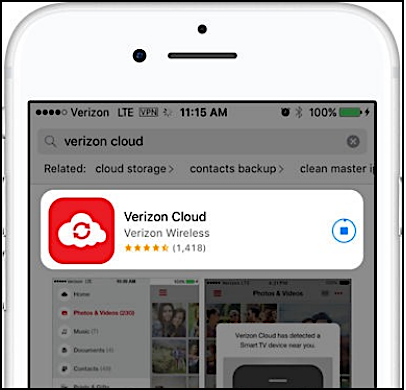
Step 2: Run Verizon Cloud on your phone.
Step 3: Click the Verizon Cloud icon.
Step 4: Click the Navigation Menu icon (three-line icon).
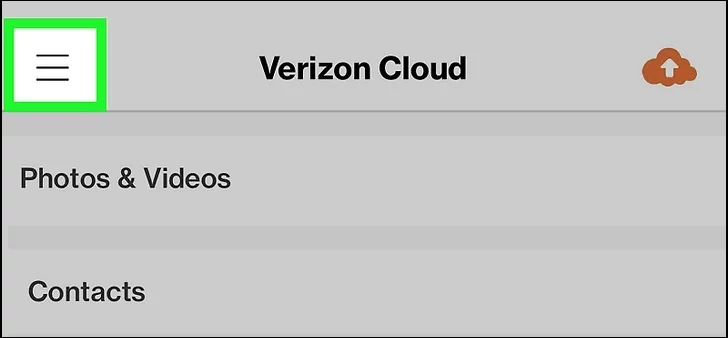
Step 5: Click "Photos & Videos".
Step 6: To access the contextual menu in the lower left, click "All" and then select the three-dot icon.
Step 7: You can select multiple photos at once by holding the shift key and clicking on each photo.
Step 8: Click "Download".
Transfer Photos from Verizon Cloud to a New phone
You can use Verizon Cloud to quickly transfer photos and other important data to a new phone, whether it's an Android or Apple device.
Step 1: Open Verizon Cloud on both phones.
Step 2: Click the Navigation icon on the upper right.
Step 3: Click "Content Transfer".
Note: Both phones should be connected to Wi-Fi.
Step 4: Click "Start Transfer". You may have to allow Verizon Cloud to access all your transfer information on your old phone.
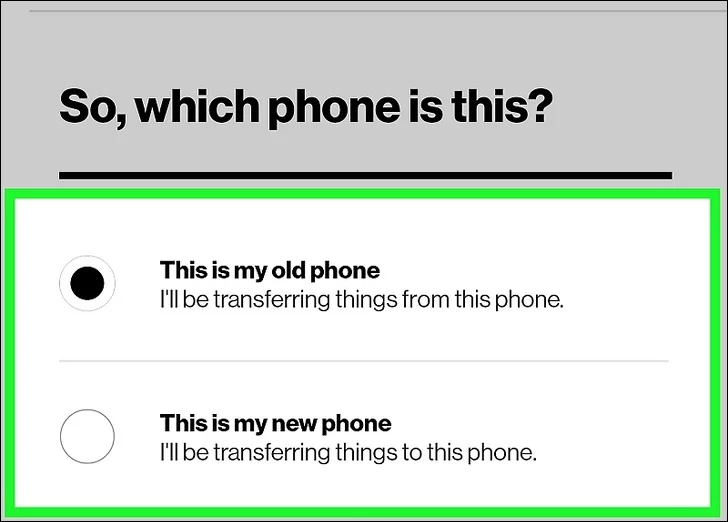
Step 5: To set up your phone, follow the steps below. Tap "This is my old phone" on your old phone. On your new phone, tap "This is my new phone".
Step 6: A notice window will pop up, warning that your Wi-Fi may disconnect while pairing. Click "I understand" to proceed.
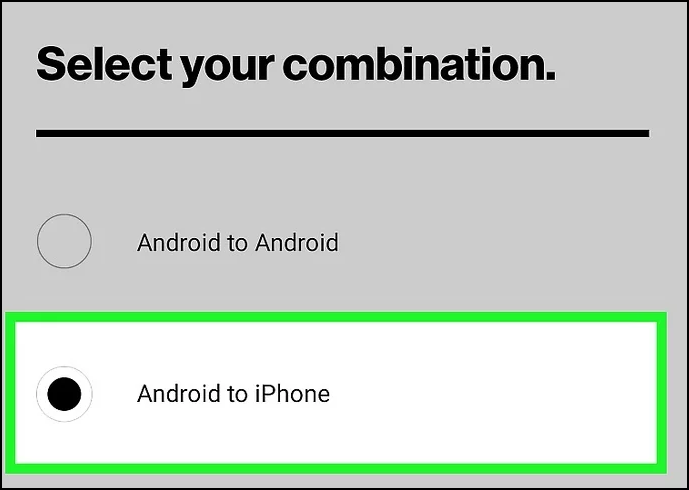
Step 7: Choose a transferring mode. Click "OK".
- iPhone to iPhone
- iPhone to Android
- Android to Android
- Android to iPhone
Step 8: You need to use your old phone to scan the QR code on your new phone. This will connect the two phones wirelessly, allowing you to transfer data between them.

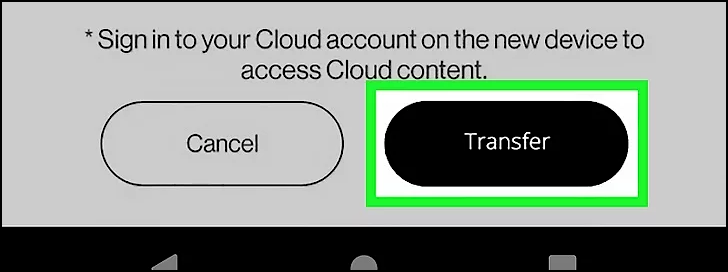
Step 9: To transfer files from your old phone, choose the files you want to transfer and click "Transfer" on your old phone.
Transfer Photos from Verizon Cloud to a Computer
You can use the Verizon Cloud tool to transfer your content, including photos, videos, and contacts, to your new computer, using either the desktop application or website.
#1. Transfer Photos from Verizon Cloud to Computer through the App
Download the Verizon Cloud app, which is available for both PC and Mac, making it easily accessible to users.
PC Download: https://verizoncloud.verizon.com/windows/download
Mac Download: https://verizoncloud.verizon.com/mac/download
Step 1: Find the Verizon Cloud directory in your file system.
Step 2: Select the photos you want to transfer.
Step 3: To download photos, drag and drop them to a local directory. This will initiate the downloading process and your photos will be saved in the specified location.
#2. Transfer Photos from Verizon Cloud to Computer through the Website
If you don't want to download applications on your computer, you can transfer photos from Verizon Cloud to your computer through its website instead.
Step 1: Sign in to your Verizon Cloud account.
Step 2: Choose the "Photos & Videos" tab.

Step 3: Select the files you want to transfer to your computer.
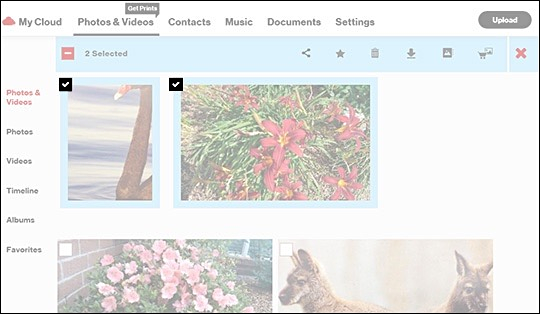
Step 4: Click the "Download" icon on the top.
Step 5: Click "OK".
Note: If you want to transfer multiple photos to your computer, it will download a zip file.
Bonus Tip: Transfer Verizon Cloud App between PCs
Verizon Cloud is a cloud-Verizon Cloud is a cloud storage service that allows you to back up and store your photos, videos, contacts, and other data. While it's convenient to have your data stored in the cloud, you may need to transfer your Verizon Cloud data to another computer at some point. In such cases, Qiling Disk Master can assist with the transfer process.
Step 1. Run Qiling Disk Master on both PCs
On the source PC, select "File sync" on the main screen of Qiling Disk Master and proceed.

Step 2. Connect two computers
1. Select the target PC to connect to via its IP address or device name, then click the "Connect" button.
2. To confirm the login password of your target PC, enter the password in the required field and click "OK".
If you didn't see the target PC in the listed devices, you can manually connect the target PC by clicking "Add PC" and inputting its IP address or device name.

Step 3. Select apps, programs, and software and transfer to the target computer
1. You can select and choose what you want to transfer from the current computer to the target PC, allowing you to customize the transfer process to your needs.
2. To proceed, select the desired applications and programs, then click "Transfer" to initiate the transfer process.

Qiling Disk Master is a user-friendly software that enables quick and easy transfer of installed applications from one PC to another. In addition to its primary function, it also offers features like data rescue and game migration, making it a helpful tool for transferring data between computers. If you're looking for a simple way to transfer your desktop programs, such as Verizon Cloud data, Qiling Disk Master is a great option.
Conclusion
To transfer photos from Verizon Cloud to your phone, download the Verizon Cloud app, sign in, and access all the photos stored in your account. You can also use the app to transfer photos and other data to a new phone or computer, making it easy to free up space on Verizon storage or switch to a new device.
Related Articles
- 4 Reliable Ways to Transfer Data to New Computer on Windows 11
- How to Network and File Sharing Between Windows 7 and Windows 10/11 in 2022
- 4 Quick-Fixes: File Transfer Speed Slow Between 2 Computers on LAN
- How to Move Games from C Drive to D Drive? All You Want Know is Here
- How to Locate or Find Large Files in Windows Server 2022/2019/2016
To ensure smooth performance of applications running on a Windows Server, it's crucial to have sufficient storage space available. However, storage space is costly and limited, making it essential to regularly clear out junk and temporary files. - How to Fix "Google Photo Lost Photos" Issue (with Prevention Tips)
Google Photos lost photos or videos can be caused by account issues, syncing problems, or accidental deletion. To recover lost photos, several solutions can be tried, including restoring from backups or using Google's built-in recovery features.
Products
Articles & Tutorials
- Data Recovery
- Data Backup
- File Recovery
- File Backup
- System Backup and Restore
- Disk and Partition Clone
- Technical articles
- Mobile articles
- Disk Master Help
- Windows Data Recovery Tutorials
- Windows Secure Delete Tutorials
- Windows Partition Management Tutorials
- Windows File Backup and Restore Tutorials
- Windows System Backup and Restore Tutorials
- Windows Disk Backup and Restore Tutorials
- Windows Clone Tutorials