How to Fix "Google Photo Lost Photos" Issue (with Prevention Tips)
| Workable Solutions | Step-by-step Troubleshooting |
|---|---|
| Be sure to log in to the right account | You might have over 1 Google account, and you might find your pictures went missing...Full steps |
| Check archive and locked folder | Open photos.google.com on your PC. Hit the menu, and after that, Archive...Full steps |
| Recover from Google photos trash | Visit photos.google.com from your PC, hit Menu, and after that, click Trash...Full steps |
| Disable suspicious extensions | Hit the Chrome menu button from the three-dot icon. Then, hit the "More Tools"option...Full steps |
| Contact Google Support | Visit support.google.com/drive/ website. Choose "Contact Us" after scrolling to the bottom of the page...Full steps |
Google Photos is considered the safest cloud storage platform, allowing users to upload their photos and free up device space. However, despite its safety features, users may still experience issues with lost photos on Google Photos due to various reasons.
With the introduction of Google Photos and its unlimited high-quality cloud storage, Google has provided a top-notch photo backup strategy through Google Drive. However, users may still face the frustrating issue of "Google Photos lost all my photos" due to technical glitches. To prevent this, it's essential to understand the causes of this issue and take preventive measures, which we'll explore in today's article.
What Causes Google Drive Lost Photos on Computer
Photo deletion from Google Photos is a common issue users face, and it can be caused by various factors. The possible reasons for lost photos in Google Photos include.
- The poor network connection: Due to your fluctuating network condition, the issue arises, affecting not only the loading content but also causing some pictures within it to suddenly disappear.
- Sync failed The issue might occur when the sync task fails and you're unable to see the pictures in your Google Photos. You might have planned to back up the pictures to your Google Photos. But when the sync task fails and you're unable to see that, this issue might occur.
- Human errors: If you accidentally delete pictures on Google Photos, you might be left wondering what happened. This can be frustrating, especially if you had cherished memories stored there.
- Technical glitches: Technical issues or bugs on Google Photos can sometimes cause pictures to be lost.
8 Solutions for Google Photos Not Backing Up Issue
Whenever you encounter issues with syncing or backing up Google Photos, you can resolve them quickly and easily with just a few clicks.
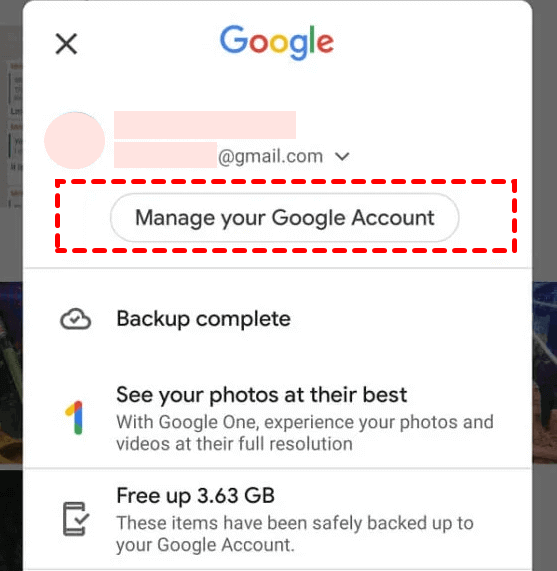
5 Solutions: Recover Lost Photos and Videos from Google Photos
When using Google Photos, it's not uncommon to experience issues such as lost videos or all photos being lost. This can be a frustrating and stressful situation. However, there is no need to worry, as there are solutions available to retrieve your lost videos and photos from Google Photos.
Solution 1. Be sure to log in to the right Google account
If you have multiple Google accounts, it's possible that your photos are stored in a different account than the one you're currently logged into. This can happen when you use a different account to access Google services, and your photos are stored in that account instead of the one you're currently using. To find your missing photos, try checking the account you most recently used to access Google services.
Solution 2. Check every archive and locked folder
If you've tapped "Free up space" on your Google Photos, your device may have deleted videos and photos, but they might still be recoverable through the Google Photos app. To recover lost items, follow these steps:
Step 1. Open photos.google.com on your PC.
Step 2. Hit the menu, and after that, Archive.
Step 3. To select multiple photos, you can either tap on each photo individually or long-press on a photo to select it, then tap on other photos to add them to the selection. Once you've selected all the photos you want, you can tap on the "Select" button at the top of the screen to confirm your selection. Alternatively, you can also swipe left or right on a photo to select it, then tap on the "Select" button to confirm.
Step 4. Click Unarchive after hitting the three-dot icon.
Solution 3. Recover from Google photos trash
If you've accidentally erased photos, they might still be in the Google Photos Trash. You may be able to recover them by following these steps.
Step 1. To view deleted photos, visit photos.google.com from your PC, click the Menu, and then select the Trash option.
Step 2. To retrieve a picture, put your cursor on the desired picture, then select it.
Step 3. To quickly restore a deleted photo, choose "Restore" from the top right area, and the photo will be rapidly retrieved from your Google Photos library and added back to any albums it was in.
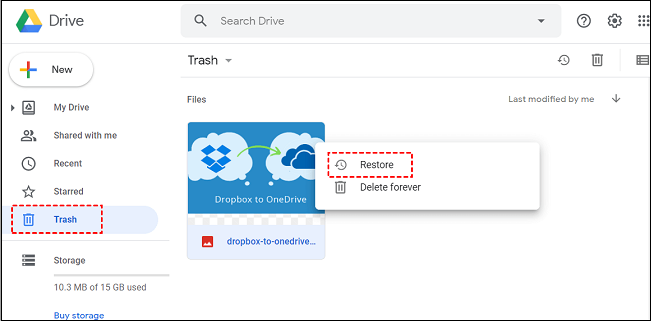
If you've deleted pictures on your iPhone, they might be in the Trash for 60 days before they're permanently deleted. After that, they might be gone for good.
Solution 4. Disable suspicious browser extensions/plugins
Step 1. Hit the Chrome menu button from the three-dot icon.
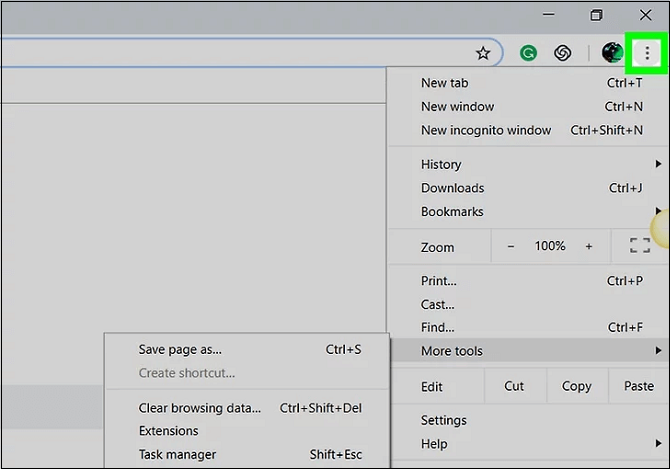
Step 2. Then, hit the "More Tools"option.
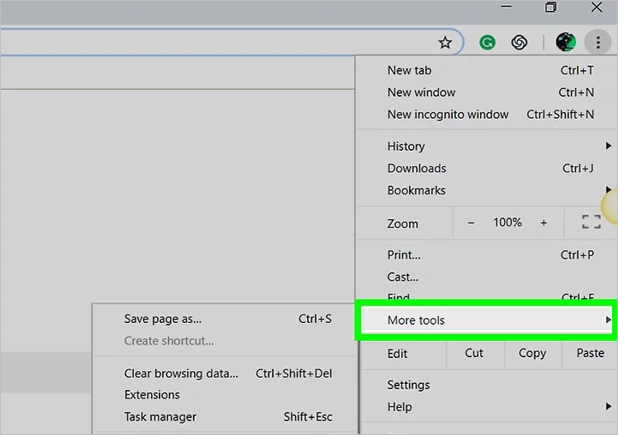
Step 3. Hit the "Extensions"in the submenu showcased on the left.
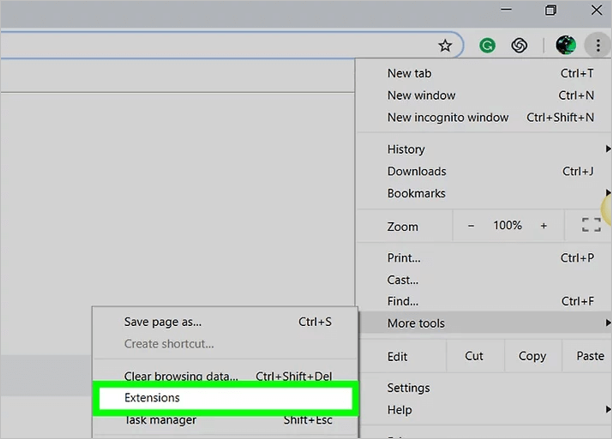
Step 4. To disable or uninstall the extension, toggle the switch to the on position or click the "Remove" option from the extension's bottom.
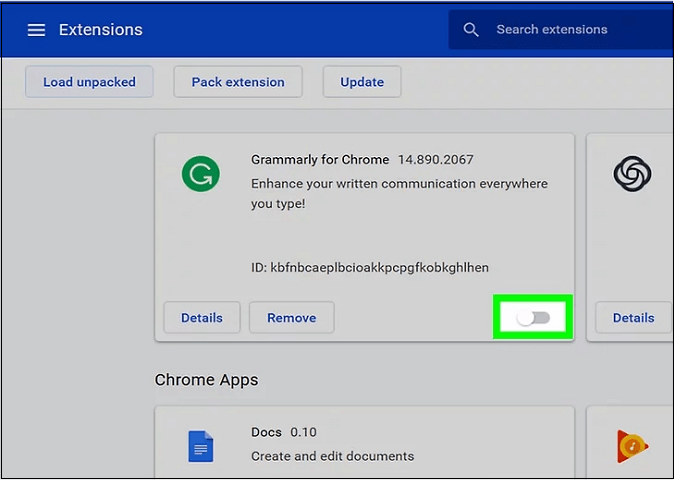
Step 5. To reset Chrome, click on the three dots at the top right corner, then go to More Tools > Extensions. Disable all the extensions by toggling off the switch next to each one.
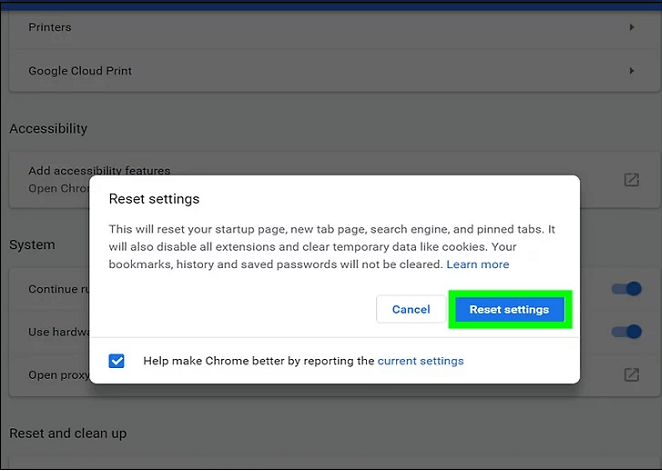
To reset Chrome settings, click the Chrome menu button, select "Settings", then "Advanced" at the bottom, and scroll down to click "Reset settings" to restore to default settings. Then, visit the website to see if the lost Google Photos are restored.
Solution 5. Contact Google Support for photo recovery
If the issue persists after trying the steps mentioned, the final option is to contact the Google support team for further assistance.
Step 1. Visit support.google.com/drive/ website.
Step 2. You can reach out to the website's customer service team by clicking on the "Contact Us" option at the bottom of the page. This will allow you to submit a message or inquiry, and a representative will get back to you as soon as possible.
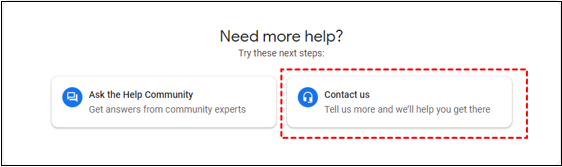
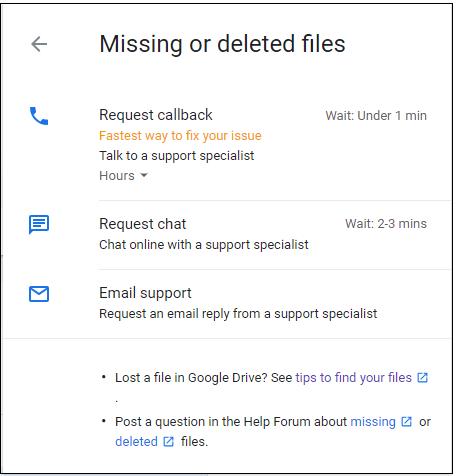
Step 3. Here, you will get three options to choose from: "Request chat", "Request call-back", or "Email support".
Bonus Tip: How to Prevent Google Photo Losing Photos
Google Photos is a convenient option for users to manage and access their photos, making it a popular choice for people to transfer and store their important photos.
When you urgently need crucial pictures for study or work and Google Photos has lost them, it can be a significant problem. Even if Google Photos has lost photos or is not syncing, these ordinary issues can cause major troubles in your life.
Google Photos offers automatic syncing and backup of videos and pictures to a Google account, making them accessible from any device. However, the service has downsides, including the loss of limitless storage and the need for improved editing functions.
To prevent losing pictures, it's best to use a top-notch backup solution like Qiling Backup, which protects thousands of Google Photo files. This backup software also lets you back up every type of file and save the backup to your Google Drive account, and if you opt for Qiling Cloud, you can enjoy 250GB of free cloud storage.
Qiling Backup allows users to save backups to Cloud, local drives, and other cloud services, offering a flexible, secure, and cost-effective cloud backup service. Each user receives 250GB of free cloud storage space, and other features include the ability to save backups to local drives.
- Simple backup management
- Bootable backup and recovery
- Backup schedulin
- Password-protected backups
- Multi-path backup storage
Here, we will give you the full steps to back up your photos. You can follow the instructions to finish it.
Step 1. To begin the backup process, click the File backup button.

Step 2. Lists of both local and network files are shown on the left-hand side of the screen, allowing you to expand the directory and select the files to back up.

Step 3. To store the backup, I will choose the place where I want to store the backup.

Step 4. To set up a backup, make sure the backup is encrypted and set the schedule by clicking Options in Backup Options.

You can also choose to start the backup at a certain time in Backup Scheme by clicking Options, where you can explore many other customizable options.

Step 5. You can store the backup file either on your computer, in Qiling's cloud service, or on a network-attached storage device (NAS).

Step 6. Qiling Backup allows customers to store backup copies of their files on either a third-party cloud drive or on the company's own cloud storage.
To back up your data on a third-party cloud drive, select Local Drive and scroll down to add Cloud Device, then fill in your account information.
Step 7. Click on Proceed to start a backup. When the backup process is complete, it will display as a card on the left-hand side of the screen. Clicking on it will allow you to view more details about the backup job.

Conclusion
Retrieving Google photos and videos is a hassle-free task until you choose a recovery process within 60 days, after which it becomes challenging. However, with the solutions mentioned, you can work on the Google photo lost all my photos issue, but Qiling Backup is the best solution to restore all files on your PC.
Related Articles
- How to Back Up Photos to Google Drive
- Guideline: Backup Specific Folders to OneDrive on Windows 10/11
- 5 Best Free Windows 11 Backup Software | Backup Data for Free
- How to Back Up Windows 10/11 to OneDrive
- Easiest Way to Recover Data after Initializing Disk
How to recover data after initializing disk? Deep Data Recovery can be your ideal choice, and it is a important part in initializing disk without losing data. - How to Recover Deleted Files from HP Laptop in Simple Ways?
What should you do when unexpected events delete your files? Read this article to learn how to recover deleted filed from HP laptop with two proven ways.
Products
Articles & Tutorials
- Data Recovery
- Data Backup
- File Recovery
- File Backup
- System Backup and Restore
- Disk and Partition Clone
- Technical articles
- Mobile articles
- Disk Master Help
- Windows Data Recovery Tutorials
- Windows Secure Delete Tutorials
- Windows Partition Management Tutorials
- Windows File Backup and Restore Tutorials
- Windows System Backup and Restore Tutorials
- Windows Disk Backup and Restore Tutorials
- Windows Clone Tutorials