Can I Transfer Game Saves to Another Computer? Yes, Sure!
Game saves keep your progress, achievements, and settings, so losing them can be frustrating when you switch to a new computer. Fortunately, you can transfer game saves to another PC and continue playing from where you left off.
This tutorial explains how to locate game save files, move installed games and saves to a new PC, and sign in to your game account again so the transferred data can be recognized properly.
1. Locate and Confirm Where Game Saves Are on PC
To locate game saves on a Windows PC, open File Explorer and check the local disk (C), especially the user profile folders where most games store save files and app data.
Some games may store saves in Documents, AppData, the game installation folder, or a cloud account such as Steam Cloud. Check the game's settings or official support page if you cannot find the save folder.
Step 1. Open File Explorer, go to disk (C), and open the "Users" folder.
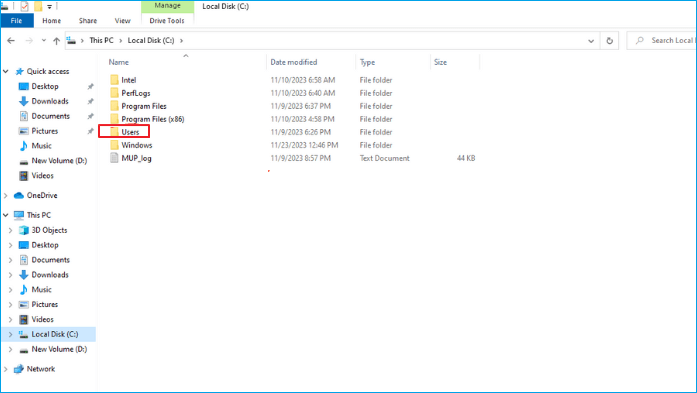
Step 2. This folder contains individual user profiles on your computer.
Step 3. To access your user profile folder, open your File Explorer, navigate to your user name, and click on it to open the folder containing your personal files, including game saves.
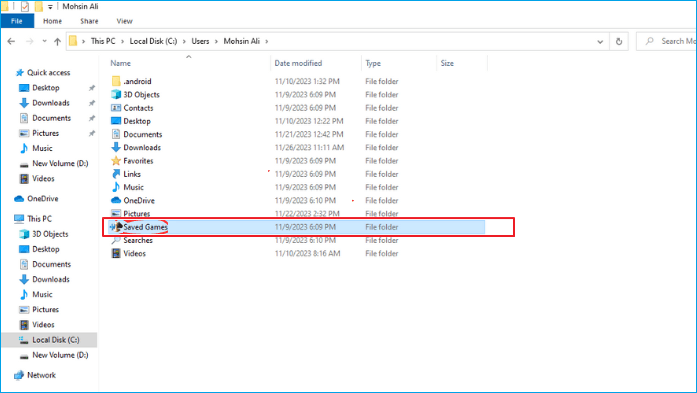
Note: The location of game saves can vary depending on the game and your computer's configuration, including the game installation settings.
2. Download PC Transfer Software for Help
Manually copying game folders from an old PC to a new one can lead to compatibility issues, preventing games from launching or playing normally, due to the complexities of game installation and configuration involving registry entries, application data, and other dependencies that are not easily transferred.
To ensure a seamless transfer of your installed games and game saves, it's recommended to use reliable PC transfer software, such as Qiling Disk Master Tech Professional, which offers a dedicated PC to PC transfer feature, allowing you to transfer games, game saves, and even game accounts to your new PC without hassle.
With Qiling Disk Master Tech, you can:
- Transfer installed games, game saves, and game accounts from your old PC to your new PC.
- Keep transferred games compatible by checking system requirements and updating the operating system, graphics drivers, and game clients on the new PC.
- Reduce errors that often happen with manual file copying, such as missing registry entries, app data, or game dependencies.
- Save time and effort by automating the transfer process.
Download Qiling Disk Master Tech to transfer installed games and game saves to a new PC without reinstalling them. This game mover software can also help when switching game drives or replacing a computer.
3. Transfer Game Saves to Another PC with Installed Games, No Reinstallation
Now that you've located your game saves, it's time to transfer them to your new PC using reliable PC transfer software like Qiling Disk Master Tech, which ensures a smooth and seamless transfer process, allowing you to transfer game saves, installed games, and game accounts without reinstalling your games.
Extended Reading: Game Account Verification After Moving Game Saves
After moving game saves to a new PC, sign in to the same game account so the game client can verify your ownership and recognize the transferred saves. For Steam games, use your existing Steam account on the new computer.
Step 1. Launch Steam on your new PC.
Step 2. Sign in to Steam using your existing account that you were using on your previous PC. This will allow you to access your games, friends, and community features on your new computer.
Step 3. Follow on-screen steps if needed.
Conclusion
Transferring game saves to a new PC helps you continue your progress without losing achievements or settings. Manual copying can miss important files, so reliable PC transfer software like Qiling Disk Master Tech can make the process smoother.
Qiling Disk Master Tech not only transfers game saves but also entire game installations and accounts, eliminating the need for reinstallation. This makes it easy to move your entire gaming experience to a new PC without hassle.
FAQs about Transferring Game Saves to Another PC
If you have more questions about transferring game saves to another PC, read the FAQs below.
1. Can I transfer Minecraft with saves from a desktop to a laptop?
You can transfer your Minecraft game with saved files from a desktop to a laptop using Qiling Disk Master Tech. Follow our step-by-step guide to ensure a smooth transition without losing any progress in your Minecraft world.
2. Where does PC save the game files?
Game files are usually stored on the local disk (C) within the "Users" folder, under your specific user profile, but the exact location may vary based on the game and computer configuration.
3. Can I move Steam game saves from PC to PC?
You can transfer Steam game saves from one PC to another by following a series of steps, including logging into your existing Steam account on the new PC to certify your games and ensure a seamless transfer of game saves and installed games.
Related Articles
- How to Move Files from OneDrive to Teams
- How to Move Games from C Drive to D Drive [All You Need]
- How to Transfer Files to a Flash Drive in Windows 10
- Transfer Apps and Programs from PC to an External Hard Drive
- How Do I Transfer My Netflix from One Device to Another?
If you're switching devices or PCs, you can easily transfer your Netflix videos to the new device without having to download them again. Follow a simple guide to move the files, which involves using tools and methods that will make the process easy and hassle-free. - [Solved]How to Transfer Office 365 to New Computer
If you're trying to transfer Office 365 to a new computer, this article is for you. It provides two methods to help you transfer Office 365 to a new computer using the product key, making the process easy and straightforward.
Products
Articles & Tutorials
- Data Recovery
- Data Backup
- File Recovery
- File Backup
- System Backup and Restore
- Disk and Partition Clone
- Technical articles
- Mobile articles
- Disk Master Help
- Windows Data Recovery Tutorials
- Windows Secure Delete Tutorials
- Windows Partition Management Tutorials
- Windows File Backup and Restore Tutorials
- Windows System Backup and Restore Tutorials
- Windows Disk Backup and Restore Tutorials
- Windows Clone Tutorials