Mac Won't Go to Sleep [7 Proven Ways to Fix It]
Turning your Mac to sleep mode is a great way to save energy while still keeping the system on, allowing for quick wake-up times when needed. This mode reduces power consumption, making it an efficient way to conserve energy without fully shutting down the device.
When you're not using your Mac for a few minutes, it's better to put it in sleep mode and lock the screen instead of shutting it down. This way, you won't have to wait for it to turn back on, and you'll avoid potential glitches or errors that can occur during startup.
Several users have reported that the sleep mode on Mac is not working properly, preventing the system from going to sleep or waking up.
To fix the Mac won't go to sleep issue, try updating your operating system, checking the Energy Saver settings, and ensuring the display is set to turn off. Also, check for any software updates for your graphics card and disable any unnecessary startup programs.
| Workable Solutions | Step-by-step Troubleshooting |
|---|---|
| Fix 1. Correct Sleep Settings | Go to the Apple logo. Select System Preferences from the drop-down, and choose Energy Saver...Full steps |
| Fix 2. Stop Bluetooth Devices Waking Up Mac | Go to the Apple logo, select System Settings/System Preferences, and choose Bluetooth...Full steps |
| Fix 3. Check Sharing Preferences | Select System Settings from the drop-down menu, and choose General from the left side...Full steps |
| Fix 4. Check Activity Monitor to Find Problematic Apps | Go to Applications > Utilities > Activity Monitor. Go to the CPU tab. Look at the list of apps...Full steps |
| Other Practical Fixes | Disconnect peripherals, stop Spotlight indexing files, and reset NVRAM/PRAM and SMC...Full steps |
Mac Won't Go to Sleep: Possible Causes
Is your MacBook Pro/Air refusing to go to sleep mode? Several Mac users have reported the Mac not going to sleep problem. To understand the solutions, knowing more about the causes is vital. Here are the main causes that stop Mac from sleeping:
- ⚙️System sleep settings: This error occurs when the sleep settings on macOS are modified or changed, and you need to check the settings to ensure sleep mode is enabled.
- 📶Network access settings: IIf you're using a shared network, another user may be able to remotely wake your Mac due to shared resources, so you'll need to adjust your Network access settings to prevent this.
- 🔗Sharing settings: Using shared services on the system can interfere with sleep mode, such as using a printer connected to your device, which can wake it up.
- 📊Activity Monitor: If processes run in the background, they can prevent the Mac from entering Sleep mode. To check, look at the Activity Monitor to see if any process is using an unexpectedly high CPU.
Solutions to Fix Mac Won't Go to Sleep
To resolve the Mac won't go to sleep error, several solutions can be applied. These include checking and disabling any software that might be preventing the computer from sleeping, adjusting the Energy Saver settings, resetting the System Management Controller (SMC), and updating the operating system to the latest version. Additionally, checking for and removing any malware, resetting the PRAM, and performing a clean boot can also help resolve the issue.
Fix 1. Correct Sleep Settings
The Mac sleeps automatically after a certain amount of time passes, but if it doesn't, something is likely wrong with the sleep settings.
Go to System Preferences, then select "Energy Saver" and adjust the settings to your liking. Ensure that the computer is set to sleep when it is not in use, and adjust the time interval as needed. This should resolve the issue and allow your Mac to sleep properly.
Step 1. Go to the Apple logo.
Step 2. Select "System Preferences" from the drop-down.
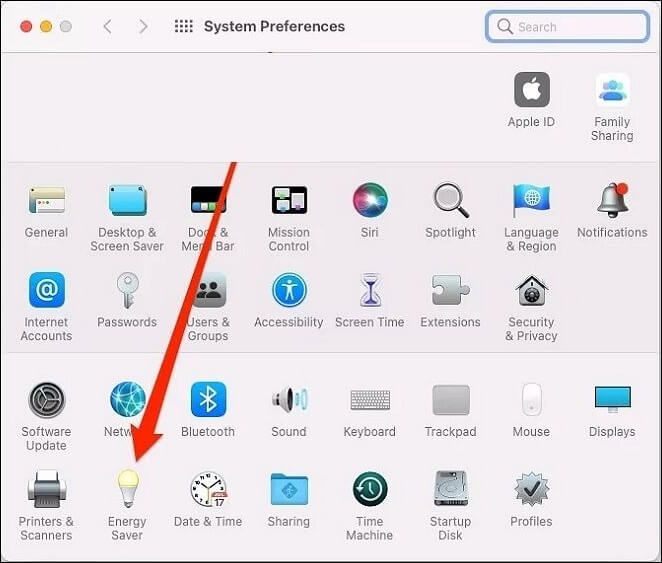
Step 3. Choose "Energy Saver" or "Battery".
Step 4. Here, set the time for "Computer Sleep and Display Sleep".
Note: Ensure Computer Sleep and Display Sleep are not set to Never, and note that Energy Saver Settings may not be available on macOS Ventura.
To fix the issue of macOS Ventura's WindowServer preventing the computer from sleeping, try one of the 10 available solutions. These include running the Terminal command `killall -HUP WindowServer`, resetting the System Management Controller (SMC), and restarting the computer.
The WindowServer issue on macOS Ventura can prevent your Mac from sleeping, and there are 10 available solutions to fix this problem. These solutions include force-quitting the WindowServer process, disabling animations, resetting the System Management Controller (SMC), and restarting your Mac. Additionally, users can try disabling the "Close windows when quitting an application" setting, resetting the Launch Agents and Launch Daemons, and reinstalling macOS Ventura.
Fix 2. Stop Bluetooth Devices Waking Up Mac
You might not be aware, but Bluetooth settings on your Mac allow devices connected via Bluetooth to wake up the system, such as using a mouse or keyboard. To prevent this, you can follow these steps to adjust your Bluetooth settings.
Step 1. Go to the Apple logo.
Step 2. Select "System Preferences/System Settings".
Step 3. Choose "Bluetooth".
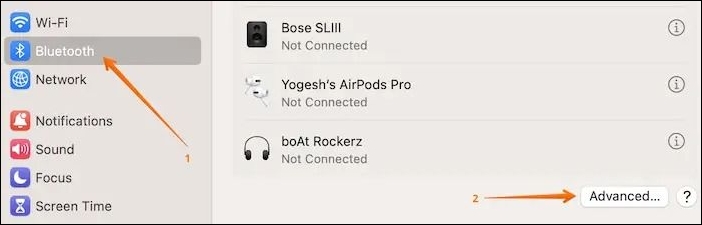
Step 4. Click "Advanced".
Step 5. To resolve the issue, you need to uncheck the option "Allow Bluetooth devices to wake this computer" in the Power Management settings for your Bluetooth device. This will prevent the computer from waking up when the Bluetooth device is connected.
Note: If your system is not updated to macOS Ventura, you will find this option.
Fix 3. Check Sharing Preferences
To prevent interference with Mac's sleep mode, disable sharing preferences, which allow users to share resources such as printers and hard disks.
Take a look at these steps:
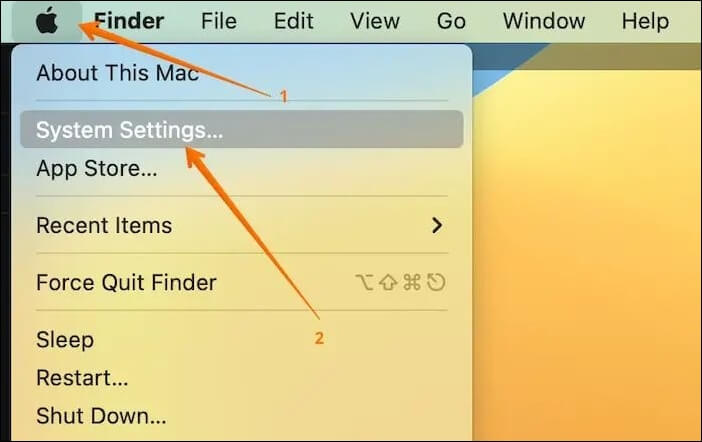
Step 1. Go to the Apple logo.
Step 2. Select "System Preferences/System Settings" from the drop-down menu.
Step 3. To access the sharing settings, select "General" from the left-hand side of the settings menu, followed by "Sharing" on the right-hand side.

Step 4. Here, you must deselect the services you don't need.
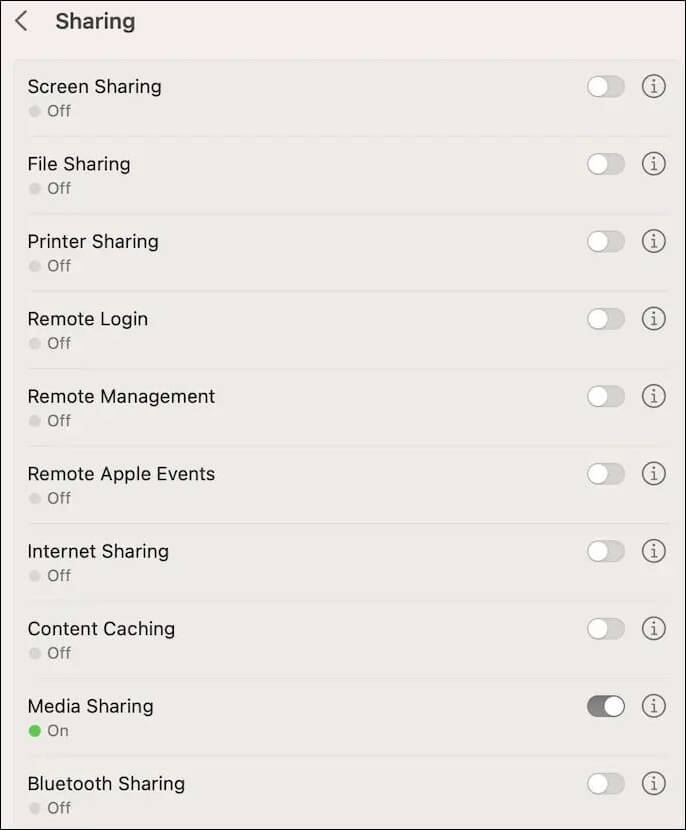
If your Mac won't go to sleep, there are several troubleshooting steps you can take to resolve the issue. First, ensure that your Mac's power settings are set to sleep, and that the "Prevent computer from sleeping automatically when the display is off" option is disabled.
Fix 4. Check Activity Monitor to Find Problematic Apps
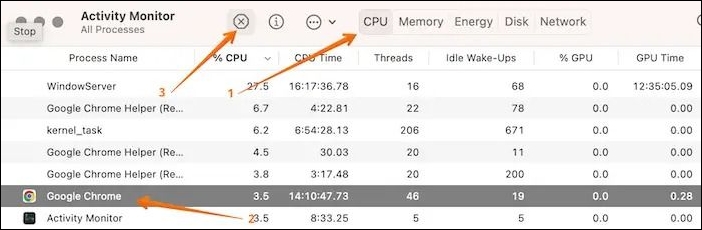
Some apps consume a disproportionate amount of CPU resources, not only using up most of the system's power but also preventing the Mac from entering sleep mode. To identify and address this issue, you can use the Activity Monitor to locate these resource-hungry apps and force quit them.
To do that, here are the steps:
Step 1. To access Activity Monitor, go to Applications, then Utilities, and finally select Activity Monitor.

Step 2. When Activity Monitor opens, go to the CPU tab and note the apps that are using too much CPU.
Step 3. Select the app.
Step 4. Go to the cross icon at the top-left corner.
Step 5. Select "Quit" or "Force Quit".
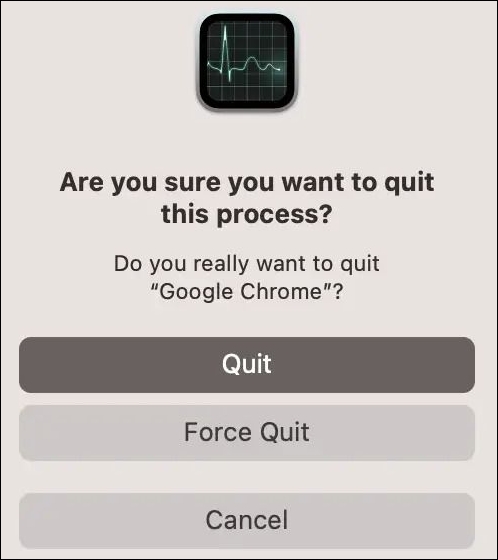
Forcing quit an application on a Mac can lead to data loss, such as losing unsaved changes in a frozen Word document. In such cases, using a professional data recovery tool like Deep Data Recovery for Mac can help restore the document.
You can recover files on Mac after a sudden shutdown with the help of trusted Mac data recovery software. With a few clicks, you can retrieve your lost data using this software, which provides a reliable solution for recovering files on Mac.
Step 1. Launch Deep Data Recovery for Mac and select the storage device where the lost data is located. Click "Search for lost files" to initiate a scan.

Step 2. The software automatically scans for lost data on MacBook/iMac, and after completing the scan, allows users to filter their wanted data using the "Type" and "Path" buttons.

Step 3. To recover lost data, double-click on the file to preview its contents. After reviewing, click the "Recover" button to restore the lost data to a designated location.
Fix 5. Disconnect Peripherals
If your Mac won't sleep, try disconnecting external peripherals one by one to identify the problematic device. If that solves the issue, replace the damaged peripheral.
Fix 6. Stop Spotlight Indexing Files
Spotlight's indexing feature can prevent a Mac from going to sleep and may take hours to complete if there are many files to index, making it a potentially time-consuming and sleep-disrupting process.
To prevent Spotlight from indexing files, you can add them to the Privacy tab in Spotlight's preferences, which is located in System Preferences. This will exclude them from being indexed and searched by Spotlight.
Step 1. Open "Terminal".
Step 2. Type - sudo mdutil -i off.
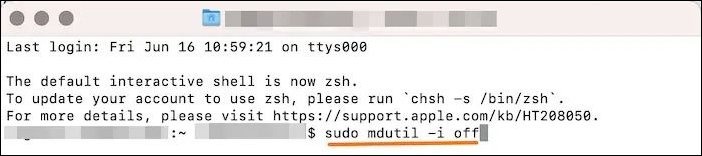
Step 3. Hit "Return".
Fix 7. Reset NVRAM/PRAM and SMC
To resolve the issue of a Mac not going to sleep mode, you can try resetting NVRAM/PRAM and SMC. This involves following specific steps to clear the memory and settings that may be causing the problem. The process of resetting NVRAM/PRAM typically involves restarting the Mac and immediately holding down the Command + Option + P + R keys, which will cause the Mac to clear its memory and reset its settings.
Step 1. Shut off the device.
Step 2. Press the power button.
Step 3. Press the "Command + Option + P + R" keys simultaneously. This will reset the System Management Controller (SMC), which can help resolve issues with your Mac's power management, fan, and other system functions.
Step 4. Release the keys when you hear the startup sound twice.
In the case of T2-On Macs, you can release the keys when you see the Apple logo appear and disappear twice.
Check out the steps to reset SMC on T2-based Macs:
Step 1. Shut off the device.
Step 2. Press and hold the power button.
Step 3. Restart the system.
Step 4. If it doesn't work, shut down the system.
Step 5. Press and hold the left "Option" key, right "Shift" key, and left "Control" key.
Step 6. Press and hold the power button at the same time.
Step 7. Release all the keys, and restart the device.
Conclusion
If you're not using your Mac for a few hours, putting it into sleep mode is a good idea. However, there are several reasons why your Mac might not be able to sleep, including incorrect sleep settings or shared network access settings. Understanding the causes can help you find the right solutions.
To resolve the error, check the sleep settings, Bluetooth settings, or shared access settings, and consider using Deep Data Recovery for Mac if you're experiencing data loss due to sudden shutdowns.
Mac Won't Go to Sleep FAQs
If your Mac won't go to sleep, there are several possible reasons. One reason could be that your Mac is set to never sleep, which can be changed in the Energy Saver preferences.
1. Why does my Mac not go to sleep when I close it?
The Mac may not sleep when closed due to various reasons such as apps consuming excessive resources, system errors, faulty external peripherals, incorrect sleep settings, and more.
2. How do I force my Mac to sleep?
To force your MacBook to sleep, click on the Apple logo in the top left corner of the screen and select "Sleep" from the dropdown menu. This will put your laptop into a low-power state, reducing energy consumption and helping to prolong battery life.
3. Why is my Mac going to sleep but still running?
Your Mac is running while asleep, which is normal, as it uses less power and can be easily woken up when needed, continuing to drain a little power and network activity.
4. How do I make my Mac stay on and not sleep?
To prevent your Mac from sleeping, go to System Preferences > Energy Saver and set "Computer Sleep" and "Display Sleep" to "Never".
Related Articles
- Fix and Repair Volume Shadow Copy Service Not Working Error in Windows 10
- Mac Error Code 8072 Occurs? Check Here to Get Rid of It
- Reset MacBook to Factory Settings | Complete Guide in 2023
- Format FS=FAT32 Quick: Full and Comprehensive Guide on Use It
- Fix: System Restore Failed To Extract the File
System Restore is necessary for all of us, but maybe sometimes you will face such problems. For example, System Restore failed to extract the file, which could influence work efficiency and put an additional burden on them. So how to fix it? Let us explore together! - System_Thread_Exception_Not_Handled on Windows 10/11, Fixed Now
How do you fix system_thread_exception_not_handled nvlddmkm.sys in Windows 10 or Windows 11? Your computer may display system thread exception not handled blue screen error and stuck in Windows boot loop. This tutorial shows you how to fix system_thread_exception_not_handled without data loss.
Products
Articles & Tutorials
- Data Recovery
- Data Backup
- File Recovery
- File Backup
- System Backup and Restore
- Disk and Partition Clone
- Technical articles
- Mobile articles
- Disk Master Help
- Windows Data Recovery Tutorials
- Windows Secure Delete Tutorials
- Windows Partition Management Tutorials
- Windows File Backup and Restore Tutorials
- Windows System Backup and Restore Tutorials
- Windows Disk Backup and Restore Tutorials
- Windows Clone Tutorials