QuickBooks Online Keeps Crashing [Troubleshoot with Comprehensive Guide]
QuickBooks Online users are experiencing issues with the app, hindering their daily accounting tasks. Despite efforts, the problems persist, making it difficult for users to manage their finances effectively.
QuickBooks is a software program that helps businesses manage their finances by tracking sales and purchases, managing inventory, and producing reports based on the data.
Quickbooks has several issues, including bugs that prevent transactions from being completed correctly, security problems, and difficulties with updating accounts for new tax forms or IRS deadlines. These problems can lead to the app crashing, causing frustration for users.
To save you from that, here's a step by steps to troubleshooting Quickbooks with a comprehensive guide.
Why QuickBooks Online Keeps Crashing
If you're experiencing issues with QuickBooks Online, it's likely due to one of the following reasons: your computer's hardware is outdated, your browser is outdated or incompatible, your internet connection is slow or unstable, or there are issues with your QuickBooks account or subscription.
QuickBooks Online crashes can be frustrating, but there are ways to resolve the issue. The problem often stems from outdated browser versions, corrupted files, or insufficient system resources. To fix the issue, users can try updating their browser, clearing cache and cookies, or running a system scan to identify and resolve any issues.
1. Excessive Use
QuickBooks Online is experiencing crashes due to high traffic, possibly caused by multiple users accessing the system with the same login credentials, resulting in incomplete data visibility and transactions not being reflected in individual accounts.
2. Missing or Corrupted QBWUSER. INI Files
If the program files and QBWUSER.INI files are corrupted or missing, reinstall QuickBooks Desktop and try to access it again. If the issue persists, you may need to reinstall your operating system.
3. Incomplete Installation
Check the installation or program files for any errors or incomplete installation processes that may have occurred, ensuring all necessary programs for QuickBooks Desktop are properly installed before proceeding.
3. Failed Backup
When installing QuickBooks Desktop, make sure to create a QBWUSER.INI file in advance to ensure proper functionality with online mode. If you haven't created one, create a new QBWUSER.INI file in an empty text file now to use later when needed, or use default values for new installations with no customized settings applied yet.
4. Too Much Cache Data
A server can slow down and become inaccessible to users when it's overwhelmed with cache data, often due to insufficient RAM to hold all the data. Increasing the server's RAM can help resolve this issue by providing enough storage to hold the cache, allowing the server to run smoothly again.
5. Antivirus Blocking
Antivirus software can block access to websites, but this can be resolved by ensuring the software is up-to-date. If updates are available, install them, otherwise, update it manually or wait for the next scheduled update.
If you want to know more details about Quickbooks, please read the following articles.
[Troubleshoot] QuickBooks Keeps Crashing
Now that you know the reason why QuickBooks keeps crashing, it's time to step ahead. Mostly, app crashes occur due to viruses or malfunctions, but there are solutions to fix these issues.
For QuickBooks crashing issues, start by restoring a backup of your company file to protect important data. If you cannot restore a backup, try running QuickBooks in safe mode to check whether the issue is caused by a third-party add-on or a corrupted QuickBooks installation.
Before attempting any solutions from the list, it's essential to perform an optional recovery, also known as a recovery. This step is crucial and should be done first to ensure the best possible outcome.
Looking for the best backup software? Qiling Disk Master software is all you need.

Qiling Disk Master Solutions is a backup and restore software for Windows 10 that provides complete backup and restore features, including basic, incremental, differential, and full backups, and allows scheduling backups for daily, weekly, monthly, or yearly backups, and also provides secure file sharing over Windows Mobile, Android, and iOS devices.
Here are the steps to use Qiling Disk Master:
Qiling Disk Master 2023 was a significant release for Windows users, offering robust data backup capabilities for various applications, including finance and design programs, as well as mail servers. The software is now expanding its support to include backup needs for popular games such as Call of Duty: Warzone, It Takes Two, and others, providing users with a comprehensive backup solution for their digital lives.

If you're unable to find the app you're using after selecting "Apps data backup", click this link and subscribe the app's name, and our IT workers will soon make it compatible.

To fix QuickBooks crashing issues in Windows, try restarting your computer, disabling any recently installed software or plugins, running QuickBooks as an administrator, checking for Windows updates, and reinstalling QuickBooks. You can also try disabling any antivirus software that might be interfering with QuickBooks, or running a virus scan to ensure your system is free from malware. Additionally, check for any corrupted QuickBooks files or settings by running the QuickBooks file doctor, and consider reinstalling QuickBooks if none of the above steps resolve the issue.
- Method 1. Open QuickBooks in a New Browser Window
- Method 2. Clear the Cache of Your Browser
- Method 3. Rename the QBWUSER.INI File
- Method 4. Restart the QuickBooks Online
- Method 5. Update Windows
- Method 6. Seek Help from QuickBooks Support
Method 1. Open QuickBooks in a New Browser Window
If QuickBooks is crashing in a particular browser, try launching it in a new tab or window. If it opens easily, check if the crashing issue has been resolved. If not, proceed to the next solution.

Method 2. Clear the Cache of Your Browser
The cache is a temporary storage system that stores data to reduce access time and prevent lagging, especially when primary storage is overwhelmed.
Clearing your browser's cache can resolve the crashing issue of QuickBooks, as a fully overloaded cache can cause problems. This simple step can also improve your browser's performance and aid in troubleshooting. Additionally, trying a different compatible browser can help identify if the issue is browser-related.
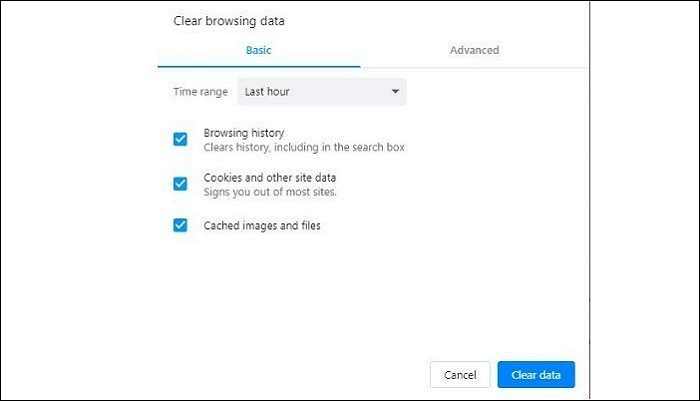
Step 1. To clear browsing data, go to the browser settings and find the option for clearing browsing data.
Step 2. To clear your browsing history, click the left mouse button and select the "clear data" option, which will erase all browsing history up to the present time.
Method 3. Rename the QBWUSER.INI File
QuickBooks may crash due to a missing or corrupted QBWUSER.ini file, but renaming the file is the best way to fix the issue. To do this, follow the steps:
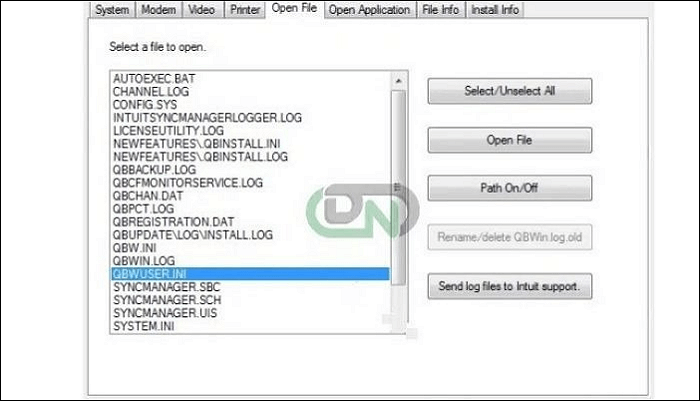
Step 1. Open the directory where your QBWUSER.ini file is stored.
Users [Your user name] AppDataLocalIntuitQuickBooks [year]
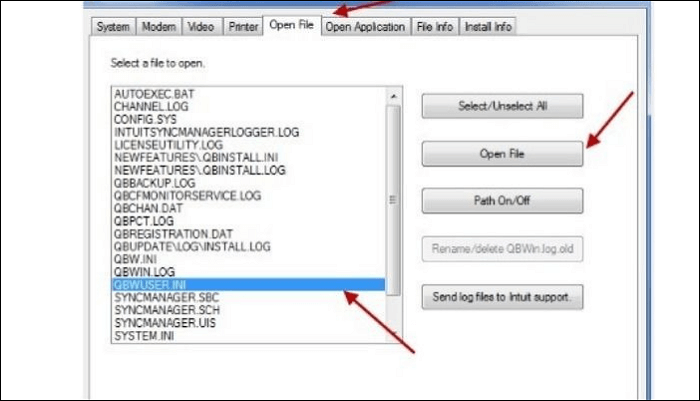
Step 2. If you're having trouble viewing a folder, try opening the secret files and folders that are visible. This might help you troubleshoot the issue and gain access to the folder.
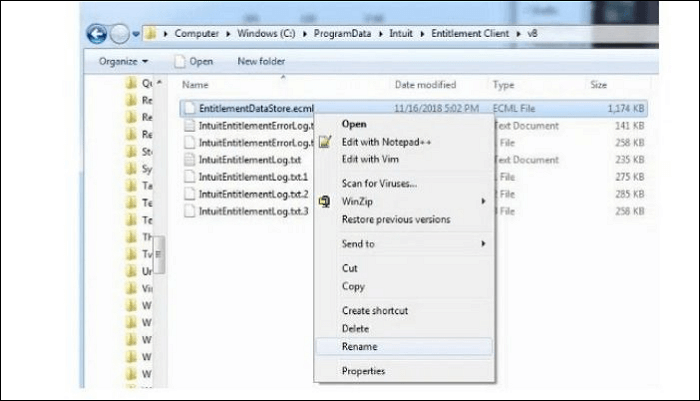
Step 3. To rename the "QBWUSER.ini" file, click on it to select it, then click on the "File" menu and select "Rename" from it.
Step 4. To rename a file, you can use the `mv` command in Unix-like systems, which will move the original file to a new name with the `.old` extension, preserving the original file's contents. For example, running `mv EntitlementDataStore.ecml QBEUSER.ini.old` will result in a new file named `QBEUSER.ini.
Step 5. Try running QuickBooks Desktop one more time to see if the issue persists.
Method 4. Restart QuickBooks Online
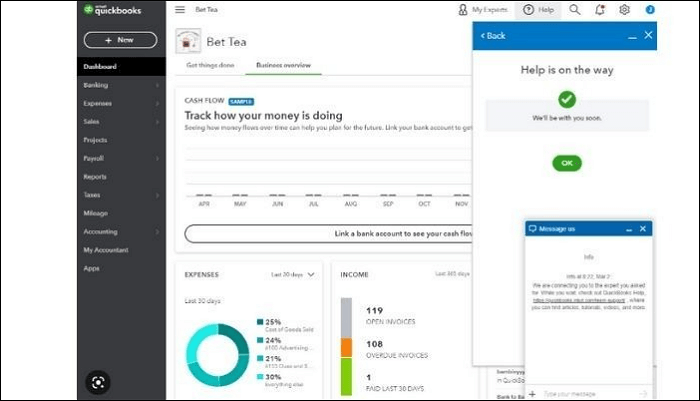
If none of the solutions work, try restarting QuickBooks online. If that doesn't work, a fresh installation of QuickBooks may be your best option, which can be done manually through the Control Panel or using QuickBooks itself to save time and effort.
Step1. Open the Control Panel by clicking the "Start" button.
Step 2. Next, choose the "Programs and Features" option.
Step 3. To uninstall QuickBooks Desktop, check the list of installed programs, select QuickBooks, click "Uninstall/Change," and then click "Uninstall." Wait for the uninstallation to complete.
Step 4. After uninstalling QuickBooks Desktop, you can reinstall the software using the clean install tool. This process requires having both your license key and product key readily available. Once installed, you can proceed with the software.
Step 5. Once the process is complete, restart your computer and relaunch QuickBooks Desktop to verify if the issue persists.
Method 5. Update Windows
To update your Windows to the latest version, follow these steps: go to the Start menu and click on the "Settings" icon, which is usually represented by a gear or a cog. From the Settings window, click on "Update & Security." In the Update & Security window, click on "Windows Update" from the left menu. Click on "Check for updates" and let Windows search for and download any available updates.
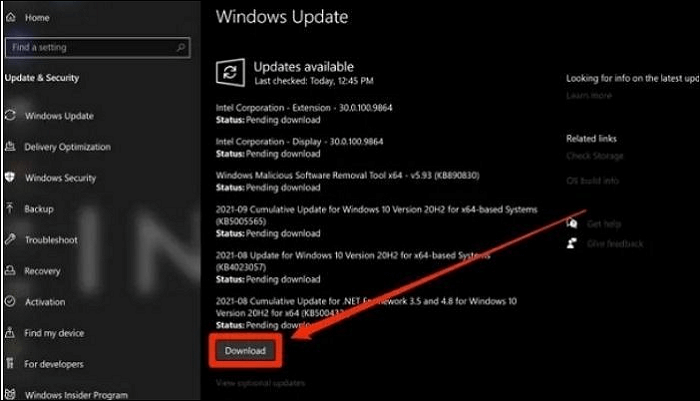
Step 1. To check if your Windows need to update, go to the "Settings" and see if any updates are available. To start, select "Right-Click" from the Start menu.
Step 2. To check for updates on a device, select the "Settings" menu, then choose the option for "security and updates," and finally select the "Check for updates" tab.
Step 3. After updating the windows, restart your computer. Then, open QuickBooks desktop to see if the crashing issue has been resolved.
Step 4. Once the problem is fixed, you can install and launch QuickBooks normally. If not, move on to the next solution.
Method 6. Seek Help from QuickBooks Support
If QuickBooks is crashing frequently, users may struggle to resolve the issue themselves and may need professional help. QuickBooks support provides guidance on addressing these issues, and seeking assistance from experts can be beneficial for resolving various QuickBooks-related problems, including error support, taxation, payroll, and bookkeeping.
Sum Up
If you're experiencing issues with QuickBooks Online, try checking your internet connection and ensuring your PC is updated. Before attempting any troubleshooting steps, close all other programs and web browsers, restart your computer, and then restart it again. If that doesn't work, consider uninstalling and reinstalling QuickBooks, and don't forget to back up your important data using the Qiling Disk Master tool before making any changes.
FAQ on QuickBooks Online Keeps Crashing
QuickBooks online keeps crashing, and it's frustrating. If you're experiencing frequent crashes, it might be due to outdated browser versions, insufficient system resources, or even a corrupted cache. Try updating your browser, closing unnecessary programs, and clearing the cache to resolve the issue. If it persists, consider reaching out to QuickBooks support for personalized assistance.
1. How do I stop QuickBooks from crashing?
If your computer or browser is crashing, try restarting your computer and clearing your browser cache and cookies to see if that resolves the issue.
2. Can QuickBooks Online be corrupted?
QuickBooks Online can be affected by malware, however, it's not the same type of malware that infects a computer.
3. How do I clear cache and cookies in QuickBooks Online?
To clear your QuickBooks Online cache and cookies, follow these steps: clear your browser's cache and cookies, or use the built-in cache and cookie clearing tools provided by your browser. This will help resolve issues with QuickBooks Online, such as slow loading times or errors.
Step 1. To access the Accounts page in QuickBooks Online, go to the platform and click on the Accounts icon located in the top right corner of the screen. This will take you to the Accounts page where you can view and manage your business's financial accounts.
Step 2. To clear the cache and cookies for a specific account, select the account from the list, click on the Actions dropdown menu, and choose Clear Cache. This will open a new window where you can choose how many months of data to clear.
Step 3. Click on OK when you're done, and then close out of the window.
Related Articles
- How to Cancel Windows 10 Updates Once Started
- Restore Deleted/Crashed Notepad ++ Files from Backup
- Stardew Valley Saves Location: All You Want to Know
Find Stardew Valley saves location on Windows, Mac, Linux, and mobile. Learn how to back up, move, and recover Stardew Valley save files. - [BSOD Error] How to Fix the Stop Code Memory Management in Windows
Are you receiving stop codes from memory management in Windows? Then check out these solutions which help you resolve the problem and ensure the stop code doesn't reappear. Even if it does, you always know how to resolve it. - How to Connect PS4 Controller to PC? Follow A Full Guide
Unleash the full potential of your PS4 controller on your PC by following our simple step-by-step guide. Pair your controller with your computer in no time and customize its settings to take your gaming experience to the next level. - How to Fix "Convert GPT Grayed Out" Error in Windows [2023 New Fix]
The GUID Partition Table (GPT) system allows for more storage capacity and flexibility compared to the traditional Master Boot Record (MBR). Unlike MBR, GPT enables the creation of multiple partitions, making it a more efficient and scalable option for managing disk space.
Products
Articles & Tutorials
- Data Recovery
- Data Backup
- File Recovery
- File Backup
- System Backup and Restore
- Disk and Partition Clone
- Technical articles
- Mobile articles
- Disk Master Help
- Windows Data Recovery Tutorials
- Windows Secure Delete Tutorials
- Windows Partition Management Tutorials
- Windows File Backup and Restore Tutorials
- Windows System Backup and Restore Tutorials
- Windows Disk Backup and Restore Tutorials
- Windows Clone Tutorials