How to Back Up QuickBooks Desktop to Flash Drive [QuickBooks Guides]
Can You Back Up QuickBooks on a Flash Drive
QuickBooks is a comprehensive accounting software that enables small businesses to effectively manage their finances, offering features such as income and expense tracking, invoice and report creation, and customer and vendor management.

QuickBooks desktop data is stored on the computer's hard drive, but can be backed up to a flash drive, which is a convenient way to copy and export data in case of a computer crash or other issues, allowing for easy transfer to another computer.
Two common ways to back up QuickBooks desktop to a flash drive include using the built-in backup utility in QuickBooks desktop and applying professional data backup software.
Backup QuickBooks Desktop to Flash Drive with Built-in Feature
QuickBooks desktop allows users to easily back up their company file, which includes data such as templates, logos, accounting information, reports, and loan manager, using the built-in Backup Company feature.
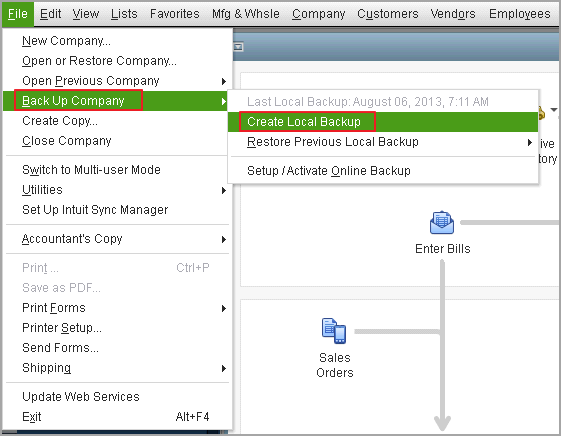
Step 1. To back up QuickBooks data to a flash drive, open the program and navigate to the "File" menu.
Step 2. To create a local backup of your company in QuickBooks, select the "Backup Company" option and choose to "Create Local Backup".
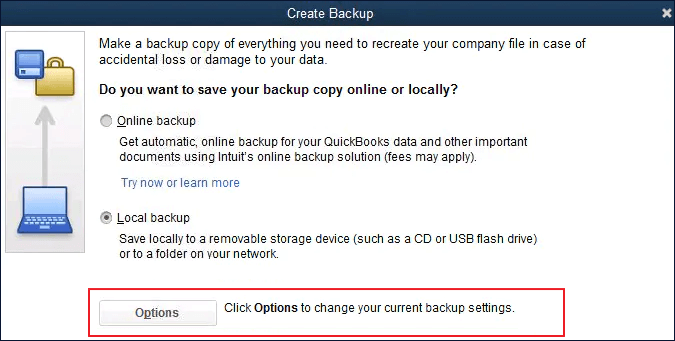
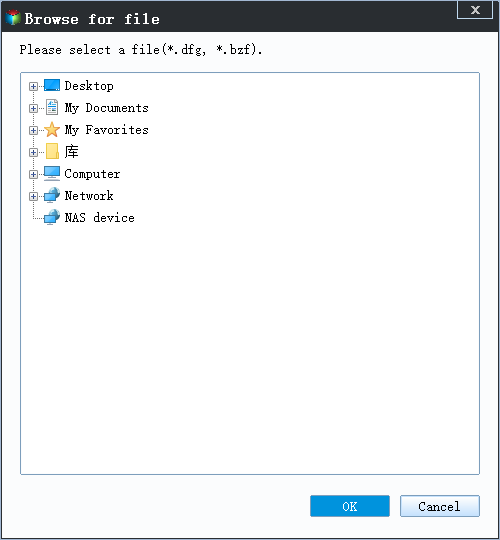
Step 3. To configure settings, select the "Options" and choose the location for the backup file, which should be the flash drive, and then click "Save".
Step 4. Wait for the backup process to complete.
Steps to Set Up QuickBooks Desktop Automatic Backup
QuickBooks backups can be created manually or automatically. To set up automatic backups, you can follow the steps to schedule them to run at a specific time or frequency, ensuring your company data is protected and easily recoverable in case of any issues.
Step 1. Go to the "Edit" menu and select "Preferences".
Step 2. To create a backup, click on the "Backup" icon and select the frequency of backups and the location where you want to save them.
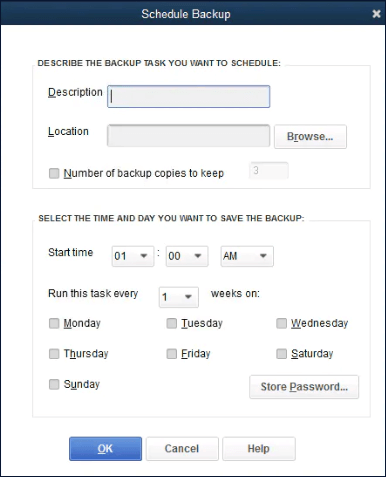
Step 3. QuickBooks will automatically create a new backup file at a specified interval, saving the user from manual intervention.
How to Back Up QuickBooks to Flash Drive with File Backup Software
To back up QuickBooks to a flash drive, you can use software like Qiling Backup Home, which supports full-file, disk, and system backup methods, allowing for a comprehensive and secure backup of your QuickBooks data.
To ensure your QuickBooks data is properly backed up, you'll need to use a file backup program and take a few extra steps. This will protect your financial information and prevent data loss in case of a system failure or other disaster.
- To ensure seamless integration with QuickBooks, choose a file backup software program that is specifically designed to be compatible with this accounting system. This will guarantee that your backups are easily accessible and can be restored quickly in case of data loss or corruption, minimizing downtime and financial losses.
- When creating a backup in QuickBooks, choose a location outside of the QuickBooks installation directory to ensure your data is safeguarded in case of any issues with the installation directory.
To backup QuickBooks files saved on your hard disk, follow these steps. Alternatively, you can configure an automatic backup using the Qiling file backup tool.
Step 1. To start backup, click the File backup button.

Step 2. On the tree view, users can see a list of local and network files, and select the files to be backed up by expanding the directory.

Step 3. Follow the instructions on the screen to select the location where you want to store the backup.

Step 4. In the Backup Options section, clicking on Options allows you to encrypt the backup with a password, providing a range of customizable features to tailor the backup operation to your specific needs.

To specify the backup schedule, go to Backup Scheme and choose a backup schedule from the drop-down menu. You can select a daily, weekly, or monthly schedule, depending on your needs.

Step 5. Backups can be stored on a local disk, in the cloud, or on a network attached storage device (NAS).

Step 6. Qiling Backup allows customers to back up data to a third-party cloud drive or the company's own cloud storage.
To back up your data to a third-party cloud drive, select Local Drive, scroll down to add Cloud Device, and enter your account information.
Step 7. To start a backup, click on "Proceed". Once the backup process is completed, it will appear as a card on the left-hand panel. To view more details about the backup job, click on it.

How to Restore QuickBooks Backup Files from a Flash Drive
You can restore your QuickBooks backup files with simple clicks whenever you need.
Step 1. Launch Qiling Backup, click "Browse to Recover".

Step 2. To recover your data, go to your backup destination, select the backup file you created with Qiling Backup, which should have a .fvd extension.
Step 3. You can choose to recover data to a specific location or back to its original location.
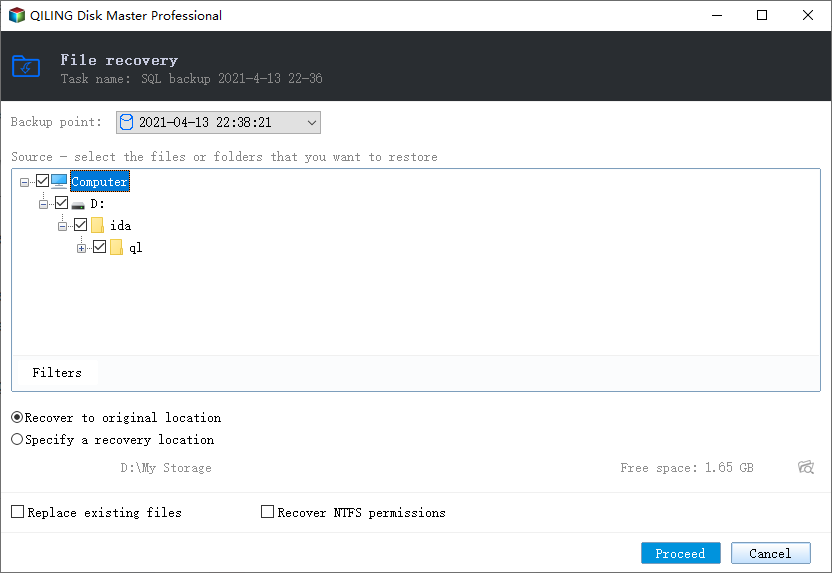
Step 4. Click "Proceed" and the recovery would start.
Conclusion
Backing up QuickBooks to a flash drive is a simple and effective way to safeguard your data against computer crashes or other unexpected disasters. To do this, connect the flash drive to your computer and follow the steps to export and back up your QuickBooks data.
You can back up QuickBooks using the embedded Backup Company utility or Qiling file backup program, which offers different modes. If you need a comprehensive Windows backup software, Qiling Backup is a great choice.
This software can help you back up all the data on your computer and clone hard drives whenever you want to migrate OS or upgrade to a larger disk.
Backup QuickBooks to Flash Drive FAQs
If you don't have any specific questions and answers, please let me know and I can still assist you with providing a general paragraph about QuickBooks backup.)
What is the best way to back up QuickBooks Desktop?
To back up QuickBooks Desktop, open QuickBooks and go to the File menu, then select Backup Company and follow the prompts to create a copy of your QuickBooks file on your computer. This will allow you to restore your data if needed.
How do I upload QuickBooks to a flash drive?
To upload QuickBooks to a flash drive, open QuickBooks, go to the File menu, select Export, and follow the prompts to create a .qbb file, then copy it to your flash drive.
How do I back up QuickBooks to an external hard drive?
To back up QuickBooks to an external hard drive, you can use Qiling file backup software, a simple and effective way to safeguard your financial data.
Step 1. Connect the external hard drive to your computer.
Step 2. Run Qiling data backup tool and choose your QuickBooks files to back up to an external hard drive.
Step 3. Wait for the backup process to finish.
How do I restore QuickBooks from a flash drive backup?
To restore QuickBooks from a flash drive backup, simply insert the flash drive into the computer, open QuickBooks, go to the "File" menu, select "Restore Previous Company," and then follow the on-screen instructions to complete the restore process. Alternatively, you can also go to the "File" menu, select "Open or Restore Company," and then select the "Restore a backup copy" option.
Step 1. Launch Qiling file backup tool and click Browse to Recover.
Step 2. Go to your flash drive and find the backup file you need to restore, which is a pbd file.
Step 3. Select a recovery location and click Proceed.
Related Articles
- Macrium Reflect Guide | How to Boot from Rescue Media (with Alternative)
- Does OneDrive Backup Automatically? Your Answer Is Here
- Where Are the Backup Files Stored? Where Can I Find the Windows 10 Backup Files
- How Windows 11 Prevent You from Malware Attack with New Security Features
- Solutions to Transfer Programs to New Computer - Check Full Guide 2022
Upgrading to a new system doesn't have to be a hassle when it comes to reinstalling programs. Simple PC to PC transfer software can automate the process, or you can do it manually by modifying registry files and transferring the programs along with them. - How to Transfer Spotify from Old PC to New PC [Full Guide]
If you want to transfer your Spotify account from an old computer to a new PC, Qiling Disk Master can assist you with this process. Alternatively, there are four different methods you can use to transfer Spotify to your new computer.
Products
Articles & Tutorials
- Data Recovery
- Data Backup
- File Recovery
- File Backup
- System Backup and Restore
- Disk and Partition Clone
- Technical articles
- Mobile articles
- Disk Master Help
- Windows Data Recovery Tutorials
- Windows Secure Delete Tutorials
- Windows Partition Management Tutorials
- Windows File Backup and Restore Tutorials
- Windows System Backup and Restore Tutorials
- Windows Disk Backup and Restore Tutorials
- Windows Clone Tutorials