Does OneDrive Backup Automatically? Your Answer Is Here
An Overview of OneDrive
Microsoft's OneDrive is a cloud storage service for Windows 10 that allows users to store, sync, and share data and files through the Internet, similar to iCloud, Google Drive, iDrive, and DropBox.
OneDrive allows easy access to backups from any device, with a folder protection feature that automatically backs up and syncs files and documents stored in designated folders to the cloud.
To find the blue cloud icon, look for it on your taskbar or search for it in the search bar on your computer.
OneDrive offers 5 GB of free storage space and up to 1 TB for premium users, making it an excellent choice for backing up important files across various devices.

Here are the other features of the system:
- Create and edit files on a tablet or smartphone
- Back up files to Cloud for easy access
- Share files and photos with friends
- Get real-time updates when changes are made to the files
- Share and sync files cross-platform
- Real-Time sync, which enables multiple users to work on the same project at the same time, is a feature that allows for real-time collaboration and reduces the need for manual syncing and version control. This enables teams to work more efficiently and effectively, as changes are reflected instantly, eliminating the need for constant updates and minimizing errors.
- Integrate with Microsoft 365, create and edit Microsoft 365 Word, Excel, and PowerPoint documents using the online version.
- 5GB of free cloud storage is offered, with paid options of 100 GB, 1TB, and 6 TB available.
[Answer] Does OneDrive Backup Automatically
OneDrive does not automatically backup all files on your computer. However, it does automatically sync files from the OneDrive folder on your computer to the cloud, so you can access them from anywhere. If you want to back up all files on your computer, you'll need to set up a separate backup plan, such as using the built-in Windows Backup and Restore feature or a third-party backup service.
OneDrive allows users to back up Windows 10 files to the cloud through the app, automatically syncing files from the Desktop, Documents, and Pictures folders to other devices logged in with the same Microsoft account.
- Notice
- While OneDrive's automatic backup feature is convenient, it still has limitations that can make it less than ideal for use.
- 1. If your file name includes special characters like # % &, they will prevent your file from syncing.
- 2. OneDrive doesn't support incremental backup, requiring a full backup of all files every time a backup task is run, which can be time-consuming.
- 3. OneDrive doesn't support backing up to an external hard drive or network drive, so you need to use other tools to back up your data to another location.
How to Set Automatic Backup to OneDrive
To set an automatic backup to OneDrive, start by downloading and installing the OneDrive desktop app on your computer. Once installed, sign in with your Microsoft account credentials.
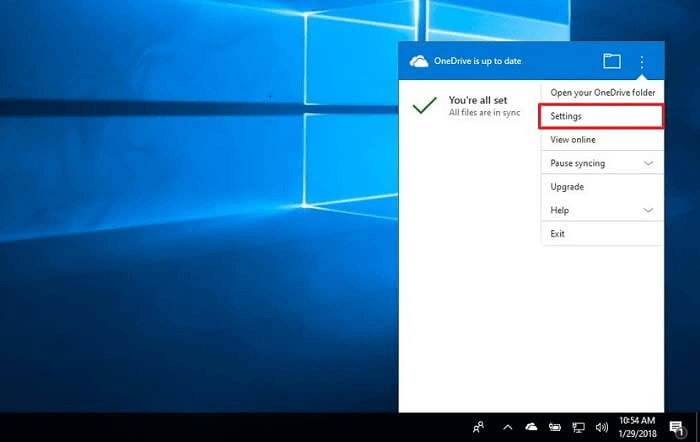
Step 1. To access OneDrive settings on your computer, open OneDrive and click the cloud icon in the taskbar. From the dropdown menu, select "More" and then click on "Settings".
Step 2. To enable auto-save in OneDrive, go to the Settings window, select the "Auto Save" tab, and check the options to automatically save photos and videos from connected devices and screenshots to OneDrive.
Step 3. Finally, click the OK button to save the settings.
Note: If local files exceed 20GB in size, they cannot be synced automatically.

How to Set Automatic Backup to OneDrive in Windows 11/10/8/7
To avoid the hassle of repeatedly setting backups, this page offers solutions to automatically back up to OneDrive in Windows 10/8.1/8/7/Vista/XP, as well as a more straightforward method using Qiling Backup.
OneDrive Backup Alternative - Customize Your Diverse Backup Needs
Automatic backup to OneDrive has some limitations that make the backup process less convenient. A better alternative to OneDrive is Qiling Backup Home, a professional backup software that can satisfy your various backup needs, including full, differential, and incremental backup.
The scheduled backup option allows for various backup frequencies, including hourly, daily, weekly, monthly, yearly, and upon specific events, catering to different backup requirements.
Qiling Backup allows saving backup files to internal and external hard drives, Cloud service, and network locations, unlike OneDrive.
Qiling Cloud provides 250 GB of free Cloud storage space, eliminating the need to worry about running out of storage space.
We use a table to compare Qiling Backup and OneDrive, providing a clear understanding of the benefits of choosing Qiling Backup. This comparison highlights the advantages of Qiling, making it the preferred choice for users.
| Comparison | OneDrive | Qiling Backup |
|---|---|---|
| Free Cloud Storage |
|
|
| Backup Source |
|
|
| Backup Destination |
|
|
| Backup Type |
|
|
| Schedule backup |
No |
Yes |
| Compress backup | No |
Yes |
Qiling Backup is a user-friendly tool that's suitable for both beginners and professionals, making it easy to operate. To use it, simply follow the specific guide on how to back up your files with Qiling Backup.
Step 1. To start backup, click the File backup button.

Step 2. On the left-hand side, you'll see a list of local and network files to back up, with the ability to select and expand directories to choose the files to be backed up.

Step 3. Follow the on-screen instructions to select the desired storage location for the backup.

Step 4. Confirm the settings and start the backup task.

In the Backup Scheme section, you can specify the frequency and timing of backups, as well as choose whether to start the backup at a specific event, such as a daily or weekly schedule. This allows you to customize the backup process to fit your needs and ensure that your data is protected at regular intervals.

Step 5. Backups can be stored locally on a disk, in Qiling's cloud service, or on a network attached storage device (NAS).

Step 6. Qiling Backup enables customers to securely back up data to either a third-party cloud drive or the company's own cloud storage.
To back up your data to a third-party cloud drive, select Local Drive, scroll down to add Cloud Device, and enter your account information.
Step 7. To start a backup, click Proceed. Once the backup is complete, it will appear as a card on the left-hand panel. To view more details about the backup job, click on it.

The Bottom Line
The article states that OneDrive can automatically back up your files, but only if you have enabled the "Save to OneDrive" feature. This feature allows OneDrive to automatically upload files from your computer or mobile device to the cloud, providing a backup of your data. However, if you have not enabled this feature, OneDrive will not automatically back up your files.
While OneDrive offers convenience for backing up and syncing data, its automatic backup function has limitations, such as a 20GB single file size limit, no scheduled or incremental backup, and no support for backing up to external drives or NAS. For a more comprehensive backup solution, consider using Qiling Backup instead.
FAQ on OneDrive Backup Automatically
1. Can I stop OnrDrive from automatically backup?
To uncheck the option "Automatically save photos and videos to OneDrive whenever I connect a camera, phone, or other device to my PC", follow the steps mentioned in the article.
2. How do I know my files are backed up to OneDrive?
To view the files that have been backed up to OneDrive by default, look for the "cloud" icon, where you'll find all the backed up files. Additionally, go to Settings > Settings tab > Backup > More backup settings to check the OneDrive backup status.
3. Is OneDrive a backup or sync?
OneDrive is designed to do both sync and backup, automatically saving a file copy on your local device and in the cloud, allowing for a live backup that can be accessed from anywhere, with the option to set it up to only back up specific folders.
4. How long is OneDrive backed up?
Microsoft states that deleted files will remain in the OneDrive Recycle Bin for 30 days before being permanently deleted.
Related Articles
- Fixed | Windows 10 Backup Is Disabled? 3 Tricks for Activating Backup
- How to Back Up Programs Before Reinstalling Windows 10/11 [3 Quick Ways]
- How to Disable Windows Defender on Windows 11
- How to Back Up Outlook Emails from Browser(OWA): Full Guide
- Error Code 4101: Failed to Create File
Solution for Error Code 4101 while making a full/incremental/differential backup to a physic disk or NAS/Share (network drive). - Failed to install Qiling Disk Master
Solutions for installing failure of Qiling Disk Master
Products
Articles & Tutorials
- Data Recovery
- Data Backup
- File Recovery
- File Backup
- System Backup and Restore
- Disk and Partition Clone
- Technical articles
- Mobile articles
- Disk Master Help
- Windows Data Recovery Tutorials
- Windows Secure Delete Tutorials
- Windows Partition Management Tutorials
- Windows File Backup and Restore Tutorials
- Windows System Backup and Restore Tutorials
- Windows Disk Backup and Restore Tutorials
- Windows Clone Tutorials