How to Connect PS4 Controller to PC? Follow A Full Guide
If you're having trouble connecting your PS4 controller to your PC, try restarting your PC and controller, and then pair them again using the Bluetooth settings. If that doesn't work, ensure that your controller is fully charged or has batteries installed, and that your PC's Bluetooth is enabled. You can also try using a USB cable to connect the controller to your PC, or using a third-party adapter to connect the controller to your PC via Bluetooth.
The DualShock 4, a great controller, was made specifically for the Sony PlayStation 4 and can be challenging to connect to your PC for gaming. It is designed to work with the PS4 and may require additional software or adapters to function properly on a PC.
In this guide, we'll show you how to get your controller working on your PC without any issues, despite the limitations of the controller. We'll walk you through the process of using your controller on your PC, despite the potential problems that may arise.
To complete the connection, you'll need Bluetooth capabilities on your PC or a Bluetooth adapter.
Don't let the complexity of the process intimidate you - our step-by-step guide will simplify it and make it more manageable.
To start gaming with your PS4 controller on your PC, you can follow these steps: download and install the necessary software, plug in your controller, and configure the settings. Once you've completed these steps, you can start playing your favorite games with your PS4 controller.
How to Connect PS4 Controller to PC
To connect a PS4 controller to your PC, you can follow these steps. First, make sure your controller is paired with your PS4, then download and install the necessary drivers from the official Sony website or the Microsoft Store. Next, connect your controller to your PC using a USB cable or via Bluetooth. Once connected, you can customize the controller's settings to your liking, such as changing the button layout or adjusting the controller's sensitivity.
Step 1:
Turn on the PS4 controller.
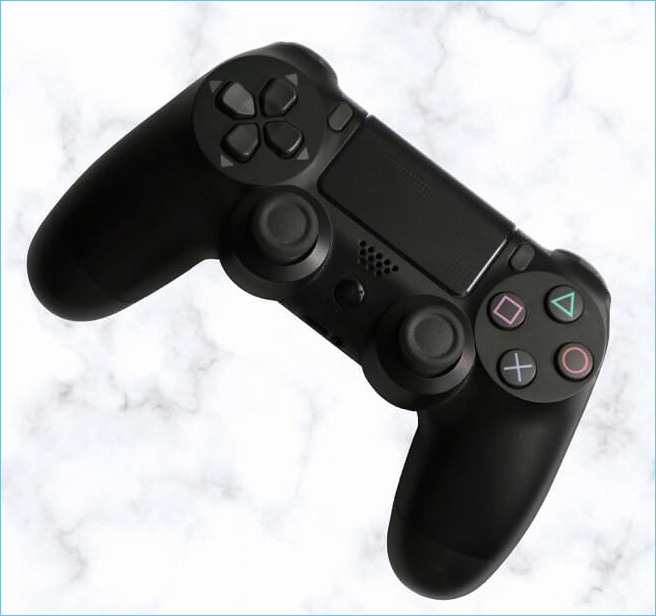
To connect your PS4 controller to your PC, make sure the controller is turned on first. Press and hold the PlayStation button, located in the center of the controller and featuring the "PS" logo, until it turns on.
Step 2:
Put the PS4 controller into pairing mode.
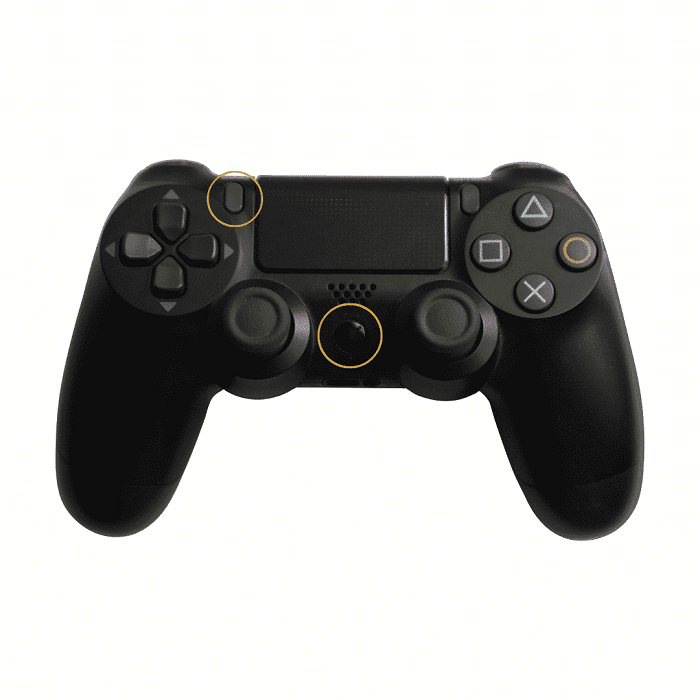
To put the controller into pairing mode, press and hold the PlayStation button and the Share button simultaneously until the light on the back of the controller starts flashing rapidly. This indicates that the controller is ready to be paired with your computer.
Step 3
Enable Bluetooth on your computer.
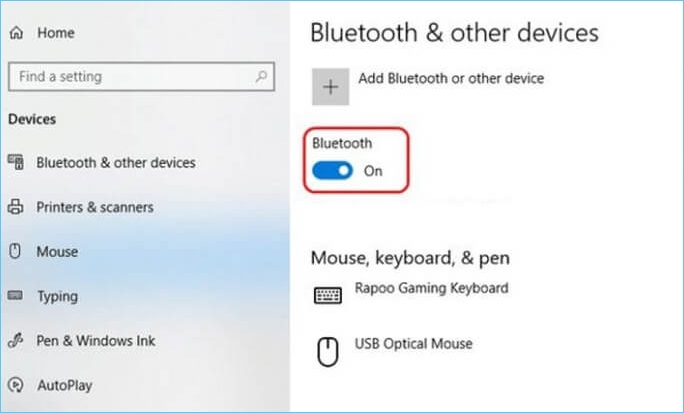
To connect your PS4 controller to your PC via Bluetooth, start by enabling Bluetooth on your computer. This can be done by going to your computer's settings, usually found in the Start menu on Windows or System Preferences on Mac, and selecting the Bluetooth option. Once Bluetooth is enabled, put your PS4 controller in pairing mode by pressing and holding the PS button and the Share button simultaneously until the light bar on the controller starts flashing.
On a Windows PC: To enable Bluetooth, click the Start menu, then the "Settings" icon, followed by "Devices," and finally "Bluetooth & Other Devices" in the left menu, ensuring the toggle switch next to "Bluetooth" is set to "On."
On a Mac PC: To enable Bluetooth, go to the Apple menu, click on "System Preferences," then click on "Bluetooth," and make sure the toggle switch next to "Bluetooth" is turned to the "On" position.
Step 4
Add the PS4 controller as a Bluetooth device on your computer.
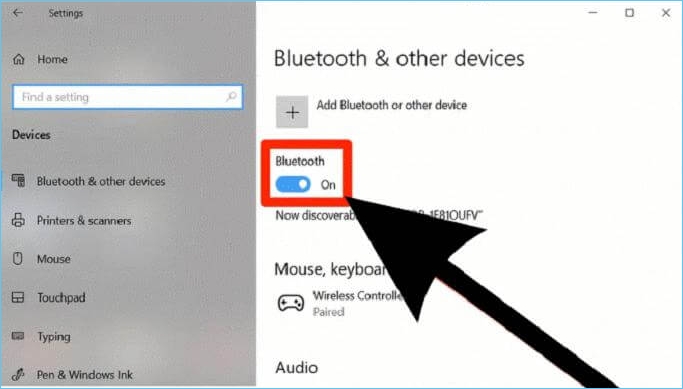
To add the PS4 controller to your computer, enable Bluetooth on your computer and follow the steps to add the PS4 controller as a Bluetooth device. This will allow you to connect the controller to your computer and use it with your favorite games.
On a Windows 10 PC, to add a Bluetooth device, go to the Bluetooth & Other Devices menu, click "Add Bluetooth or Other Device," and select "Bluetooth" from the list. Your computer will then start scanning for nearby Bluetooth devices.
On a Mac, click the "Set Up Bluetooth Device" button in the Bluetooth menu, and your Mac will begin scanning for nearby Bluetooth devices.
Step 5
Complete the pairing process.
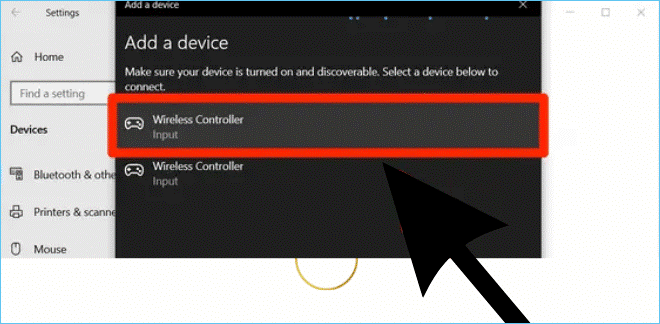
Once your computer has found the PS4 controller, select it from the list of available devices and follow the prompts to complete the pairing process, which may involve entering a PIN code or pressing a button on the controller.
Step 6
Configure the controller's settings.
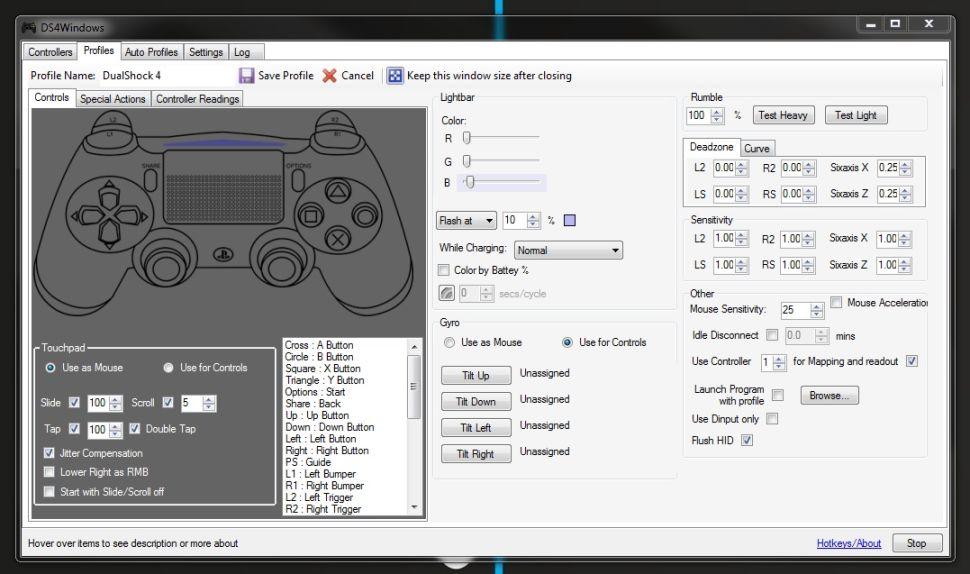
Once connected to your PC, you may need to tweak the controller's settings to ensure it functions properly. This might involve adjusting the sensitivity or remapping the controller's buttons to specific actions within your games.
To customize your DualShock 4 controller settings on your PC, you can use a program called DS4Windows, which allows you to personalize the controller's settings and adjust its functionality with your computer. Simply download, install, and set up DS4Windows, then follow the prompts to configure your controller.
Bonus tip
Install necessary drivers: To use your PS4 controller with your PC, you may need to install additional drivers to enable the connection between the controller and the computer.
Conclusion
Pairing a PS4 controller with a PC and setting it up to use can be as simple as pairing both up and using DS4Windows to set it up, making the process straightforward and hassle-free.
With the new control at your fingertips, you can explore a whole new world of gaming options. Take some time to experiment with the controller's settings and find the configuration that works best for you.
Whether you prefer a traditional setup or want to customize your controller to your unique style, the possibilities are endless. You can try out your controller with your favorite games and programs, and the sky's the limit.
Related Articles
- Microsoft Word Files with An ASD Extension Cannot Be Opened from This Location [Fixed]
- How to Find Recently Deleted Folder/Photos on Mac
- [Linux Format Disk Guide] How to Format Disk in Linux
- How to Open Google Drive on My Computer [Updated 2023]
- Upgrade from Monterey to Ventura | Detailed Information
Do you want to Upgrade from Monterey to Ventura? For that, you need to know more details about the upgrade. Besides, there are different ways to upgrade to Ventura. You can visit the App Store or choose the Software Update option. - How to Fix User Profile Cannot Be Loaded in Windows?
When starting up your Windows computer, you may encounter the 'User profile cannot be loaded' error message. Fortunately, there are proven solutions to fix the problem, which we will outline in this article.
Products
Articles & Tutorials
- Data Recovery
- Data Backup
- File Recovery
- File Backup
- System Backup and Restore
- Disk and Partition Clone
- Technical articles
- Mobile articles
- Disk Master Help
- Windows Data Recovery Tutorials
- Windows Secure Delete Tutorials
- Windows Partition Management Tutorials
- Windows File Backup and Restore Tutorials
- Windows System Backup and Restore Tutorials
- Windows Disk Backup and Restore Tutorials
- Windows Clone Tutorials