How to Open Google Drive on My Computer [Updated 2023]
Google Drive is a cloud storage platform that allows users to open and save various file types, including PDFs, Google Docs, and photos, in a free data space. The platform's most significant advantage is its accessibility across different devices, including Android, iOS, Mac, and Windows, making it a versatile tool for users who need to access their files from anywhere. By signing in through a Gmail account, users can access their Google Drive server, providing a convenient and compatible storage solution.
You can edit your saved data on Google Drive using various options like Google Spreadsheet and Google Docs, and even download it as an app on your Android phone. This article will provide a complete guide on how to open Google Drive on your computer.
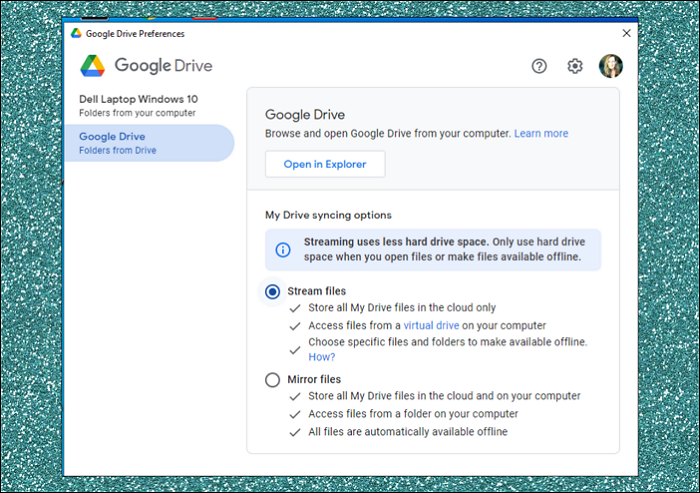
If you're experiencing issues with Google Drive, read on to find solutions to get it working again.

Google Drive not working can be frustrating, but there are some common solutions to try. First, check your internet connection, as a stable internet connection is required for Google Drive to function. If that's not the issue, try restarting your browser or device, as this can resolve any temporary glitches.
Here are some simple solutions to the problem of Google Drive not working:
How to Install and Set Up Google Drive
To open Google Drive, click on the Google Drive icon in your computer's dock or applications folder, or type "drive.google.com" into your web browser's address bar. If you have a Google account, you can also access Drive through the Google Drive app on your mobile device.
Step 1. Install Google Drive.
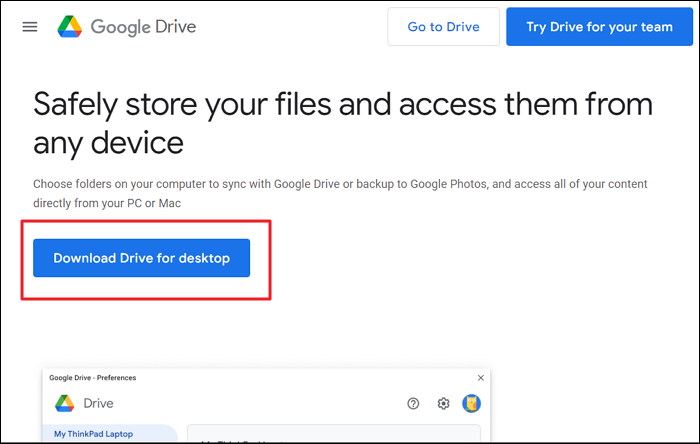
To download Google Drive, go to the official website, click on "Download Drive for Desktop", and select the appropriate program for your operating system (Windows or Mac), which will be named "GoogleDriveSetup.exe" or "GoogleDrive.dmg". Once downloaded, run the Installer to start the installation process, and you may also choose to add a desktop shortcut to Google Drive.
Step 2. Sign through a Web Browser.
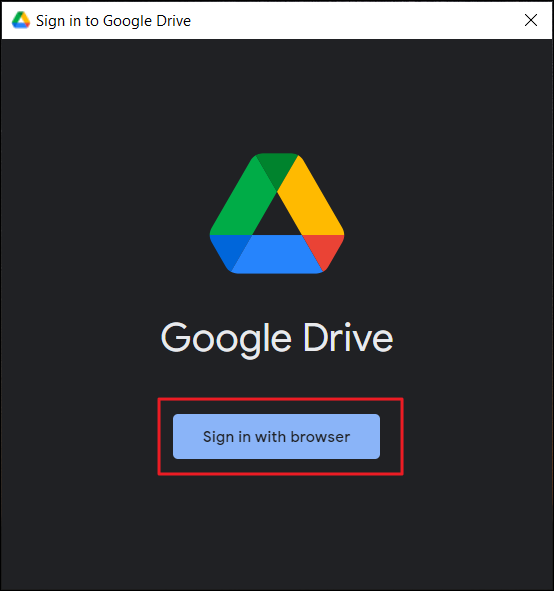
After following the on-screen instructions, tap "Close" to exit the current window. Now Google Drive will appear on your desktop. Open it, and you can see a window saying, "Sign in to Google Drive". Here, tap on "Sign in with browser".
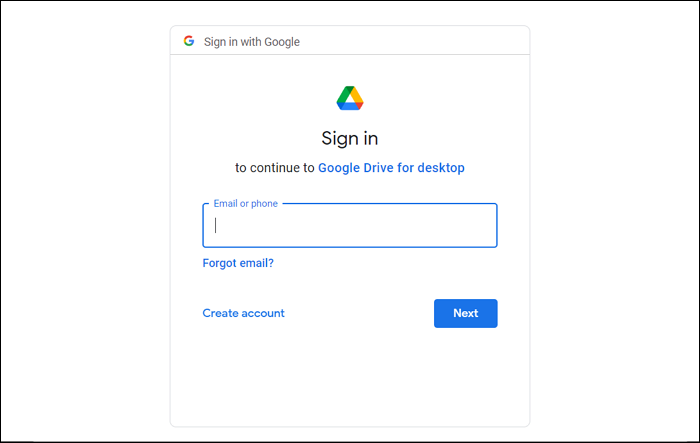
Step 3. Provide Gmail Address.
Now enter your Gmail address on the given box. Click "Next" and then enter the required password. Tap "Next" and then select the "Sign in" button.
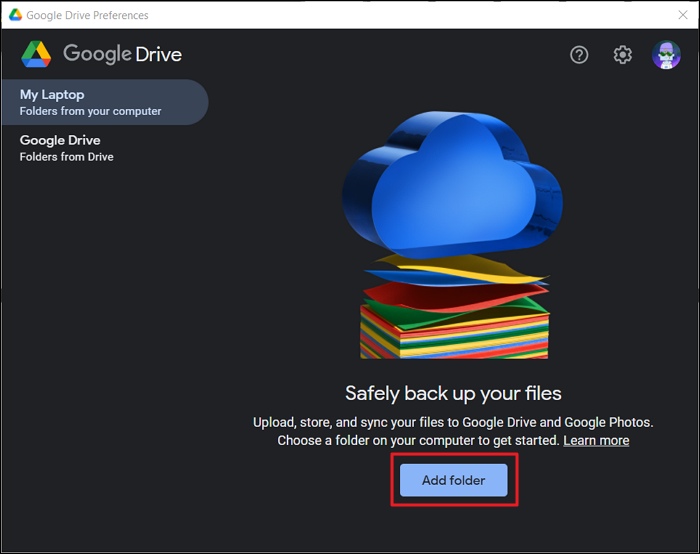
Step 4. Add Folder in Google Drive.
To add folders to your Google Drive, go to your System Tray, click on the Google Drive icon, select "Preferences" from the gear icon menu, and then tap "Add Folder" to add any folder from your PC.
Here are some key features and uses of Google Drive:
How to Open Google Drive FAQs
Google Drive allows you to open and view multiple file types in a secure environment, and easily share saved files through Google Drive to other platforms. This is in addition to knowing how to open Google Drive.
1. Is Google Drive free to use?
Google Drive offers 15GB of free storage space, but additional space requires a paid subscription.
2. Why can't I open a Google Drive?
If you're having trouble opening Google Drive, it might be due to using the wrong Gmail account, not being permitted to view files by the owner, or having your permissions removed by someone else.
3. Where are Google files stored?
Google Drive allows you to easily save various file formats. When you upload a file or folder, it is saved in Google Drive's secure data centers.
4. How to access Google Drive?
To access Google Drive, navigate to drive.google.com and sign in with your Gmail account.
Wrap Up
Google Drive is a cloud storage platform that allows users to save and access multiple files in a secured ecosystem, accessible from various platforms. It enables efficient editing, opening, and sharing of files, as well as creating folders to organize different files in a structured manner. This article provides an overview of Google Drive and its key benefits.
Related Articles
- [Three Solutions] How to Backup Xbox 360 Hard Drive
- 5 Simple Ways to Zoom Out on Mac
- 5 Best SSD For Long Term Storage Recommendations in 2022
- Access Denied When Copying Files Windows 10/8/7
- How to Upgrade Switch SD Card and Transfer Switch Games to A New SD Card
This page provides you with a straightforward guide for you to upgrade the Switch SD card and transfer all Switch games to a new SD card. Follow to see how to efficiently upgrade your Nintendo Switch SD card without losing any game files now. - What is USB 4: All You Need to Know [ 2023 Complete Understanding]
This article introduces you to the functions and features of USB 4 and USB-C, providing an overview of what USB 4 is and its differences from other types of USB. Keep reading to learn more about USB 4!
Products
Articles & Tutorials
- Data Recovery
- Data Backup
- File Recovery
- File Backup
- System Backup and Restore
- Disk and Partition Clone
- Technical articles
- Mobile articles
- Disk Master Help
- Windows Data Recovery Tutorials
- Windows Secure Delete Tutorials
- Windows Partition Management Tutorials
- Windows File Backup and Restore Tutorials
- Windows System Backup and Restore Tutorials
- Windows Disk Backup and Restore Tutorials
- Windows Clone Tutorials