5 Best Backup and Restore Software for Windows 10 [Updated 2024]
If your computer crashes during work, the result can be more than an interruption. You may lose project files, personal documents, system settings, or business data that took hours or days to create.
That is why reliable backup and restore software matters.
A good Windows backup tool keeps a recoverable copy of your files or entire system, so you can restore data after hardware failure, accidental deletion, malware, or system corruption. Because every storage drive has a limited lifespan, regular backups are one of the simplest ways to reduce data-loss risk.
This guide reviews five backup and restore software options for Windows 10 and explains what to consider before choosing one.
An Overview of Backup and Restore in Windows
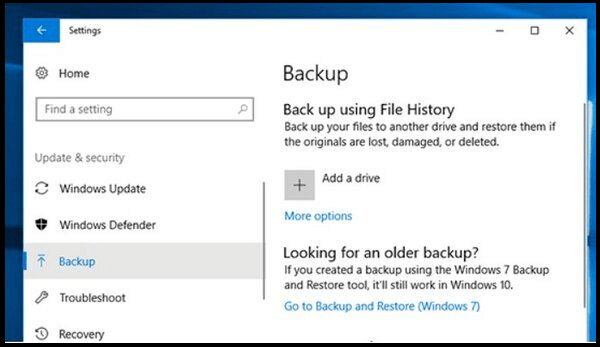
Windows includes built-in backup tools such as Backup and Restore (Windows 7) and File History. These utilities can help users protect files, create system images, and recover data from selected backup locations.
Backup and restore is the process of creating copies of your PC data and storing them in a safe location, then using those copies to recover files or systems after a crash, deletion, or data-loss event.
Windows operating systems have a built-in backup and restore utility that allows users to create data backups and restore points automatically, and also helps create a system image that can be used to restore Windows in case of system failure or a crash.
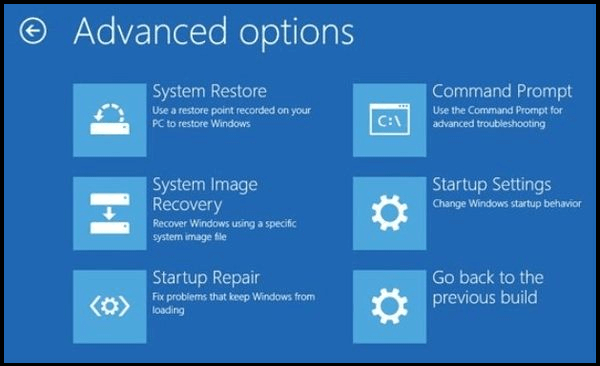
The Backup and Restore feature was first introduced in Windows Vista and has been available in subsequent Windows versions, including Windows 10. It can be accessed through the Control Panel or by searching for it.
However, Windows native backup tools have limitations. They are useful for basic file backup and system image creation, but they may not offer flexible scheduling, advanced compression, encryption, cloud backup, or easy recovery management.
Backup and Restore usually saves backups to a local, external, or network drive. If that backup drive is damaged or lost, your data may still be at risk.
You may want dedicated backup and restore software for Windows if you need more complete protection, easier automation, cloud options, or faster recovery.
Common Windows 10 backup methods include Backup and Restore, File History, system image backup, external hard drives, network storage, and cloud services such as OneDrive. The right method depends on whether you need to protect personal files, the operating system, or the entire computer.

To back up Windows 10 to a USB drive on your own, start by inserting the drive into your computer and formatting it to the NTFS file system. Next, open the Control Panel, click on System and Security, then Backup and Restore (Windows 10).
Here are three ways to back up Windows 10 to USB:
What Can Backup and Restore Software for Windows Do?
Backing up data is crucial as it ensures that you can recover your files and folders if your computer crashes, is stolen, or damaged, or if you accidentally delete important files.
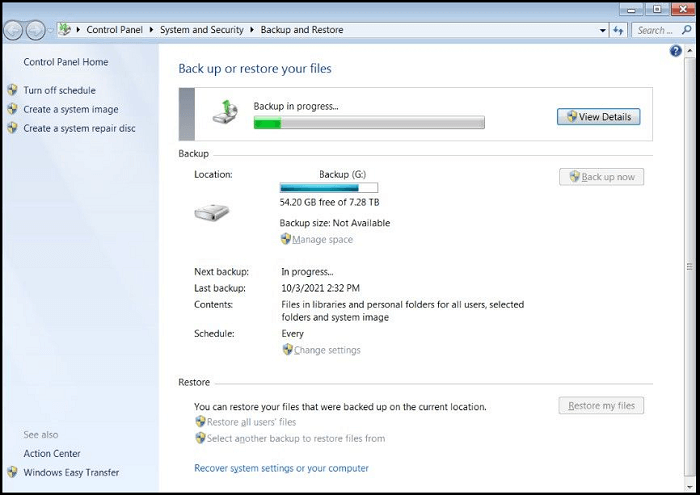
Windows Backup and Restore is a useful utility, but it has its limitations.
Backup and restore software for Windows can create recoverable copies of important files, folders, partitions, or the full system. It helps users recover from hardware failure, software crashes, malware, accidental deletion, and other issues that can make data unavailable.
- File and folder backups, as well as entire computer data backups, create exact duplicates of computer files or folders that can be used for restoration in case of hardware malfunction, accidental deletion, file corruption, and other issues.
- Back up selected files, folders, partitions, or the entire computer to a supported storage location.
- Access backup files outside your main computer when backups are stored on an external drive, NAS, or cloud service.
- Create system image backups that can be used for operating system recovery in case of malware infection, hard drive failure, or data corruption.
- Protect backup data with secure storage options and encryption to reduce the risk of unauthorized access.
- Compress data to reduce storage space and enable versioning control to maintain multiple versions of the same data file.
Backup software can be used for both personal/local computers and enterprise-level servers, computers, and networking devices.
- Notice:
- Backup and restore software is different from cloud storage services like OneDrive, Google Drive, and iCloud, which only sync files between devices and may delete files if deleted on one device, whereas backup software can create system image backups and restore an entire Windows operating system plus files.
5 Best Backup and Restore Software for Windows 10
Choosing the right backup and restore software for Windows 10 can be overwhelming due to the numerous options available.
The best backup and restore software for Windows 10 depends on your needs. Compare features, performance, support, device compatibility, ease of use, and price. Also consider what you need to restore: only files, a full Windows image, or both.
Windows backup software can be categorized into two main types: file-based and imaging.
- To create a complete hard drive backup and restore the applications and operating system, you'll need a system image backup and restore software. This will allow you to back up your entire system, including the operating system, applications, and settings, and then restore it in case of a system failure or other issues.
- If you only need to backup files and documents on your PC, a file-based backup software might be a suitable choice.
To ensure you're getting the right backup and restore software, you must check and confirm that it supports both full and incremental backups. While most software supports both types, it's essential to verify this to avoid any potential issues.
Here are five popular backup and restore software options for Windows 10:
- Qiling Disk Master: Best overall for Windows users and beginners.
- Acronis Cyber Protect Home Office is best suited for full system image backup and cyber security, particularly suitable for Mac users.
- Backblaze: Best for file/document backup and Cloud.
- Paragon Backup & Recovery is the best free backup software with encryption on Windows, offering reliable data protection and recovery solutions.
- NovaBackup: Best for Windows files backup and corporations.
Let's discuss them in detail below:
1. Qiling Disk Master

Qiling Disk Master is an easy-to-use backup and restore software option for Windows users, especially beginners who need clear backup management.
Qiling Disk Master offers file backup, disk backup, system backup, scheduled backup, and cloud storage options, making it suitable for home users and many business backup scenarios.
Price
- Basic account: Free with limited features.
- The advanced plan costs $59 for a lifetime/perpetual license, or $29.95-$39.95 for a 2-year subscription, with a 30-day free trial available.
Main Function
Qiling Disk Master provides both file/folder backup on local drives and drive/partition imaging, making it a top choice for backup and restore software, and also allows backup of Outlook Emails.

Deployment
- Windows
- Mac
Main Features
- Local and Cloud backup and backup logs
- Incremental, Differential, and continuous backup
- Backup Scheduling (automatic 'smart' backup)
- Encryption and Secure Data Storage
- Outlook email backup
Support
- Knowledge Base forum
- Email/Help Desk
- Chat
- Free users get email support and access to the Qiling knowledge base forum.
Qiling Disk Master is a budget-friendly backup and restore software for Windows 10 that offers standard features such as encryption, email backup, and smart backup, allowing users to start with a free option and upgrade to paid plans.
To backup Windows 10 using this software, follow these steps: First, download and install the software, then click on the "Backup" tab and select the type of backup you want to create, such as a full backup or a differential backup. Next, choose the location where you want to save the backup, and select the files and folders you want to include in the backup.
Step 1. On the main page, click "backup and recovery" tab page.
Step 2. Among the four available categories, click System backup.

Step 3. Qiling Disk Master will automatically select your system partition, requiring only the selection of the backup destination.

Step 4. Both local drive and NAS are available for saving backup files.

Step 5. After completing the backup process, you can view the backup status, restore, open, or remove the backup by selecting the backup task from the list.

2. Acronis Cyber Protect Home Office
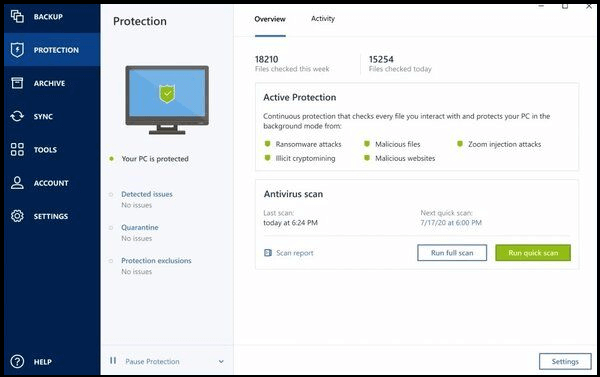
Description: Active Real-Time Protection from Cyberattacks.
Acronis Cyber Protect Home Office is ideal for full system image backup and cybersecurity, particularly suitable for Mac.
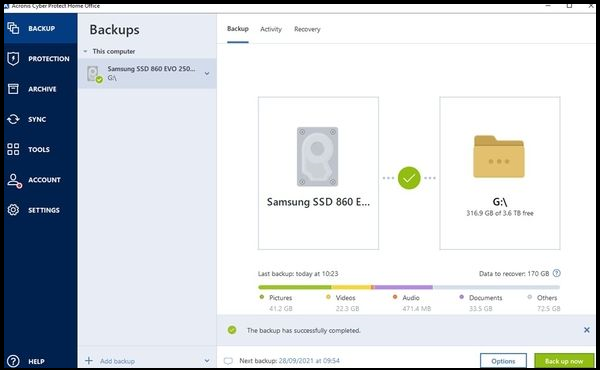
Acronis Cyber Protect Home Office started as a disk imaging solution and evolved into an all-in-one backup software that offers full system imaging with advanced cybersecurity protection. It's a top-rated and comprehensive backup and restore software that provides robust data safety solutions.
Price
- The Basic plan costs $59.99 for a lifetime license, with no cloud storage, and comes with a 30-day free trial.
- The service offers advanced features for $49.99, which includes 250 GB of cloud storage that can be upgraded to 500 GB for an additional $10, with a 30-day free trial available.
- A premium subscription for $99.99 per year offers 1 TB of cloud storage, which can be upgraded to 5 TB for an additional cost, and includes a 30-day free trial.
Main Function
Acronis Cyber Protect Home Office provides full-disk image backups with integrated cybersecurity protection features.
Deployment
- Windows
- Mac
- Android mobile devices
Main Features
- Full system (Windows and Mac) image backup. Disc cloning.
- Enables local and Cloud backup (Acronis Cloud).
- Backs up mobile devices (iPhone and Android).
- Migration of iOS to or from Android.
- Microsoft 365 backup for supported cloud data, including selected OneDrive and Outlook content.
- AI-based cybersecurity helps block real-time threats such as ransomware, malware, and cryptojackers.
Cons
- Has heavy installation data footprint
- Offers all-or-nothing installation without the capability to choose modules
- Slow restore time
Support
- Phone: 24/7 technical phone support for registered users.
- The trial period gets support from Acronis Forum.
- Email support.
Verdict: Acronis Cyber Protect Home Office is a comprehensive backup and restore software with advanced cybersecurity protection for Windows and Mac, offering high-end features that justify its high price.
3. Backblaze
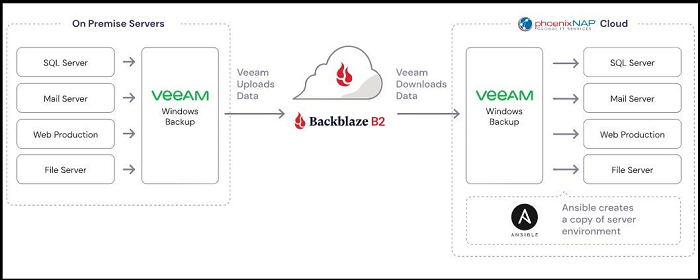
Backblaze is the best for file/document backup and cloud backup and storage.
Backblaze is a cost-effective cloud backup service for Windows and Mac. It focuses on backing up and restoring files and documents rather than creating full Windows system images.
Price
Backblaze offers a free trial so users can test the cloud backup service before choosing a paid plan.
- 1 month subscriptions or Individual and business: $7/month per computer.
- 1 year license: $70/year per computer.
Basic Function
Backblaze is a cloud storage service that provides provisions for file/document backup and advanced cyber security.

Deployment
- Cloud
Main Features
- Backup & Archive. Store files and documents securely in the Cloud, safeguarding data on servers, VMs, computers, and NAS.
- With Manage Media, you can efficiently store and manage large media files and libraries without disrupting your regular workflows. This feature allows you to handle multimedia content in a way that integrates seamlessly with your daily operations, ensuring that your productivity and efficiency remain unaffected.
- Develop applications that work seamlessly with native APIs, CLI, and GUI, as well as S3-compatible storage, to efficiently manage and move data with minimal coding requirements.
- Unlimited computer backup to an unlimited number of files and unlimited file sizes.
- The platform offers seamless integration with hundreds of apps, including Cloudflare, Vmware, AWS, Facebook, and fastly, among others.
- Easy and simple to use, with simple signup.
Cons
- The backup system does not store operating systems, applications, or other temporary data created by active apps, ensuring that only essential data is preserved.
Support
- Email support.
- Online access to solution centers is available, featuring a Knowledge Base, Product Documentation, and Support Forums, with an archive for reference.
Verdict: Backblaze is the best and most cost-effective cloud backup solution, offering unlimited cloud storage for unlimited file sizes without consuming your hardware.
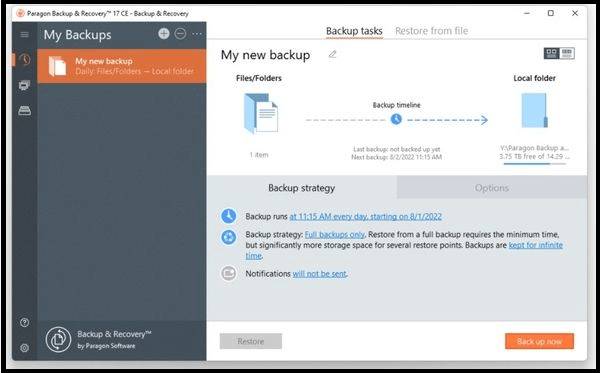
4. Paragon Backup & Recovery
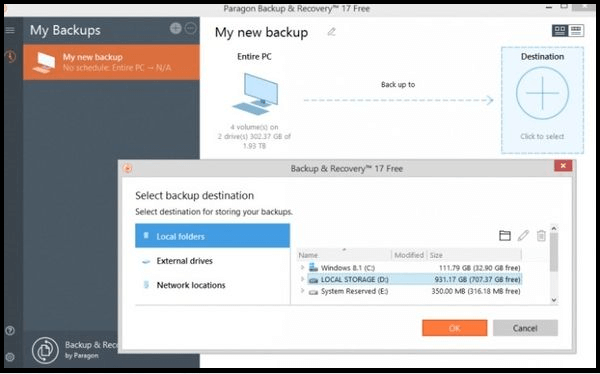
The Paragon Backup & Recovery is a highly-rated, free backup and restore software that offers encryption and advanced features, having been downloaded over 6 million times.
Price
- Community edition: Free for non-commercial use only.
- The commercial edition of the software costs between $99 and $899 per year, with a 30-day free trial available.
Basic Function
Paragon Backup & Recovery is a tool for Windows PCs that allows users to back up files, folders, and hard drives, with features like version control and advanced Windows recovery environments, including ISO images and Windows PE. It also enables the creation of bootable USB and ISO.
Deployment
- Windows
Main features
- Backup files, documents, and system data to prevent loss in case of a disaster. Additionally, copy important files, disks, and the operating system to ensure business continuity and minimize downtime.
- Backup schedule. Set the rules for backups kick-off.
- Implement a disk space management system that automatically deletes old backup images based on a specified value. This system can be achieved by creating a script or program that periodically checks the age of backup images and removes them if they exceed a certain age threshold. For example, if the threshold is set to 30 days, the system will delete any backup images that are older than 30 days.
- Version control.
- Partition disks/volumes, manage your backups, and recover what you need.
- Notice:
- The premium version, called Hard Disk Manager, is suitable for businesses as it supports backup scripts, VM operations, includes support, and data wiping features.
Cons
- Does Not support Mac.
- The software does not support older Windows operating systems, specifically Windows 7 and earlier versions.
Support
- If you need support, you can submit a service request through your MyParagon account, and your issue will be resolved within 3 business days.
- Paragon forum. Submit a question in the forum and wait for an answer.
- Knowledge base.
Verdict: With Paragon Backup & Recovery, you can back up and recover your data, files, partitions, discs, or entire system, meeting the needs of most users with its free version.
5. NovaBackup
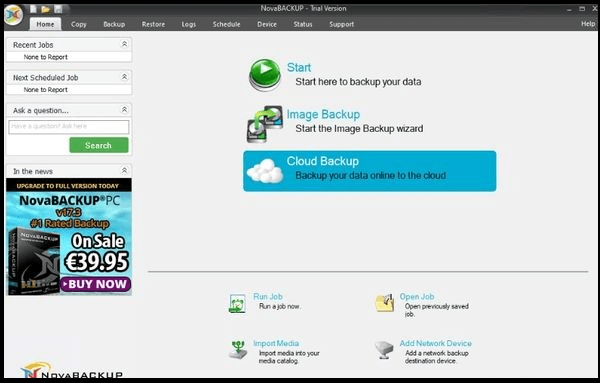
NovaBackup is the top choice for backing up and restoring files, folders, and entire systems on Windows PCs and corporate environments.
NovaBackup is a backup and restore software that serves individual PC users, business owners, and IT service providers. It's particularly suitable for small and medium-sized organizations that need both local and cloud data backups, offering advanced features such as NAS, AWS, Azure, and other cloud storage solutions.
Price
- Windows PC: $49.95 per year with 5 GB of free cloud storage, and a free 30-day trial is available.
- 3 Windows PCs can be protected with a yearly subscription of $79.95, which also includes 5 GB of free cloud storage, with a free 30-day trial available.
- Get 5 Windows PCs for $99.95 per year, including 5 GB of free cloud storage, with a 30-day free trial.
Cloud storage plans/prices
- 1 device with 2TB of online storage: $2,449.95/year.
- 5 devices with 500GB of online storage: $699.95/year.
- 1 device with 100GB online storage: $169.95/year
Main Features
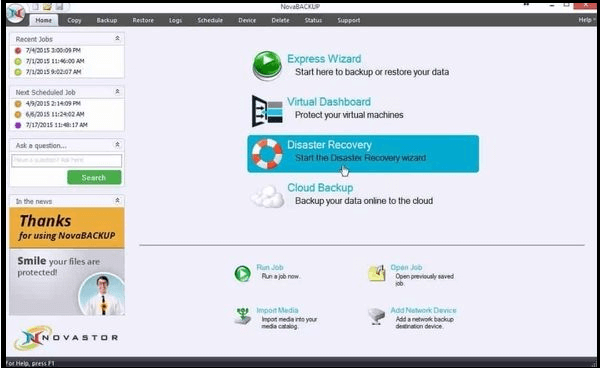
- Local and Cloud backups with unlimited file version retention
- Automatic backups
- AES encryption with private keys
- Quick local backup performance
- Disk-imaging capabilities
Cons
- No app support for macOS and Android
- Extremely expensive on online storage
- Slow upload performance
- Cluttered, confusing interface
Support
- The support options available include setup assistance, general support requests, and managed service support to help users with their needs.
- Here are the online support options: manuals and guides, a Knowledgebase, and Product FAQs, all available to help with any questions or issues.
- 24/7 phone support.
- Online chat.
- Email.
Verdict: NovaBACKUP offers advanced features that make it a great option for corporations, despite being more expensive than its peers. The software is easy to use and provides fast backup and restore capabilities.
Final Thought
Choosing backup and restore software for Windows can be difficult because many tools appear similar at first glance.
For many Windows 10 users, Qiling Disk Master is a strong choice because it combines file backup, system backup, disk imaging, scheduling, encryption, and cloud storage in one interface.
Its balance of features, price, performance, and ease of use makes it suitable for personal users and many professional backup needs.
FAQs About Backup and Restore Software for Windows 10
The best backup software for Windows 10 is a matter of personal preference, with popular options including Windows Backup and Restore, and Qiling Disk Master. Full backups include a complete copy of all data on a drive, while differential backups save only changes made since the last full backup.
1. Does Windows 10 have backup software?
The Windows 10 backup software is called Backup and Restore, with an alternative version called File History. These tools enable users to recover previous file versions in case of corruption or deletion, providing a safeguard against data loss.
2. What is the best way to backup Windows 10?
To backup Windows 10, first determine whether you need to backup just your files or both files and the operating system. You can start by using Windows 10's built-in Backup and Restore utility and File History to backup your files. If you also need to backup your operating system, you can then use a quality Backup and Restore Software for Windows to complete the backup process.
3. How do I backup my entire computer?
To backup an entire PC, you can use Backup and Restore Software for Windows, which supports backup for the Windows operating system. There are two types of backup software for Windows: file-based and imaging. For a complete PC backup, it's recommended to use imaging software, which can backup your entire system, including the operating system, programs, and settings.
Related Articles
- How to Backup USB to OneDrive [Bidirectional Way]
- Windows Backup vs. Professional Backup Software (Which Should I Use?)
- 5 Best USB Backup Software Free Download [2024 Roundup Reviews]
- Download Qiling Disk Master Free 13.0 (Official)
- How to Create Disk Image Windows 10 for Free on Laptops & PCs
- Backup Entire PC to External Hard Drive on Windows [Best Solutions]
- How to Move Games to Another Drive Xbox [Beginner's Guide]
To move your games to another drive on Xbox, you can use the built-in “Move” feature, which allows you to copy your games to an external hard drive or another storage device.
Products
Articles & Tutorials
- Data Recovery
- Data Backup
- File Recovery
- File Backup
- System Backup and Restore
- Disk and Partition Clone
- Technical articles
- Mobile articles
- Disk Master Help
- Windows Data Recovery Tutorials
- Windows Secure Delete Tutorials
- Windows Partition Management Tutorials
- Windows File Backup and Restore Tutorials
- Windows System Backup and Restore Tutorials
- Windows Disk Backup and Restore Tutorials
- Windows Clone Tutorials