How to Create Disk Image Windows 10 for Free on Laptops & PCs
Creating a disk image can help protect your laptop or desktop from drive failure, system corruption, and data loss. If you want to create a disk image on Windows 10, this guide gives you two practical methods.
| Methods | 👍Pros | 👎Cons |
|---|---|---|
| 1️⃣Using Disk Imaging Software |
|
|
| 2️⃣Using Backup & Restore |
|
|
Create Windows 10 Disk Image via Disk Imaging Software
Professional HDD/SSD imaging software is often the easiest way to create a hard disk image because it offers more backup options and fewer limitations than basic tools. Qiling Disk Master is a useful option for this task.
Qiling Disk Master Free is a Windows backup and recovery program that can create image backups of files, systems, applications, disks, and partitions for future recovery.
Qiling Disk Master
- Make auto, scheduled full, incremental, differential backups
- Create a system image Windows 10 on external hard drive
- To create an ISO image file from your hard drive or Windows, you can use the built-in tool in Windows called "File Explorer" or a third-party software like PowerISO or PowerArchiver. Here's a brief guide:
- Install Windows 11 on a new computer without OS installed
- Offer a Security Zone and 250G cloud storage for free
Qiling Disk MasterWinToFlash is a multi-functional backup software that offers a range of handy features to suit your needs. With it, you can create a disk image, clone a hard drive, or image a hard drive, among other tasks. Downloading it on your computer will give you access to its convenience and high efficiency.
Here is how to create a disk image on Windows 11/10/8/7 via Qiling Disk Master.
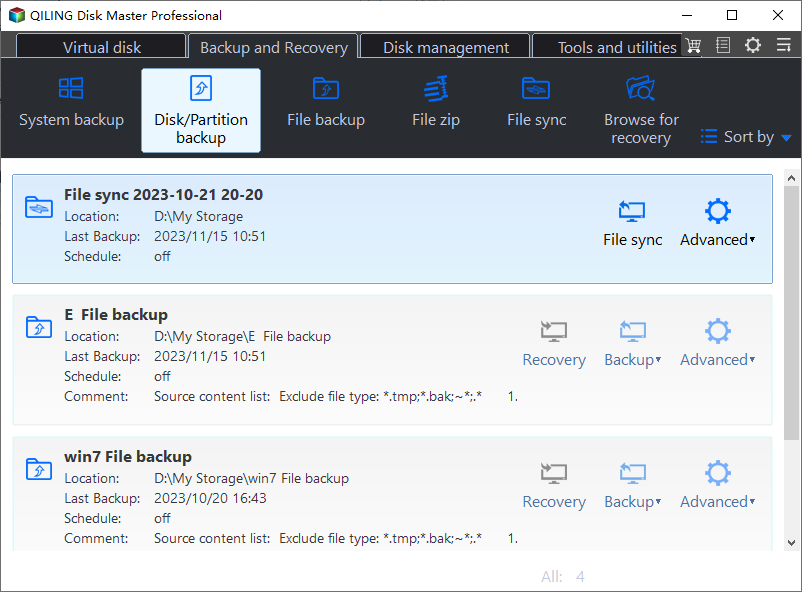
Step 1. Start with selecting the backup contents.

Step 2. There are four backup categories, File, Disk, OS, and Mail, click Disk.
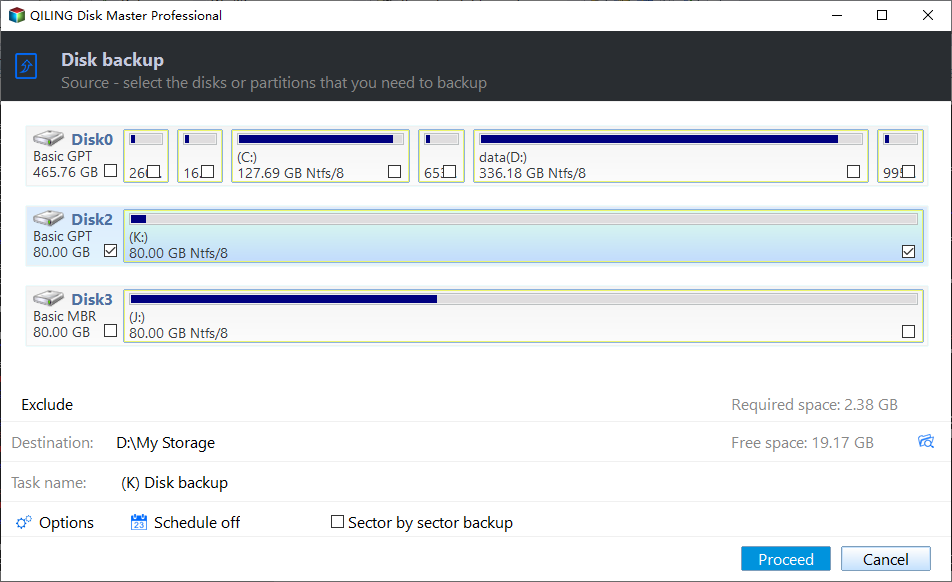
Step 3. It is available to back up a whole disk or a certain partition. Choose the one you need and click OK.
Step 4. Select the destination where you want to save the backup.
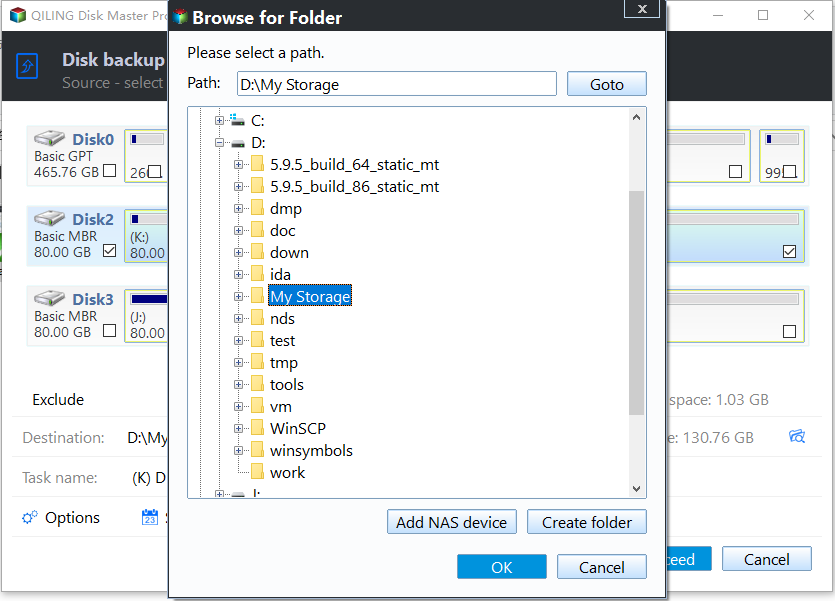
Step 5. For disk/partition backup, you can choose to save the backup to a local drive or a Network-Attached Storage (NAS) device.

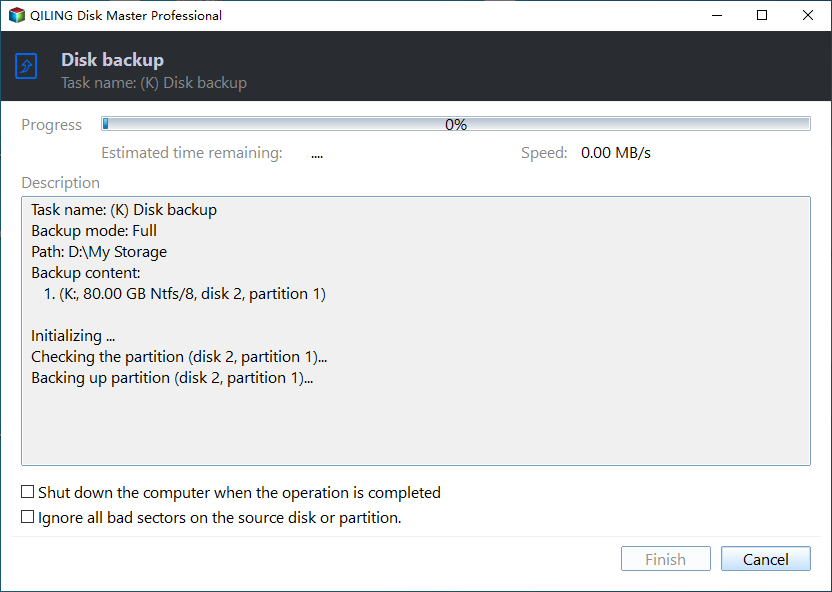
Step 6. After the backup process is completed, your task will be displayed at the left. You can right-click any task to further manage your backup, such as recovering it, creating an incremental backup, and more.
Share this blog on your social media to help more people.
Create a Disk Image on Windows 10/11 via Backup & Restore
Windows Backup and Restore, a native Windows app, allows users to create a disk image on their Windows computers, excluding the use of free disk imaging software like Qiling Disk Master. This practical tool is still available in Windows 10 and 11, enabling users to create a system image on a USB flash drive.
Follow the steps below to use Backup and Restore to make a disk image.
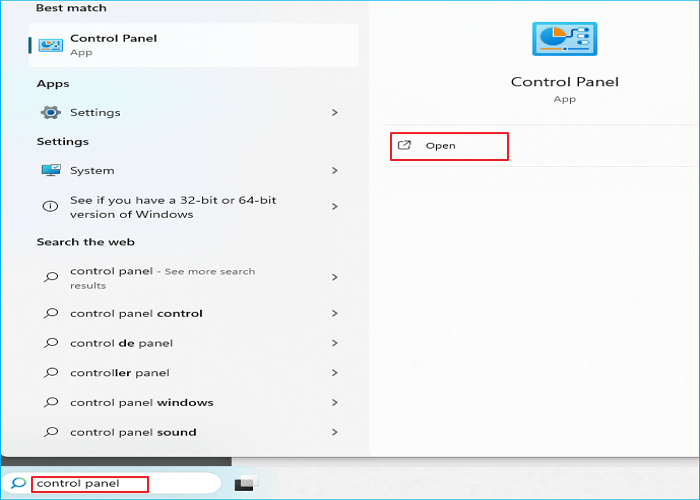
Step 1. To open the Control Panel in Windows, you can simply type "Control Panel" in the search bar and click on the result to open it. Alternatively, you can also type "Control Panel" in the Start menu.
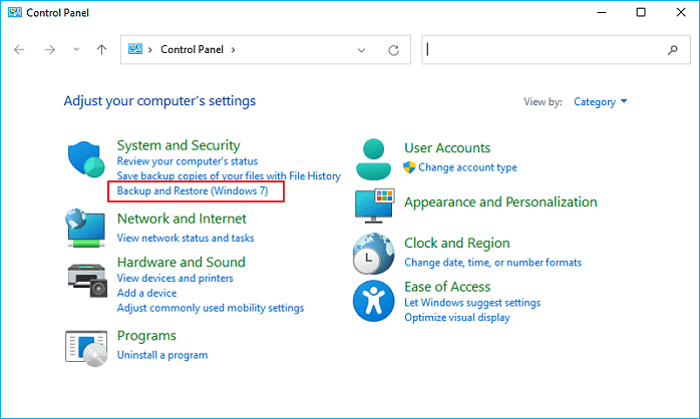
Step 2. Tap Backup and Restore (Windows 7).
Step 3. Click Create a system image.

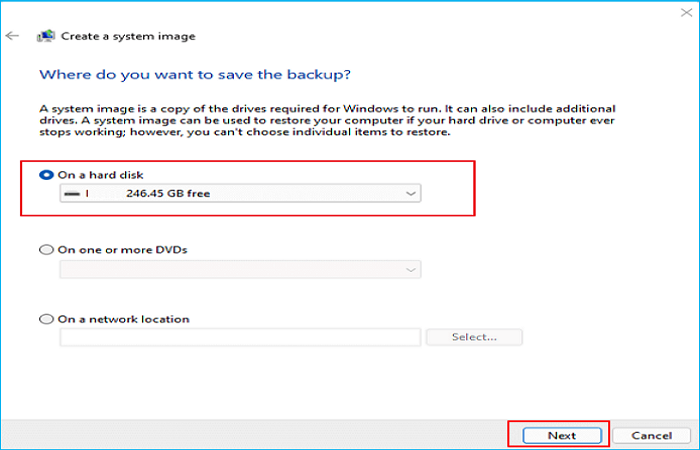
Step 4.Select a storage location for the disk image, such as an external drive, to save the disk image file.
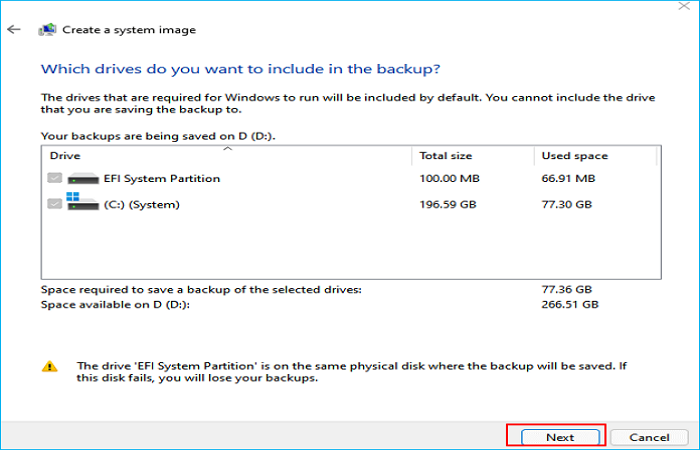
Step 5. Select the drives you want to back up, then click Next. To create an image of all hard disks, select all drives in the box.
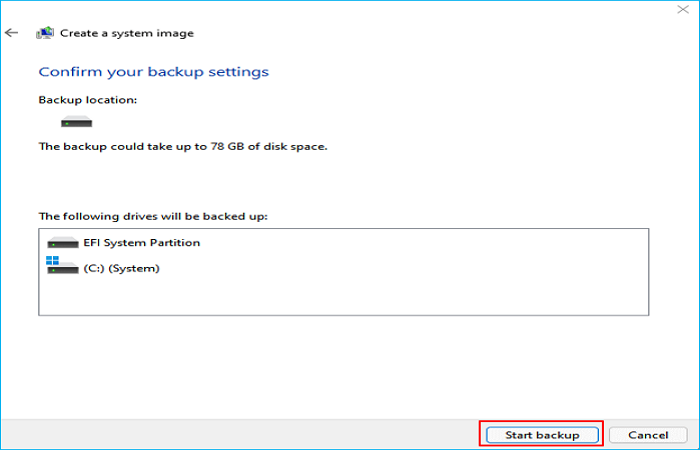
Step 6.Confirm the backup settings and click Start backup to create disk images if everything is okay.
What Is a Disk Image & Why Do You Need It
A disk image is a complete copy of a hard drive or partition, including files, file system, boot sector, and more. Creating a disk image allows for a full backup of an operating system, such as Windows 10 or 11, by saving it as an image file that can be stored in various locations.
You may need to create a disk image on your Windows computer for various reasons, with one common purpose being backup.
- Backup and recovery. The original data on the hard disk is preserved when creating a disk image, ensuring its integrity. This allows for the extraction of specific data from the image when needed, rather than having to restore the entire disk.
- System deployment. Disk images are used to back up operating systems and enable system image recovery, allowing the image to be deployed to many network-connected computers.
- Create virtual machines. A virtual hard drive (VHD) can load disk images, functioning exactly like an actual disk, making it useful for testing or executing software that isn't compatible with your host operating system, similar to VMware or VirtualBox.
To Wrap Things Up
How to create disk image Windows 10 Creating a disk image is a useful method for disk backup and recovery, and it can be done on Windows computers with free tools. Qiling Disk Master is a simple option for creating a disk image backup and protecting important data.
Qiling Disk MasterShortly,
FAQs on How to Create Disk Image Windows 10
1. Does Windows 10 have imaging software?
Windows 10 has a built-in imaging tool called Backup and Restore (Windows 7) which allows you to create a system or disk image and backup files and folders, and also restore your system or files when needed.
2. What is the difference between disk image and disk clone?
A disk clone is a duplicate of a hard drive's contents or a few chosen partitions, which is uncompressed and can be transferred directly to a new drive, overwriting everything on the target disk.
3. How do I create a Windows image backup?
To create an image backup for your Windows computer, you can use Backup and Restore (Windows 7) or professional imaging software like Qiling Disk Master, which can help you create a system image and store the image file on an external disk.
When the replacement disk is larger than the original, see How to Restore a Disk Image to a Larger Drive for restoration planning and using the extra space afterward.
For a Windows-native route alongside third-party imaging, see how to create a disk image in Windows 10.
Related Articles
- How to Install Windows 11 on New PC Without Operating System | 2 Ways
- Best Way to Backup PC to Synology NAS (2024)
- How to Backup Windows 11 to Synology NAS (3 Working Ways)👍
- How to Clone Windows 10 to SSD without Reinstallation and Keep All Files
- Ransomware-proof Backup Solutions in 2022
Learn how ransomware affects files and how separate backups can help with recovery. - 5 Reasons to Download Qiling Disk Master Free
Review Qiling Disk Master backup features to see whether they fit your Windows backup needs.
Products
Articles & Tutorials
- Data Recovery
- Data Backup
- File Recovery
- File Backup
- System Backup and Restore
- Disk and Partition Clone
- Technical articles
- Mobile articles
- Disk Master Help
- Windows Data Recovery Tutorials
- Windows Secure Delete Tutorials
- Windows Partition Management Tutorials
- Windows File Backup and Restore Tutorials
- Windows System Backup and Restore Tutorials
- Windows Disk Backup and Restore Tutorials
- Windows Clone Tutorials