How to Recover Lost Adobe Product Key in 3 Ways
Every software application installed on a system comes with a product key, which can be obtained from the internet or from another source. The product key verifies that the software is legitimate and was installed from a trusted source. Additionally, keys are required for future updates, version upgrades, and access to premium services plans that are exclusive to Adobe's registered versions.
When you can't remember your product key, it can be stressful, especially when you need to input it to download updates or upgrade to the latest version. This issue can arise even if you've made a backup of the product key, but have lost track of it. In such situations, recalling the product key becomes a priority.
To get the product key, check the Adobe help menu, contact software support, or use a third-party utility.
If you are experiencing issues with Adobe on your laptop, such as being prompted for a product key when updating to the latest version, you may be unsure where the product key is stored or how to retrieve it. This is a common issue, and there are ways to find or recover the Adobe product key.
This article will guide you on how to find and retrieve a lost product key from the registry, and also suggest a third-party utility to help recover it easily. We will explore the method to retrieve the product key and provide you with a solution to recover it, making it possible to regain access to your product key by the end of this article.
Main Content:
To recover a lost Adobe product key, you can use Qiling Key Finder, a tool designed specifically for this purpose. With Qiling Key Finder, you can easily retrieve your Adobe product key, eliminating the need to reinstall the software or contact Adobe customer support.
Find Adobe License Key in Registry
Retrieve Adobe License Key via ProduKey
How to Recover Lost Adobe Product Key by Qiling Key Finder
If you've lost your Adobe product key, you can try using Qiling Key Finder to recover it. This tool is designed to help you regain access to your product key.
The characteristics of Qiling Key Finder are as follows:
- This tool enables you to easily export and save serial numbers for Adobe, Windows, and Office software, making it convenient to store and manage your product keys.
- With just one click, you can quickly scan and copy a phone number to a secure location, saving you time and hassle.
- View Browser accounts and passwords: Chrome, Firefox, IE, Edge.
- Find WiFi code.
Qiling Key Finder has a user-friendly interface, making it a good choice for finding lost keys. You can also get a trial version from the company's official website.
Step 1. Click "Application" tab under "Registry Key".
Step 2. Qiling Key Finder shows all registry keys of installed software on the right panel, allowing users to copy targeted serial numbers, print, or save them.
Learn More Features of Qiling Key Finder:
Find Adobe License Key in Registry
To find the Adobe license key in the Windows registry, you can manually access the registry and follow these steps: the system registry stores the licensing key, which can be accessed by entering the Windows registry.
Step 1. To open the Run dialog box, go to the Start menu and type "run" to bring it up.
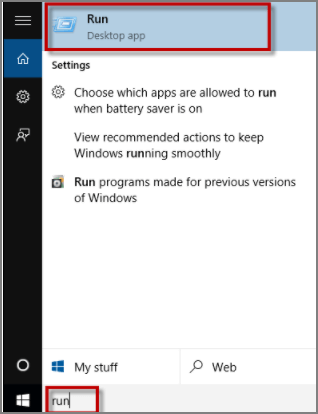
Step 2. Type Regedit and click OK
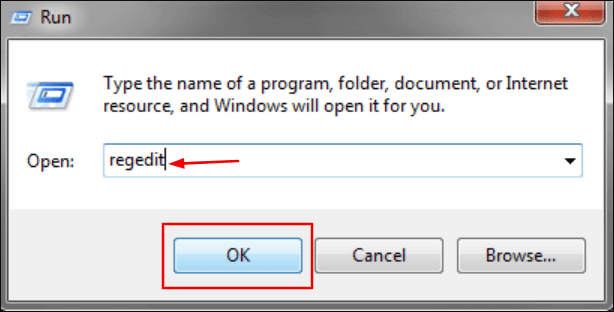
Step 3. To find the Adobe software registration key, open the registry editor and navigate to HKEY_LOCAL_MACHINE > Software. Click on Adobe to view a list of installed Adobe software and their versions. Then, click on Registration and select the serial number to view the license registration key.
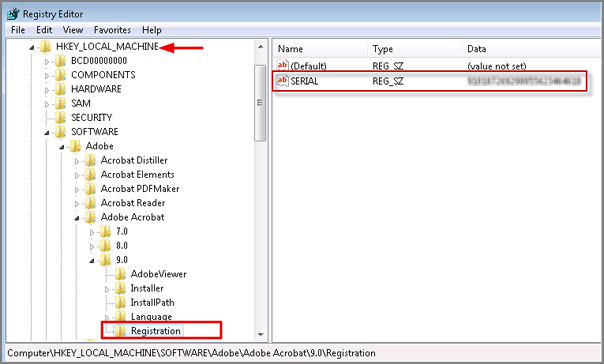
To upgrade to the new version, enter the provided key when prompted, which will grant access to the latest features.
Retrieve Adobe License Key via ProduKey
The ProduKey utility displays the product ID, helping to locate a missing product key. It can view Microsoft Office 2003 and 2007 product license keys, as well as those for Windows 8, Windows 7, Vista, and SQL Server installed on a PC.
To retrieve your Adobe license key, install the ProduKey software on your PC and run it to view your product key. This software has a comprehensive list of product keys, including Windows keys, Microsoft Office keys, and Adobe product keys, among others. Simply running the software will display your Adobe license key, making it easily accessible.
Step 1. Select and open the ProduKey in your system.
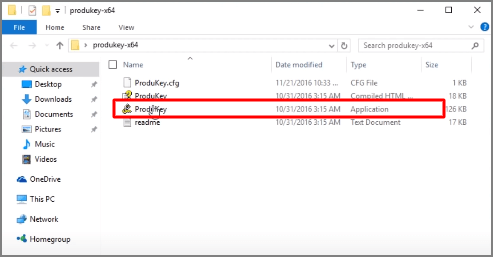
Step 2. To select a program and hide its product key, click on the "Option" button and choose the program from the list. Then, clicking the "Check" button will conceal the product key associated with the selected item.
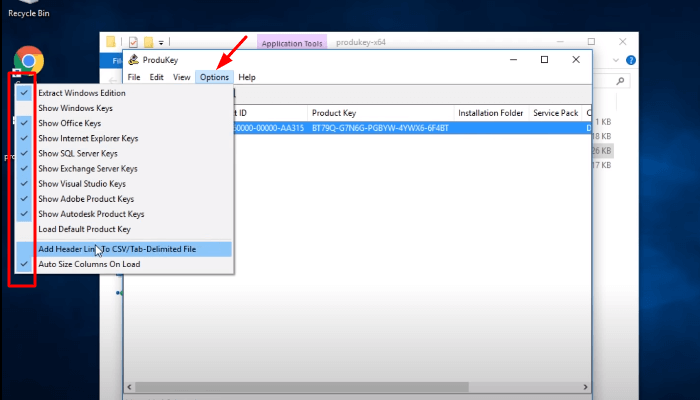
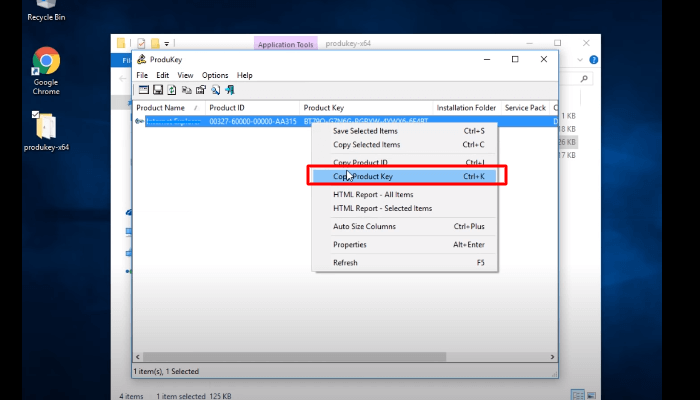
Step 3. To copy the product key, right-click on the item and select "Copy product key," then note it down anywhere.
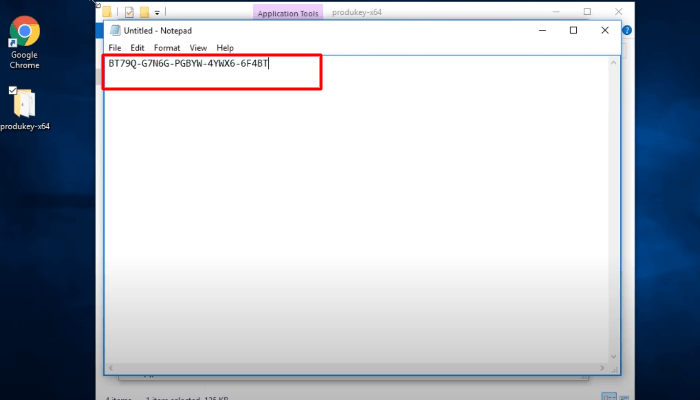
Step 4. Here we will paste the product key on the notepad and save it.
Conclusion
We have shown how to recover lost product keys, which allows the application to be reactivated, ensures the software is legal and up-to-date, and can be easily retrieved using the methods listed above.
We propose using Qiling Key Finder, a third-party utility, to recover a lost product key. It can store and export serial numbers, and can be downloaded and used for free before purchasing. Download and try it out.
Related Articles
- How to See Saved Passwords in Opera GX
- How to Find Windows 8 Product Key | Quick Methods to Get Windows 8 Product Key
- Show Windows Credentials Password
- 3 Quick Solutions to Find Product Key of Zoom Meeting App
- How to Change Time and Date on Windows 10/11
Learn how to change time and date on Windows 10 or 11. Adjust time zone, sync internet time, and fix incorrect system clock. - How to Change Network Names on Windows
To change the name of your network on Windows 10, you can follow the steps outlined in this post, which offers two methods to update your network name. By reading the full post, you'll be able to determine which method is most suitable for your needs.
Products
Articles & Tutorials
- Data Recovery
- Data Backup
- File Recovery
- File Backup
- System Backup and Restore
- Disk and Partition Clone
- Technical articles
- Mobile articles
- Disk Master Help
- Windows Data Recovery Tutorials
- Windows Secure Delete Tutorials
- Windows Partition Management Tutorials
- Windows File Backup and Restore Tutorials
- Windows System Backup and Restore Tutorials
- Windows Disk Backup and Restore Tutorials
- Windows Clone Tutorials